HP Printer Driver Install: 7 Easy Steps to Set Up HP Printers
Complete walkthrough for installing HP printer drivers on Windows 10/11 and macOS. Step-by-step instructions for DeskJet, Envy, LaserJet, and OfficeJet models.
Table of Contents
Solve Any Printer Issue Fast
If you're facing broader printer issues, follow our complete printer troubleshooting guide for step-by-step fixes across all printer problems.
Start Here: Install Your HP Printer Driver Now
Find Your Model
Look on printer front/back (e.g., HP Envy 6055, LaserJet M209)
Choose Your OS
Windows 10/11 • macOS • iOS/Android
Pick Installation Method
HP Smart (easiest) • Manual download • Windows Update
Follow Steps Below
Complete installation in 5-10 minutes
For a simpler setup, use the HP wireless setup wizard method or install automatically using the HP Smart setup guide.
Diagnose Your Printer Issue
Select your problem below to get a step-by-step solution instantly:
If you're having driver issues, visit our fixing driver issues guide for comprehensive troubleshooting. For complete issue diagnosis, follow our printer troubleshooting guide to resolve all printer problems step-by-step.
How to Find the Correct Driver & Avoid Common Mistakes
Real-world experience from thousands of printer setups.
Find Your Model Number
Look at the front or back panel of your printer (e.g., "HP Envy 6455e"). Enter this exact model on HP support for precise driver matches.
Most Common Mistake
Downloading 32-bit drivers on 64-bit Windows. Always check System Type before installing. Use HP Smart to avoid this error.
Driver vs HP Smart App
HP Smart = easier, auto-updates, scanning. Full driver = advanced print settings. For most home users, HP Smart is better. See our HP Smart setup guide.
Pro Tip: Clean Install
If you've had driver issues before, uninstall old software first using HP Print and Scan Doctor for a clean slate. Follow our clean uninstall guide for step-by-step instructions.
To avoid errors, always download the correct software from our HP Smart installation guide before installing.
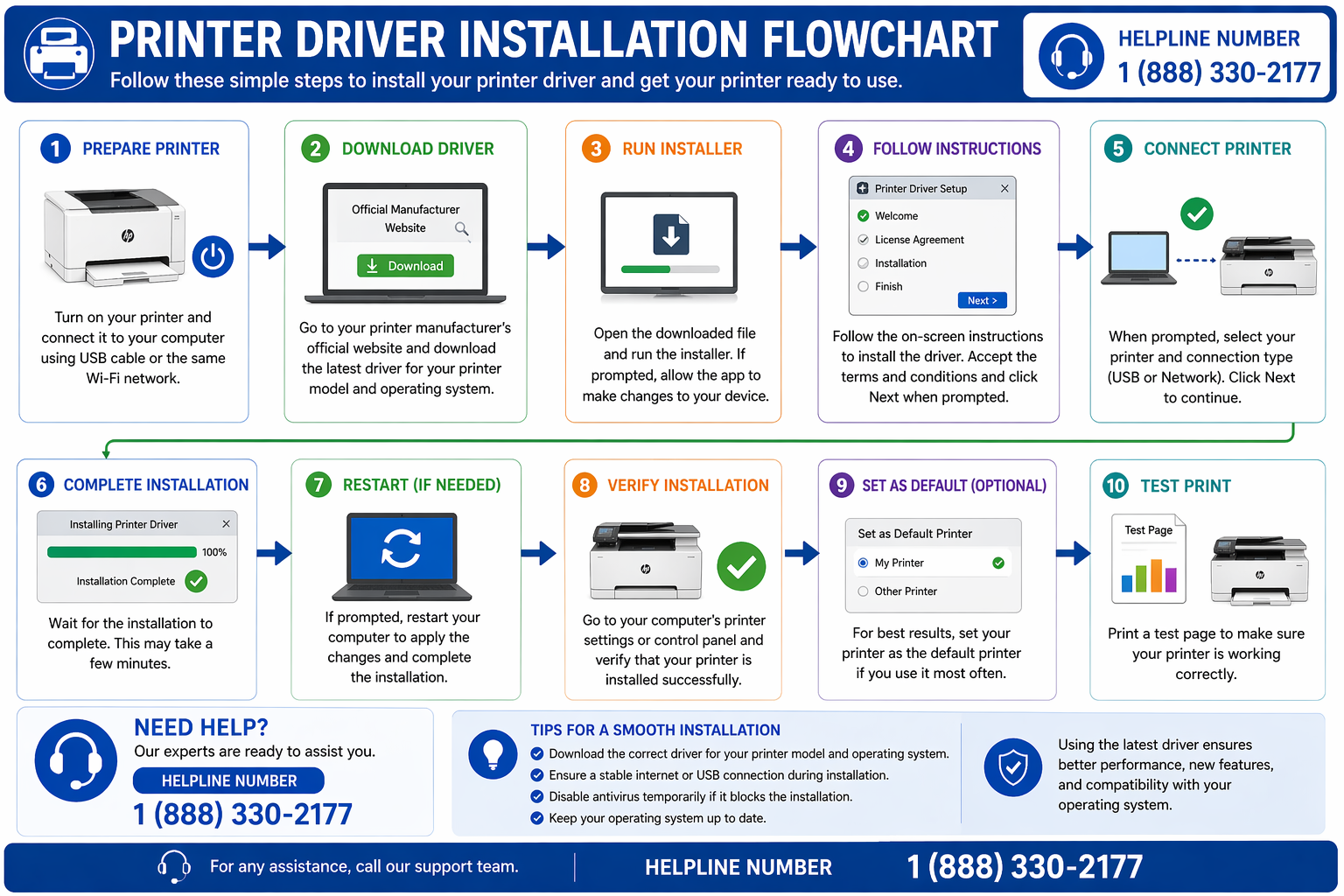
HP printer driver installation process flowchart for Windows and macOS – choose the right setup method based on your device and connection type.
Need wireless setup? Continue with the HP printer WiFi setup guide.
How to Install HP Printer Drivers (7 Easy Methods)
Choose your preferred installation method.
01. HP Smart App (Easiest)
Auto-detects your printer and handles everything. Download from Microsoft Store or Mac App Store. Use our complete HP Smart installation guide to automatically set up your printer.
02. HP Support Website (Manual Download)
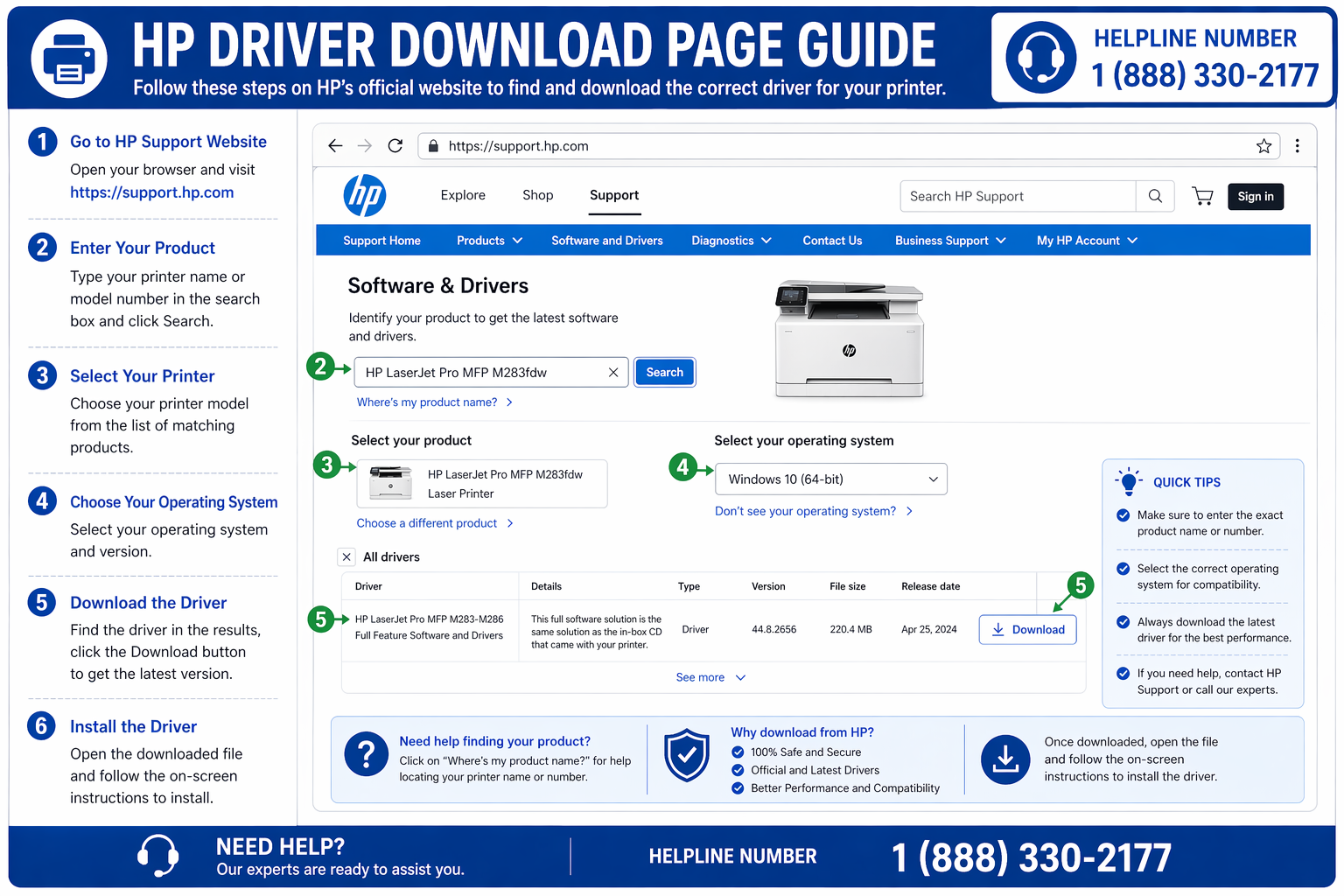
Official HP driver download page for Windows and macOS – enter your printer model and select the correct driver version.
Driver installed but printer won't print? See the HP printer not printing guide.
Visit support.hp.com, enter your printer model, select your OS, and download the full feature driver.
Alternatively, you can set up your printer directly using the official portal via 123.hp.com setup guide.
03. Windows Installation (Setup Wizard)
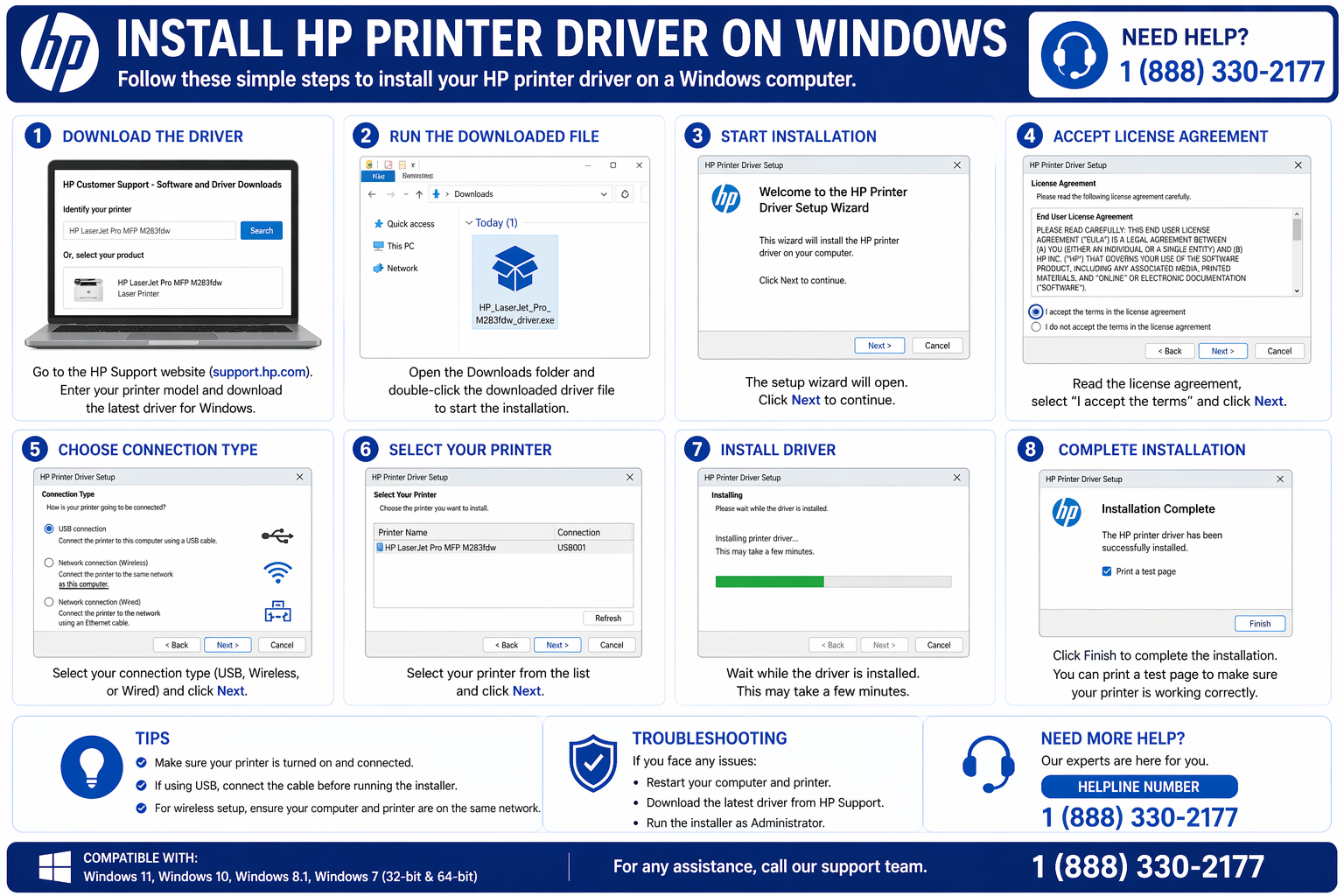
HP printer driver installation on Windows 11 using the setup wizard with administrator privileges.
Printer still offline after installation? Continue with HP printer offline fix.
Download the driver file from HP Support, run the .exe installer, and follow on-screen instructions. If you run into problems, check our fix installation issues guide.
If installation fails, use the HP printer installation wizard tool to properly detect and configure your printer.
04. Windows Update (Automatic)
Connect printer to PC, go to Settings → Update & Security → Windows Update, check optional updates, and install HP drivers automatically.
05. Device Manager (Update Existing)
Press Windows+X → Device Manager → Expand "Print queues" → Right-click printer → Update driver → Search automatically. If issues persist, see our driver troubleshooting guide.
06. HP Print and Scan Doctor
Free tool from HP that automatically detects and fixes driver problems. Download from HP official website. For advanced fixes, follow our driver unavailable fix guide.
07. macOS & Mobile Setup
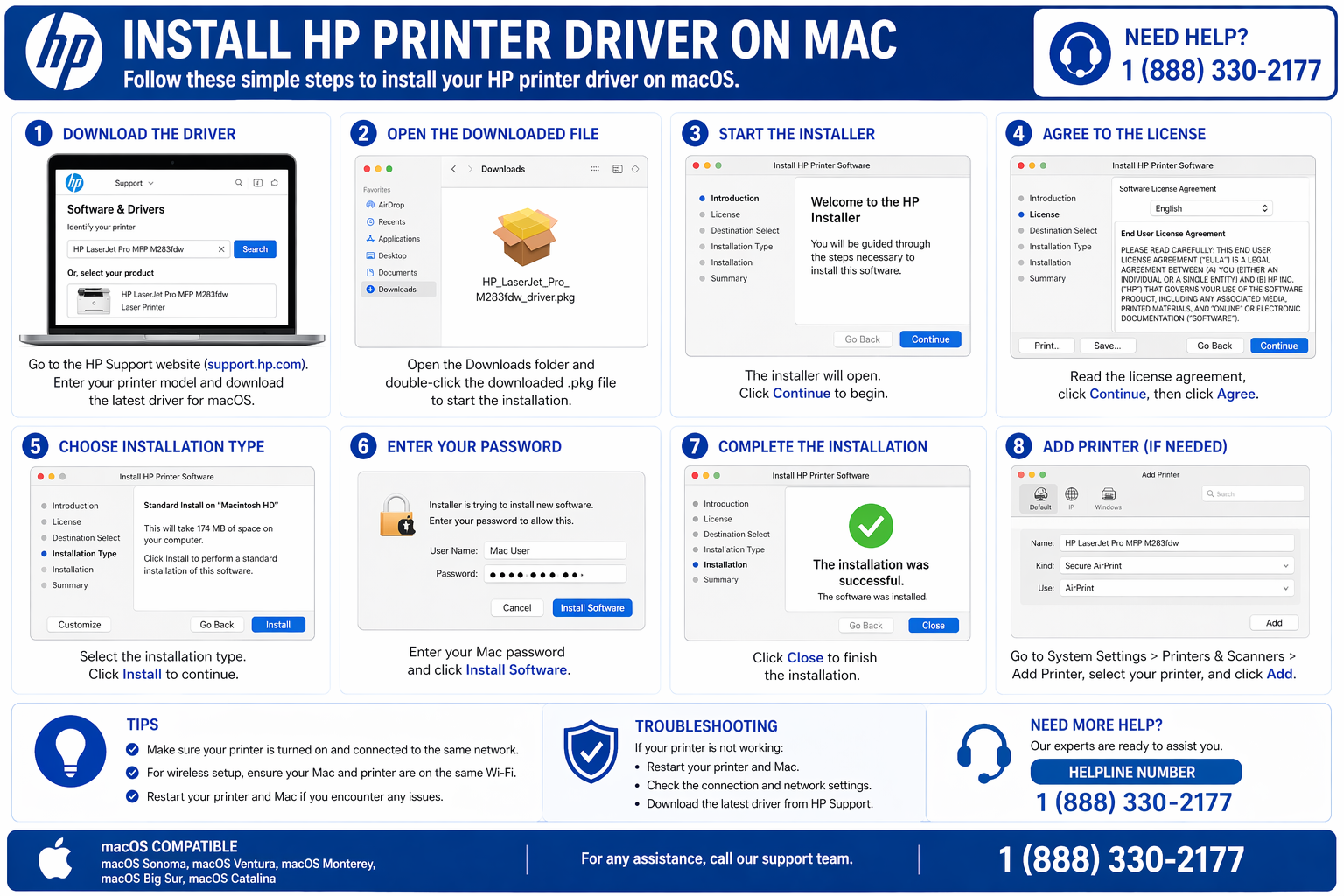
Install HP printer driver on macOS Ventura using Printers & Scanners settings and wireless connection.
Having connection issues? Check the HP printer WiFi setup guide.
Connect printer to Wi-Fi, go to System Preferences → Printers & Scanners → Click "+" to add printer. Need help? See our complete printer troubleshooting guide. For mobile setup, use our HP mobile setup guide.
Get instant one-on-one help from a printer expert.
Get Installation Help: 1 (888) 330-9101
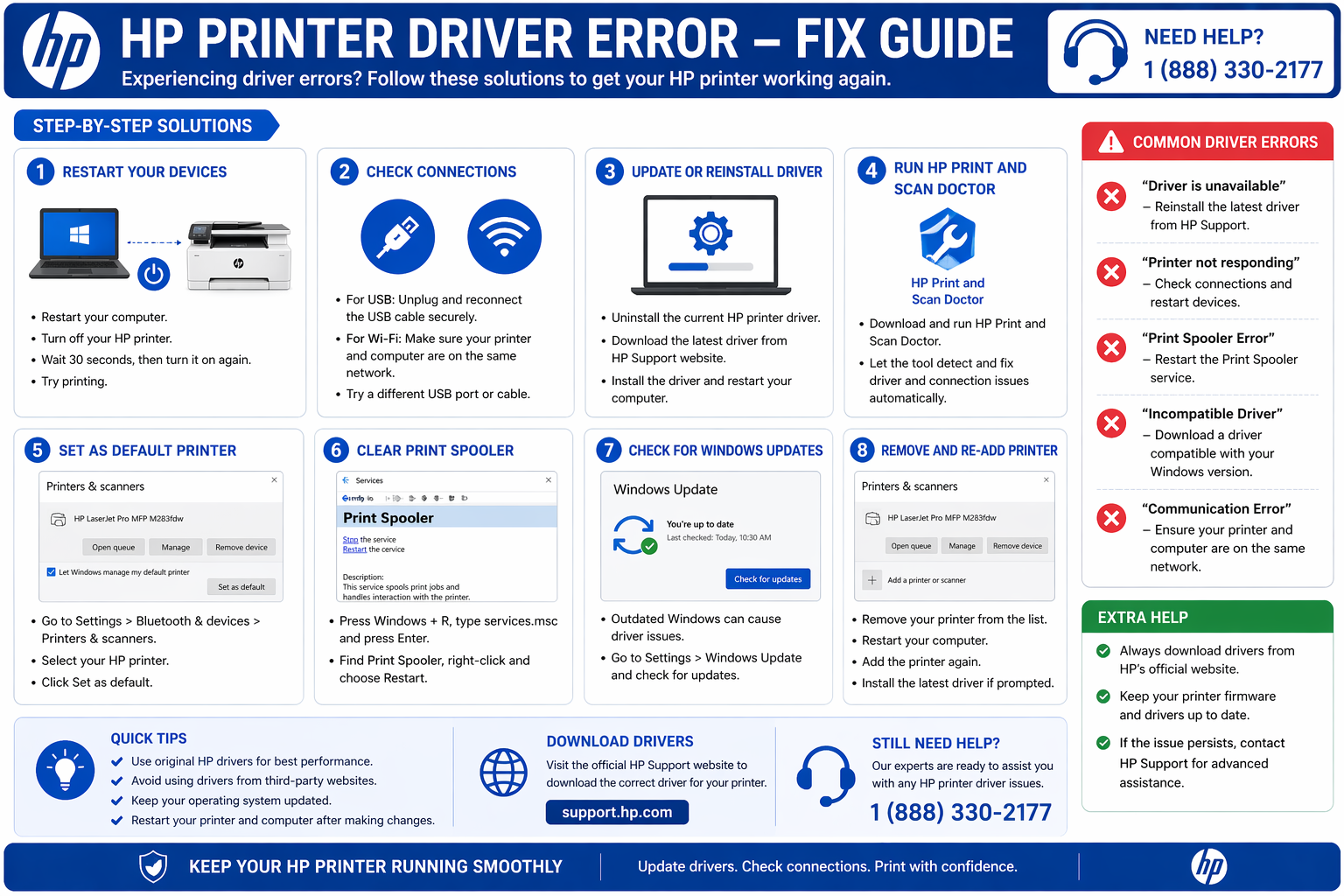
Fix common HP printer driver errors on Windows and macOS including unavailable driver, offline status, and connection issues.
Need step-by-step diagnosis? Visit the driver problems troubleshooting guide.
Fix Common Driver Problems
For broader issues, see our complete printer troubleshooting guide (step-by-step resolution).
For HP-specific fixes, visit our HP printer not printing guide.
Installation Fails
- Disable antivirus temporarily
- Run installer as administrator
- Download fresh copy from HP
- Uninstall old drivers first
Printer Not Detected
- Check USB/Wi-Fi connection
- Run HP Print and Scan Doctor
- Fix connection issues (WiFi troubleshooting)
- If your printer is not connecting, follow our HP WiFi setup guide
If detection fails, reinstall using the HP setup wizard installation method or the HP Smart setup process.
Wrong Driver Installed
- Verify model on HP
- Check 32 vs 64-bit Windows
- Use HP Smart for auto-detection
Driver Conflicts
- Remove all HP software
- Clean uninstall guide
- Reinstall from HP official source
Still not printing? Follow our HP printer not printing guide or check connected but not printing fixes.
If your printer still isn't working after trying all fixes, get step-by-step help from our HP printer support page where experts can guide you through advanced troubleshooting.
Common HP Driver Issues & Solutions
Quickly resolve the most frequent driver-related problems with our targeted guides.
Driver Unavailable
Fix missing or corrupted driver errors on Windows and macOS.
Get the fix → OfflineHP Printer Offline
Restore your printer's connection and get it back online.
Get the fix → PrintingHP Printer Not Printing
Comprehensive guide to fix printing failures on HP printers.
Get the fix → PrintingConnected But Not Printing
Resolve issues when your printer is connected but won't print.
Get the fix → WirelessHP Printer WiFi Setup
Complete guide to connect your HP printer to wireless networks.
Get the fix → SetupHP Printer Setup Wizard
Step-by-step installation using the official HP setup tool.
Get the fix →Frequently Asked Questions
How to find correct driver for my HP printer?
Driver vs HP Smart - which should I use?
Why is my driver download failing?
How to update printer drivers on Windows?
Can I install HP printer drivers without HP Smart?
Do HP printer drivers work automatically after Windows Update?
Final Advice: Get Your HP Printer Running Smoothly
Quick checklist for successful setup:
- Use HP Smart app for automatic driver matching
- Always download from official HP website
- Choose full feature software for scanning & tools
- Keep drivers and firmware updated
- Run HP Print and Scan Doctor if issues persist
Need printer-specific help? Check our detailed guides: HP Envy, HP DeskJet, HP LaserJet, HP OfficeJet.
For complete step-by-step instructions, visit our HP printer setup guide or use the HP Smart installation method.
If setup issues continue, reinstall using the HP printer setup wizard tool for a clean installation.
Still stuck? Get personalized assistance on our HP printer support page — experts are ready to help.