✔ Fix in 5 minutes | ✔ Works for HP, Canon, Epson | ✔ No reinstall needed
Printer Connected But Not Printing? Fix It Fast (2026 Complete Guide)
Printer connected but not printing? This frustrating issue is common on Windows 11, HP printers, and WiFi setups. Whether your printer is idle, stuck in queue, or not responding, this guide will fix it fast. Follow these proven steps and get back to printing in under 10 minutes.
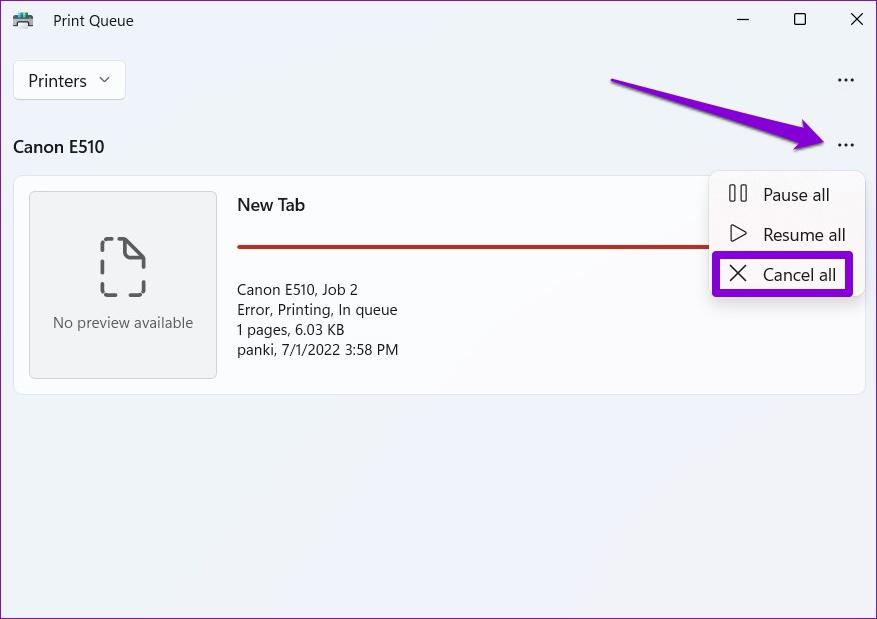
🧾 Figure 1: Stuck print queue — the #1 reason this issue occurs. Cancel all jobs to resolve.
👉 Don’t try random fixes. Most printer issues fall into just 3 categories: queue errors, connection issues, or driver problems. This issue affects many modern printers regardless of brand or setup. Identify yours below and fix it in minutes.
How to Fix Printer Connected But Not Printing (Quick Answer)
To fix a printer that is connected but not printing, clear the print queue, restart the print spooler service, set the printer as default, and reconnect it to the network. Most cases are resolved within a few minutes using the steps below.
🚀 Quick Diagnosis: Printer Not Printing But Connected
📊 Quick Reference: Printer Connected But Idle / Not Printing
| Problem | Immediate Fix |
|---|
| Printer connected but not printing | Clear queue + restart spooler |
| Printer idle but connected | Disable SNMP + reinstall driver |
| WiFi connected but not printing | Reconnect + assign static IP |
| Printer not responding but connected | Restart spooler & check power mgmt |
| HP printer connected but not printing | HP Smart diagnosis + reset wireless |
🔍 Common Variations of This Problem
Printer connected but not printing HP Printer connected but not printing Windows 11 Printer connected but idle Printer not responding but connected WiFi printer connected but not printing
🔧 Printer Connected But Not Printing – Quick Fix (Works Fast)
- ✅ Restart printer + PC: Turn off printer, unplug 60 sec, reboot computer, plug back.
- 🖨️ Set as default printer: Control Panel → Devices and Printers → right-click printer → “Set as default printer”.
- 🗑️ Clear print queue (basic): Open print queue → Cancel all documents.
- 🔄 Restart Print Spooler: Press
Win+R, type services.msc, find Print Spooler → right-click → Restart.
💻 Printer Not Printing But Connected on Windows 11 / 10
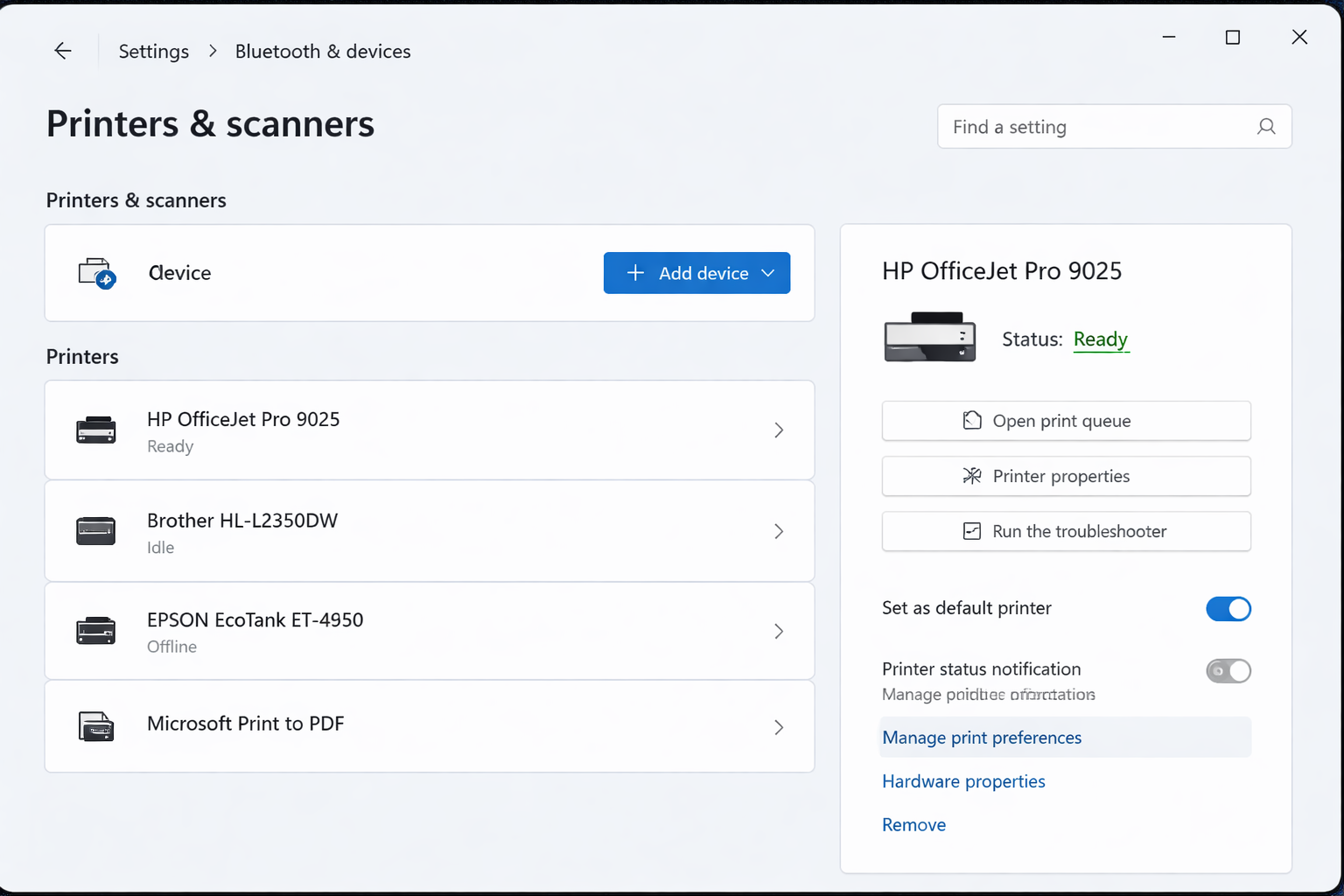
⚙️ Figure 2: Windows printer settings — ensure correct default printer and disable offline mode.
- Restart spooler service: as above, then set startup type to Automatic.
- Remove & re-add printer: Settings → Bluetooth & devices → Printers → remove device → add again.
- Update drivers: Device Manager → Print queues → right-click printer → Update driver.
- Check printer status: Uncheck “Use Printer Offline” from printer menu.
🖨️ HP Printer Connected But Not Printing – Specialized Fixes
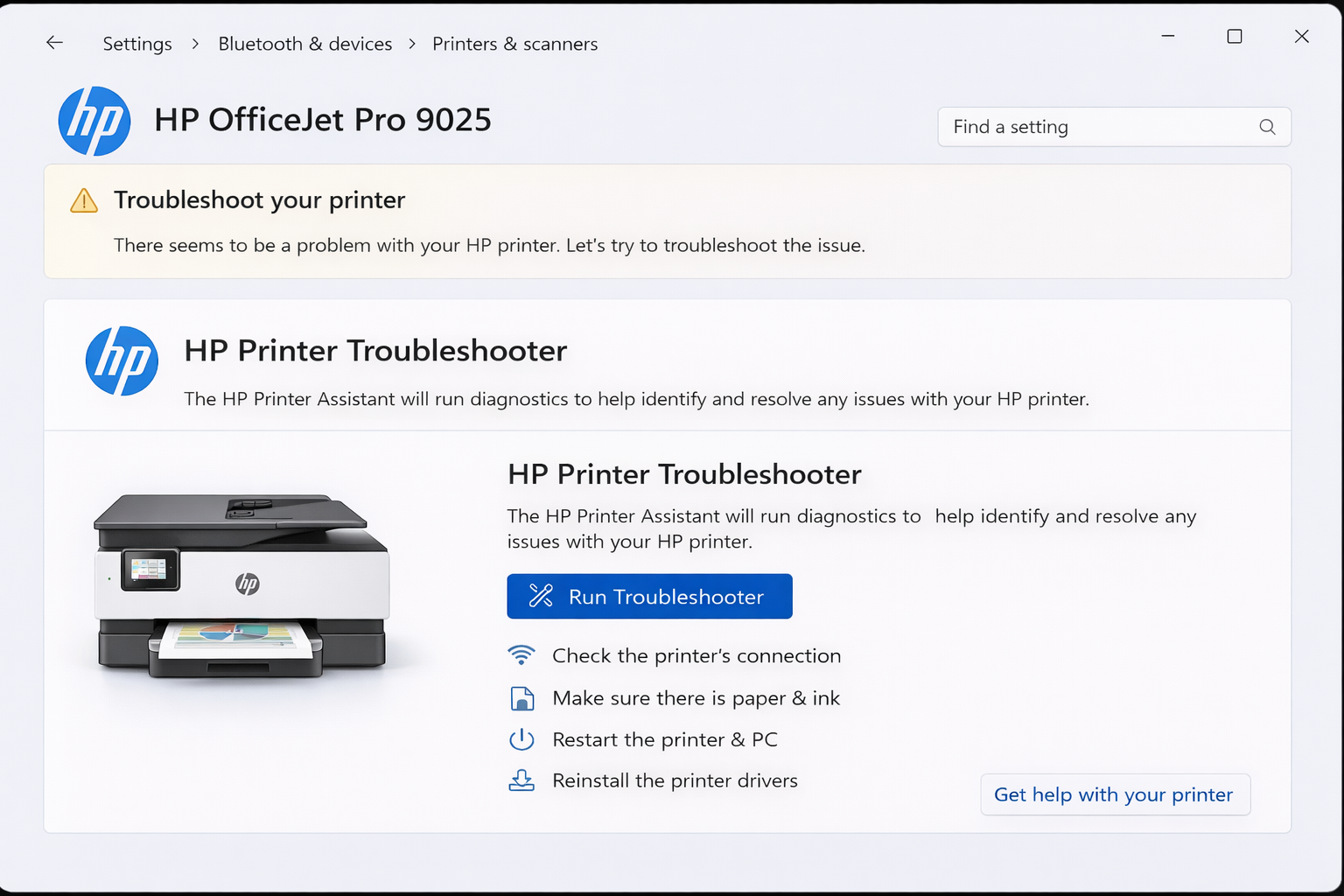
🖨️ Figure 4: HP printer diagnostics — resolve HP Smart app glitches and wireless errors.
HP printers often face HP Smart App glitches, ink detection errors, or wireless dropouts. Here’s what works:
- HP Smart App: Open HP Smart → run “Print Queue Diagnosis”.
- Ink / toner issues: Genuine cartridges needed; reseat cartridges even if showing ink.
- Wireless config error: Re-run wireless setup from printer panel.
📶 Printer Connected to WiFi But Not Printing – Network Fix
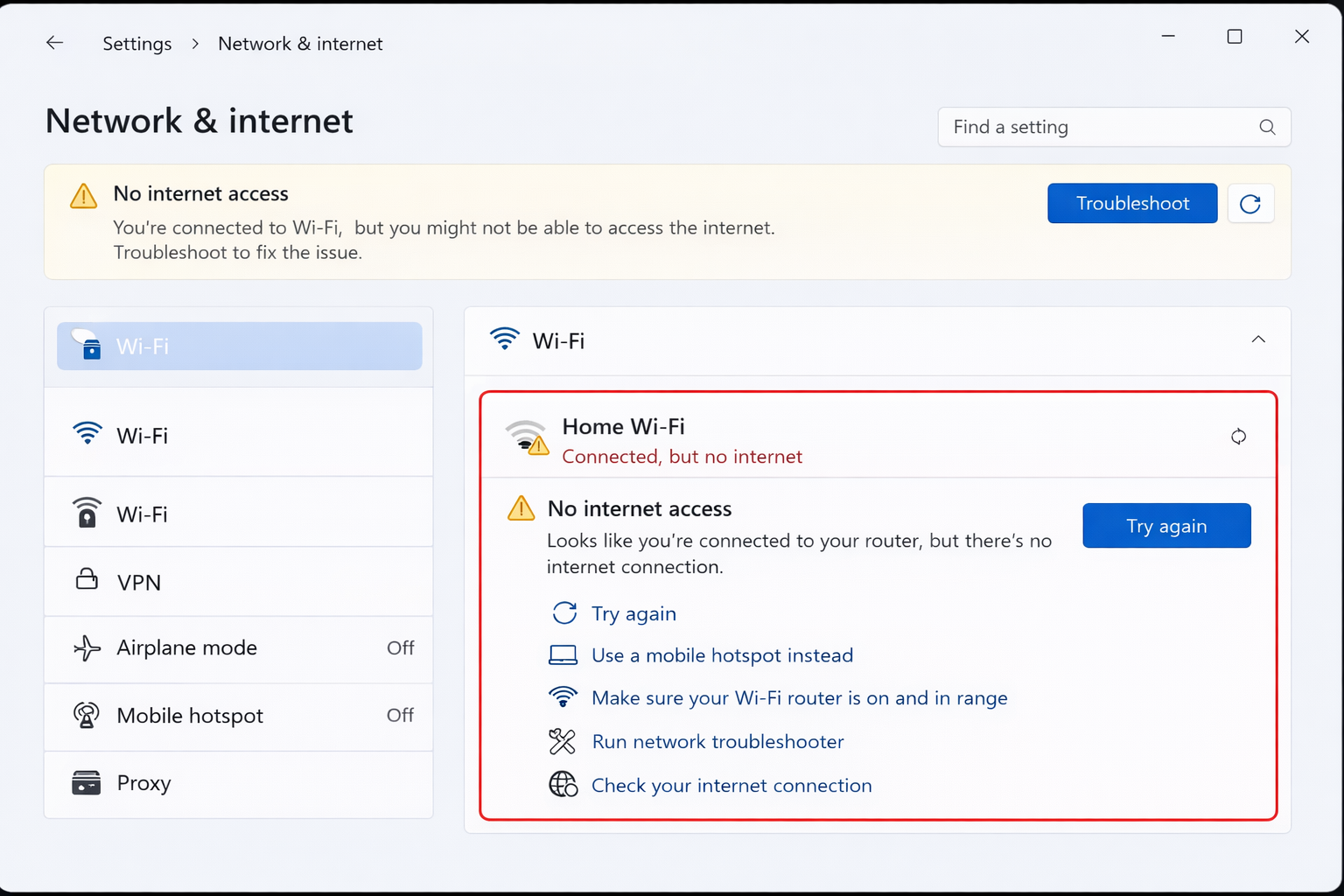
📶 Figure 3: Wireless printer connection — ensure same network and strong signal.
- Reconnect printer to WiFi: Use printer's wireless setup wizard.
- Restart router & printer: Power cycle both for fresh IP.
- Assign static IP: In router settings, reserve IP for printer MAC address.
- Fix network mismatch: Ensure PC and printer on same 2.4GHz band.
🧾 Print Queue Stuck? Force Clear (printer idle but connected fix)
- Open Services.msc → Stop “Print Spooler”.
- Navigate to
C:\Windows\System32\spool\PRINTERS → delete all files. - Restart Print Spooler service.
- Try printing again.
🔄 Printer Connected But Idle / Not Responding (Fix)
If your printer shows "Idle" but won't wake, the problem is usually power management or driver communication.
- Disable SNMP status: In printer properties → Ports → uncheck “SNMP Status Enabled”.
- Windows power management: Device Manager → USB Root Hub → Properties → Power Management → uncheck “Allow computer to turn off”.
- Reinstall drivers with manufacturer tool.
⚠️ Hidden Issue: Printer Connected But Not Printing After Windows Update
Many users face this issue after updates like KB5005565 or Windows 11 22H2. The update can temporarily affect printer communication. The fix: roll back the update via Settings > Windows Update > Update History, or reinstall your printer driver from the manufacturer's website.
🧠 Why “Printer Not Printing But Connected” Happens
This problem occurs for several reasons. Sometimes it's a stuck print job, other times the driver needs an update. Network printers can lose connection briefly, and even a simple settings change can cause the issue.
📖 According to printer diagnostics data, spooler issues account for nearly 40% of cases, followed by driver conflicts and network hiccups. The good news is that most fixes take under five minutes.
🔗 Related Printer Problems & Resources
🛠️ Advanced Fix: Restart Print Spooler (printer not responding solution)
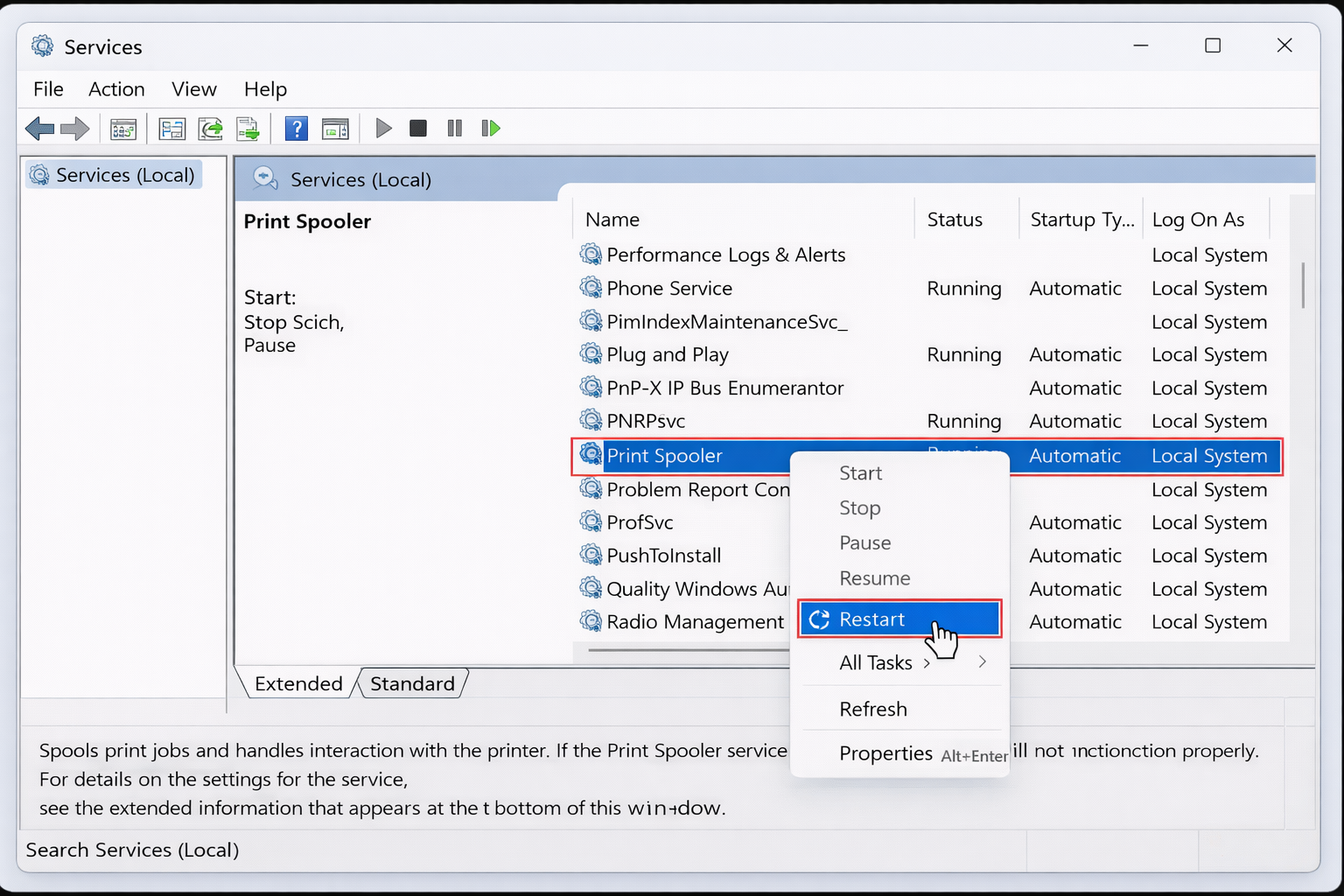
🔄 Figure 5: Restarting Print Spooler resolves many connectivity issues.
📊 Visual Troubleshooting Flow: Printer Connected But Not Printing
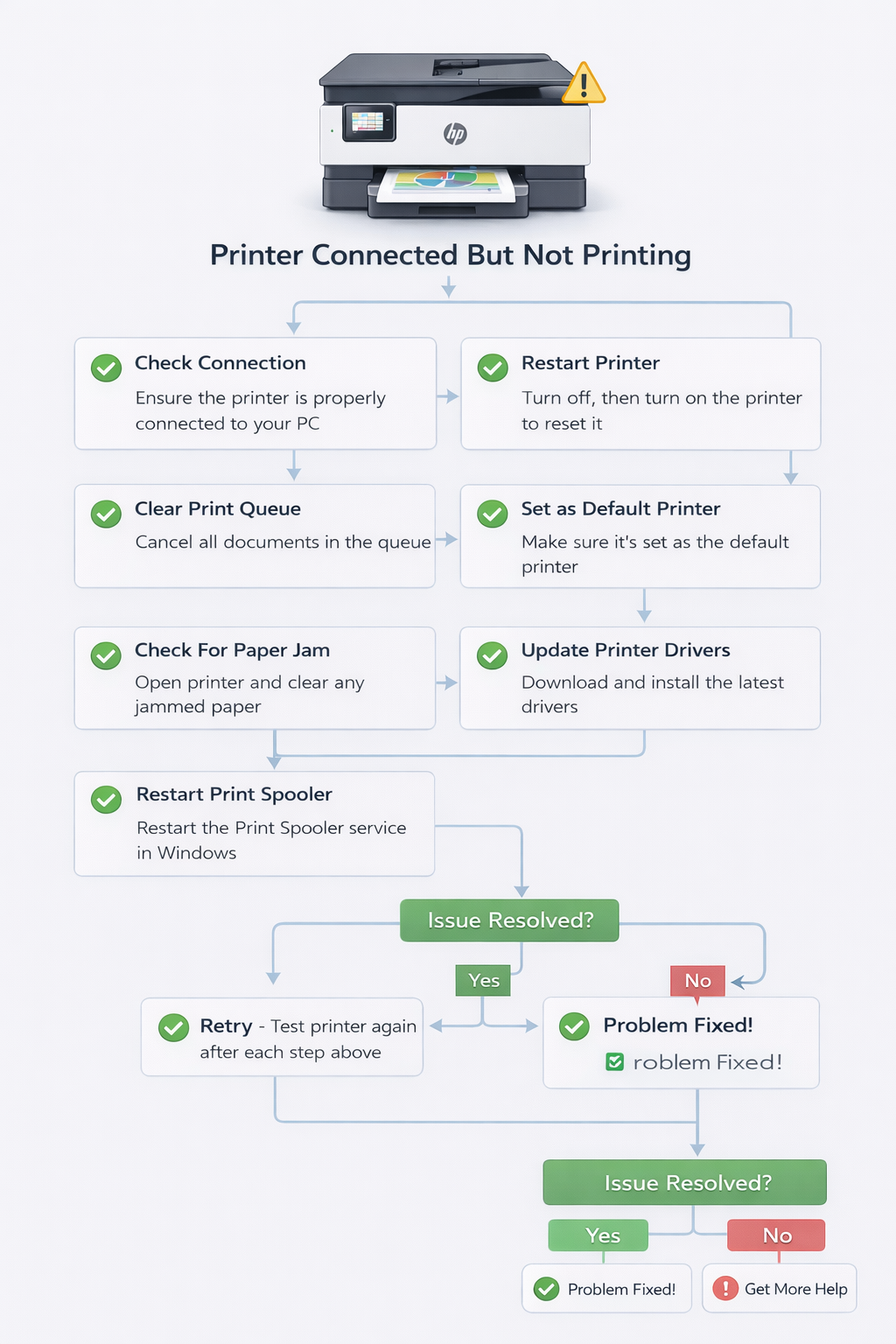
📋 Follow this decision tree to systematically diagnose the issue.
❓ Frequently Asked Questions: Printer Connected But Not Printing
1️⃣ Why is my printer connected but not printing?
Stuck queue, driver/spooler issues, or network mismatch. Clear queue and restart spooler first.
2️⃣ How to fix on Windows 11?
Restart Print Spooler, run printer troubleshooter, update drivers, and re-add printer.
3️⃣ Why printer shows online but won't print?
Often IP conflict or idle state. Disable SNMP and assign static IP.
4️⃣ How to clear print queue?
Stop Print Spooler, delete files in spool/PRINTERS, restart spooler.
5️⃣ Why HP printer connected but idle?
Check HP Smart, disable USB selective suspend, reinstall drivers.
6️⃣ Printer not responding but connected?
Restart printer, uncheck 'Pause Printing' and offline mode.
7️⃣ Can VPN cause printer issues?
Yes, VPNs can block local network discovery. Disable VPN temporarily.
⚡ Still having trouble?
Our printer technicians can solve it remotely in minutes.
🎙️ Talk to an Expert Disclaimer: AllAboutPrinters.org is an independent information resource and does not represent any printer manufacturer (including HP, Canon, Epson, or Brother). The information provided on this page is for general informational purposes only and should not be considered professional technical advice. While we strive to keep the information accurate and up-to-date, we make no representations or warranties of any kind, express or implied, about the completeness, accuracy, reliability, or availability of the troubleshooting steps mentioned. Your use of any information or materials on this website is entirely at your own risk.
© 2026 AllAboutPrinters.org — independent printer troubleshooting hub. All rights reserved.