
HP Printer Setup Guide (2026): WiFi, HP app, Drivers & Offline Fixes
Step‑by‑step wireless, USB & Ethernet installation. Real‑world fixes for mesh routers, WPA3, HP app (formerly HP Smart) detection, offline printers, and print spooler issues.
Independent technical reference covering HP printer setup workflows across Windows, macOS, mobile devices, and mesh WiFi environments.
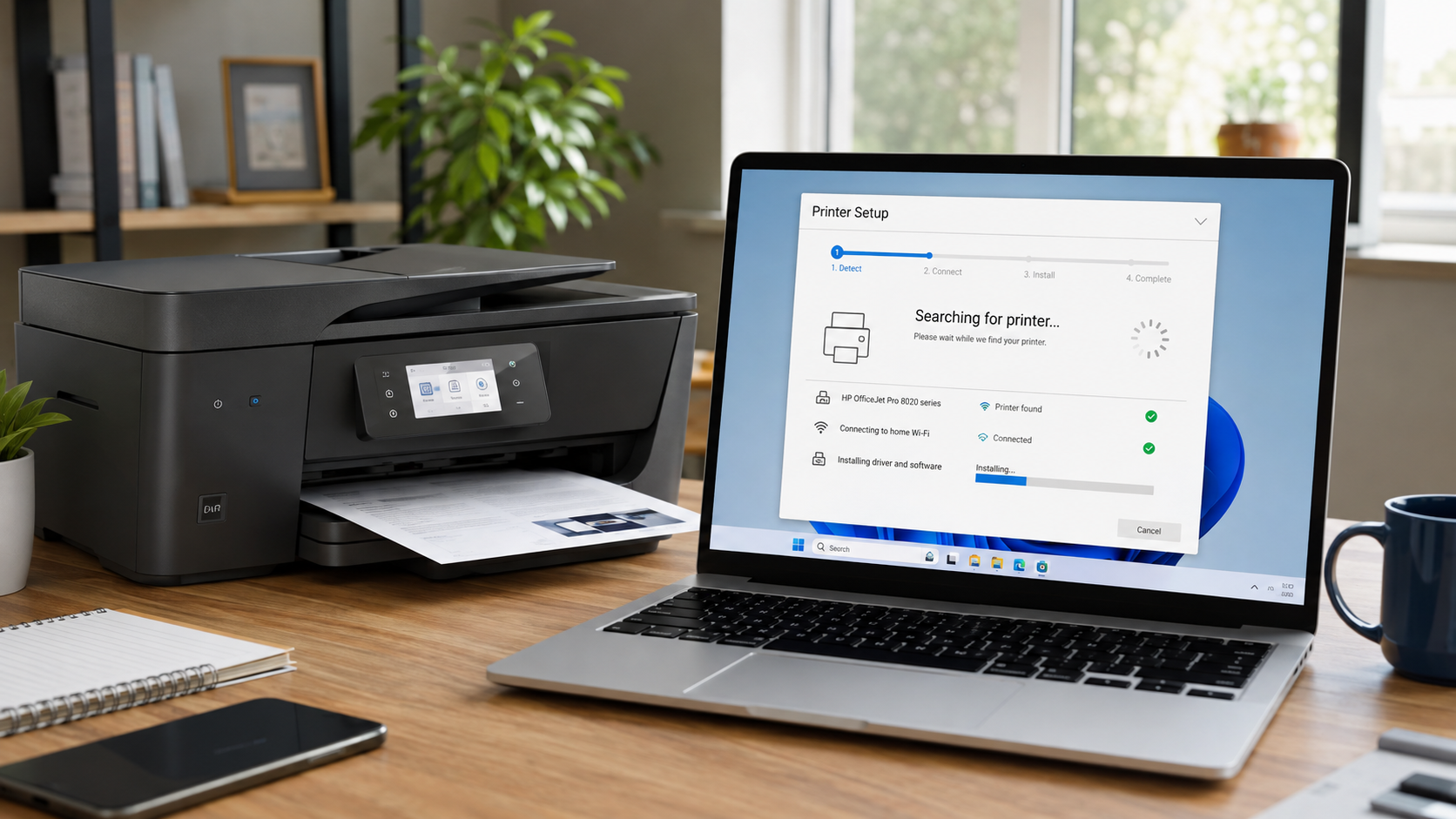
Figure 1: HP printer ecosystem — wireless setup flow, HP app discovery, and network communication path.
Start here
What problem are you facing? Choose the path that matches your situation.
Fresh fixes & field notes
- WPA3 compatibility: Some older HP printer models may require WPA2 or WPA2/WPA3 transitional security mode. Compatibility and fallback guidance for selected HP models.
- Mesh router troubleshooting: New guidance for Eero 6/Pro, Deco X55, and Orbi 960 — multicast/mDNS discovery considerations and 2.4GHz IoT SSID troubleshooting.
- Windows 11 24H2 spooler fixes: Added troubleshooting guidance for print-spooler crashes, stuck queues, driver conflicts, and printer reinstallation.
- Reported HP app issues: Login-loop and printer-disappearance troubleshooting patterns after app updates — see the dedicated troubleshooting section.
Field observations include common Windows, macOS, wireless, USB, Ethernet, HP app, AirPrint, and print-spooler troubleshooting scenarios.
- Replacement of outdated setup images
- Removal of the outdated phone number from the replaced image assets
- Correction of the print queue internal link
- Review of HP app / HP Smart terminology
- Review of wireless and network troubleshooting guidance
- Review of schema, metadata, and accessibility
Setup Method Comparison & Recommendations
| Setup Method | Typical considerations | Best for |
|---|---|---|
| HP app (WiFi) | Convenient; depends on network discovery and compatibility | Most home users, but must understand mDNS/band steering |
| Wireless Wizard | Useful when supported by the printer | Printers with display, non‑mesh routers |
| USB then convert to wireless | Practical fallback for discovery problems | Troubleshooting detection failures |
| Ethernet wired | Useful for stable wired installations | Offices, shared environments, or networks where wired connectivity is preferred |
Choose Your HP Printer Setup Method
Wireless Setup
Connect HP printers over WiFi, including 2.4GHz-only models and dual-band 2.4/5GHz models, plus mesh networks (Eero, Orbi, Deco), WPA2/WPA3, and HP app or manual wireless wizard methods.
Open guide ↗Mobile & Tablet
Set up using HP app for iOS and Android, including local network permissions, Bluetooth discovery, and mobile‑first configuration.
Open guide ↗HP app (formerly HP Smart)
Deep dive into HP app: detection issues, mDNS/Bonjour troubleshooting, reported app issues, and advanced recovery steps.
Open guide ↗Setup Without CD
Driver-only installation using model-specific HP software or drivers, supported Universal Print Driver options for compatible LaserJet environments, and legacy offline installer methods where applicable.
Open guide ↗Windows Setup
Detailed Windows 11 / 10 installation: print spooler fixes, WSD vs TCP/IP port switching, and driver management.
Open guide ↗Mac Setup
macOS Sonoma / Sequoia: AirPrint, Bonjour restart commands, HP app for Mac, and LPD protocol for static IPs.
Open guide ↗123.hp.com
Official HP setup portal — directs you to the appropriate printer software and drivers for your model.
Open guide ↗For mesh routers or WPA3 networks, read advanced notes in the detailed guides and the network troubleshooting section below.
Complete HP Printer Setup & Technical Reference
HP printer wireless capabilities vary by model. Many models support 2.4GHz Wi‑Fi, while some models also support 5GHz. Check the specifications for your exact printer. This independent guide goes beyond basic steps — it explains why certain setups fail: multicast discovery (mDNS/Bonjour) blocked by VPNs, band steering on mesh networks (Eero/Orbi), WPA3 incompatibility, Windows WSD port issues, and DHCP lease conflicts.
Whether you're connecting a printer after a router change, recovering from an offline state, or dealing with the HP app that never finds the printer, each section includes practical troubleshooting notes and configuration-specific behaviors documented where relevant across Windows, macOS, mobile devices, and common home-network environments.
Discovery can use Bluetooth during setup and local-network mechanisms such as mDNS/Bonjour after network connectivity is established. VPNs, client isolation, or network segmentation can interfere with discovery.
Quick HP Printer Setup Checklist
- Remove packaging & tape
- Install cartridges / toner
- Load plain paper
- Connect power & turn on printer
- Temporarily disconnect from VPNs and verify that the firewall allows local network printer discovery
- If your printer requires 2.4GHz, connect it to the 2.4GHz network or temporarily separate Wi-Fi bands during setup
- Keep the printer reasonably close to the router during initial setup
- Check for firmware updates after setup and install them when recommended for your model.
- Install HP app or full driver package
- Create a DHCP reservation for the printer so it keeps the same IP address if needed
Most Common HP Printer Setup Problems
- HP app (formerly HP Smart) cannot detect the printer (infinite search)
- Printer connects to WiFi but shows offline in Windows/macOS
- Wireless setup wizard fails on mesh routers (Eero, Orbi, Deco)
- HP printer disappears after a few days or following a power cycle
- Drivers install but printer appears as "unavailable" or "not connected"
- Printer found but test page fails to print or stays in queue
- USB printer detected as "unknown device" after driver update
- Setup fails after router replacement or ISP change
Common contributors include multicast discovery (mDNS/Bonjour) blockage, band steering, wireless-security compatibility, Windows WSD port issues, VPN or firewall interference, and DHCP/IP changes. Each is addressed below.
Still stuck after trying the standard setup steps? Visit the HP Troubleshooting Hub for advanced recovery paths, guided troubleshooting, and setup assistance.
HP app (formerly HP Smart) Setup — Deep Dive & Failure Recovery
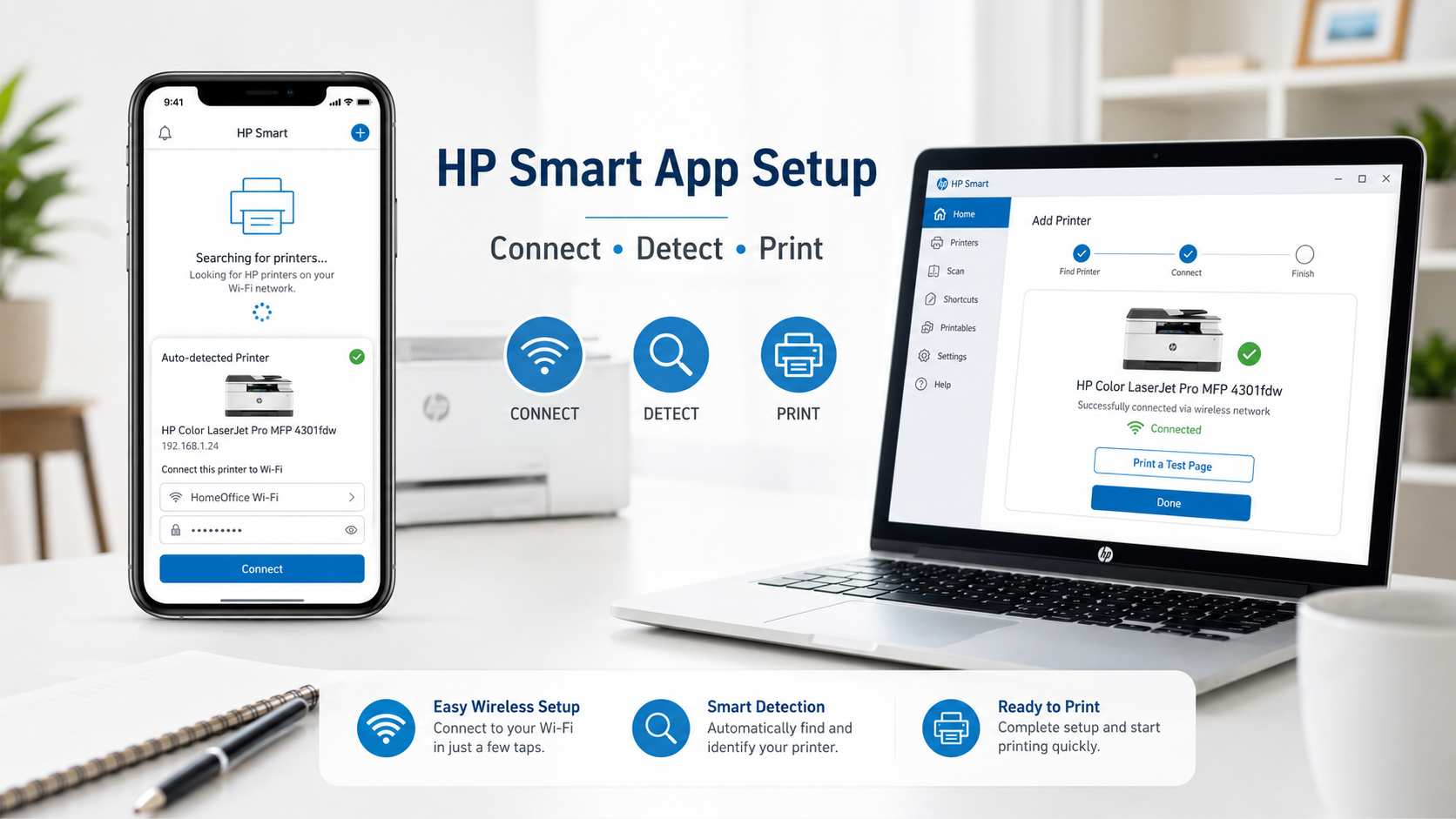
Figure 2: HP printer app discovering an HP ENVY printer during wireless setup using Bluetooth and local-network discovery.
- Download the HP app from the Microsoft Store, Apple App Store, Google Play, or the appropriate device app store.
- Open app → tap "+" or "Add Printer"
- If discovered, follow guided installation (ink alignment, WiFi, registration)
- If not discovered, proceed to manual recovery steps below
Restore Wi-Fi setup mode: If the HP app cannot find the printer, restore the printer's Wi-Fi setup mode according to your exact model's instructions, then reopen the HP app and retry printer discovery. Some HP models require the printer to be added within a limited setup-mode window after Wi-Fi setup mode is restored.
Why the HP app Cannot Find Your Printer (real‑world causes)
The HP app can use Bluetooth and local-network discovery during setup. On network-connected printers, mDNS/Bonjour can help devices discover the printer on the same local network. VPNs, client isolation, incompatible network segmentation, or blocked multicast traffic can interfere with local discovery.
- VPN software (Corporate VPNs, NordVPN, ExpressVPN) — they filter multicast traffic. Temporarily disconnect from the VPN during setup.
- Mesh WiFi with band steering — If the printer and phone are placed on different network segments or the router does not pass multicast discovery between bands, the HP app may fail to find the printer. Temporarily separate SSIDs (e.g., "MyWiFi-2.4" and "MyWiFi-5").
- WPA3 encryption — Some HP printer models do not support WPA3 or require a compatible WPA2/WPA3 transitional security mode. Check your exact printer model's wireless specifications before changing router security settings. If WPA3-only security prevents the printer from connecting, use a security mode supported by the printer and router.
- AP Isolation / Guest network — guest mode blocks peer-to-peer discovery. Connect both devices to main network.
- HP app cache corruption — reinstall the app or clear app data on mobile.
Reported HP app issues and troubleshooting patterns (2025–2026)
Users may encounter app-specific issues after updates, OS changes, or permission changes. The following are troubleshooting patterns to check rather than universal HP app defects.
- Login loop (Windows/macOS): App repeatedly asks for HP account credentials. Clear web cache (Settings → Apps → HP app → Reset) and use "Continue without account" as fallback.
- Android Nearby Devices permission issue: After Android 14/15 update, HP app fails to see printer despite permission granted. Toggle "Nearby devices" off/on and force-stop app.
- WebView2 crash (Windows 11 24H2): HP app blank screen. Repair WebView2 runtime or reinstall HP app using offline installer.
- Printer disappears after update: App loses saved printers. Add printer again using IP address (192.168.x.x) – bypasses discovery.
- iOS local network permission: iOS 18+ requires explicit "Local Network" access. Go to Settings → Privacy → Local Network → enable HP app.
If the printer is still not found after these checks, use the Wireless Setup Wizard on the printer's control panel or connect via USB temporarily and then switch to WiFi using the HP app's "Convert to wireless" option.
How to Connect HP Printer to WiFi (including mesh & WPA3 compatibility)
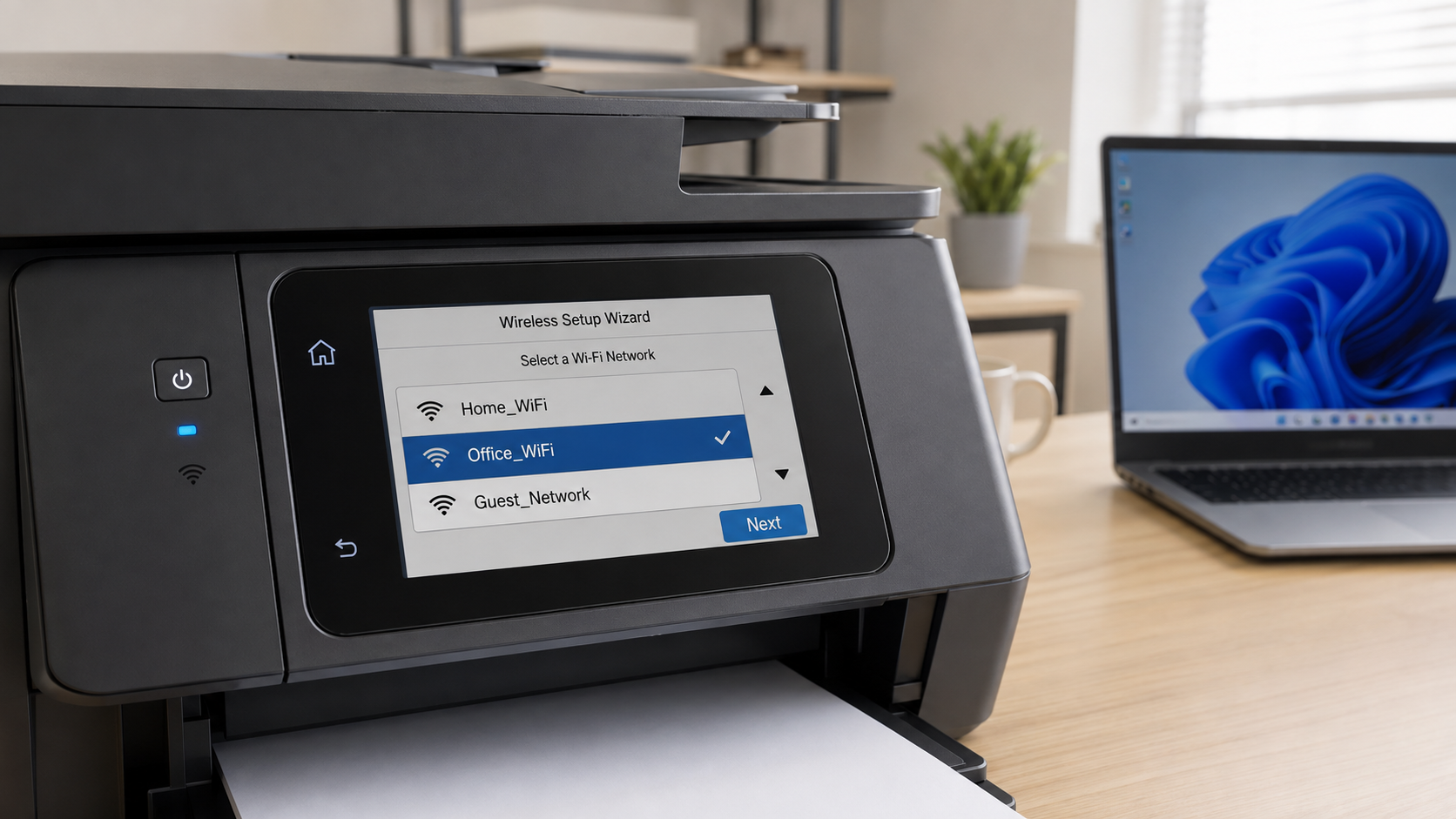
Figure 3: Wireless Setup Wizard on an HP printer — selecting the appropriate Wi-Fi network for the printer model.
- On printer control panel: go to Setup → Network → Wireless Setup Wizard
- Select the WiFi network supported by your printer. If your model supports only 2.4GHz, select the 2.4GHz network.
- Enter WiFi password (case‑sensitive)
- Once connected, print a Network Configuration Page (press i or wireless + info buttons) to verify IP address
Why HP printers can fail on modern mesh WiFi (Eero, Deco, Orbi, Google Nest)
Some HP printer models support only 2.4 GHz, while others support both 2.4 GHz and 5 GHz. Check your model's wireless specifications. If band steering is enabled and the printer connects to the 2.4GHz band while your phone is on 5GHz, the HP app may fail to find the printer. If printer discovery fails, temporarily disable "Band Steering" or "Fast Roaming" in the router settings, or create a separate IoT / 2.4GHz-only SSID for setup. Re-enable the feature after testing if the printer works normally. After setup, consider assigning a DHCP reservation to help prevent offline issues caused by printer IP-address changes. If discovery fails on an Orbi or Deco system, check for available router firmware updates and review the manufacturer's current documentation for multicast/mDNS behavior.
If WPA3-only security is enabled and the printer cannot connect, check the printer's wireless specifications and use a compatible WPA2 or WPA2/WPA3 transitional security mode if supported by your router. For stable long-term connectivity, use a Standard TCP/IP port instead of WSD on Windows (explained in the driver section).
Also see our detailed Wireless Setup Guide and WiFi connectivity troubleshooting.
Setup HP Printer Using USB Connection (best for trouble cases)
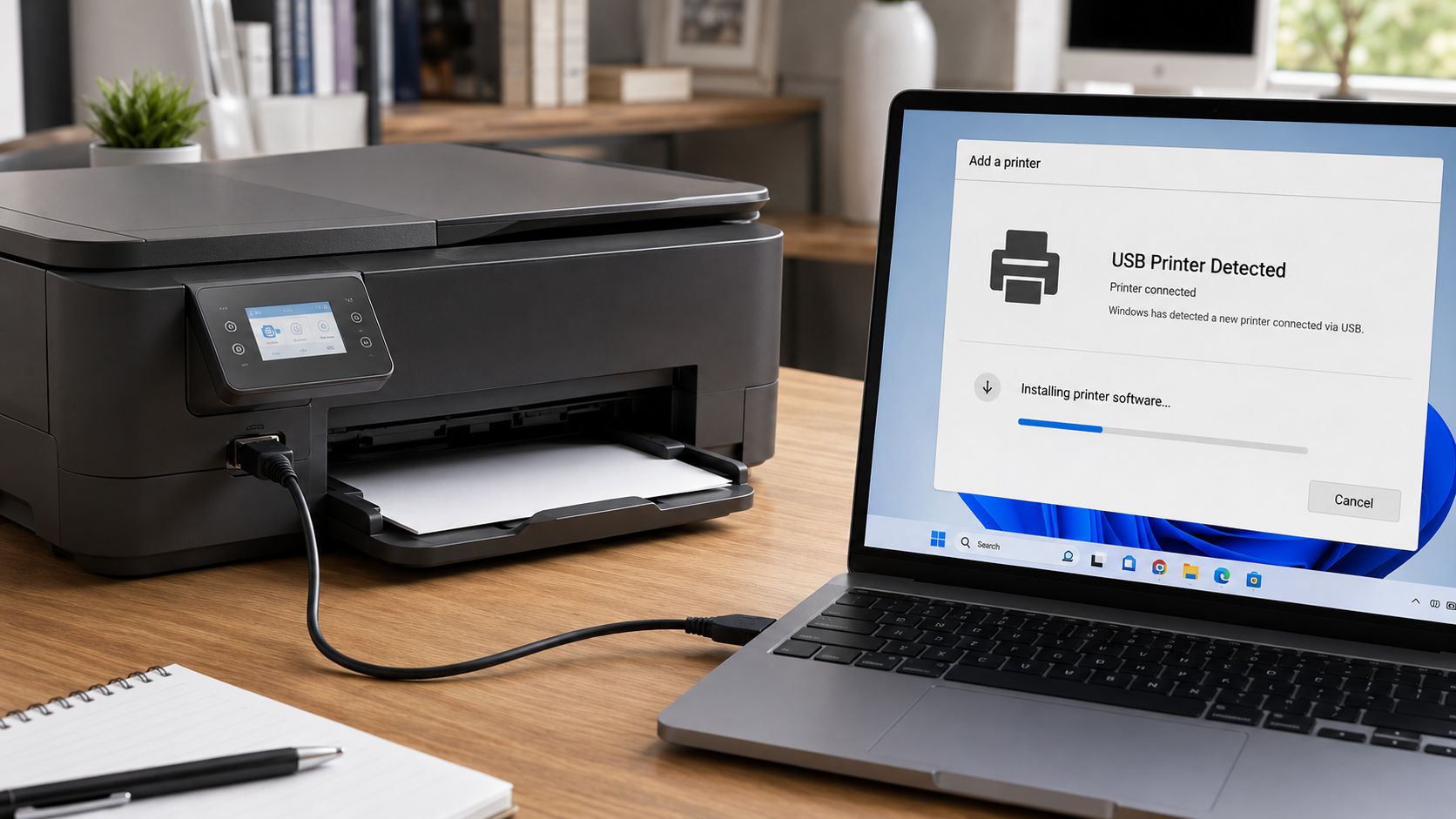
Figure 4: USB direct connection — a practical fallback when WiFi discovery fails.
- Connect a USB A‑B cable (or USB‑C) between printer and computer
- Turn printer on; Windows/macOS automatically detects and attempts driver installation
- If not automatically installed, download the HP app or the full driver package
- After USB setup works, you can later convert to wireless using the HP app's "Printer Settings → Wireless Setup"
USB is recommended when WiFi discovery fails or for initial configuration of printers without a control panel. Note: USB selective suspend on Windows can cause disconnection — if USB disconnects repeatedly, check Windows USB power-management settings and test whether USB selective suspend is contributing to the problem.
HP Printer Drivers, Print Spooler & Port Configuration
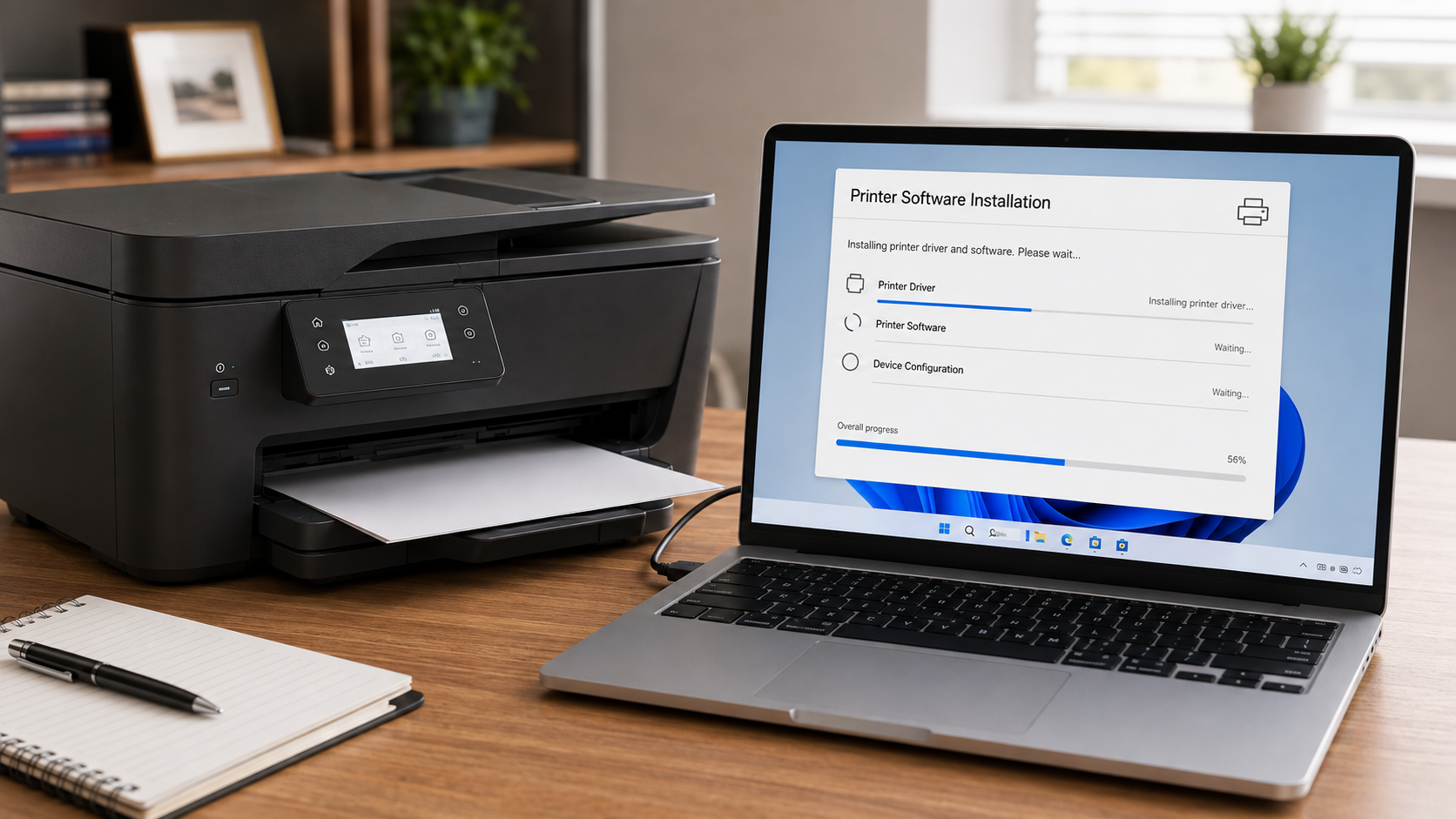
Figure 5: HP printer driver and software installation on Windows.
Drivers enable communication between OS and printer. For compatible HP printers, the HP app can install the required drivers automatically. However, WSD (Web Services for Devices) printer entries can contribute to offline status in some Windows configurations, particularly after IP changes or sleep/wake events. If Windows repeatedly loses the printer through WSD, consider adding the printer through a Standard TCP/IP port using the printer's reserved IP address.
Windows Print Spooler & Offline Fix
If your printer shows "offline" after driver installation:
- Open Services.msc → locate "Print Spooler" → Restart.
- Clear stuck jobs:
net stop spooler→ delete contents ofC:\Windows\System32\spool\PRINTERS\→net start spooler. - Remove duplicate printer entries (Settings → Printers & scanners).
- Change port: Printer properties → Ports → Add Port → Standard TCP/IP → enter printer IP (from network config page) → uncheck "SNMP enabled".
For persistent spooler issues, see the print queue stuck guide and HP driver unavailable.
HP Universal Print Driver (for enterprise environments)
For supported HP LaserJet models and managed Windows environments, HP Universal Print Driver options (such as PCL6/PS) may be appropriate and can simplify driver management in some enterprise deployments. Download from HP support, then add printer using TCP/IP.
Advanced HP Printer Network Troubleshooting
Multicast DNS (mDNS), Bonjour & Local-Network Discovery
mDNS/Bonjour is commonly used for local-network printer discovery and services such as AirPrint. During HP app setup, Bluetooth can also assist with printer discovery. Enterprise networks may restrict multicast traffic between VLANs, while guest networks and client-isolation settings can prevent devices from communicating with printers.
If you're on a corporate or university network, printer discovery may require the printer and computer to be on the same VLAN or on network segments that permit the required local discovery traffic. If discovery is restricted, USB or Ethernet may be a practical alternative.
When Ethernet Is Better Than WiFi
For offices, shared environments, and networks with wireless interference: Ethernet can improve stability by avoiding many Wi‑Fi‑specific issues such as wireless interference, band steering, and roaming. Reasons:
- Reduced Wi-Fi-specific problems: A wired connection avoids many wireless issues such as interference, roaming, and band steering, although mDNS behavior can still depend on VLAN, multicast, and firewall configuration.
- Address stability: A DHCP reservation can help keep the printer's IP address consistent on a wired network.
- Avoid mesh problems: Wired backhaul or direct LAN connection bypasses mesh roaming entirely.
AP Isolation & Client Isolation
Many public hotspots or "guest WiFi" zones isolate wireless clients — printers will be invisible. Use a personal / main SSID or a dedicated IoT network without client isolation.
Subnet mismatch & router firmware
If the printer receives a 169.254.x.x address (APIPA) instead of an address from your network's DHCP range, it generally indicates that the printer did not obtain a DHCP lease. Restart the printer and router, verify the network connection, and check DHCP settings or create a DHCP reservation once the printer has a valid address.
Enterprise WiFi (WPA2‑Enterprise, 802.1X)
Support for WPA2‑Enterprise varies by HP printer model. For business networks, check the printer's specifications or use a dedicated WPA2‑Personal network when appropriate.
If all else fails, consider an Ethernet wired connection (LAN port), which can provide a stable option for many permanent installations.
Why HP Printers Randomly Go Offline (And How To Fix It Reliably)
Based on common printer-network troubleshooting patterns, here is a technical root-cause breakdown:
| Problem | Cause | Fastest Fix |
|---|---|---|
| Printer offline after a few hours/days | WSD printer entry can become stale after the printer's IP address changes | Switch to Standard TCP/IP port with the printer's reserved IP address |
| Printer disappears after router reboot | DHCP lease reassigned to different IP, Windows keeps old cached state | Set DHCP reservation in router (MAC binding) |
| Printer shows offline but pings OK | SNMP status checking may not receive the expected response. | Test with 'SNMP Status Enabled' disabled when appropriate. |
| OfficeJet/Smart Tank goes offline after sleep | Some printer sleep/power-management states can affect network availability or Windows status detection after the printer wakes. | If your model exposes sleep or power-management settings, review the sleep/deep-sleep configuration and test whether changing it affects the offline behavior |
| "Printer not connected" after Windows update | A stale printer entry, driver, or port configuration may remain after a Windows update. | Remove the printer, restart the print spooler, and re-add it using a Standard TCP/IP port when appropriate. |
Detailed technical explanation: WSD (Web Services for Devices) uses WS-Discovery which sends multicast probe messages. When a printer wakes from sleep or renews its DHCP lease, the IP can change. Windows can retain a stale WSD printer entry after the printer's IP address changes, which can contribute to offline reporting. SNMP status checks can contribute to false offline reporting when the printer does not respond as expected. If the printer is reachable but Windows reports it as offline, testing the Standard TCP/IP port with SNMP Status Enabled disabled can help determine whether the status check is contributing to the problem. A reliable approach is to assign a DHCP reservation on your router, then on Windows add a Standard TCP/IP port using that reserved IP and uncheck "SNMP Status Enabled" when appropriate. For Mac, AirPrint is generally the preferred option when supported. In managed or static-IP environments where AirPrint is unsuitable or unavailable, LPD may be an alternative depending on the printer and macOS configuration.
For further help, see our dedicated HP Printer Offline guide, print queue stuck resolution, and driver unavailable.
HP Printer Setup by Model
HP DeskJet 2700 / 4100
2.4GHz band issues, ink alignment. DeskJet 2700: firmware-related connectivity behavior observed in one test configuration.
HP ENVY 6000 / 6400
AirPrint + HP app mobile scanning quirks. ENVY 6000: firmware-related rediscovery behavior observed in one test configuration.
HP OfficeJet Pro 9015e / 9020
Ethernet, fax & static IP. WSD-related offline behavior was resolved with TCP/IP in a test configuration.
HP LaserJet M234 / M255
Universal driver, SNMP, and TCP/IP port configuration. M234: sleep/offline troubleshooting.
HP Smart Tank 7301 / 515
Priming, wireless, high‑volume printing. Smart Tank 7301 + Deco mesh offline behavior observed in one test configuration.
HP ENVY 6400e / 6455e
HP+ models, dynamic security, and Wi-Fi Direct quirks.
HP DeskJet 2755e / 4155e
e-series setup, HP+ requirements where applicable, and optional Instant Ink configuration.
Find Your HP Printer Setup Issue (Guided)
1. Is your printer detected by the HP app?
Frequently Asked Questions (Expanded Answers)
sudo killall -HUP mDNSResponder). If the HP app is unavailable for your printer or macOS version, check HP's current software and driver downloads for model-specific software or drivers.About This Technical Guide
This guide covers common HP printer setup, network, HP app, AirPrint, USB, Ethernet, and print-spooler troubleshooting workflows across Windows, macOS, ChromeOS, Android, and iPhone environments. Network scenarios include mesh WiFi, dual-band routers, USB installations, Ethernet deployment, HP app pairing, AirPrint discovery, and print spooler recovery workflows.
Need advanced one-to-one troubleshooting assistance? Visit our HP Troubleshooting Hub for additional recovery options and guided help.
All About Printers is an independent informational resource and is not affiliated with or endorsed by HP Inc. HP and related product names are trademarks of their respective owners.
Additional troubleshooting resources
If you've followed the steps above and still face issues (persistent offline, driver corruption, router conflicts), visit the HP Troubleshooting Hub for advanced recovery options.
Need guided troubleshooting help? Call 1 (888) 973-4216 for direct assistance.
Go to Troubleshooting Hub