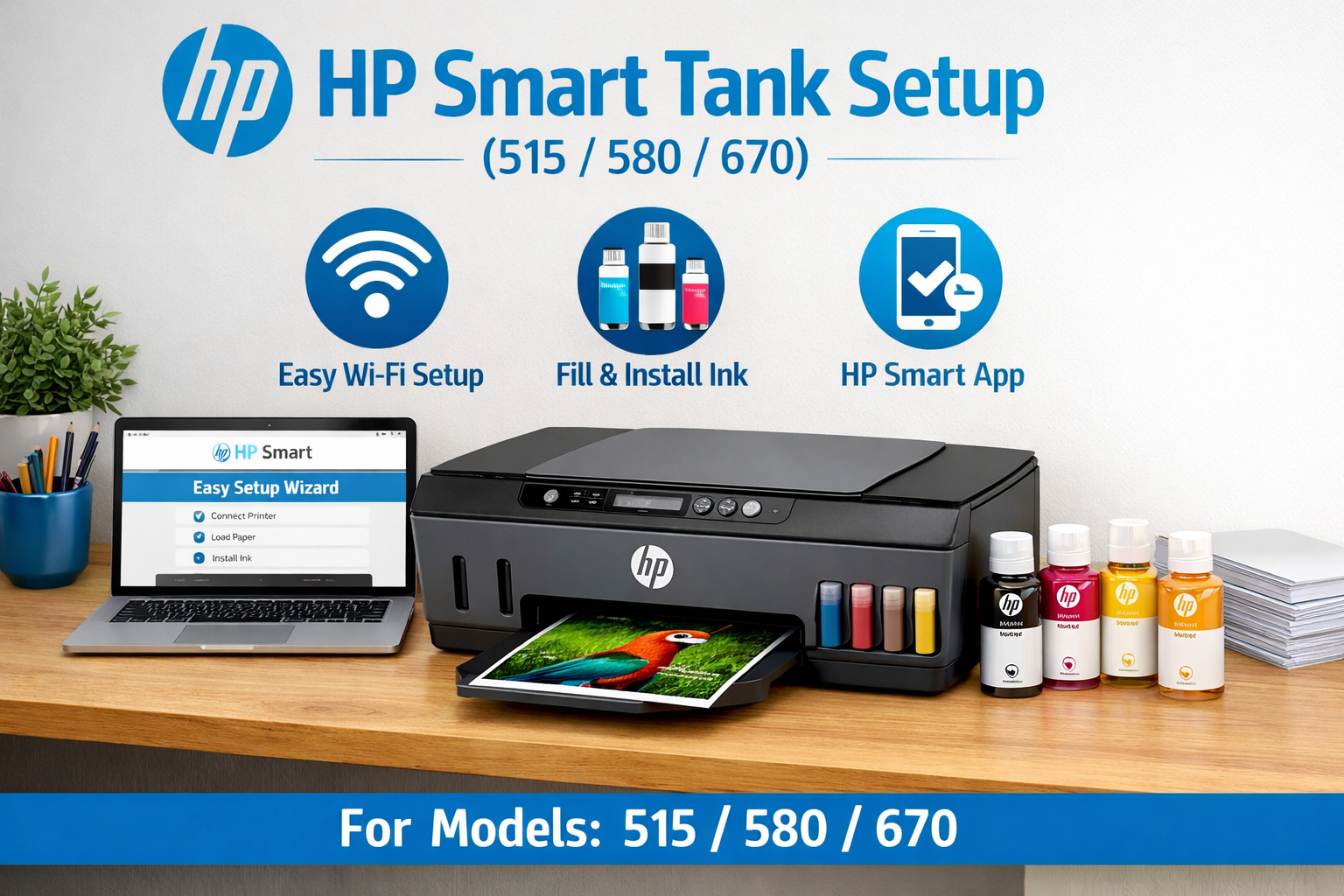
HP Smart Tank Printer Setup (Step-by-Step Guide)
Setting up your HP Smart Tank printer is simple when you follow the correct steps.
This guide covers complete HP Smart Tank printer setup, including WiFi connection, HP Smart app installation, and first-time printer configuration. Whether you own model 515, 580, or 670, the process is consistent and reliable.
✔ Available 24/7 • ✔ No wait time • ✔ Expert support
📑 Table of Contents
✅ Use 2.4 GHz WiFi (5 GHz often fails)
✅ Turn ON Bluetooth & location permissions
✅ Keep printer within 1-2 meters of router
How to Complete HP Smart Tank Printer Setup
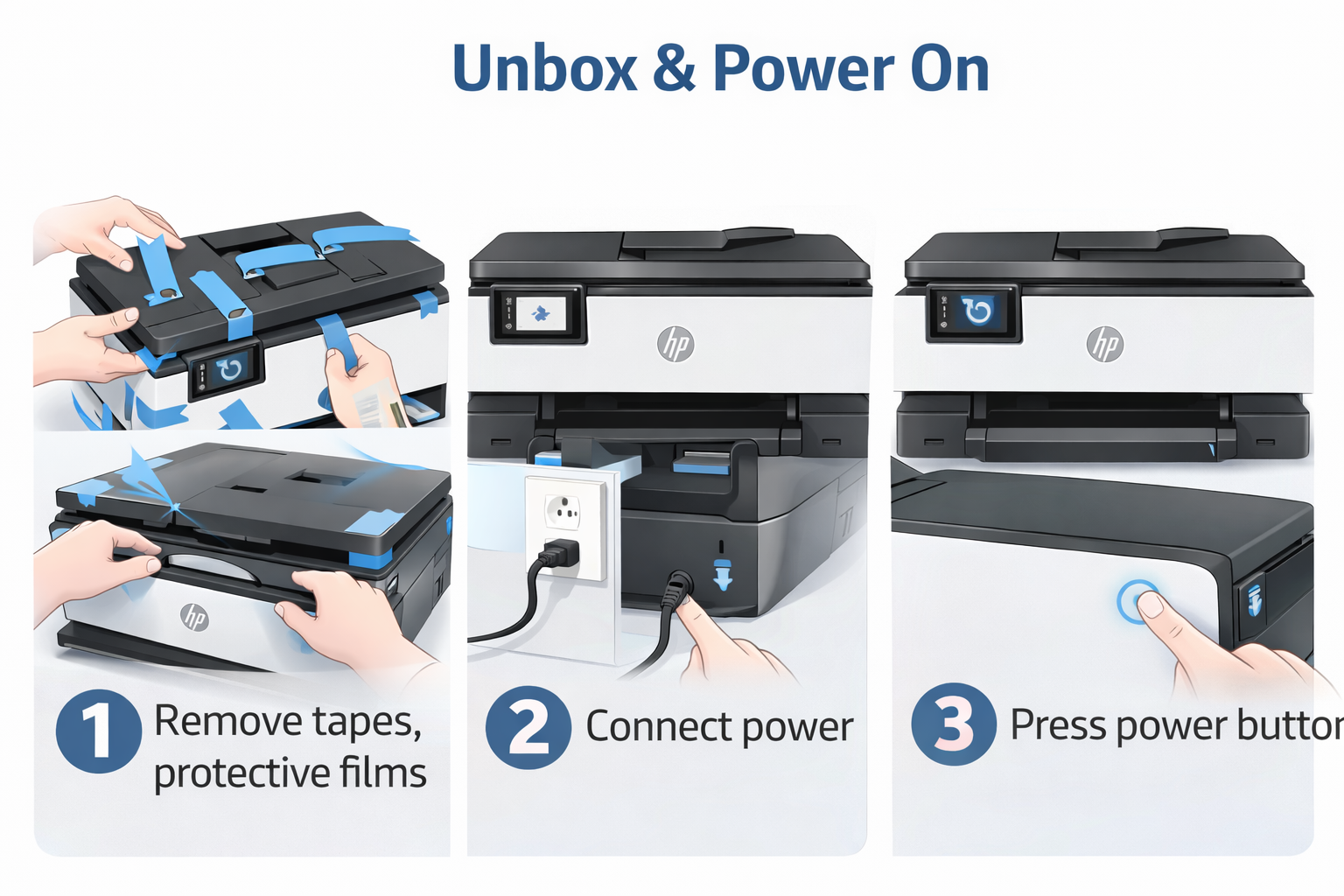
Remove all tapes, protective films, and orange packing materials. Connect power cable to printer and wall outlet. Press the power button and wait for lights to stabilize.
Open ink tank caps. Insert color-coded ink bottles into matching tanks. The auto-fill system works without squeezing bottles. Close caps tightly.
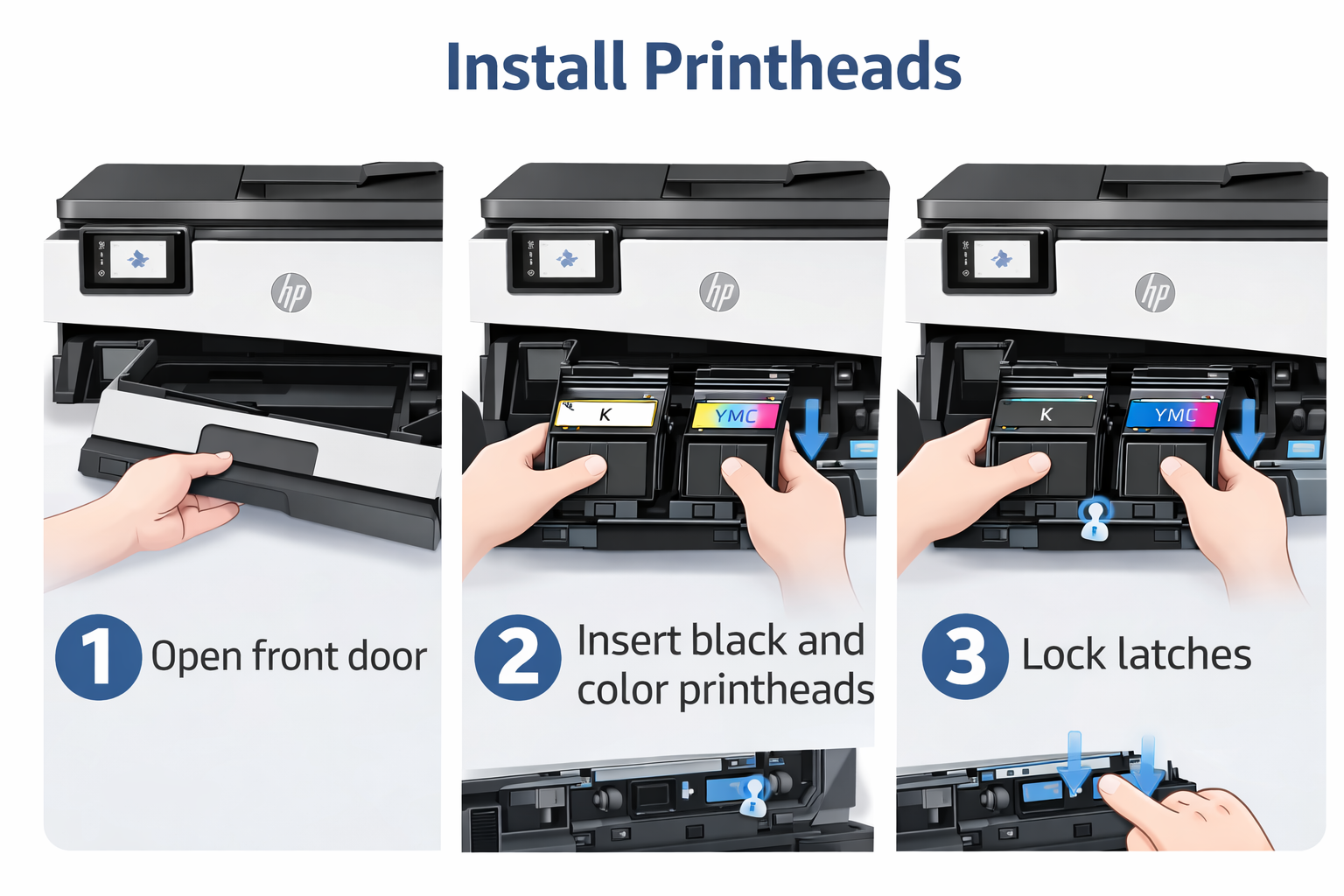
Open front door. Remove protective caps. Insert black printhead into left slot, color into right slot. Push down firmly until they click. Lock latches.
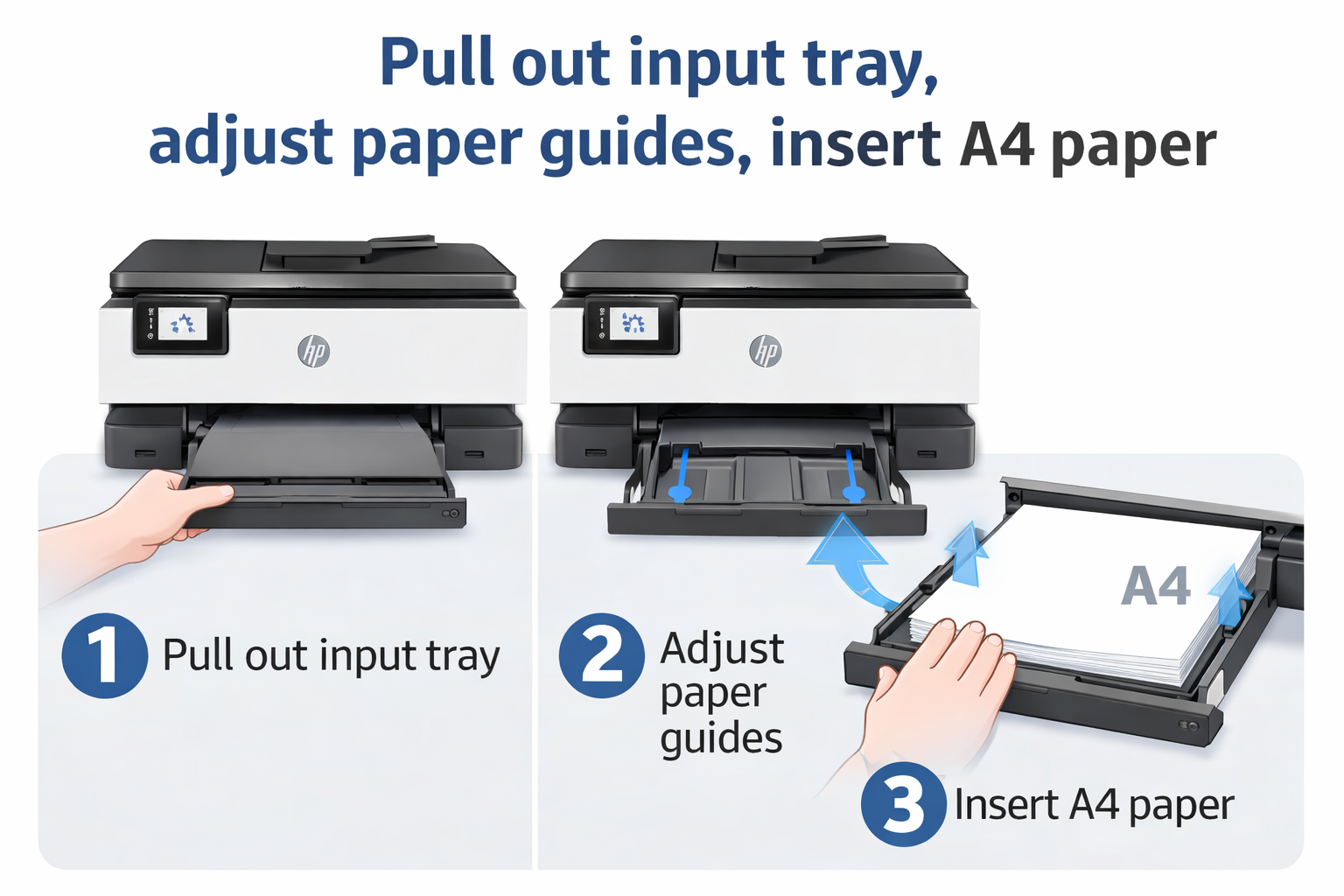
Pull out input tray. Adjust paper guides outward. Insert A4 paper with print side facing up. Slide guides inward until they gently touch paper edges.
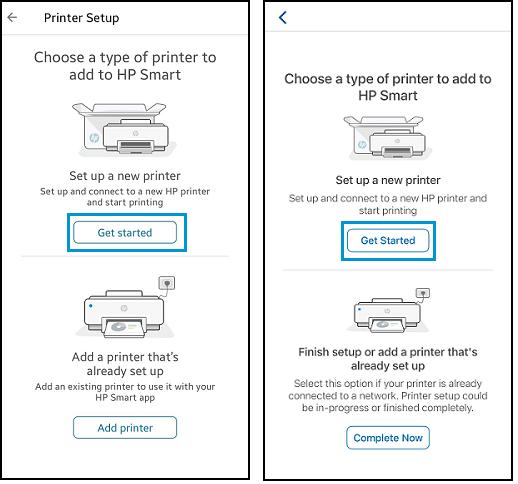
Download HP Smart app → tap "Set up new printer" → enable Bluetooth → select printer → enter WiFi password (2.4GHz) → complete connection. This is the core of your HP Smart Tank printer setup wireless phase.
After WiFi connection, printer automatically prints an alignment page. Follow HP Smart app instructions to complete alignment. Print a test page to confirm successful HP Smart Tank printer setup.
HP Smart Tank Printer Setup for First-Time Users
If you're unboxing your HP Smart Tank printer for the very first time, follow these additional tips:
- Keep the printer on a flat, stable surface near a power outlet.
- Perform the initial ink charging (printer will run a one-time setup cycle).
- Do not interrupt the first alignment print — it calibrates your printheads.
- Register your printer via HP Smart app to activate warranty and ink monitoring.
This HP Smart Tank printer setup for beginners ensures you avoid common mistakes like pulling tapes too early or skipping printhead locking.
📊 Difference Between HP Smart Tank 515 vs 580 vs 670
| Model | Best for | Wireless & Features |
|---|---|---|
| HP Smart Tank 515 | Basic home / student use | Standard WiFi, compact design |
| HP Smart Tank 580 | Improved wireless + UI | Enhanced 2.4GHz stability, Bluetooth setup |
| HP Smart Tank 670 | Advanced features | Auto WiFi restore, faster printhead alignment |
⚠️ Common HP Smart Tank Setup Errors (Quick Fixes)
✔ Force 2.4GHz network ✔ Move printer within 1m of router ✔ Reset network: hold wireless button 5 seconds. See our detailed WiFi failed guide.
✔ Reinstall printheads (see Step 3) ✔ Clean copper contacts ✔ Power cycle printer. More at printhead error fix page.
✔ Verify ink levels ✔ Perform power reset ✔ Update printer firmware. Visit ink not detected troubleshooting.
✔ Check blue light status ✔ Run HP Print and Scan Doctor ✔ Re-add printer in app. See offline fix guide.
✔ Turn on Bluetooth and location ✔ Restart phone and printer ✔ Disable VPN. Check HP Smart App setup guide.
📚 Related HP Printer Setup Guides (Topical Cluster)
🔗 Each guide links back to this master setup page → building topical authority for Google
External authority reference: HP official support center
❓ Frequently Asked Questions
Follow steps 1-6, use HP Smart app, ensure 2.4GHz WiFi and Bluetooth enabled.
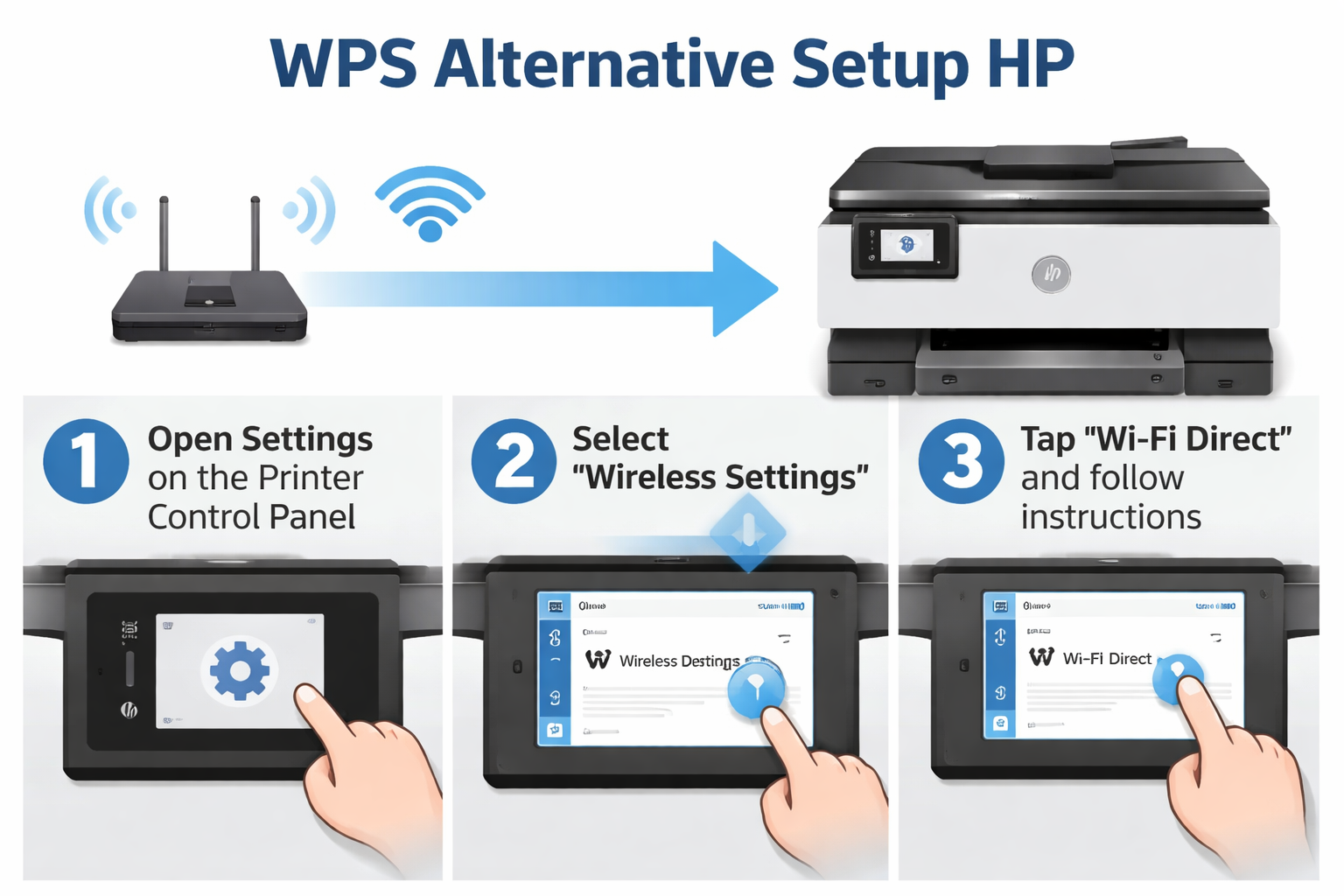
Disable 5GHz band steering or use WiFi Direct method.
580 has improved HP Smart app integration and Bluetooth discovery.
Follow the 6-step HP printer installation guide above — same process for all HP Smart Tank models.
By following this complete HP Smart Tank printer setup guide, you'll have your device ready for printing within 15 minutes. For persistent issues, refer to the troubleshooting links or contact support.