HP Printer Setup on Mobile: Connect HP Printer to Phone in 6 Easy Steps (2026 Updated)
Learn how to set up an HP printer on your phone using the HP app, formerly known as HP Smart. Connect supported HP printers on Android or iPhone and troubleshoot common setup and connection issues.
Independent printer setup guide • Updated August 2026 • Reviewed for common HP printer setup and connection issues.
Last updated: August 2026
This guide uses the HP app to complete printer setup on your phone.
Download the HP app for Android or iPhone and follow the setup steps below.
1. Download the HP app
2. Prepare the printer
3. Connect the printer to Wi-Fi
4. Add the printer to the HP app
5. Sign in or create an HP account when required
6. Print a test page
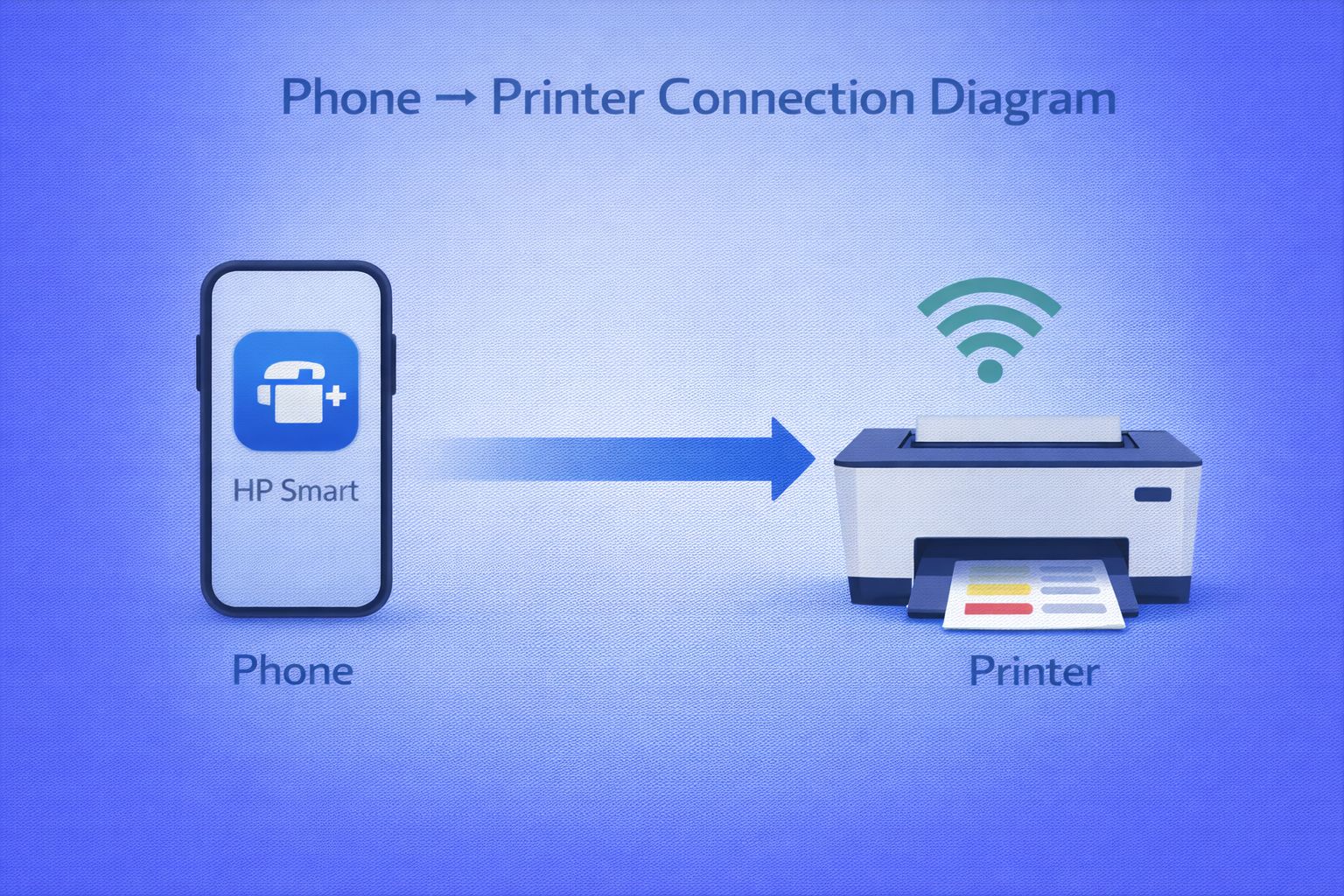 Click to zoom
Print Directly from Your Smartphone—No Computer Needed
Modern HP printers support wireless printing from mobile devices, letting you print documents, photos, and emails directly from your phone or tablet. The HP app makes wireless printing quick and simple. With mobile printing using the app, you can manage all your printing tasks from anywhere. Need Fix all HP printer problems? We've got you covered.
Print from Anywhere
Send print jobs from your phone even when you're away from home with Print Anywhere feature.
Scan to Phone
Use your printer's scanner to send documents directly to your mobile device.
Monitor Ink Levels
Check ink status and order supplies right from the printer app.
Quick Setup
Follow the HP app's setup instructions to connect a compatible printer to Wi-Fi without installing a traditional desktop driver.
Compatibility: Compatibility depends on the printer model. Check HP's current compatibility information for your specific model. Need HP printer troubleshooting? We've got you covered. Also check our HP printer offline and HP Wi-Fi connection issues guides.
Print Anywhere: Send Files from Any Location
On supported printers, Print Anywhere can allow you to send print jobs remotely through the HP app when the required HP services and connections are available.
How to Enable Print Anywhere:
- HP Account required: Sign in to the app with your HP account
- Enable feature: Go to printer settings in the app and toggle on Print Anywhere
- Verify connection: Ensure printer is connected to internet
- Test remote printing: Leave home Wi-Fi, open the app, and send a print job
Note: Print Anywhere availability and requirements vary by printer model, region, and HP service.
Private Pickup Option (model-dependent):
For sensitive documents, some HP printer models support Private Pickup which holds print jobs until you're physically near the printer to release them. This feature may not be available on all printer models or configurations.
To explore all features, see our HP app setup and installation guide (formerly HP Smart).
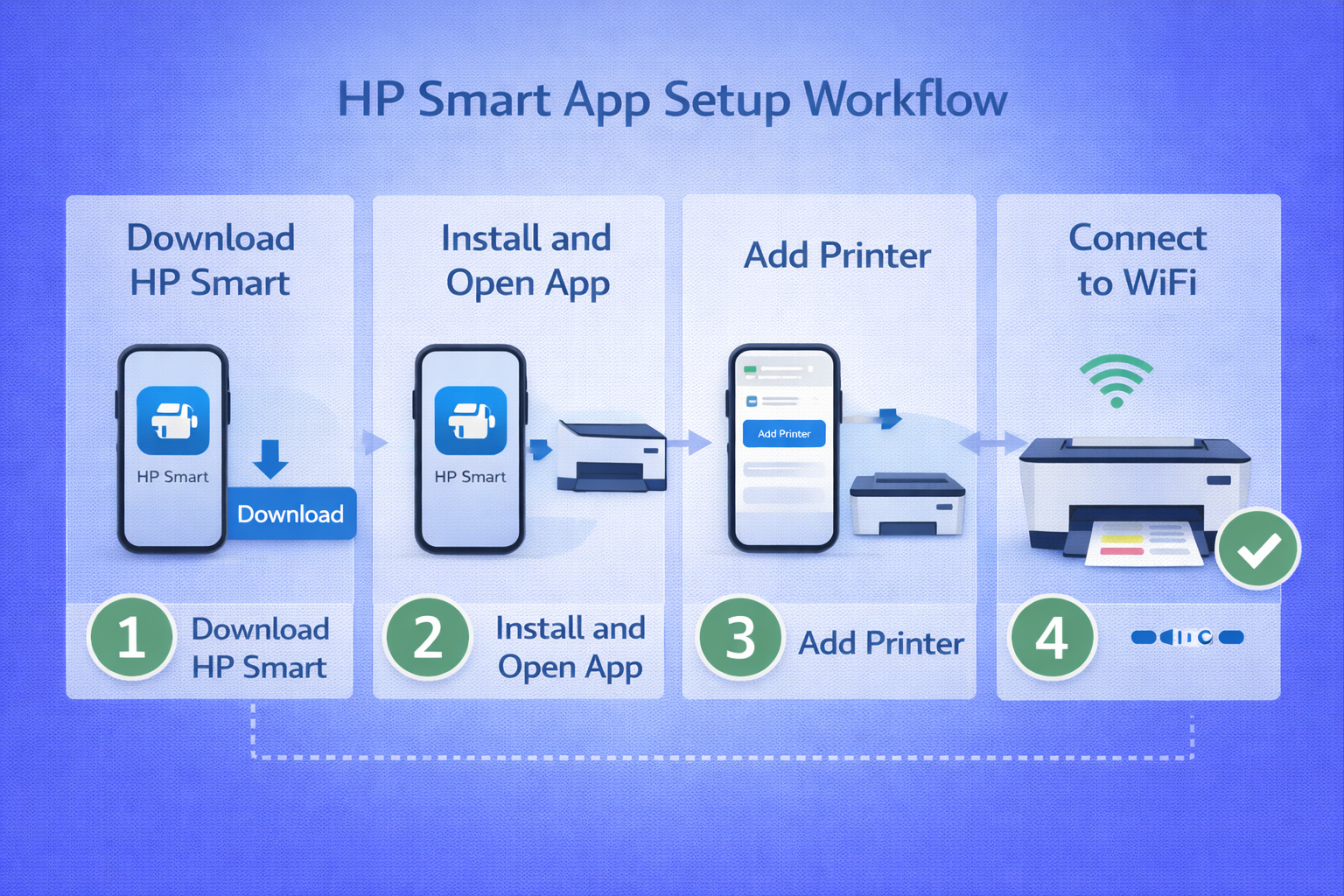 Click to zoom
How to Connect HP Printer to Mobile
Follow these 6 easy steps to set up your HP printer with your smartphone. This guide works for both iPhone and Android devices.
Download the HP App
HP has replaced the HP Smart app with the HP app on supported devices. The HP app provides printer setup, printing, scanning, device management, and support features for compatible HP devices.
If you previously used HP Smart, the HP app is its replacement.
Need help installing the app? Follow our HP app setup and installation guide (formerly HP Smart).
For official app information and download options, use HP's official website or the appropriate Apple App Store or Google Play listing.
 Click to zoom
HP App Download and Setup (Android & iPhone)
The HP app (formerly HP Smart) is your gateway to wireless printing. Available for free on both Apple App Store for iPhone users and Google Play Store for Android devices. On supported printers and services, the HP app can provide features such as scanning, remote printing, and ink or supply information. Check the current Apple App Store or Google Play Store listing for the latest device requirements.
Prepare Your HP Printer
Proper preparation ensures a smooth connection without interruptions.
- Power on your printer
- Load paper and install ink cartridges
- Put printer in setup mode (press and hold Wireless button until light blinks)
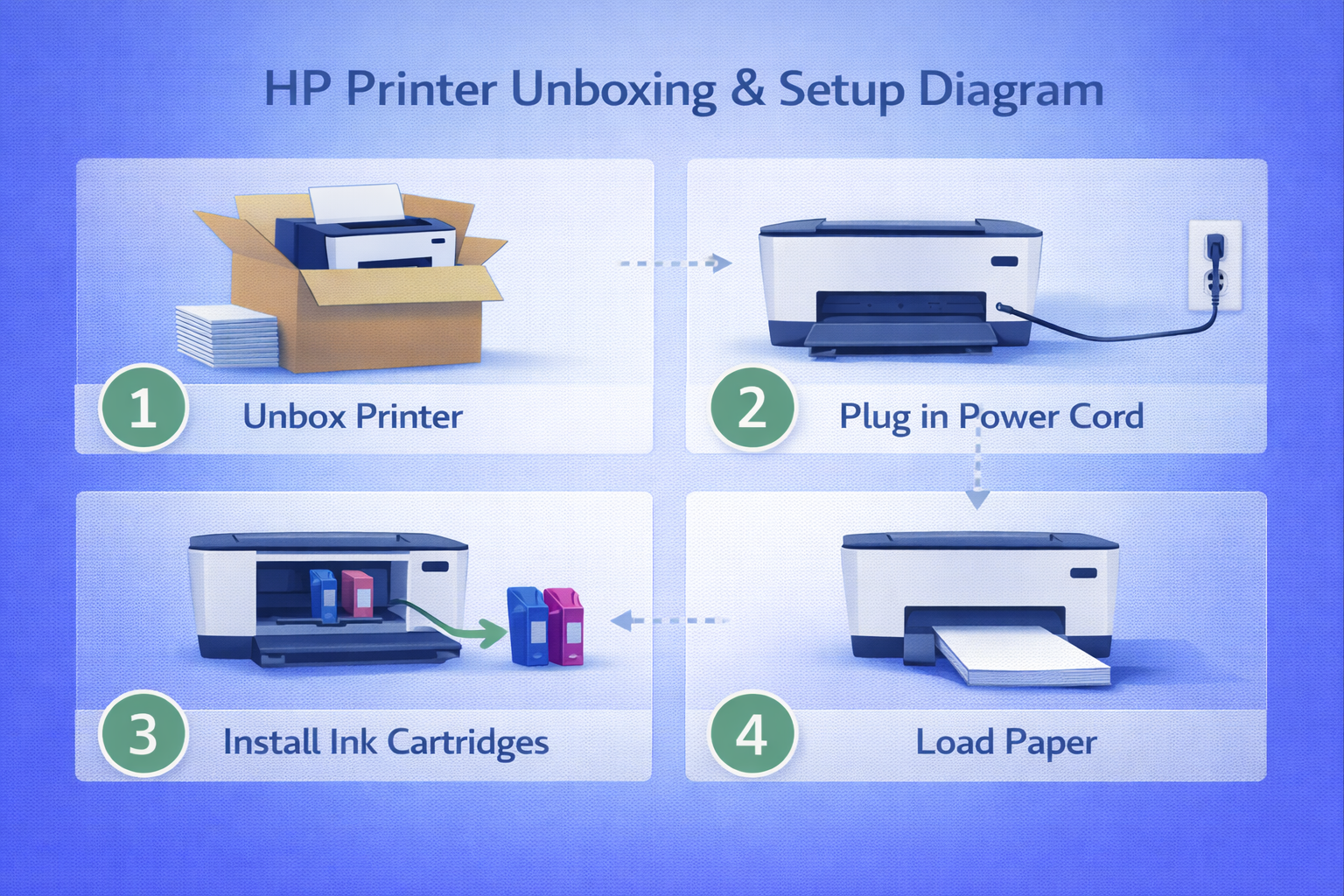 Click to zoom
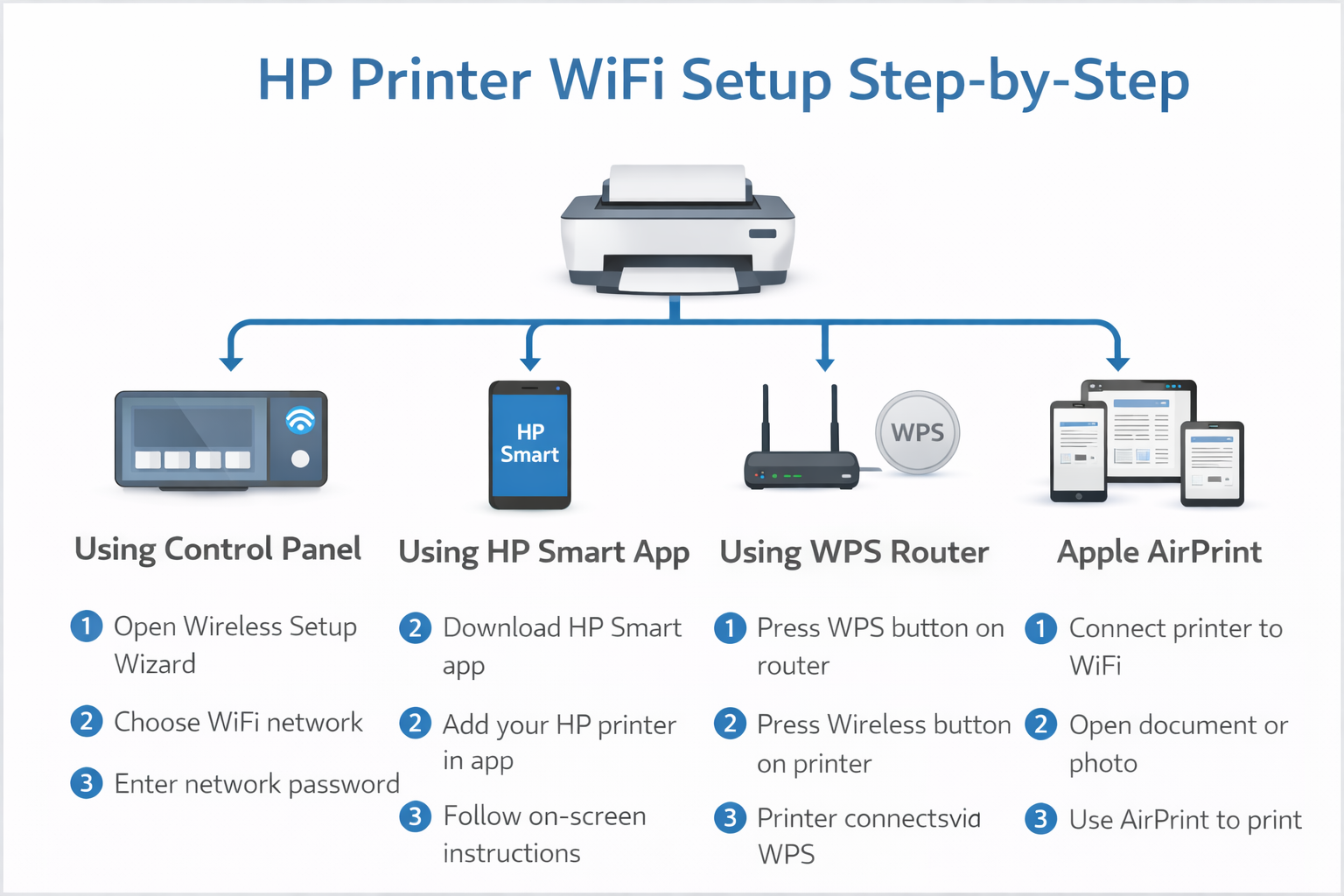
Connect Printer to Wi-Fi Network
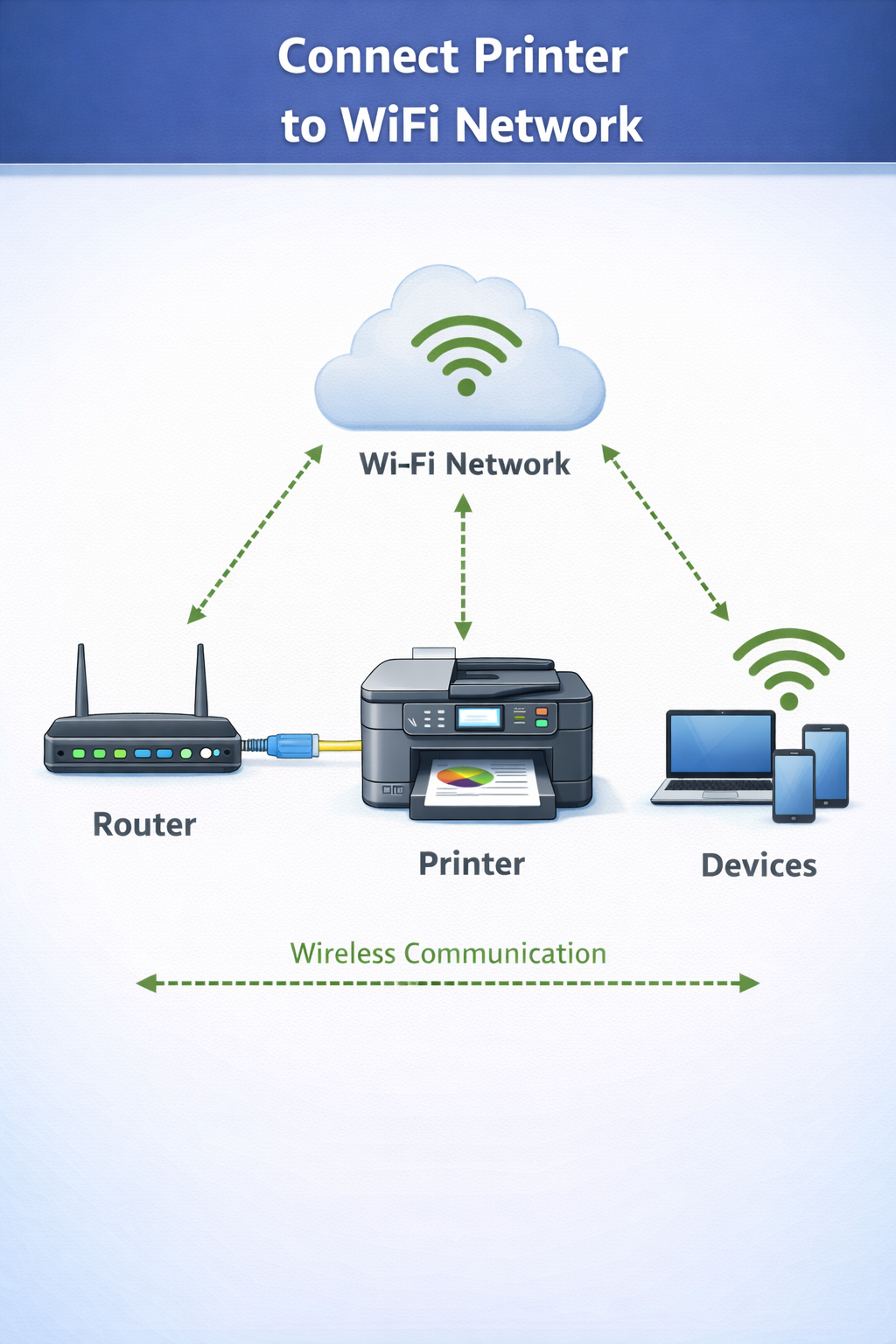
Your printer must be on the same Wi-Fi network as your phone. If you're experiencing HP Wi-Fi connection issues, check our troubleshooting guide.
Method A: Using Printer Control Panel
- On printer touchscreen, go to Settings → Network → Wireless Setup Wizard
- Select your Wi-Fi network and enter password
Note: Some HP printer models support only 2.4 GHz Wi-Fi, while other models support both 2.4 GHz and 5 GHz. Check your printer model's specifications if you are unsure.
 Click to zoom
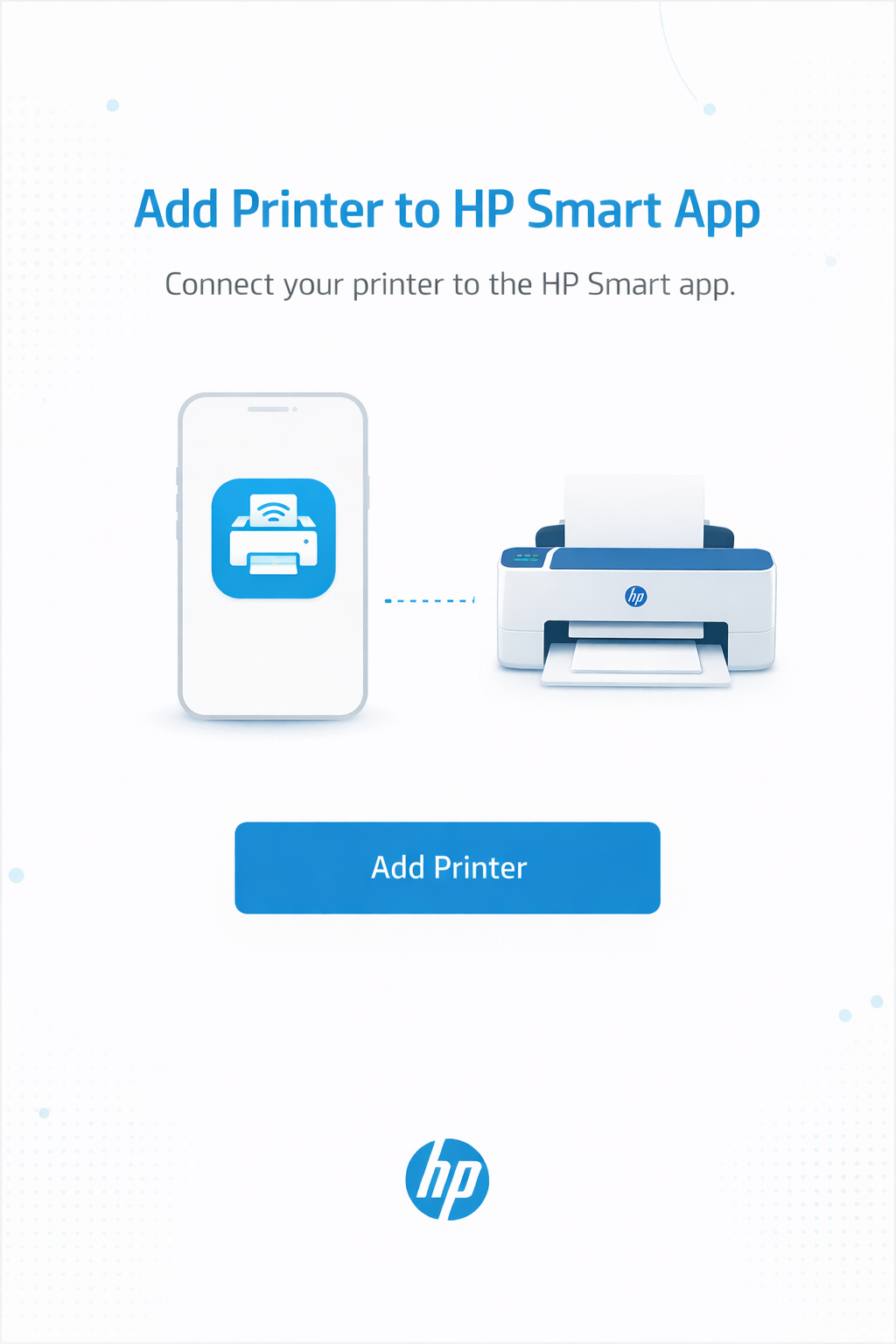
Add Printer to the HP App
Once your printer is on Wi-Fi, complete the connection by adding it to the app.
- Open the HP app
- Tap the + icon or Add Printer button
- Select your HP printer when it appears
 Click to zoom
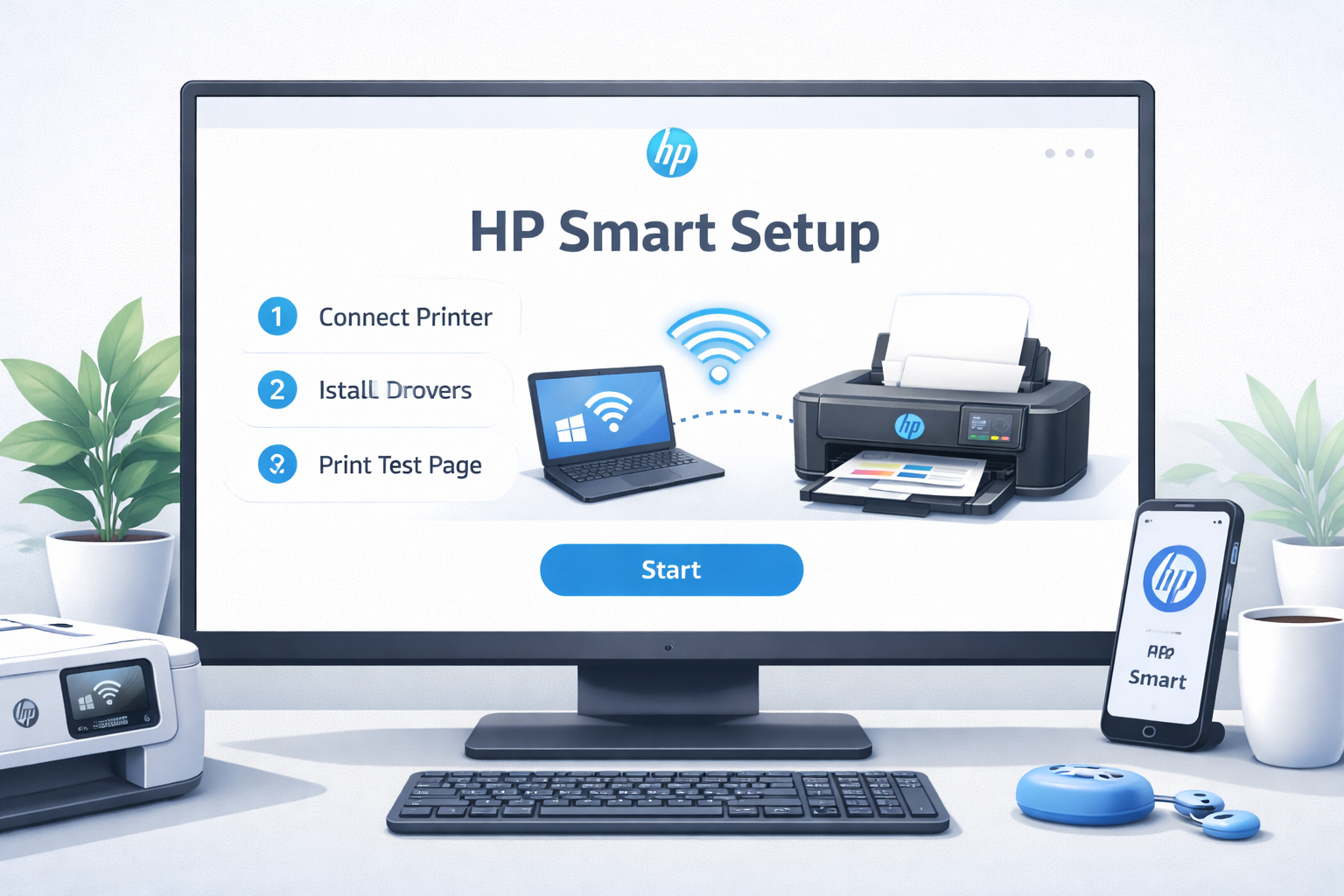
Create HP Account (Recommended)
An HP account enhances your experience with remote printing and ink monitoring. An HP account is not required for every local printing task, but some HP app features and services require an HP account. Requirements vary by feature and printer.
- In the app, tap Account or profile icon
- Select Create Account
- Enter your email and create a password
 Click to zoom
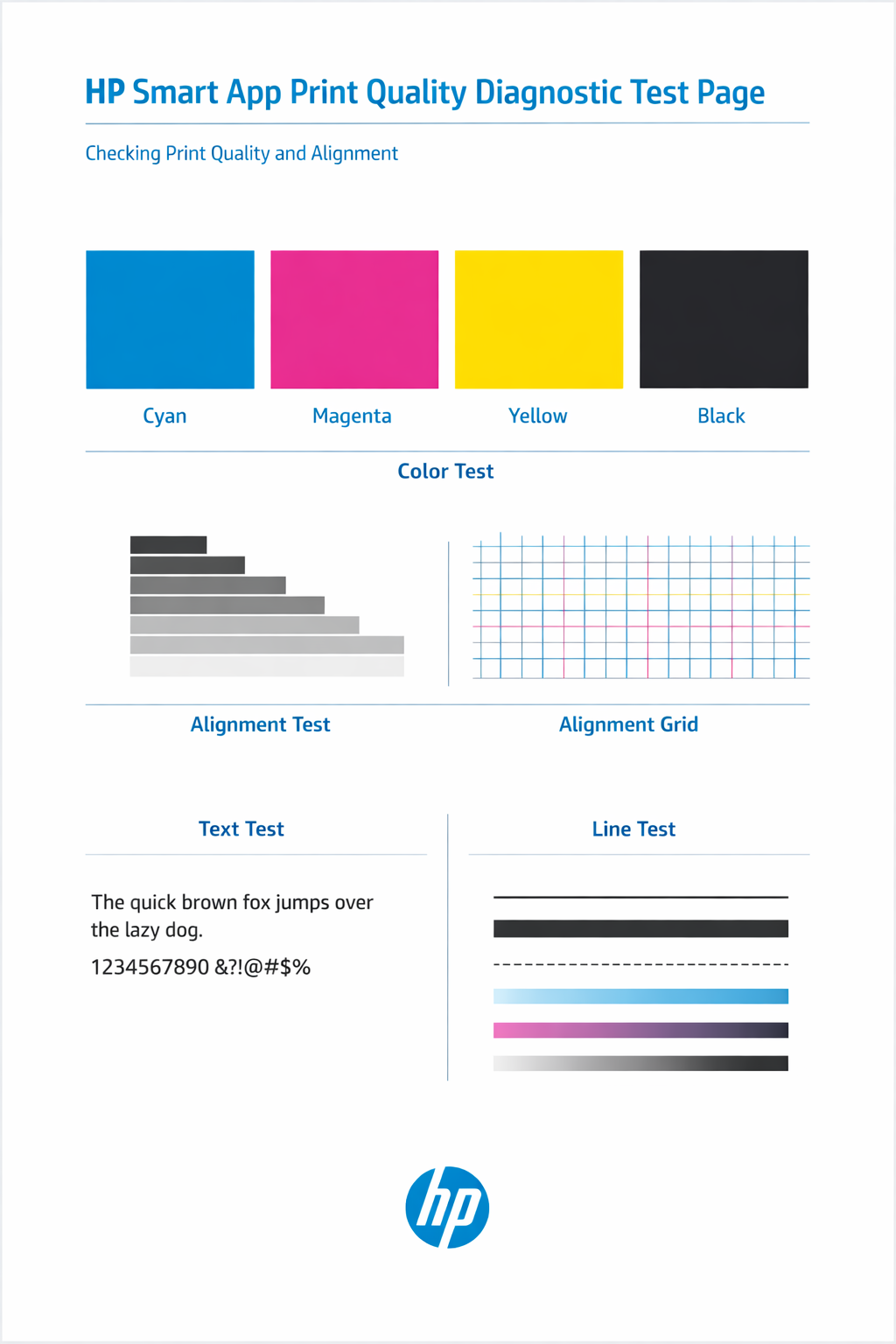
Print a Test Page
Confirm your connection was successful by printing a test page from your phone.
- In the app, select your printer
- Tap Print Documents or Print Test Page
- Tap the Print button
If the page prints successfully, you're all set!
 Click to zoom
What You Can Do with the HP App
On supported devices and printers, the HP app can provide features such as printer setup, printing, scanning, device management, troubleshooting, and support.
Print from Phone
Print documents, photos, emails, and web pages directly from your mobile device.
Scan Documents
Use your printer's scanner to digitize documents and save them as PDF or JPEG to your phone.
Check Ink Levels
Monitor ink status in real-time and receive alerts when supplies are running low.
Remote Printing
Send print jobs from anywhere using HP's Print Anywhere feature with a free HP account.
HP App Not Finding Your Printer? Fix the Connection
The most common issue users face is the HP app failing to detect their printer. Don't worry — this is usually resolved in minutes.
Common Fix When the HP App Cannot Find the Printer
Try these practical troubleshooting steps in order:
- Confirm the printer is powered on.
- Confirm the printer is connected to the intended Wi-Fi network.
- Confirm your phone is connected to the correct network.
- Enable Bluetooth and grant local network permissions when applicable.
- Temporarily disable a VPN if it interferes with local device discovery.
- Restart the printer and router.
- Re-enter Wi-Fi setup mode on the printer if necessary.
- Remove and re-add the printer in the HP app.
- Ensure the printer's Wi-Fi band is supported (some models only support 2.4 GHz).
If none of these work, proceed to the advanced troubleshooting flowchart below.
Wi-Fi Troubleshooting – Common Causes
- Phone and printer are on different networks.
- Printer is not in Wi-Fi setup mode.
- Printer model does not support the selected Wi-Fi band (some only 2.4 GHz).
- Bluetooth or local-network permissions are unavailable when required.
- VPN is interfering with local discovery.
- Router/client isolation is preventing device communication.
- Mesh Wi-Fi can cause discovery problems.
- Printer network settings may need to be reset.
- The HP app may need to be restarted or updated.
Printer Not Found in the HP App
- Ensure printer is powered on and in setup mode
- Verify phone and printer are on the same Wi-Fi network
- Enable Bluetooth during discovery
- Check if your printer supports the current Wi-Fi band
Wi-Fi Connection Fails
- Check if router broadcasts 2.4 GHz band—some HP printers need this
- Verify Wi-Fi password is correct (case-sensitive)
- Restart router before retrying
┌───────────────────────────────────────────────┐
│        ADVANCED PRINTER TROUBLESHOOTING       │
└───────────────────────────────────────────────┘

[START]
   ↓
Is your printer showing in the HP app?
   ├── YES → Try printing test page
   │          ↓
   │     Print successful?
   │          ├── YES → ISSUE RESOLVED
   │          └── NO
   │                ↓
   │        Check print queue / restart spooler
   │                ↓
   │        Update / reinstall drivers
   │                ↓
   │        FIXED
   │
   └── NO
         ↓
Check Wi-Fi connection (same network?)
         ├── NO → Reconnect printer to Wi-Fi
         │         ↓
         │     Re-add printer in the HP app
         │         ↓
         │     FIXED
         │
         └── YES
               ↓
        Restart printer + router
               ↓
        Run the HP app's available diagnostic tools
               ↓
        Printer detected now?
               ├── YES → FIXED
               └── NO
                     ↓
              Reset printer (factory reset)
                     ↓
              Add printer again in the HP app
                     ↓
              Still not working?
                     ↓
              Review the relevant troubleshooting guide
Click flowchart to zoomNeed Further Assistance?
If you've followed all the steps and still need help with your HP printer setup, call our support line for direct assistance.
Get Printer Setup HelpConnect HP Printer to iPhone & iPad
On iPhone or iPad, download the HP app from the Apple App Store if it is available for your device. The HP app replaces HP Smart on supported devices.
Using AirPrint (Built-in)
- Ensure iPhone and printer are on same Wi-Fi network
- Open document, tap Share button and scroll to Print
- Select your HP printer and tap Print
Using the HP App
- Download the HP app from the App Store
- Follow steps 1-6 from the guide above
- Access scanning and ink monitoring
Connect HP Printer to Android Phones
Android users can use the HP app on supported devices, along with Android's supported printing options. The HP app replaces HP Smart.
Using HP Print Service Plugin (Optional)
HP Print Service Plugin is an optional Android printing method for supported printers and apps. The HP app provides additional printer setup, scanning, management, and support features.
- Install HP Print Service Plugin from Google Play
- Open Settings → Connected devices → Printing
- Toggle on HP Print Service
Using the HP App
- Download the HP app from Google Play Store
- Follow steps 1-6 from the guide above
- Enable remote printing and scan to phone
Connect Using Wi-Fi Direct
Wi-Fi Direct enables mobile printing without a router.
- Enable Wi-Fi Direct on printer – look for DIRECT-**-HP
- On your phone: open Wi-Fi settings and connect to that network
- Open the HP app and follow the prompts to add or select the printer over the Wi-Fi Direct connection.
 Click to zoom
Frequently Asked Questions About HP Mobile Printing
Why is the HP app not finding my printer?
This usually happens when your phone and printer are on different Wi-Fi networks, Bluetooth is disabled, or the printer isn't in setup mode. Some HP printer models support only 2.4 GHz Wi-Fi, while others support both 2.4 GHz and 5 GHz. Check your printer model's specifications if unsure. Ensure both devices are on the same network and enable Bluetooth for discovery.
If the app cannot detect your printer, follow our HP printer troubleshooting guide for advanced fixes.
How do I connect an HP printer to my phone using the HP app?
Download the HP app from the Apple App Store or Google Play Store, ensure your printer is powered on and connected to Wi-Fi, open the app, tap Add Printer, and follow the on-screen instructions.
Can I print from my phone without a computer?
Yes, on supported printers the HP app allows you to print documents, photos, and emails directly from your phone without needing a computer.
Is the HP app free?
The HP app is available at no charge for supported devices. Some HP services or features may have additional requirements or charges.
People Also Search For
Master Mobile Printing with Your HP Printer
Setting up your HP printer with your phone doesn't have to be complicated. With this guide, you can connect your HP printer to iPhone or Android using the HP app.
Key takeaways:
- Download the HP app (formerly HP Smart) from official stores
- Ensure same Wi-Fi network (check band support for your model)
- Put printer in setup mode before connecting
- Create free HP account for remote printing (recommended)