How to Connect an HP Printer to WiFi
Connect HP DeskJet, ENVY, OfficeJet, LaserJet, and Smart Tank printers to WiFi using the HP app (formerly HP Smart), WPS, and Wireless Setup Wizard methods.
HP printer WiFi setup allows wireless printing from Windows PCs, Macs, iPhones, Android devices, and Chromebooks without USB cables. This guide explains the fastest ways to connect HP printers to wireless networks using the HP app (formerly HP Smart), Wireless Setup Wizard, WPS, and manual setup methods.
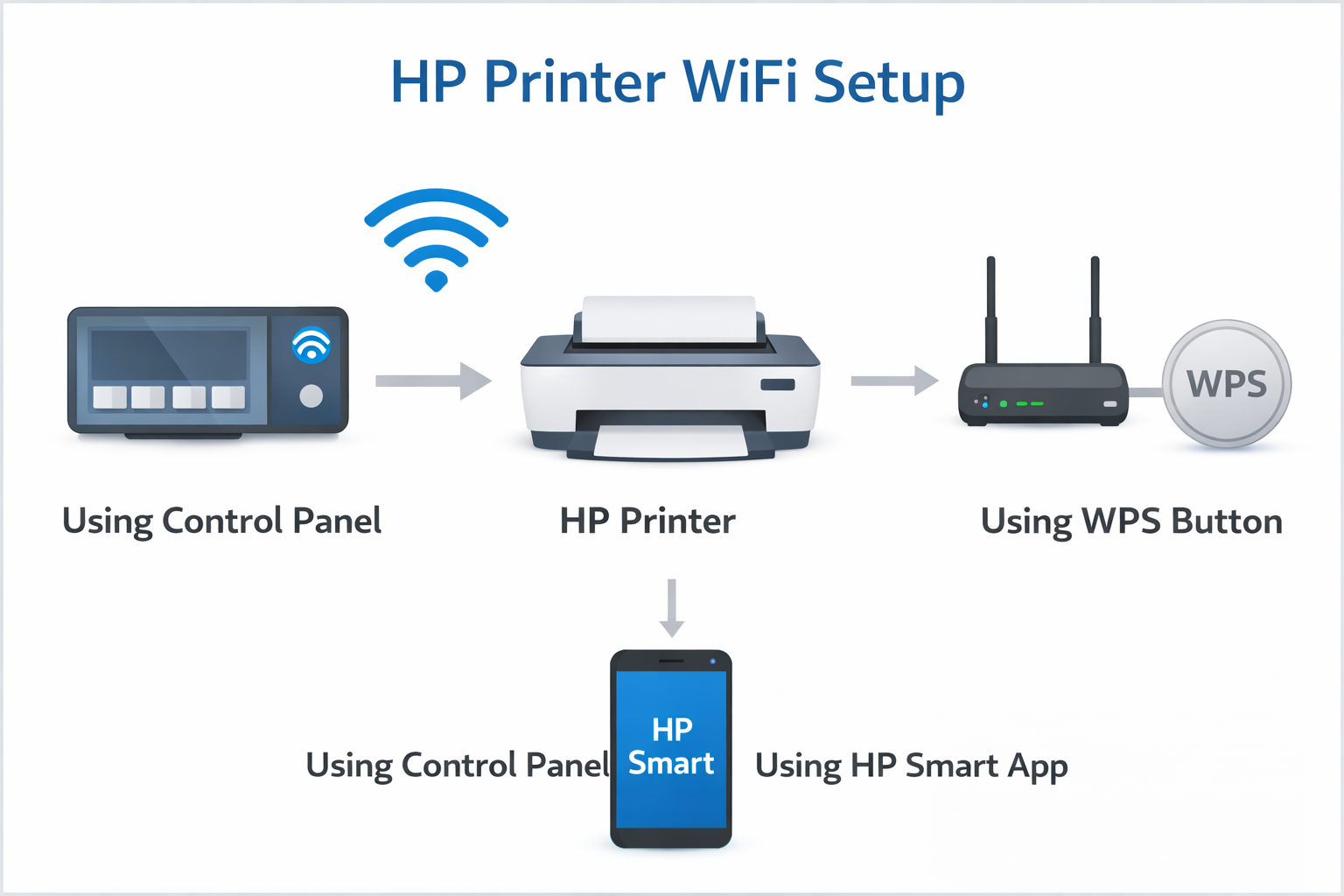
- Turn on the printer
- Put the printer into Wi‑Fi setup mode (steps vary by model)
- Open HP app (formerly HP Smart) or Setup Wizard
- Select your WiFi network
- Enter WiFi password
- Add printer on device
Watch: Set Up an HP Printer on WiFi
Follow this official HP Support video to see how to set up an HP printer over a wireless network using the HP app.
If your printer fails to connect, follow our printer WiFi troubleshooting guide.
If your printer appears offline after setup, see our steps to reconnect an offline HP printer.
HP Printer WiFi Setup Steps
Follow these six simple steps to get your HP printer online.
Turn On Printer
Power on the printer and wait until it becomes idle.
Enter Wi‑Fi Setup Mode
Put the printer into Wi‑Fi setup mode. The exact steps vary by HP model and control-panel type.
Select WiFi Network
Use the HP app (formerly HP Smart) or Wireless Setup Wizard to choose your network.
Enter Password
Type your WiFi password correctly (case-sensitive).
Add Printer to Device
Complete setup on Windows, Mac, or mobile.
Print Test Page
Verify the wireless connection with a test print.
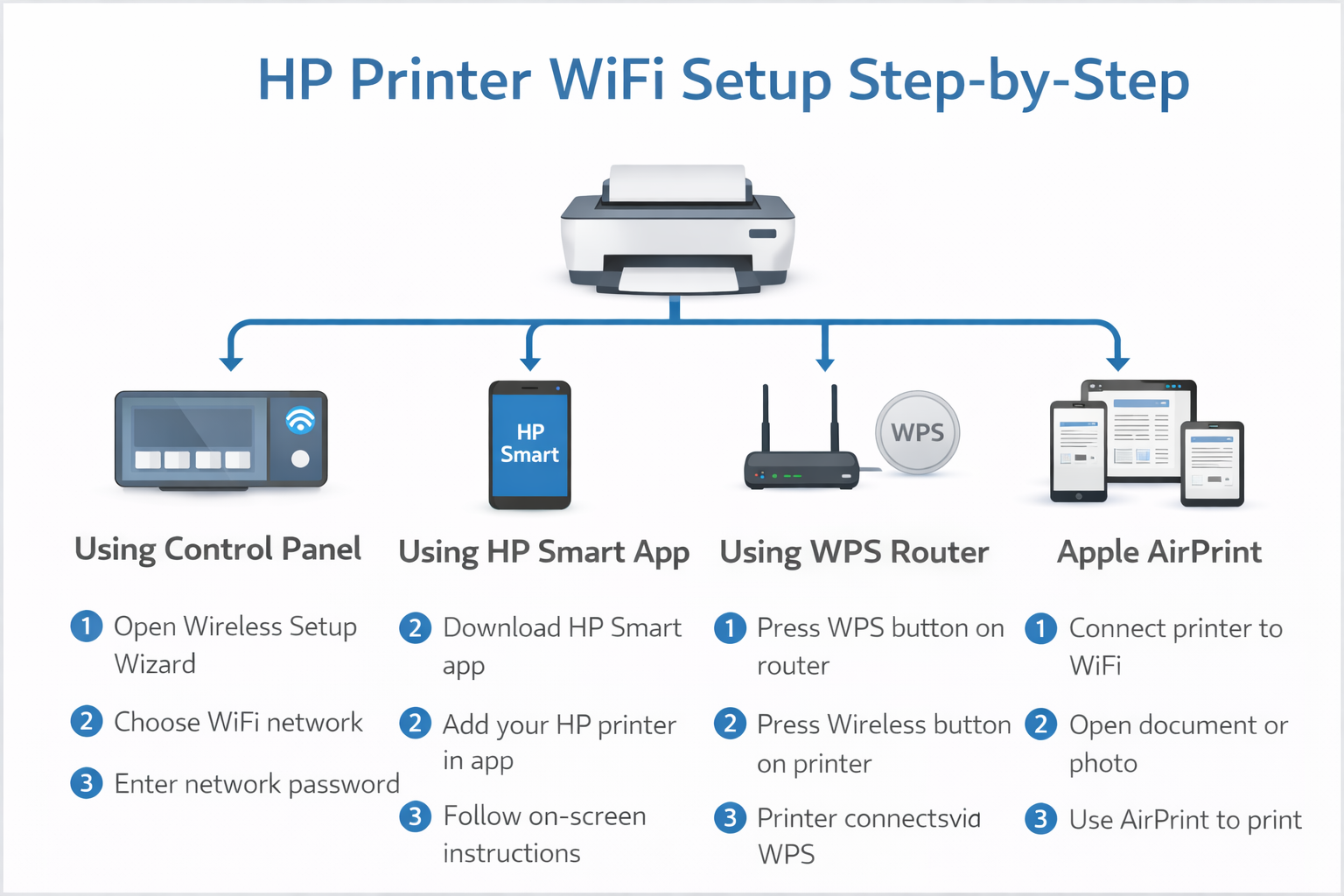
Click to enlarge: step‑by‑step decision tree for HP wireless printer setup
Benefits of HP Wireless Printing
Why connecting your printer to WiFi improves your workflow
Print from Phones
Direct printing from iPhone, iPad, and Android via the HP app.
AirPrint Support
Native Apple AirPrint for zero‑setup printing on Mac and iOS.
Shared Network Printing
Multiple users can print from any device on the same network.
No USB Cables
Clean desk setup without physical connections.
Flexible Printer Placement
Place the printer within reliable Wi‑Fi range without keeping it physically connected to your computer.
HP App Scanning
Scan documents directly to your phone or cloud services.
Before You Start
Complete these quick checks before connecting your HP printer to WiFi.
WiFi Setup Methods
Choose the method that works best for your printer model.
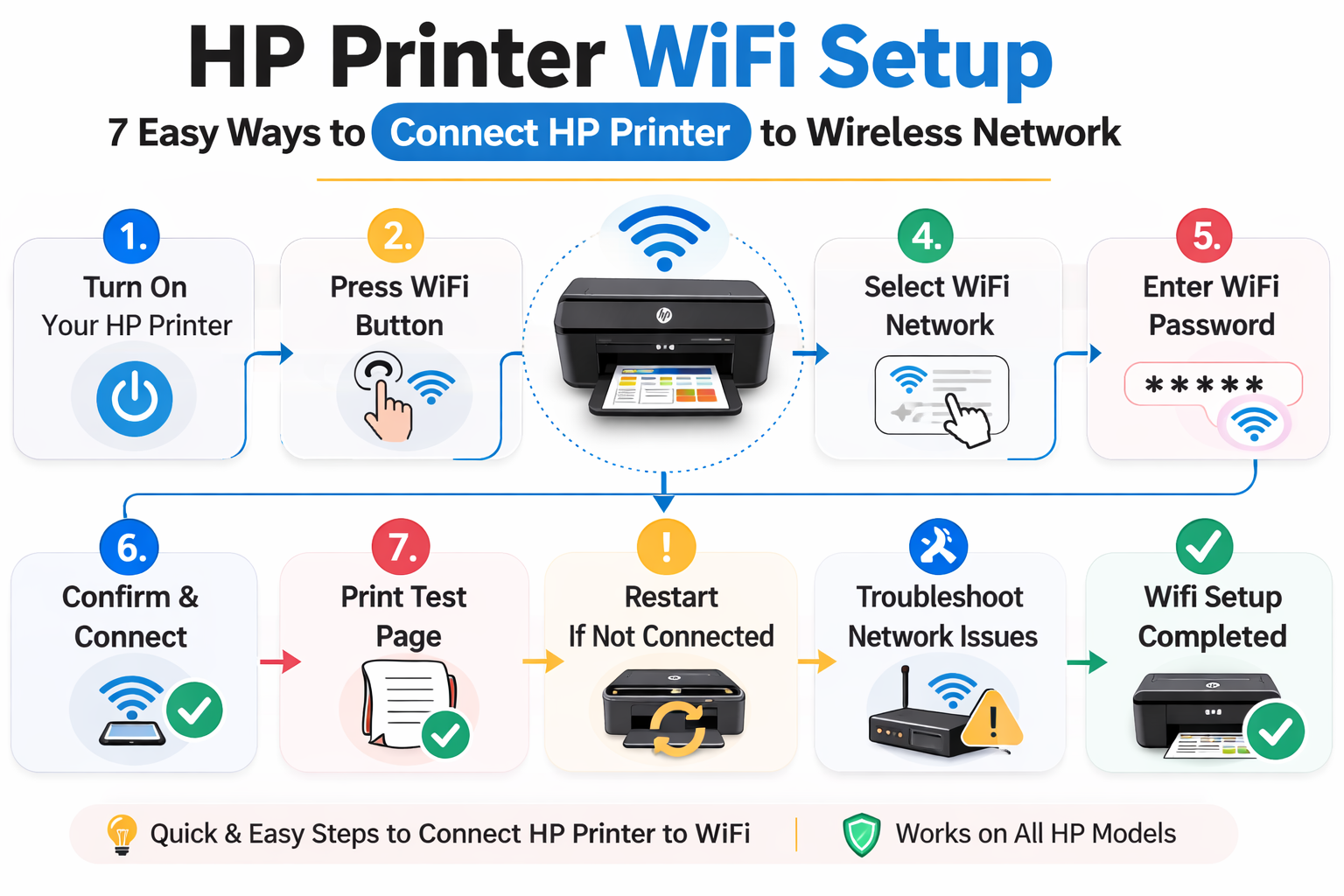
HP App (formerly HP Smart)
The easiest guided setup for most users.
- Download the HP app
- Tap "Add Printer"
- Follow on-screen prompts
- Connect to WiFi
Wireless Setup Wizard
For HP printers with a touchscreen or compatible control-panel menu.
- Open the printer's Setup, Network or Wireless menu
- Select Wireless Setup Wizard
- Choose your WiFi network
- Enter the WiFi password
WPS Button Method
One‑touch connection without password.
- Confirm your router supports WPS
- Put the printer into WPS connection mode
- Press the router's WPS button within the required connection window
- Wait for the wireless connection to complete
USB Temporary Setup
Use USB cable to configure WiFi once.
- Connect printer via USB
- Open HP app (formerly HP Smart)
- Follow software prompts for wireless setup
- Enter WiFi credentials
- Remove USB after setup
Wi‑Fi Direct (No Router Required)
Wi‑Fi Direct connects your computer or mobile device directly to the printer instead of connecting the printer to your normal router-based Wi‑Fi network.
- Enable Wi‑Fi Direct on printer
- Connect device to printer's SSID
- Send print job directly
Manual IP Setup
For advanced network configurations.
- Print network config page
- Open printer's EWS (IP address)
- Navigate to Networking and Wireless settings
- Enter manual IP settings
HP Easy Start
Legacy software for older printers.
- Download HP Easy Start
- Run the installer
- Follow on‑screen wireless setup
HP Printer WiFi Setup on Windows
Connect using the HP app (formerly HP Smart) or Windows Settings.
- Open the HP app (download from Microsoft Store if needed)
- Click "Add Printer" → select your printer
- Choose "Set up as new printer"
- Select your WiFi network and enter password
- Complete installation and print a test page
If Windows cannot detect your printer, follow our printer detection troubleshooting guide.
HP Printer WiFi Setup on Mac
Mac users can use the HP app or AirPrint.
- Connect printer to WiFi (via the HP app, WPS, or Wireless Setup Wizard)
- Open System Settings → Printers & Scanners
- Click "+" to add printer
- Select your HP printer from the list
- Install and complete setup
AirPrint requires no drivers – works automatically once printer is on same network. For offline issues, see steps to reconnect an offline HP printer.
Connect HP Printer to iPhone or Android
Use the HP app (formerly HP Smart) mobile app.
- Install the HP app from App Store or Google Play
- Enable Bluetooth and location permissions if prompted to help with printer discovery
- Tap "+" or "Add Printer"
- The app will find printer on WiFi
- Follow steps to complete connection
For mobile printing issues, see our HP printer mobile setup guide.
HP Printer Setup on Chromebook
Chromebooks support native printing to compatible printers on the same network.
- Connect printer to same WiFi network
- Open Settings → Advanced → Printing
- Click "Add Printer"
- Select your HP printer
- Print using the system dialog
If your Chromebook cannot find the printer, try our printer detection guide.
HP Printer Families Covered by This Guide
This guide covers common wireless setup procedures used across these HP printer families. Available WiFi bands, control-panel menus and connection methods vary by individual model.
Fix Common WiFi Setup Issues
Most connection problems have simple solutions.
Printer Not Found
Printer may be in sleep mode or out of range. Restart printer, place near router, and retry discovery in the HP app.
Printer detection guide →Wrong Password Error
WiFi passwords are case‑sensitive. Re‑enter carefully or use WPS to avoid entry.
Offline printer fixes →WiFi Disconnecting
Restart the printer and router, improve signal strength, and reduce wireless interference. If the printer repeatedly changes IP address, consider reserving its IP address in your router settings.
WiFi stability guide →5GHz / 2.4GHz Network Issues
Some HP printers support only 2.4 GHz, while others support both 2.4 and 5 GHz. If setup fails on 5 GHz, make sure your router's 2.4 GHz band is enabled and try that network.
HP App Not Detecting
Check Bluetooth permissions and ensure printer is in setup mode. Restart the app and phone if needed.
Router Problems
Reboot your router and printer. Check if other devices can connect to the same WiFi.
Complete troubleshooting →Last reviewed and updated on July 25, 2026.
Wireless Printing FAQs
Common causes: incorrect password, weak signal, outdated firmware, or frequency mismatch. Some HP printers support only 2.4 GHz, while others support both 2.4 GHz and 5 GHz. Check your printer specifications. If setup fails on 5 GHz, make sure your router's 2.4 GHz band is enabled and try that network.
Some HP printers support only 2.4 GHz, while others support both 2.4 GHz and 5 GHz. Check your printer specifications.
Go to Wireless Settings on printer control panel, select Restore Network Defaults, then restart the printer.
Yes. You can use Wireless Setup Wizard, WPS, AirPrint, or Windows printer settings.
Ensure printer is in setup mode (steps vary by model), enable Bluetooth and location permissions if prompted, and restart both devices.
Run Wireless Setup Wizard again or use the HP app to reconfigure the new network credentials.