
HP LaserJet Printer Setup (WiFi, Driver & Installation Guide)
This complete guide walks you through setting up your HP LaserJet printer. You'll learn how to connect to WiFi, install the HP app, add drivers on Windows or Mac, set up mobile printing, and troubleshoot common issues.
Last updated: August 2026 · 10 minute read
This guide is part of our complete Printer Setup Hub.
This guide is written to cover the common setup process used across HP LaserJet printers, although exact menu names and options can vary by model and operating system.
On this page
This step-by-step guide covers everything you need to set up your HP LaserJet printer. From unboxing to printing your first test page, you'll find clear instructions for WiFi setup, driver installation on Windows and Mac, and using the HP app (formerly HP Smart). If you run into issues, we've also included common troubleshooting tips.
The guide applies to many LaserJet models, including:
- HP LaserJet MFP M234
- HP LaserJet Pro M404
- HP LaserJet M110 / M209
- HP Color LaserJet Pro M255 / M283
- HP LaserJet MFP M140 series
Start with the preparation steps below, then choose the wireless, driver, computer, USB, or mobile setup method that matches your printer and device.
HP LaserJet Setup at a Glance
- Prepare the printer
- Install the HP app
- Connect the printer to WiFi
- Find the printer
- Install the printer drivers
- Add the printer to Windows or Mac
- Print a test page
Unbox and Prepare the HP LaserJet Printer
Before installing any software, physically prepare the printer. Remove all packaging, install the toner cartridge, load paper, and connect the power cable.
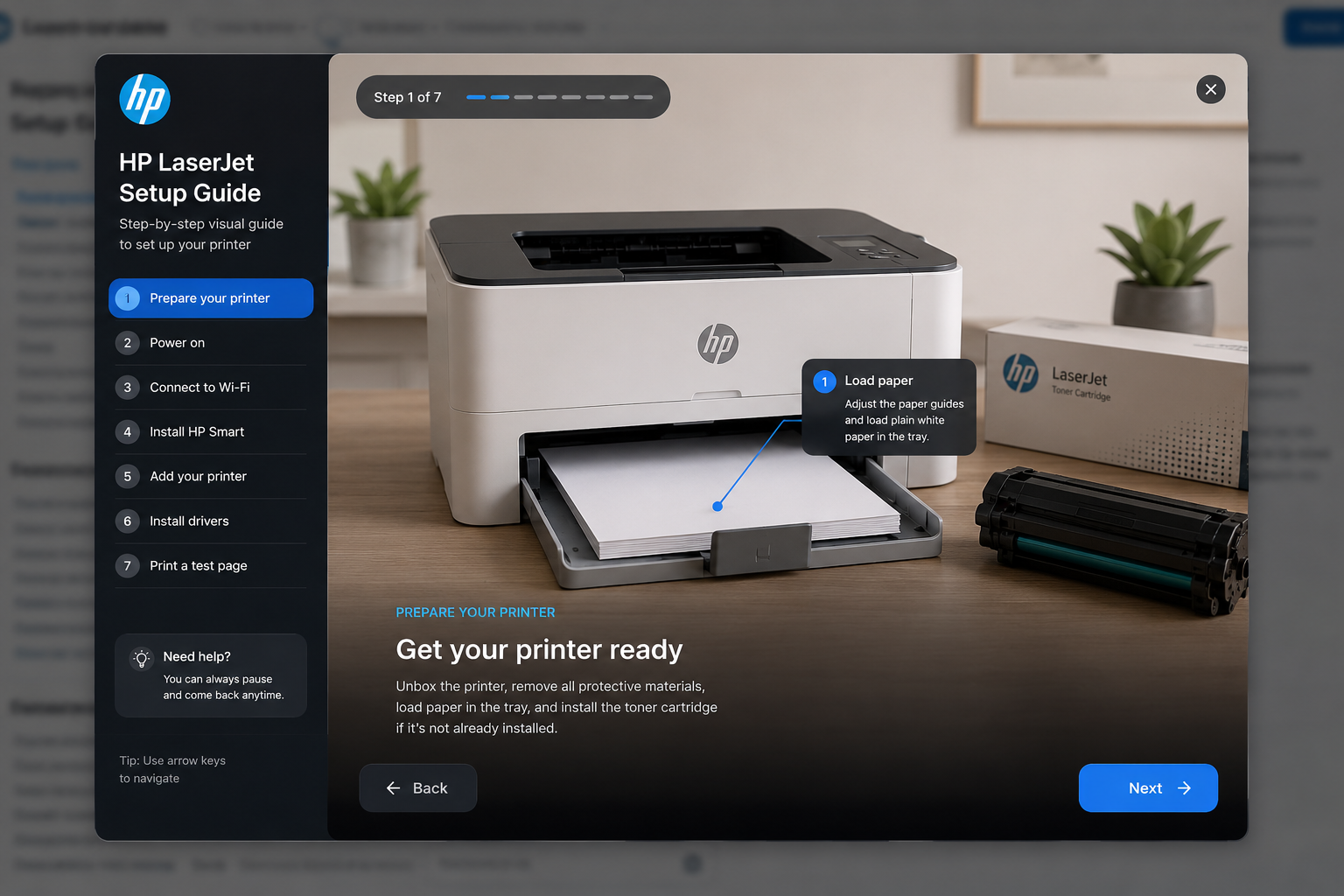
- Remove the printer from the box.
- Remove all protective packaging and tape.
- Connect the power cable to the printer.
- Turn the printer ON.
- Install the toner cartridge.
- Load paper into the input tray.
When the printer shows Ready, continue with the setup.
Install Using the HP App
The HP app (formerly HP Smart) is HP's current printer setup application. It can simplify installation on Windows, macOS, Android, and iPhone.
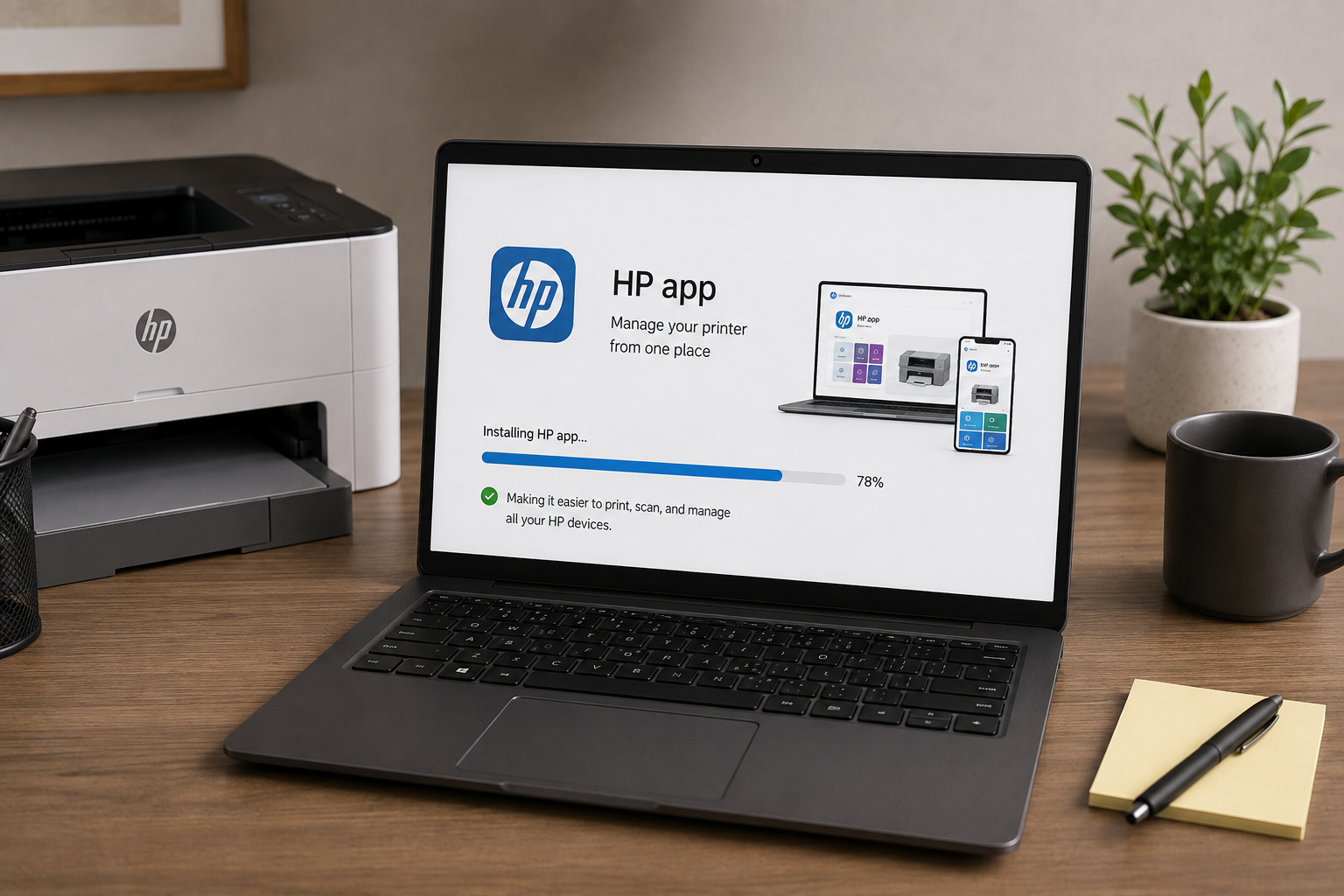
- Download the HP app from the official HP website or your device's app store.
- Open the HP app. If the app offers account sign-in, you can sign in or create an HP account when required for the feature you want to use.
- Tap Add Printer – the app will search for your LaserJet.
- Select your printer and follow the on‑screen instructions to complete wireless setup.
Once installed, the HP app lets you print, scan, and check printer status from anywhere on your network. Learn more about using the HP app →
HP LaserJet WiFi Setup
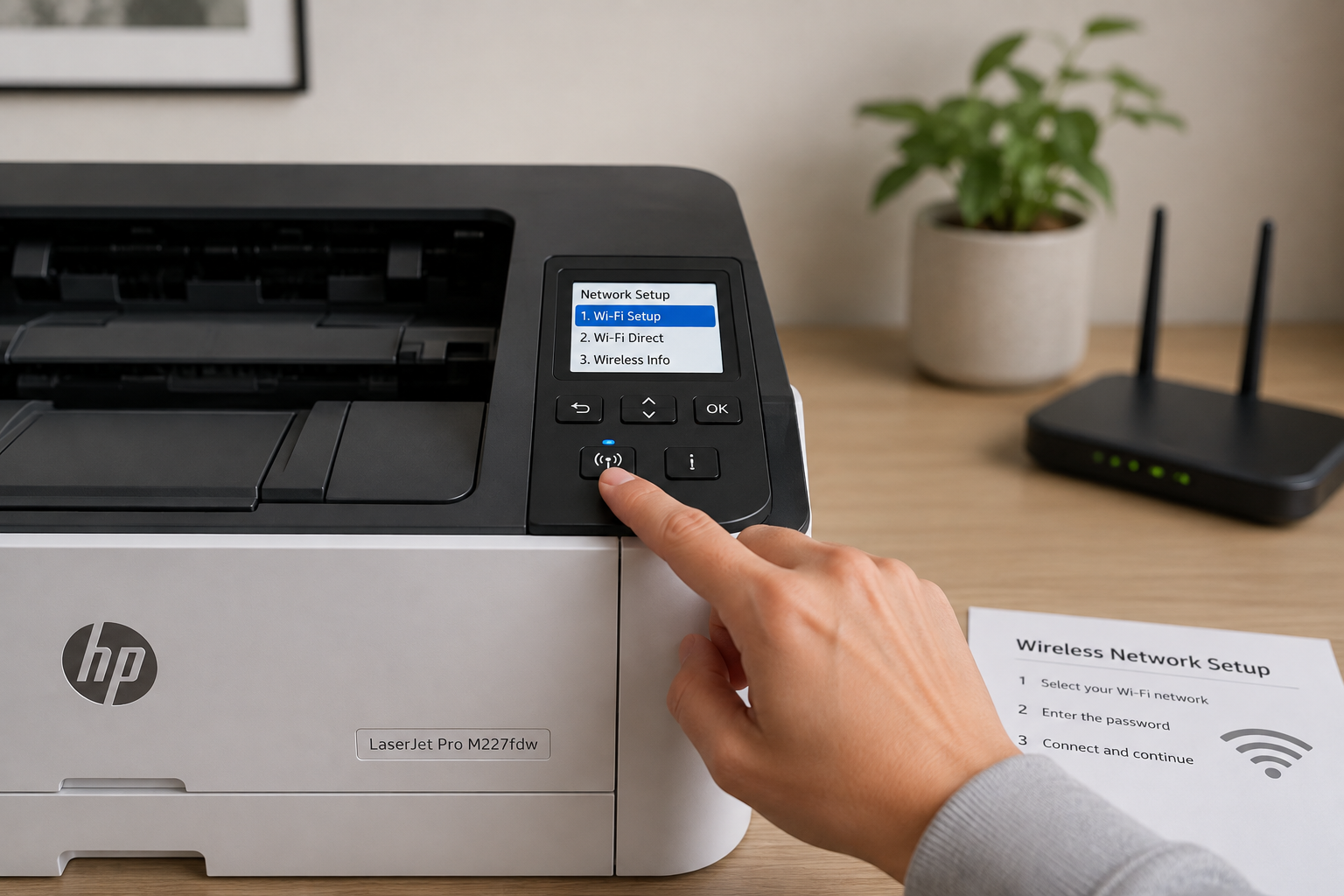
Many HP LaserJet models support wireless printing, but wireless capabilities vary by model. Check your printer's specifications if you are unsure whether WiFi is supported. Follow these steps to connect a supported printer to your WiFi network.
Method 1: Wireless Setup Wizard
- On the printer control panel open Setup / Network Settings.
- Select Wireless Setup Wizard.
- Choose your WiFi network name.
- Enter the WiFi password.
- Wait for the printer to connect.
Once connected, confirm the printer shows a successful wireless connection or network status according to your model.
Tip: Some routers may take up to 2 minutes to assign the printer an IP address. Be patient.
Method 2: WPS WiFi Setup
If your printer and router support WPS, you can connect without manually entering the WiFi password.
- Start WPS setup on the printer using the wireless or network settings for your model.
- Press the WPS button on your router within the required connection window.
- Wait for the printer to establish the wireless connection.
WPS setup controls vary by HP LaserJet model. If your printer does not provide a WPS option, use the Wireless Setup Wizard or HP app instead.
Find Your HP LaserJet Printer
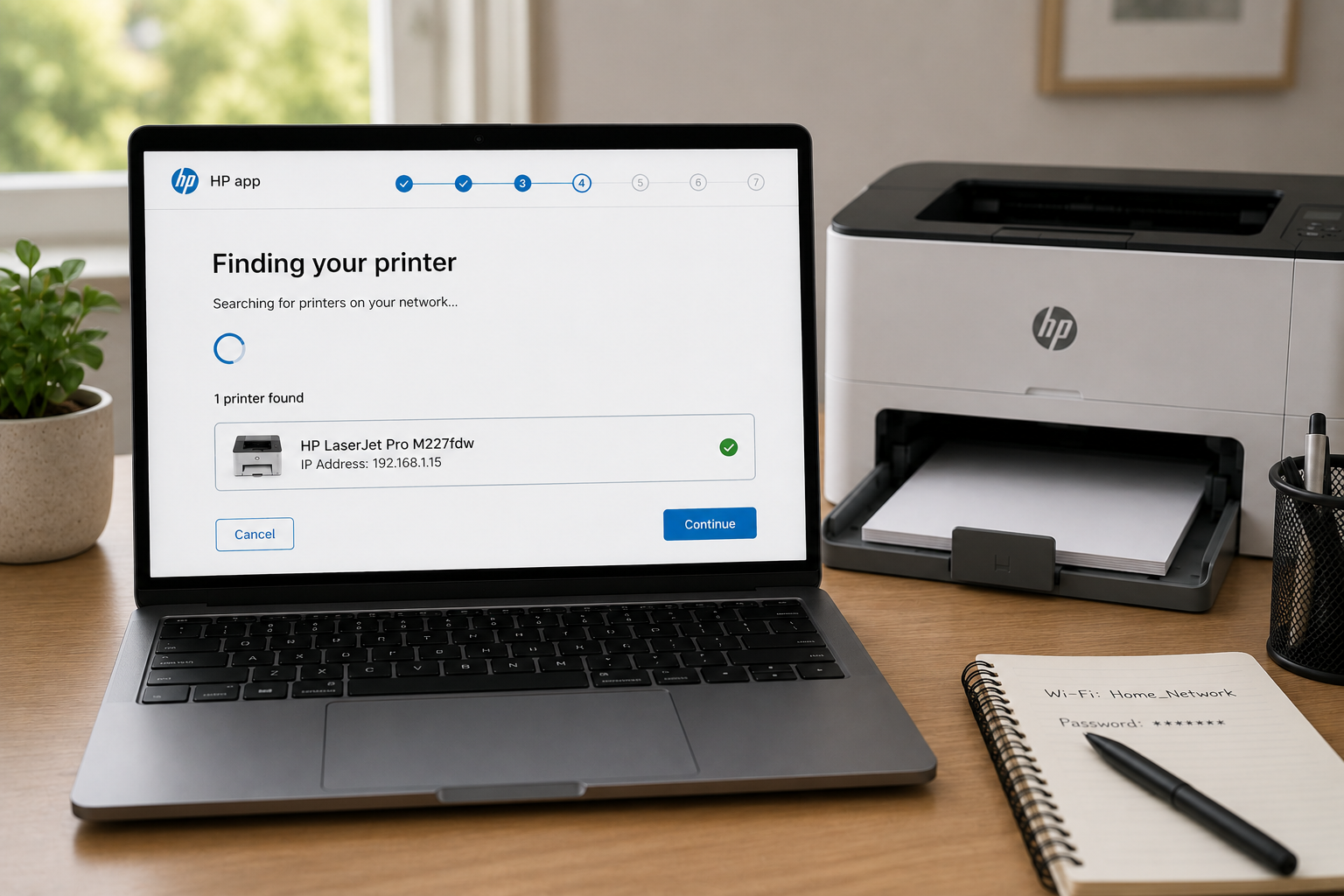
After connecting the printer to WiFi, use the HP app to search for and select your printer. Make sure the printer is powered on and connected to the same WiFi network as the device running the HP app.
Find the Printer in the HP App
- Open the HP app on your computer or mobile device.
- Select Add Printer or the option to add a new printer.
- Wait while the app searches for available HP printers.
- Select your HP LaserJet printer when it appears.
- Follow the on-screen instructions to continue the setup.
If the HP app cannot find the printer, make sure both devices are connected to the same WiFi network. Also check that the printer is powered on and ready. For deeper troubleshooting, refer to our printer detection guide.
Install HP LaserJet Printer Driver
The printer driver allows your computer to communicate with the printer. Depending on your model and operating system, additional HP software may be required for features such as scanning, device management, or advanced printing options.
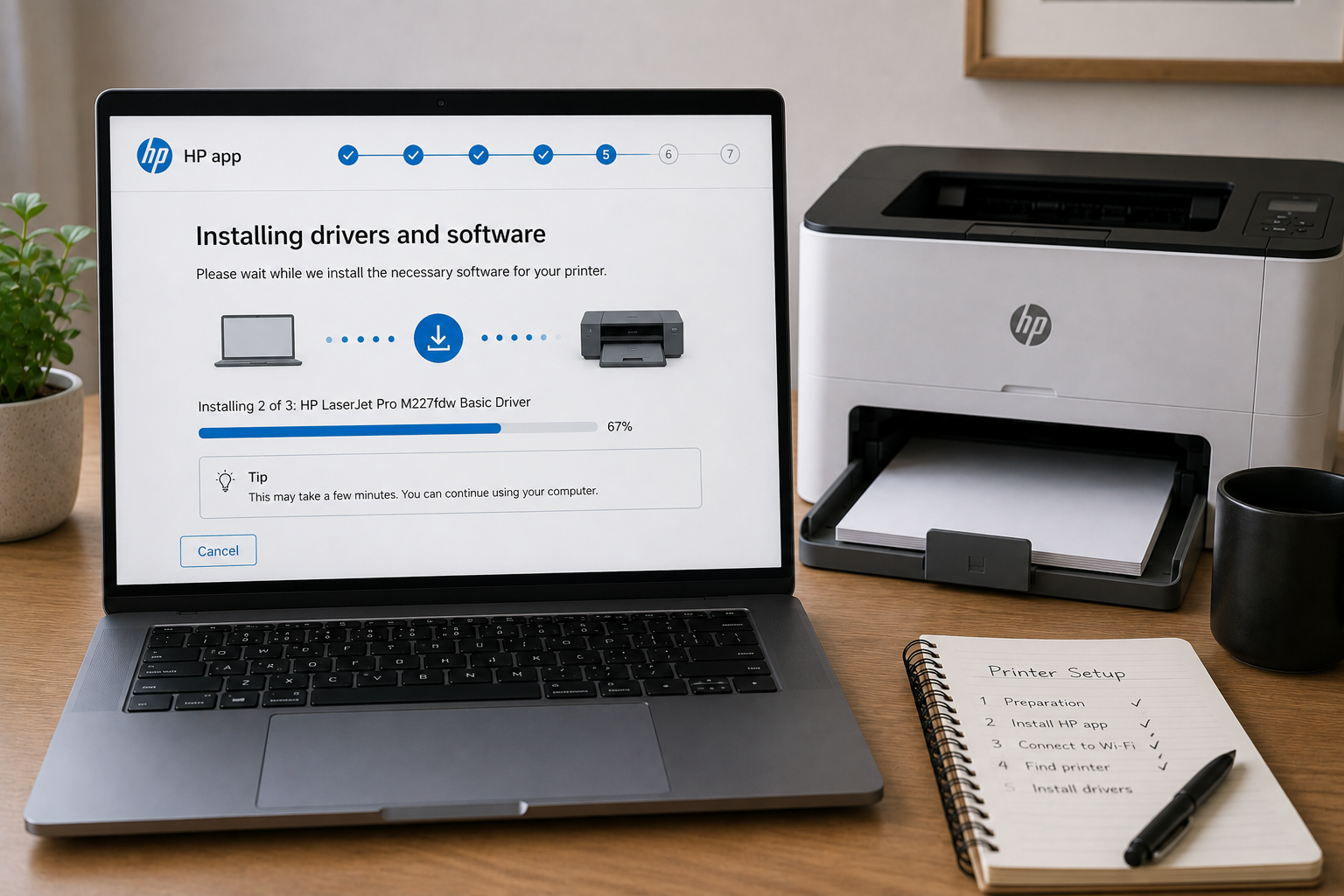
Installation Steps
- Turn on the printer.
- Open the printer installation program on your computer (or download the HP app from 123.hp.com).
- Select your HP LaserJet printer model.
- Follow the installation wizard.
- Complete the driver installation.
If you prefer a direct download, visit the HP Support page and enter your model.
For additional assistance, Windows users can also use the built-in printer setup (Microsoft's guide).
For driver‑specific issues, see our HP printer driver installation guide.
Note: On some older LaserJet printers, USB setup may install generic drivers first; full HP drivers appear after a short update.
Connect HP LaserJet Printer to Computer
After connecting the printer using your preferred setup method, add it to your operating system.
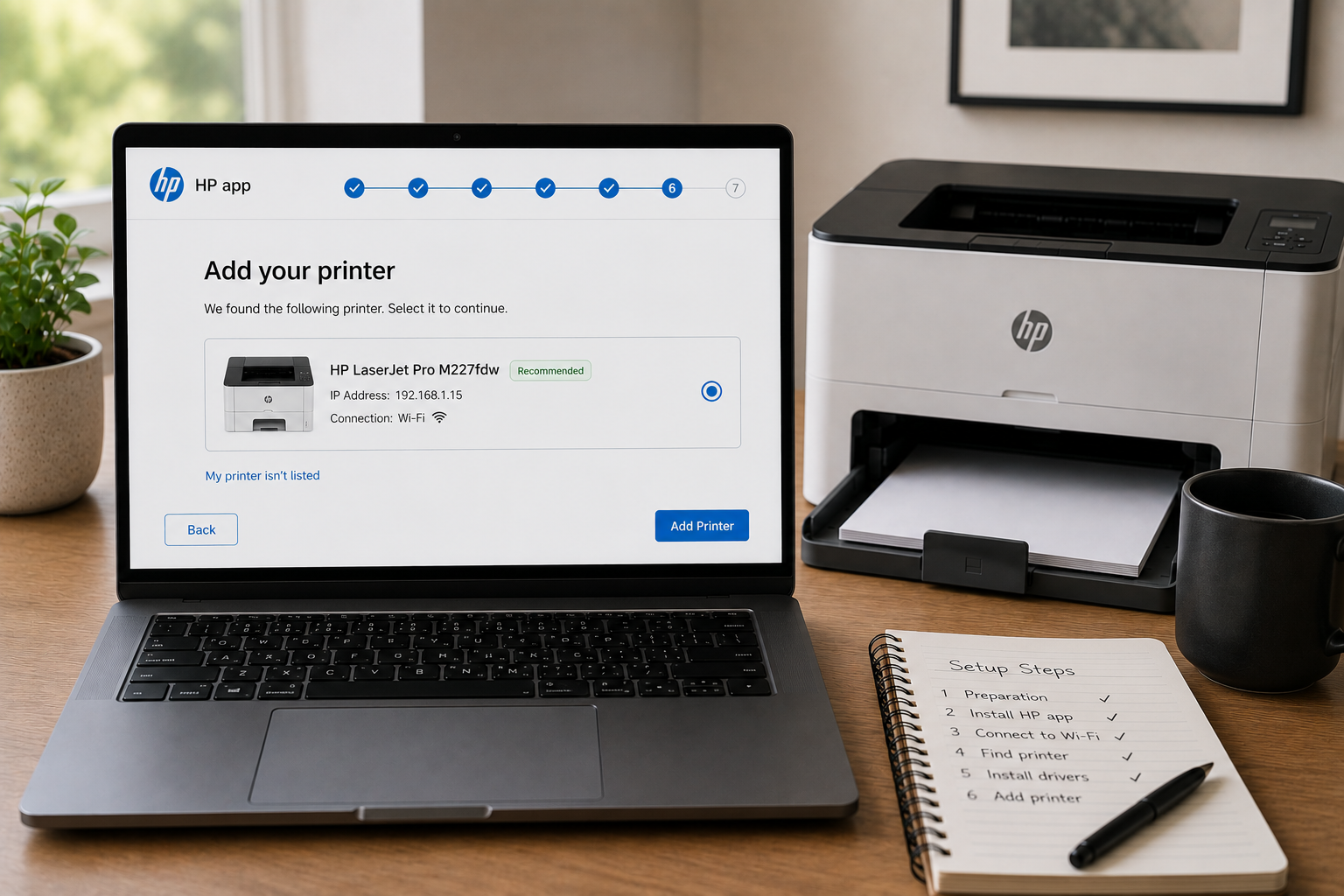
Windows
- Open Settings → Bluetooth & devices → Printers & scanners.
- Select Add device and choose your HP LaserJet printer when it appears.
Windows may install a compatible driver automatically. If additional HP software or features are required, use the HP app or HP’s official support software for your model. If the printer appears as offline, see our HP printer offline troubleshooting guide.
Mac
- Open System Settings → Printers & Scanners.
- Click Add Printer.
- Choose your HP LaserJet printer.
macOS can use AirPrint or an available printer driver for many HP LaserJet models. If additional software is required for your model, use the HP app or HP's official support software.
HP LaserJet USB Setup (Alternative Method)
If your model supports USB setup, you can connect the printer to a computer with a USB cable as an alternative when wireless setup is unavailable or not working.
- Connect the USB cable between the printer and computer.
- Install the printer driver (use the software from 123.hp.com).
- Follow the setup wizard and choose USB connection when prompted.
USB setup provides an alternative way to connect the printer to a computer when wireless setup is not available or is not working.
Note: After USB installation, you can later switch to WiFi by running the Wireless Setup Wizard.
See our setup without CD guide for more details.
Print a Test Page
After completing setup, verify the printer works correctly.
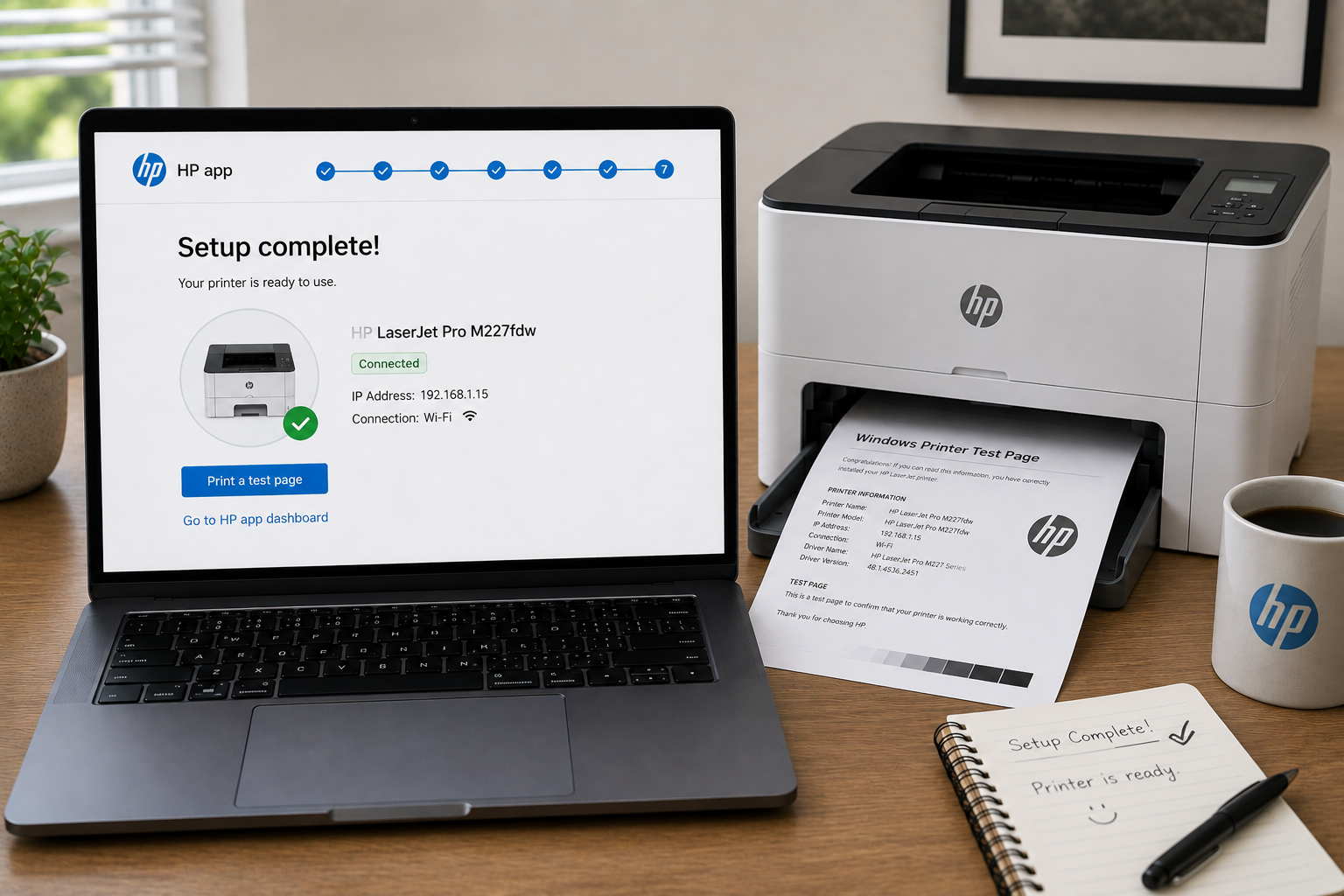
Steps
- Open your computer's printer settings or the HP app.
- Select the option to print a test page or printer status page.
- Check the printed page for correct output and print quality.
If the printer stays stuck on 'Printing' or the page does not print correctly, restart both the printer and computer before retrying.
Common HP LaserJet Setup Problems
WiFi Band Compatibility: 2.4 GHz and 5 GHz
Some HP LaserJet models support only 2.4 GHz WiFi, while other models support both 2.4 GHz and 5 GHz networks. If your printer cannot detect your WiFi network, check the wireless specifications for your specific model and, when supported, connect to the appropriate network band.
Firewall or VPN Blocking Detection
VPN software, antivirus tools, or firewall settings can sometimes interfere with printer discovery. If the printer is not detected, first allow the HP app or printer software through the relevant firewall settings. If necessary, temporarily disconnect from the VPN and retry the setup. Avoid disabling security software unless you understand the security implications and can re-enable it immediately afterward.
Wireless Setup Keeps Failing
Restart the router, wait 60 seconds, then restart the printer before attempting wireless setup again. This resolves many temporary network pairing issues. See our WiFi connection troubleshooting guide.
HP LaserJet Printer Setup Troubleshooting
If the printer does not connect or print, try these fixes. For detailed help, refer to the table below.
| Problem | Cause | Fix |
|---|---|---|
| Printer not detected | Network, setup mode, firewall, VPN, or driver issue | Check the connection and setup mode, then troubleshoot detection |
| Printer offline | Network, IP, driver, or operating-system issue | Check the connection, restart the printer, and troubleshoot the offline status |
| Printer not printing | Print queue, connection, driver, or printer status issue | Check the printer status and clear any stuck print jobs |
| WiFi connection failed | Incorrect password, unsupported network band, setup mode, or network issue | Verify the WiFi details and reconnect using the supported setup method |
| HP app cannot find printer | Network discovery, setup mode, firewall, VPN, or network-isolation issue | Confirm both devices are on the intended network and troubleshoot printer detection |
| Printer connects then disconnects | Weak signal, network instability, IP changes, or router issue | Check signal strength and network stability, then reconnect if necessary |
| Printer stuck during setup | Connection, software, setup mode, or printer issue | Restart the printer and setup device, then retry the appropriate setup method |
Quick Setup Checklist
- Printer is powered ON
- Toner cartridge installed
- Paper loaded
- Computer connected to WiFi
- Printer connected to the intended WiFi network
- Router working properly
Additional HP LaserJet Setup Scenarios
Setup HP LaserJet Printer Without CD
Modern HP LaserJet printers no longer require installation CDs. Use the HP app or your operating system's built-in printer setup.
Connect HP LaserJet Printer to Laptop
You can connect the printer wirelessly or with USB. On Windows laptops, open Printers & Scanners and add the printer after connecting it to WiFi.
Reconnect HP LaserJet Printer After WiFi Change
If you changed your router or WiFi password, reopen the Wireless Setup Wizard from the printer control panel and reconnect the printer to the new network. Follow our WiFi connection guide for more details.
Print From iPhone or Android
Print From iPhone Using AirPrint
Many wireless HP LaserJet printers support Apple AirPrint. If your model supports AirPrint, connect the printer and Apple device to the same WiFi network, then select the printer from the Print option on your iPhone or iPad.
Print From Android Phone
Install the HP app on Android and connect the printer to the same wireless network. The app allows you to print documents, photos, and PDFs directly from your phone.
HP App Mobile Printing Issues
If mobile printing does not work, restart the printer, reconnect to WiFi, and make sure the phone is not using mobile data during setup.
Need Additional Printer Setup Help?
Explore more troubleshooting guides for HP printer setup problems, wireless connection issues, driver installation, and printing errors.
View HP Printer Setup GuidesHP LaserJet Models Covered by This Guide
This guide covers the general setup process used by many HP LaserJet printers, although menu names and installation steps can vary by model.
HP LaserJet Printer Setup FAQs
Open the Wireless Setup Wizard from the printer control panel, select your WiFi network, and enter the network password. For more details, see our WiFi connection guide.
A printer may not be detected because it is not connected to the same WiFi network as the computer or phone, is not in the required setup mode, or because firewall, VPN, network-isolation, or driver issues are interfering with detection. First confirm that the printer is powered on and connected to the intended network. If it still does not appear, follow our printer detection guide for additional troubleshooting.
Yes. Most HP LaserJet printers support wireless setup using the HP app. This guide covers both wireless and USB methods.
Yes. Most HP LaserJet printers can be installed without creating an HP account, although some cloud features may require one.
Many wireless HP LaserJet printers support Apple AirPrint. If your model supports AirPrint, connect the printer and Apple device to the same WiFi network, then select the printer from the Print option on your iPhone or iPad.