HP Envy Printer Setup: Install and Connect Your Printer Step-by-Step
Complete guide to HP Envy printer setup – driver download, WiFi connection, and installation on Windows or Mac.
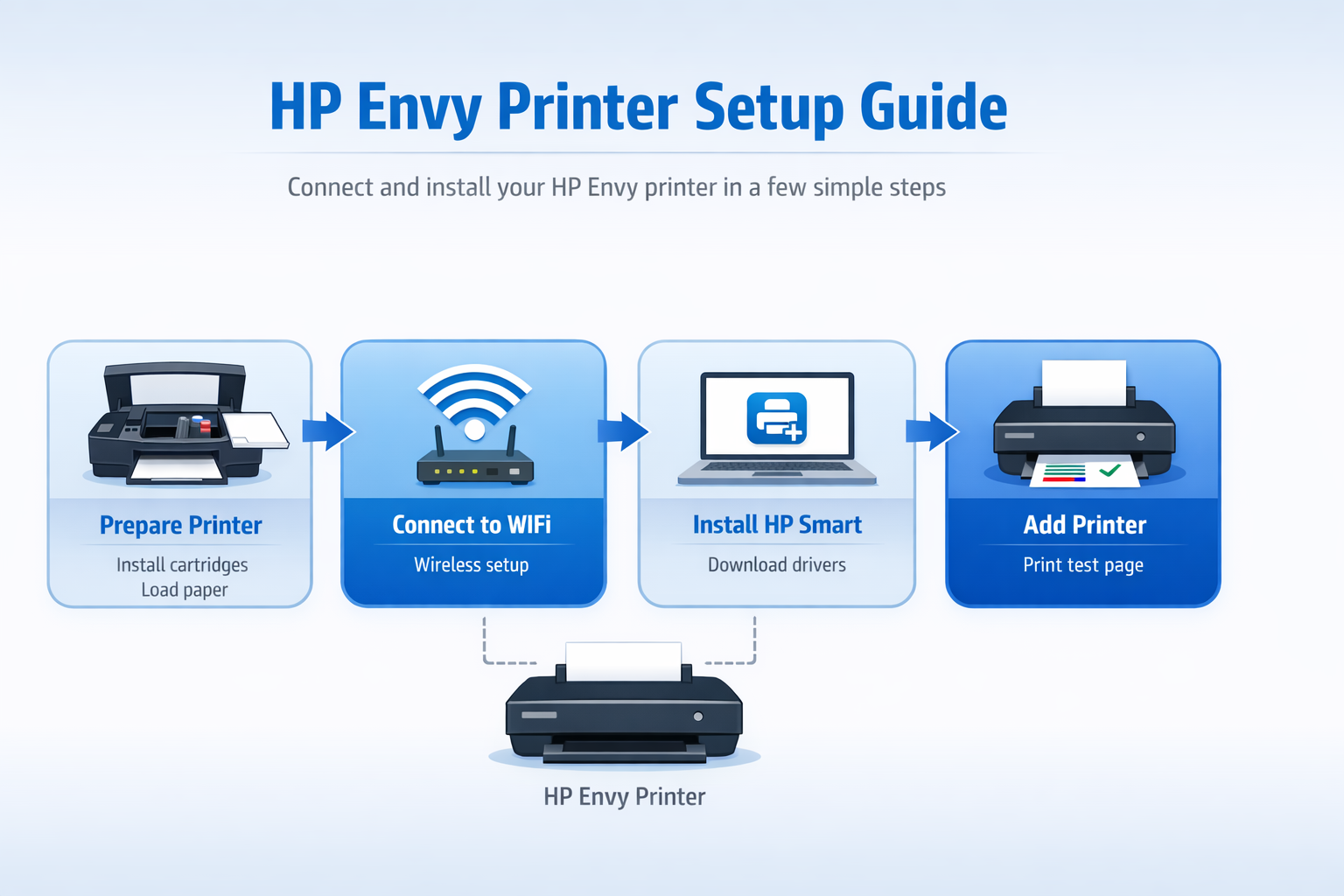
HP Envy printer setup is the process of installing your printer, downloading the correct drivers, and connecting it to your computer or wireless network. Most modern Envy printers use the HP Smart software, which automatically detects the printer and guides you through the installation. This guide explains how to complete HP Envy printer setup using 123.hp.com and HP Smart, whether you are setting up for the first time or reconnecting after a network change.
HP Envy Printer Setup Step-by-Step
- Unbox the printer and remove all packaging
- Connect the power cable and turn on the printer
- Install the ink cartridges that came with the printer
- Load paper into the input tray
- Wait until the printer completes its initialization
Once the printer is ready, you can proceed with driver download and WiFi setup.
Download Drivers Using 123.hp.com
- Open a web browser and go to 123.hp.com (official HP setup portal).
- Enter your HP Envy printer model (e.g., HP Envy 6055).
- Download the HP Smart software recommended for your operating system.
- Run the installer and follow the on-screen instructions.
- Allow the software to install the correct printer drivers automatically.
For additional driver support, visit HP Support.
Connect HP Envy Printer to WiFi
- On the printer control panel, navigate to Wireless Setup or Network Settings.
- Select your WiFi network from the list.
- Enter your WiFi password when prompted.
- Confirm the connection; the printer will indicate success.
- Open HP Smart on your computer – it should automatically detect the printer.
If the printer does not appear, ensure both devices are on the same network.
Add HP Envy Printer to Windows or Mac
Windows
- Open Settings → Bluetooth & Devices → Printers & Scanners.
- Click Add Printer.
- Select your HP Envy printer from the list and follow the prompts.
Mac
- Open System Settings → Printers & Scanners.
- Click Add Printer (or the + icon).
- Choose your HP Envy printer from the list and click Add.
After adding, print a test page to confirm correct installation.
HP Envy Printer WiFi Setup
One of the most common steps in the HP Envy printer setup process is connecting the printer to a wireless network. A proper HP Envy printer WiFi setup allows you to print from computers, smartphones, and tablets on the same network.
To complete the WiFi setup:
- Turn on the HP Envy printer.
- Open the Wireless Setup menu on the printer screen.
- Select your WiFi network.
- Enter the wireless password.
- Confirm the connection.
After completing the HP Envy printer WiFi setup, open HP Smart on your computer to detect and add the printer.
HP Envy Printer Installation Guide
The HP Envy printer installation process involves installing the correct drivers and connecting the printer to your device. A complete HP Envy setup guide usually includes hardware preparation, driver installation, and network configuration.
Basic installation steps include:
- Unbox the printer and remove packaging materials
- Install ink cartridges
- Load paper into the tray
- Download HP Smart software from 123.hp.com
- Install the printer drivers
- Connect the printer to WiFi
Once the HP Envy printer installation is complete, you can print a test page to confirm everything works correctly.
Setup HP Envy Printer on Windows and Mac
You can easily setup HP Envy printer on both Windows and macOS computers. The process is similar across operating systems once the drivers are installed.
Windows Setup
- Open Settings
- Click Printers & Scanners
- Select Add Printer
- Choose the detected HP Envy printer
Mac Setup
- Open System Settings
- Select Printers & Scanners
- Click Add Printer
- Choose the HP Envy printer from the list
Following these steps ensures your HP Envy printer setup Windows Mac installation works properly and the printer is ready to use.
HP Envy Printer Setup Troubleshooting
If you encounter issues during setup, try these common fixes:
For model‑specific help, see the list below.
HP Envy Printer Setup for All Models
This guide works for a wide range of HP Envy printers. Below are some common models – click any model to find specific setup instructions (coming soon).
Need Help Setting Up Your HP Envy Printer?
If you cannot complete the HP Envy printer setup, our printer experts can help install drivers, connect WiFi, and fix setup errors.
Talk to a Printer ExpertFrequently Asked Questions
To setup an HP Envy printer, visit 123.hp.com, download HP Smart software, install printer drivers, connect the printer to WiFi, and print a test page.
Make sure the printer and computer are connected to the same wireless network. Restart the router, reconnect the printer through wireless setup, and reinstall HP Smart software.
You can download the latest HP Envy printer drivers from 123.hp.com or from the HP support website.
Install HP Smart software, connect the printer to WiFi, then add the printer in Windows or Mac printer settings.
Check that the printer is online and has paper and ink. Restart the printer and computer, and ensure the correct printer is set as default. You may also need to clear the print queue.
On the printer control panel, go to Settings → Printer Maintenance → Restore Factory Defaults. Confirm the reset and the printer will reboot with original settings.