Printer Not Printing: 10 Common Causes and Easy Fixes You Must Try Today
This guide explains why printers fail to print and provides step-by-step fixes that resolve most common printing problems. Understanding the causes of printer not printing errors helps users diagnose printing failures more effectively.
🖨️ Printer not printing? diagnostic
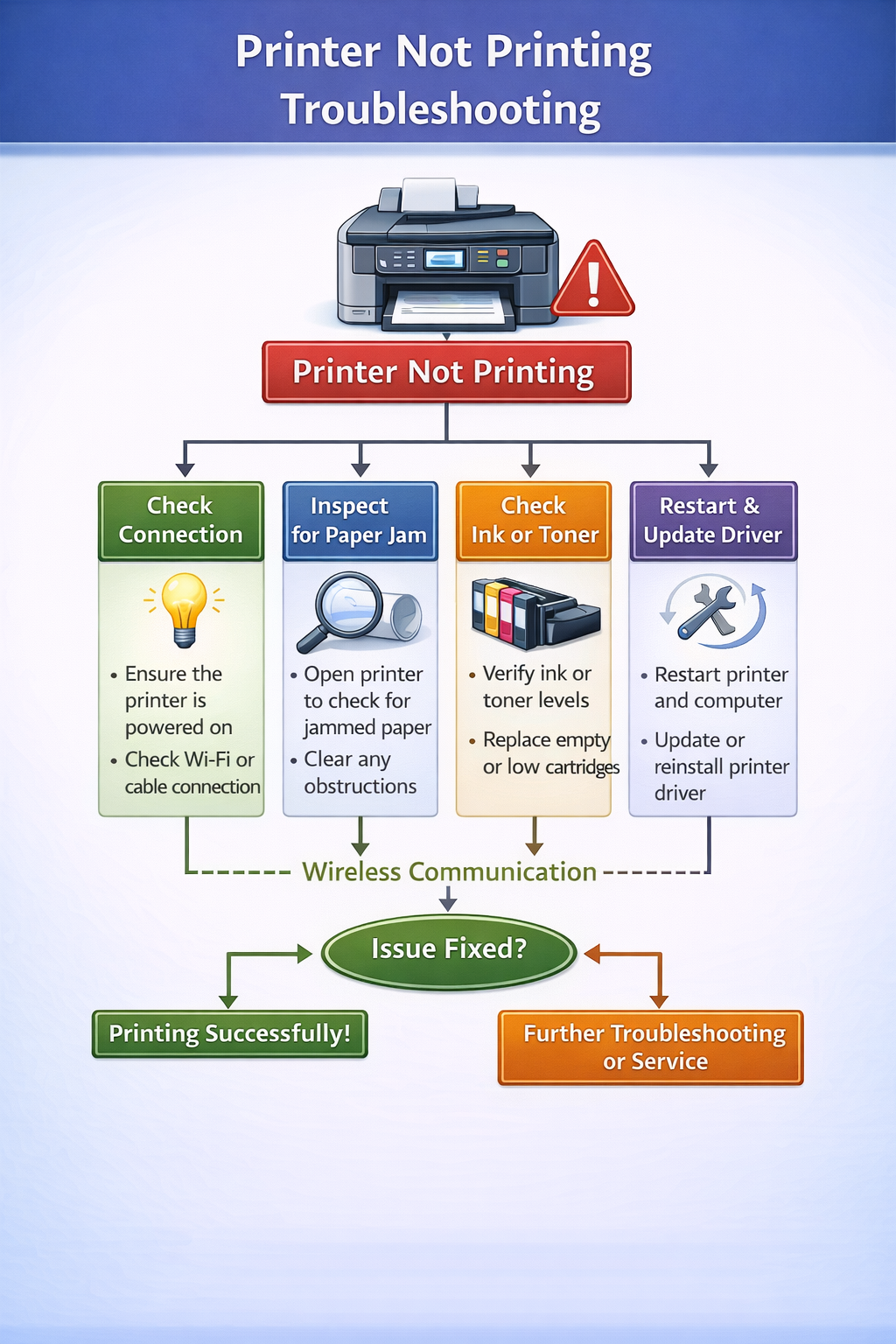
Printer Not Printing Troubleshooting Flow
When a printer fails to produce documents, the issue usually occurs somewhere between the computer sending the print command and the printer processing the job. Understanding the troubleshooting flow helps identify where the printing process breaks.
The diagram below explains how print commands travel from the computer to the printer and where problems may occur.
Understanding the Printing Process
Printing involves several steps that must work together correctly.
- 1️⃣ The computer sends a print command.
- 2️⃣ The operating system processes the command through the printer driver.
- 3️⃣ The printer queue sends the job to the printer.
- 4️⃣ The printer hardware processes the document and prints it.
If a problem occurs at any stage, the printer may fail to print the document.
For example, a corrupted driver may prevent the computer from sending instructions to the printer, while a stuck print queue may stop new print jobs from reaching the device.
Why Printers Fail to Print
Printing problems occur when a printer receives a command but fails to produce the expected output. In many situations the printer appears connected and ready, yet documents do not print correctly or nothing happens after sending a print command.
This situation can occur because several components must work together for printing to function properly. The computer, printer driver, operating system, network connection, and printer hardware must all communicate successfully. If any part of this communication chain fails, the printer may stop producing printed pages.
For example, if the computer cannot communicate with the printer driver, the print command may never reach the printer. Similarly, if the printer is connected to a different network or the printer queue contains stuck print jobs, the printing process may stop even though the device appears ready.
Understanding how the printing system works helps users identify the source of printing problems more effectively.
Common Causes of Printing Problems
Several technical issues can prevent a printer from producing documents. Identifying the cause of the issue helps determine the appropriate troubleshooting approach.
Common causes include:
Outdated/corrupted drivers
Driver software incompatible or missing
Connection problems
USB or network cable issues
Stuck print jobs
Queue errors block new documents
Incorrect default printer
Wrong printer selected
Low ink/toner
Printer stops when cartridges empty
Network configuration
Printer on different WiFi
Firmware issues
Printer internal software errors
Paper jams
Obstruction inside printer path
Printer offline/paused
Printer set to offline or paused
Corrupted print spooler
Spooler service stops processing
Paper size mismatch
Document settings don't match loaded paper
OS updates required
System updates may break printer communication
Driver problems are one of the most common reasons printers fail to respond to print commands. When the driver software becomes outdated or incompatible with the operating system, the computer may not send the correct instructions to the printer hardware.
Network printers can also experience printing failures if the printer and computer are connected to different wireless networks. Ensuring both devices are connected to the same network often resolves these communication issues.
Troubleshooting Printer Not Printing Problems
If your device fails to produce printed pages, several troubleshooting steps can help restore normal printing.
Check power & connection
Printer on? Cable/WiFi connected?
Check printer queue
Clear any stuck or paused jobs
Restart devices
Restart printer and computer
Default printer
Ensure correct printer is default
Update/reinstall driver
Get latest driver from manufacturer
Following these steps often resolves common printing issues without requiring advanced technical support.
Wireless Printing Issues
Wireless printers rely on network communication to receive print commands from computers and mobile devices. If the network connection is unstable or the printer connects to a different network than the computer, documents may fail to print.
Wireless printing problems often occur when:
- the printer connects to the wrong WiFi network
- the router signal is weak near the printer
- network discovery settings are disabled
- router security settings block communication
Users who experience wireless printing issues may need to reconnect the printer to the wireless network.
For guidance, see: /connect-printer-to-wifi/
Driver-Related Printing Errors
Printer drivers translate print commands into instructions the printer hardware can understand. If the driver becomes outdated or corrupted, communication between the computer and printer may fail.
Driver issues can occur after operating system updates, incomplete driver installations, or incorrect driver configurations.
Users who suspect driver problems may need to reinstall or update the driver software. For official drivers and support, visit the manufacturer's website:
More information is available here: /printer-driver-problems/
Printer Queue Errors
Sometimes printing failures occur because documents remain stuck in the printer queue. When a print job becomes stuck, the printer may stop processing new documents.
Clearing the queue or restarting the print spooler service can often resolve these issues.
For detailed instructions see: /printer-queue-stuck/
Understanding Printer Not Printing Issues
Printer not printing problems are among the most common issues users experience with home and office printers. When a printer not printing situation occurs, the device may appear ready but fails to produce any printed pages.
In many cases, a printer not printing issue occurs because the computer cannot properly communicate with the printer driver. When this communication fails, the print command may never reach the printer hardware.
Another reason for a printer not printing problem is a stuck print queue. When documents remain stuck in the printer queue, new print jobs cannot be processed until the queue is cleared.
A printer not printing error can also occur when incorrect printer settings are configured in the operating system. If the wrong printer is selected as the default printer, documents may be sent to a device that is not currently available.
Network printers may also experience printer not printing problems when the printer and computer are connected to different networks. Ensuring that both devices are connected to the same network often resolves these communication problems.
Users who experience persistent printer not printing errors may need to reinstall the printer driver or restart the printer to restore communication between the devices.
Preventing Printer Not Printing Problems
Preventing printer not printing problems involves maintaining proper printer configuration and keeping the printer software updated.
Regularly updating the printer driver can help prevent printer not printing errors caused by compatibility problems with the operating system. Keeping firmware updated also helps printers communicate properly with computers and network devices.
Users can also reduce printer not printing problems by clearing the printer queue regularly and ensuring that the correct printer is selected before sending print jobs.
Printer Not Printing but Connected
If your printer not printing but connected, the computer can detect the printer but the print command is not reaching the device correctly. This usually happens due to print queue issues, driver conflicts, or incorrect printer settings.
Common causes include:
- stuck print jobs
- print spooler errors
- outdated printer drivers
- incorrect default printer
Restarting the printer and clearing the print queue often resolves the issue.
Printer Connected but Not Printing
When the printer connected but not printing, the printer appears online but refuses to process print commands. This situation is often related to communication issues between the computer and the printer.
Typical reasons include:
- printer set to offline mode
- corrupted print jobs
- incorrect printer port settings
- driver compatibility issues
Restarting the printer and verifying the printer status usually fixes the problem.
Printer Not Printing From Computer
If the printer not printing from computer, the problem is usually related to software configuration rather than hardware. The printer might work normally for test prints but fails when printing documents from applications.
Common causes include:
- incorrect default printer
- outdated drivers
- spooler service errors
- application printing conflicts
Updating printer drivers and restarting the spooler service usually resolves this issue.
Why Is My Printer Not Printing
Many users ask “why is my printer not printing” when documents remain stuck in the queue or the printer does not respond. This problem can occur due to both hardware and software issues.
Common reasons include:
- connection problems
- printer offline status
- outdated drivers
- empty or faulty cartridges
- print queue errors
Checking the printer connection, restarting the printer, and updating drivers usually fixes most printing issues.
Frequently Asked Questions About Printer Not Printing
❓ Why does my printer say offline but is connected?
This usually happens when the printer driver loses communication. Set the printer to online in your computer's devices panel, restart the print spooler, or reconnect the printer.
❓ How do I clear a stuck print queue?
Open the print queue window, cancel all documents. If they remain, restart the Print Spooler service in Windows Services (type services.msc, find Print Spooler, right‑click restart).
❓ Can a bad USB cable cause printer not to print?
Yes, a damaged or loose USB cable can interrupt communication. Try a different cable or port, and ensure the connection is secure.
❓ Why won't my printer print after a Windows update?
Windows updates can sometimes replace or corrupt printer drivers. Reinstall the latest driver from the manufacturer’s website to restore functionality.
❓ How do I set my printer as default?
Go to Settings → Bluetooth & devices → Printers & scanners. Select your printer and click “Set as default”. Make sure no other printer is marked as default.
❓ What does “printer in error state” mean?
The printer has encountered a problem – paper jam, empty ink, or cover open. Check the printer’s display panel for specific error messages and resolve the issue.
❓ Why does my printer print blank pages?
Often caused by empty cartridges, clogged print heads, or incorrect driver settings. Run a nozzle check (for inkjets) or replace toner/ink.
❓ How do I restart the print spooler?
Open Command Prompt as administrator and type: net stop spooler then net start spooler. This clears stuck jobs.
❓ Can a full hard drive stop printing?
Yes, if your computer’s disk is full, temporary print files cannot be created. Free up space and try again.
❓ Why is my wireless printer not detected?
Ensure the printer and computer are on the same Wi‑Fi network. Restart your router, printer, and computer. Re‑add the printer using its IP address if necessary.
Explore our other guides for detailed solutions to specific printer problems.