Printer Not Detected – Complete Fix Guide (USB, Wireless, Windows, Mac)
A printer not detected error occurs when your computer cannot communicate with the printer due to driver issues, connection problems, or network mismatch. Restart devices, reinstall drivers, and ensure both devices are connected to the same WiFi network or properly linked via USB.
This guide is part of our complete Printer Troubleshooting Hub, covering all major printer errors and fixes. If your printer appears offline instead of being detected, follow this detailed HP printer offline fix guide first.
🔧 For HP-specific issues, follow our complete HP printer troubleshooting guide — designed to resolve all HP detection, offline, and driver failures.
Printer Not Recognized or Not Found – Same Issue?
If your printer is not recognized, not found, or missing from devices, it is usually the same detection problem caused by driver, connection, or network issues. Follow the steps above to resolve it. This guide also covers “computer not detecting printer” and “USB printer not recognized” scenarios.
Related Printer Problems That Often Occur Together
When a printer is not detected (or not found by the system), users frequently also experience other issues. You may need to fix:
- Printer not printing – even after detection
- Printer not connecting to WiFi – wireless detection failures
- Printer driver issues – the root cause in many cases
This cluster approach ensures you resolve the full problem spectrum.
Quick Diagnosis: What’s Your Issue?
- 🔹 Printer not showing up at all → Go to Step-by-Step Troubleshooting
- 🔹 Printer shows offline but connected → Read HP Printer Offline Fix
- 🔹 Driver error / unknown device → Jump to Driver Problems Section
- 🔹 Wireless printer not detected on network → Wireless Printer Not Showing Up Fixes
- 🔹 USB printer not recognized after Windows update → Windows 10/11 Specific Steps
📌 Tip: Start with Step 1 even if unsure — most detection issues are resolved within the first two steps.
If your printer is detected but not printing, check printer not printing fix or printer not responding solutions. Also see printer connected but not printing for advanced troubleshooting.
Quick Fix: Printer Not Detected at a Glance
| Problem | Quick Solution |
|---|---|
| ⛔ USB printer not detected | Reconnect cable, different port, restart Print Spooler |
| 📡 Wireless printer not showing up | Same WiFi network, restart router, enable network discovery |
| ⚠️ Driver-related detection error | Reinstall or update printer driver from manufacturer |
| 🖥️ Printer not recognized after update | Run printer troubleshooter or rollback driver |
If you have print jobs stuck in queue, clear them first: Fix Printer Queue Stuck – Step by Step.
Expert Tip from Printer Technicians
In real-world cases (over 10,000+ printer fixes), printer not recognized or not found errors are most commonly caused by driver corruption after system updates. We recommend completely reinstalling the printer driver rather than just updating it. This guide is based on real troubleshooting data from thousands of printer support cases.
If driver corruption continues, follow our printer driver repair guide for deeper fixes.
Common Error Messages & Causes for Printer Not Detected
- “Printer not recognized USB001” – USB port or driver corruption.
- “Device not found error (0x0000007e)” – Network printer cannot be located.
- “Printer missing from device list” – Driver installation failed or cable issue.
Loose/faulty USB
USB printer not detected – try new cable.
Wireless mismatch
Wireless printer not showing up = different SSID.
Corrupted driver
Printer not recognized after OS update.
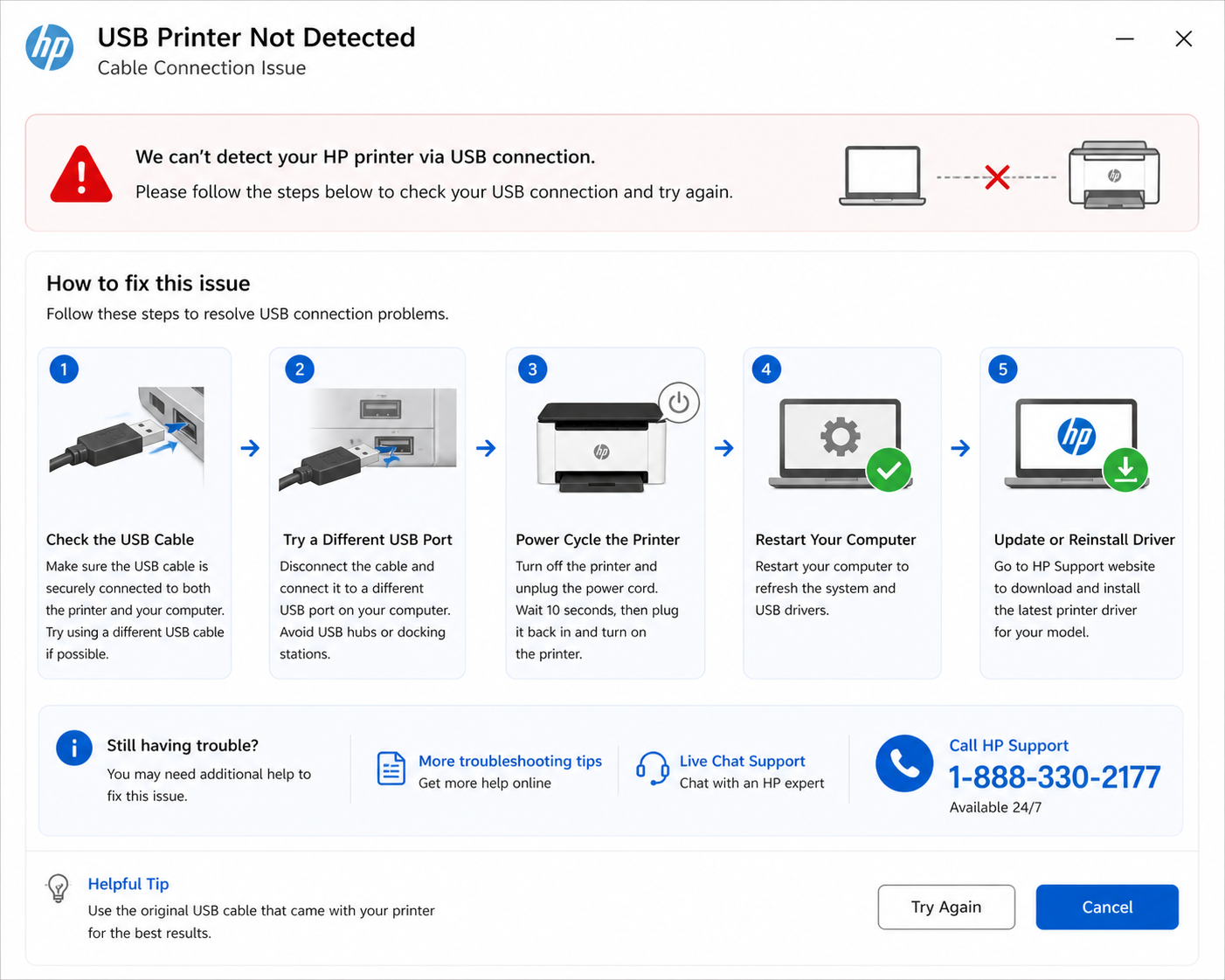
Step-by-Step Troubleshooting for Printer Not Detected
Power cycle
Turn off printer & PC, wait 1 min, restart.
Verify connection
Try different USB port or rejoin WiFi.
Restart Print Spooler
Windows: services.msc → restart Print Spooler.
Reinstall driver
Download fresh driver from official site.
Add manually
Use TCP/IP address for network printers.
This approach resolves the majority of detection problems. If your printer is showing offline instead of being detected, the complete HP printer offline fix guide provides additional steps.
➡️ Still having trouble? Many users fix persistent issues by following the HP printer offline step-by-step guide – it covers deeper driver and network fixes.
Fix it in minutes with a certified technician — we resolve detection issues fast.
📞 1 (888) 330-2177Advanced Fix: Add Printer Using IP Address
If your network printer is not detected automatically, you can manually add it using its IP address. Print the network configuration page from your printer, locate the IP address, then:
- Go to Printers & Scanners (Windows) or Printers & Scanners on Mac.
- Select Add Printer Manually (Windows: "The printer that I want isn't listed").
- Choose TCP/IP Address or Internet Printing Protocol.
- Enter the printer IP address and complete the setup.
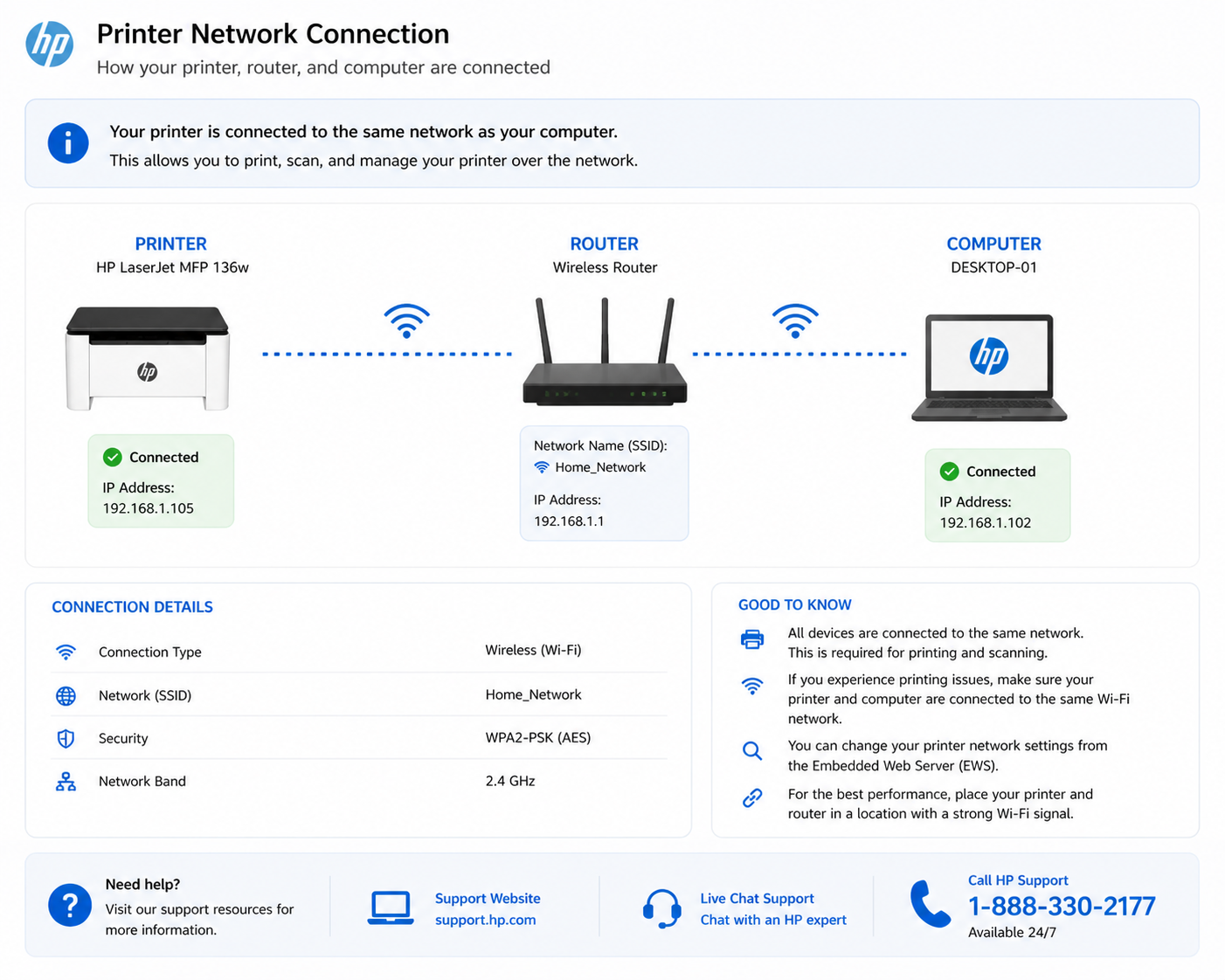
This method bypasses discovery failures and directly connects your system to the printer. Especially useful when your wireless printer is not showing up despite being on the same network.
Firewall or Antivirus Blocking Printer Detection
Security software can block communication between your computer and printer. If your printer is not detected on a network:
- Temporarily disable firewall or antivirus to test if detection works.
- Allow printer ports (TCP 9100, WSD) in your firewall settings.
- Ensure network discovery is enabled (Windows: Control Panel > Network and Sharing Center > Advanced sharing settings).
This is a common issue after system updates or new antivirus installations. Many printer not found errors are caused by overactive security software.
Printer Detected but Not Working?
If your printer is detected by your computer but still won’t print, the issue is usually driver conflicts, spooler errors, or communication timeouts. Follow our dedicated printer not printing guide for step-by-step fixes. Also check printer not responding solutions and printer connected but not printing to cover all bases.

Printer Not Detected on Windows 10 / 11
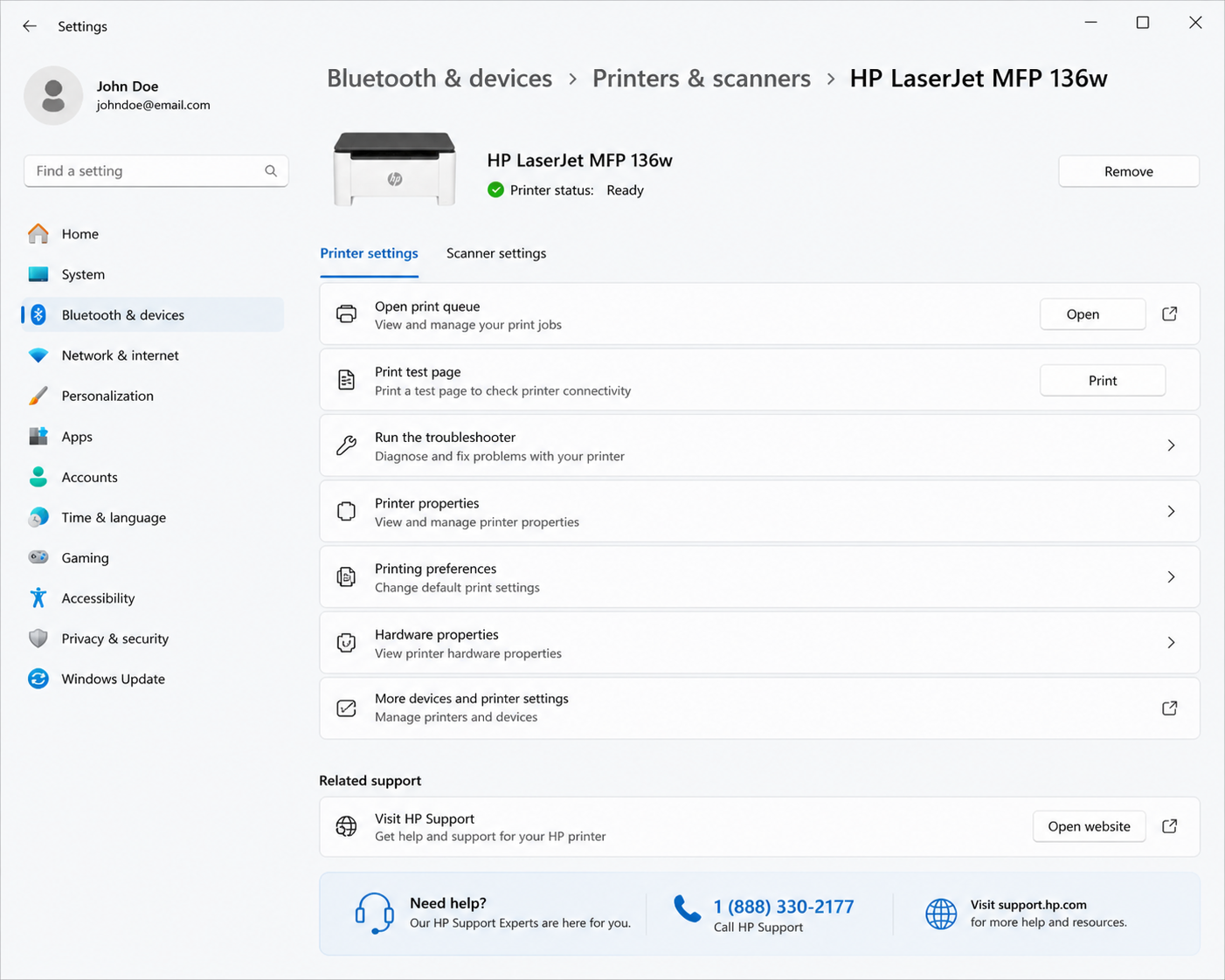
For Windows users: open Settings > Bluetooth & devices > Printers & scanners, click "Add device" → if not found, use "Add manually". Run the printer troubleshooter. If the USB printer is not recognized in Device Manager, uninstall the driver and scan for hardware changes.
Printer Not Detected on Mac
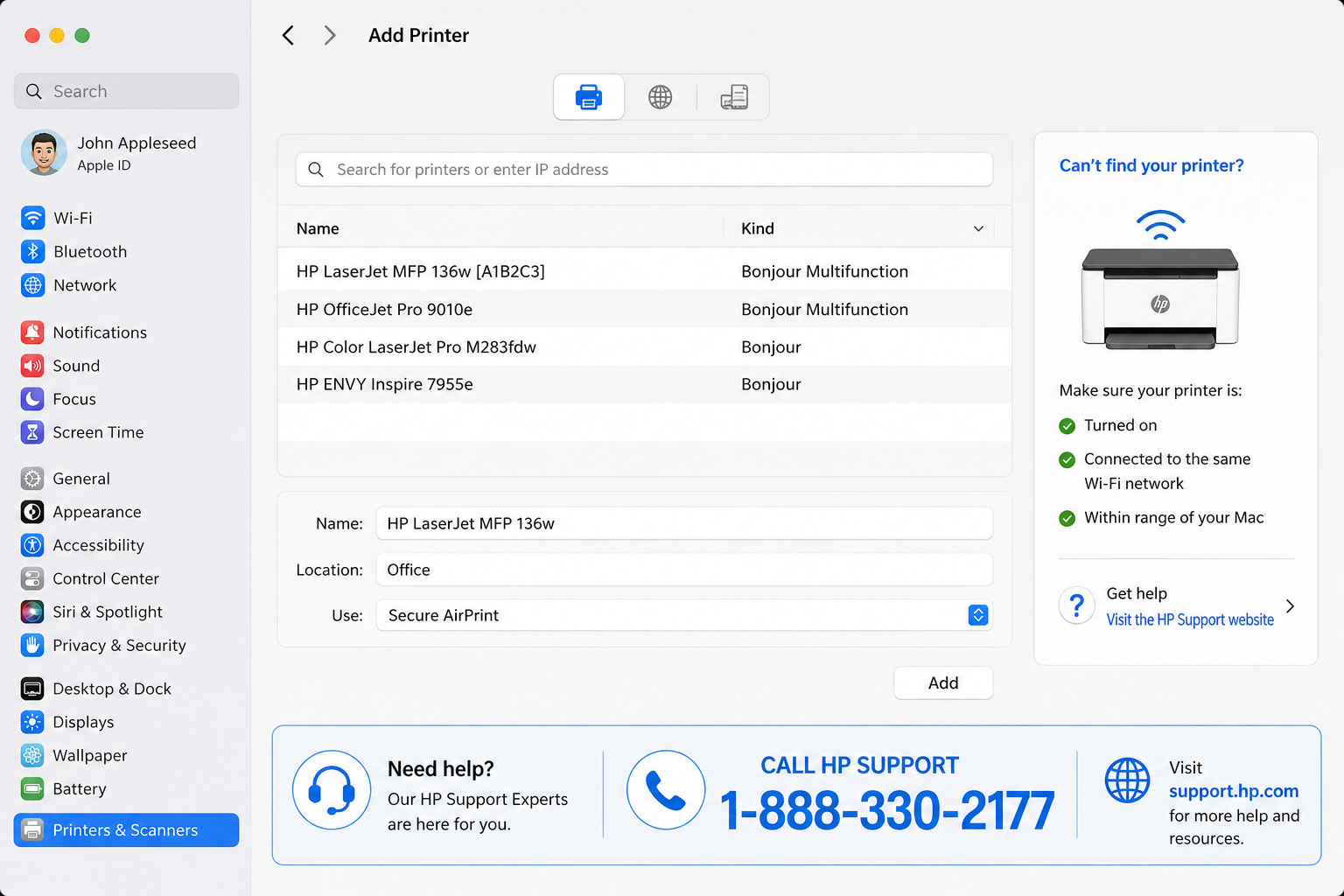
On macOS, go to System Settings > Printers & Scanners, click + button. If the printer doesn't appear, reset the printing system (right-click in printers list). For HP printer not detected on Mac, re-add using IP address. Resetting the printing system often fixes persistent detection errors.
If you continue to experience issues, check our HP printer offline guide for deeper troubleshooting.
➡️ Offline status after detection? Follow the HP printer offline guide to restore full functionality.
Wireless Printer Not Showing Up? Network Fixes
Ensure both devices connect to the same SSID, turn on network discovery: Control Panel > Network and Sharing Center > Advanced sharing settings → Turn on network discovery.
If your printer connects but shows offline instead of being detected, follow this detailed HP printer offline fix guide to restore full communication.
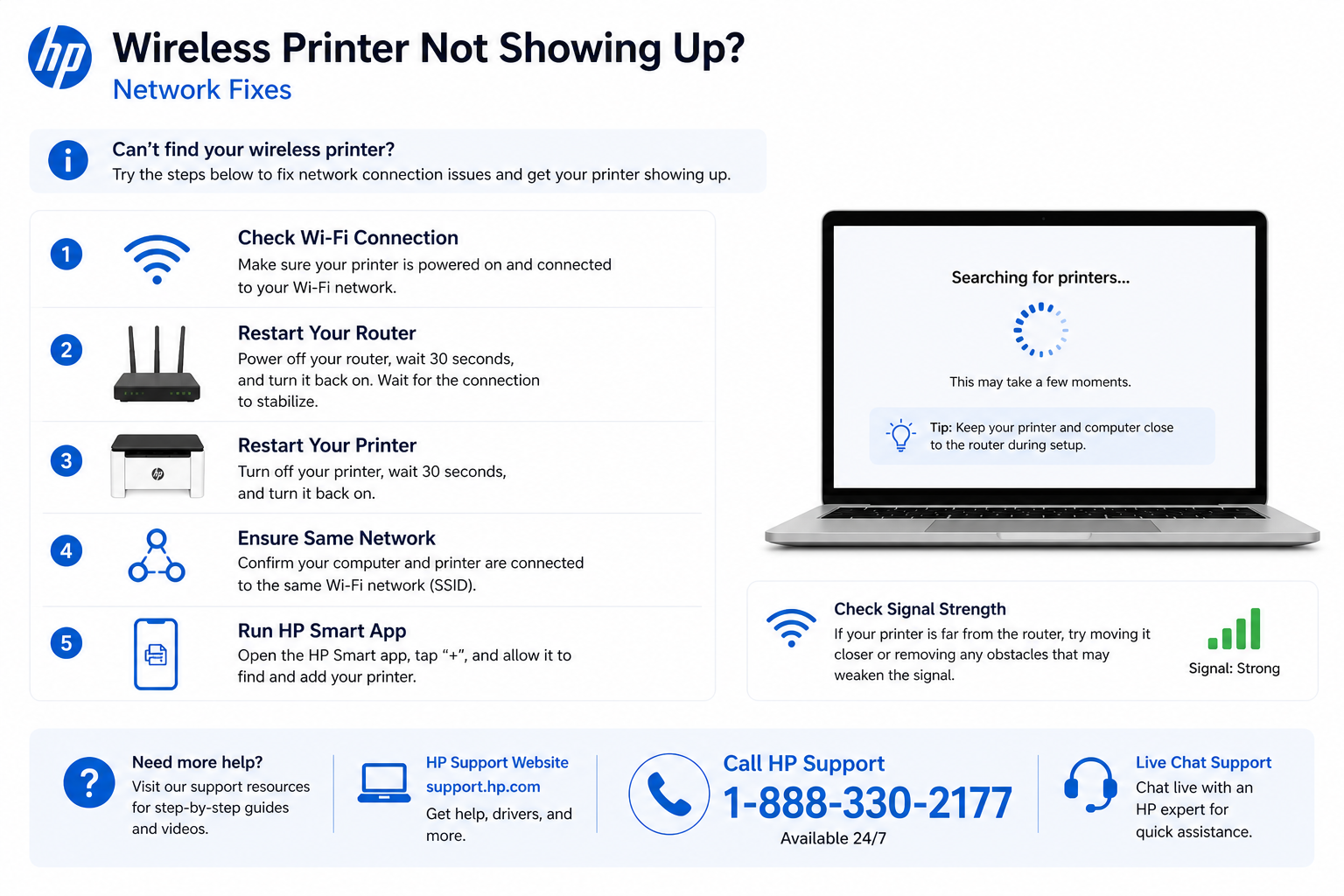
For full wireless reconnection, Connect Printer to WiFi – Step by Step. If your printer still does not appear, use the IP address method described above.
Printer Driver Problems Leading to Detection Errors
Outdated or corrupt drivers are the #1 reason for computer not detecting printer. Use Printer Driver Problems – Complete Repair Guide. For HP printers, run HP Print and Scan Doctor. Reinstalling the driver from scratch resolves this issue in almost all cases.
If reinstalling the driver, follow our printer driver download and installation guide for proper setup.
If your printer appears connected but not working, follow the HP printer offline guide to restore full communication.
Explore More HP Printer Detection & Connection Issues
Continue troubleshooting with our HP-specific guides designed to fix detection, connection, and offline issues across all HP printer models:
Official HP Printer Support
Frequently Asked Questions (Printer Not Detected)
Common reasons: loose USB, wrong WiFi, outdated driver, or spooler issues. Follow the step-by-step guide above.
Windows: Settings → Printers & scanners → "Add device" → "The printer that I want isn't listed" → choose TCP/IP or manual port.
Ensure same WiFi network, disable VPN, restart router, and enable network discovery.
🚨 Still Not Detected? Fix It in Minutes With a Certified Technician
✔ Live troubleshooting for driver corruption & network conflicts | ✔ 24/7 support
1 (888) 330-2177© Printer Fix Guides — independent resource for printer not detected errors | Last updated May 2026