123.hp.com Setup: Install & Connect Your HP Printer
Standard HP printer setup process — install drivers, connect to WiFi, and resolve common setup errors. Works with HP Envy, DeskJet, LaserJet, and OfficeJet models.
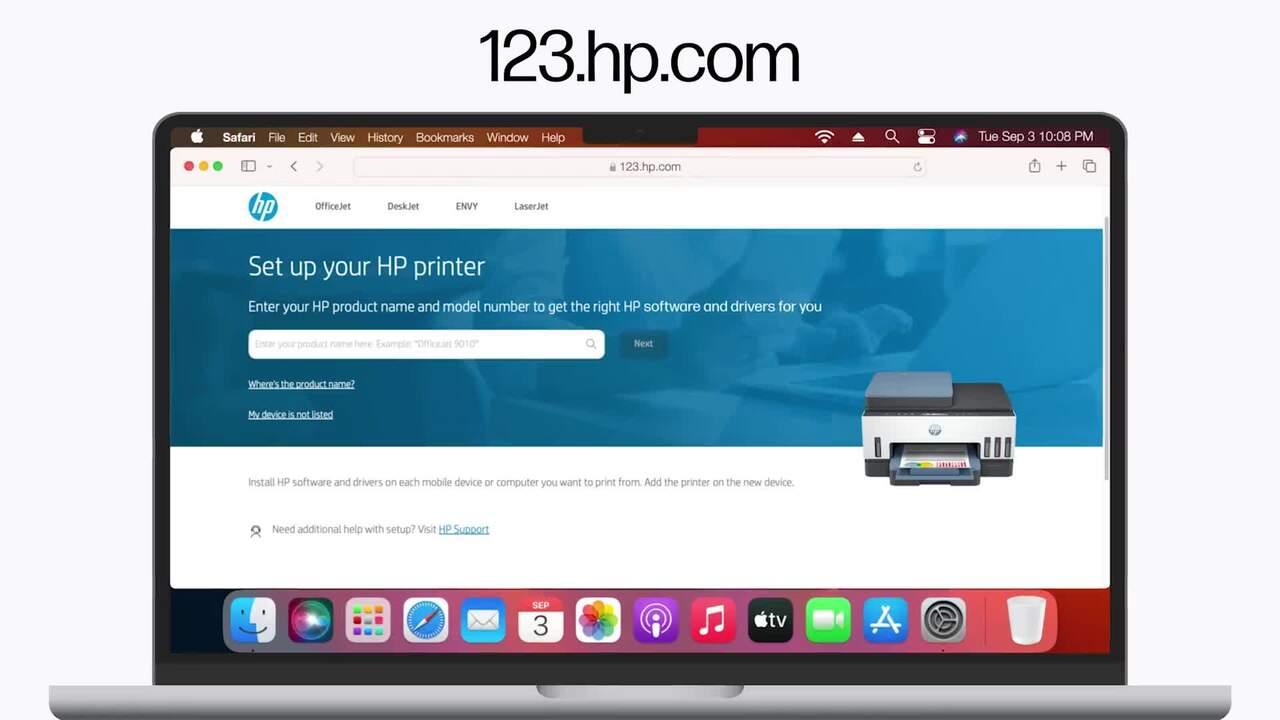
123.hp.com is HP's official setup portal for starting printer setup and obtaining the appropriate HP printer software. Depending on your printer model and device, HP may direct you to the HP app, HP Smart, or the appropriate driver and software download.
If your main goal is to connect your HP printer to WiFi, use the quick wireless setup instructions below.
All About Printers is an independent informational website providing setup guidance and troubleshooting support — we are not affiliated with HP Inc.
How to Connect an HP Printer to WiFi
- Turn on the HP printer and place it near the WiFi router.
- Put the printer into wireless setup mode if necessary.
- Connect your computer or phone to the WiFi network you want the printer to use.
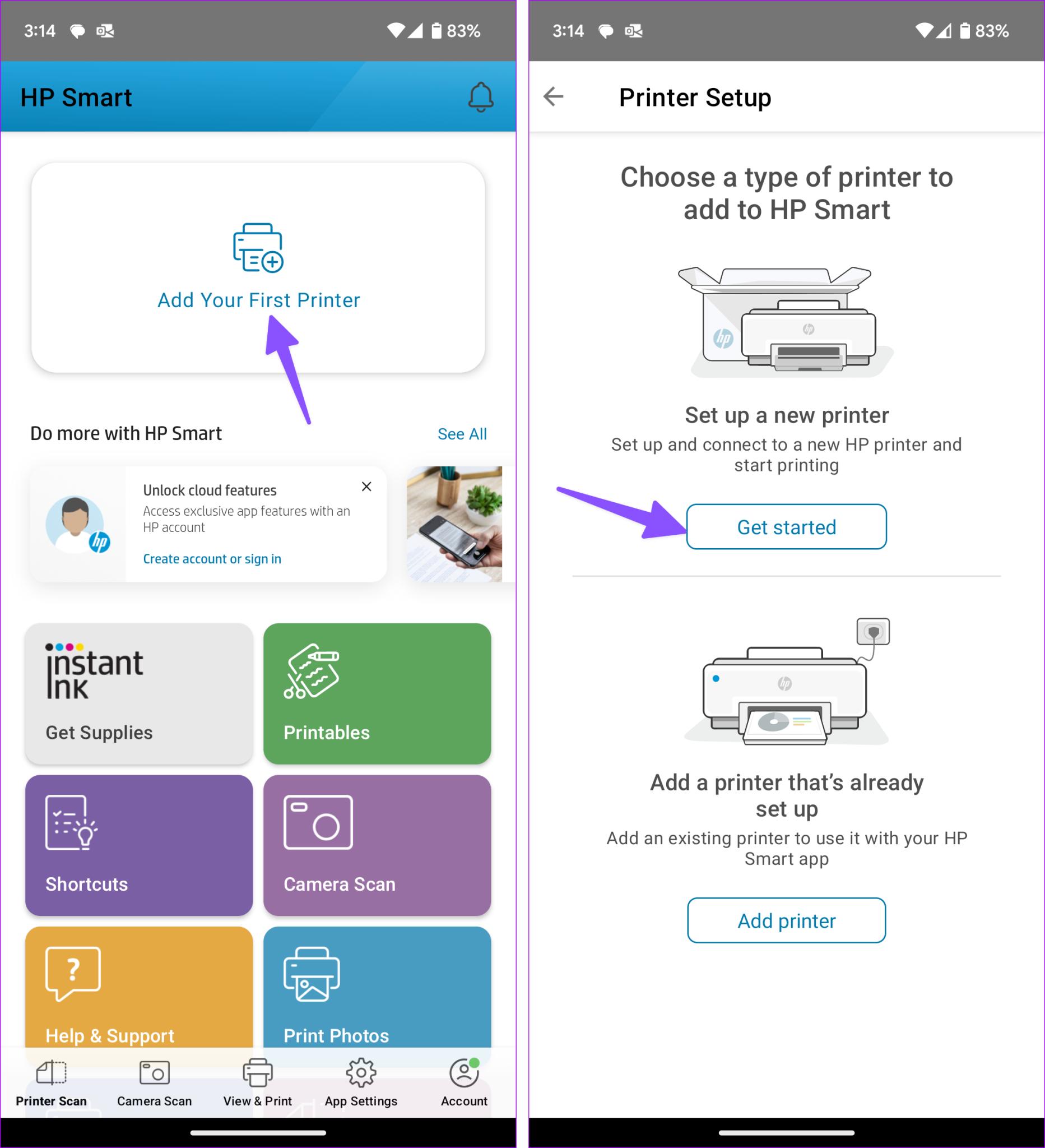
- Open the HP app/HP Smart or the HP setup software and select Add Printer.
- Select the printer and follow the prompts to connect it to the wireless network.
Troubleshooting: If the printer is not detected, confirm that the printer and setup device are on compatible network bands. Some HP printers support only 2.4 GHz WiFi, while newer models may also support 5 GHz.
Official HP Video: Set Up an HP Printer on a Wireless Network
Prefer to watch the setup process? This official HP Support video demonstrates how to set up an HP printer on a wireless network using the HP app.
Setup steps for 123.hp.com
Step 1: Unbox & prepare your HP printer
- Remove orange tape and packing materials
- Install ink cartridges or toner
- Load plain paper into input tray
- Connect power, turn on printer, wait 2–3 minutes
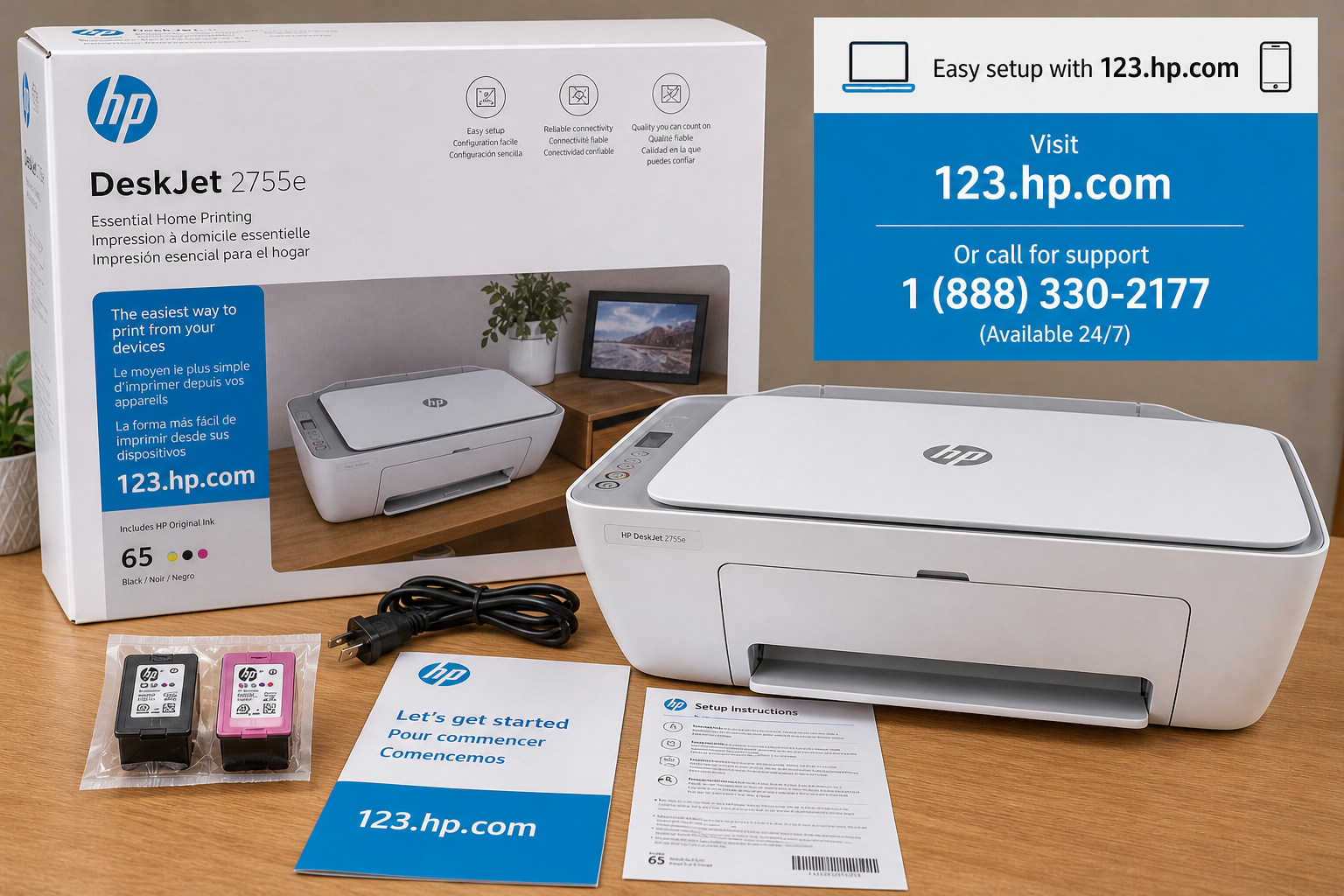
Step 2: Visit 123.hp.com & download driver
- Type 123.hp.com in your browser
- Enter printer model (e.g., HP Envy 6055e)
- Follow HP's prompts to download the recommended app, driver, or printer software for your model and operating system.
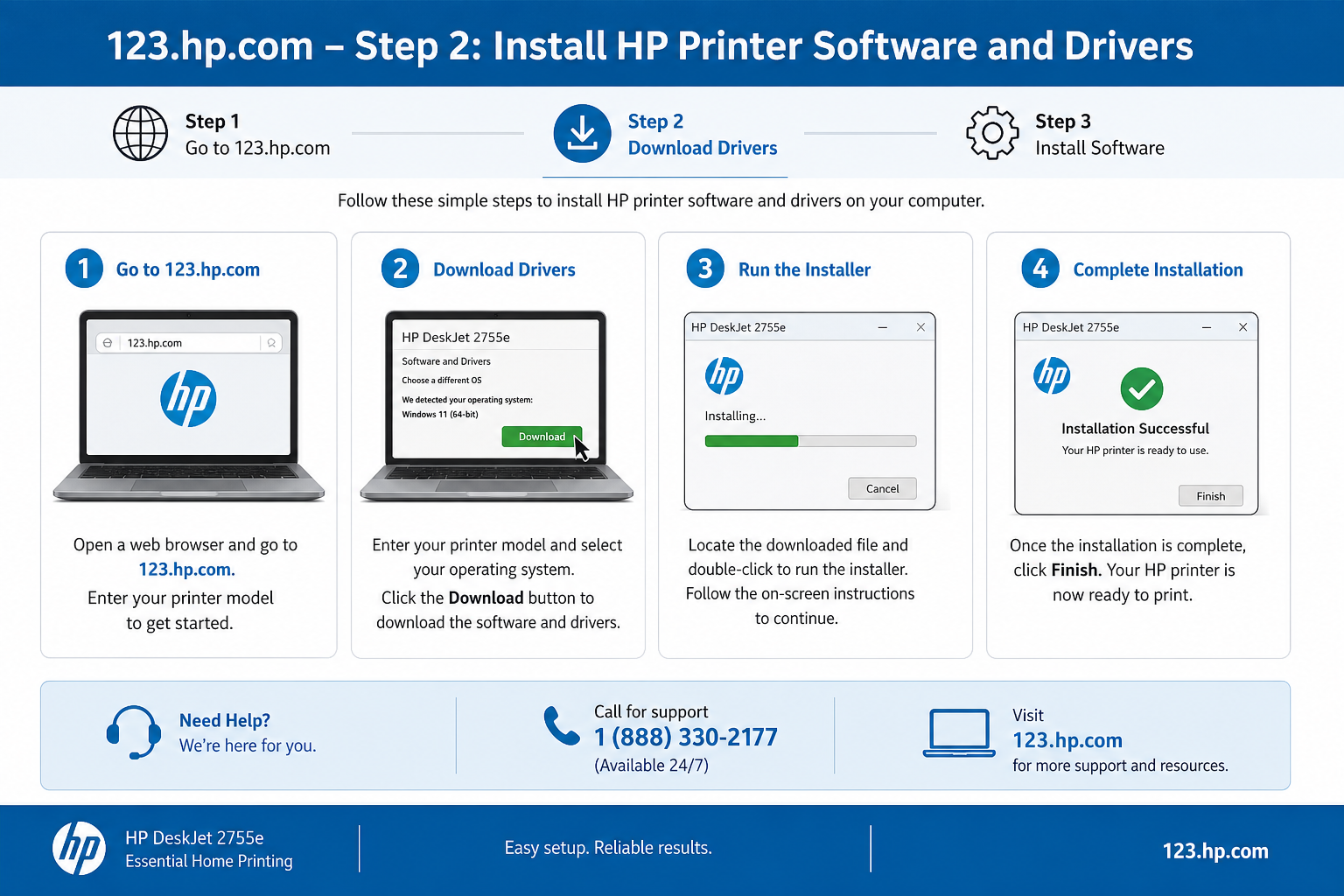
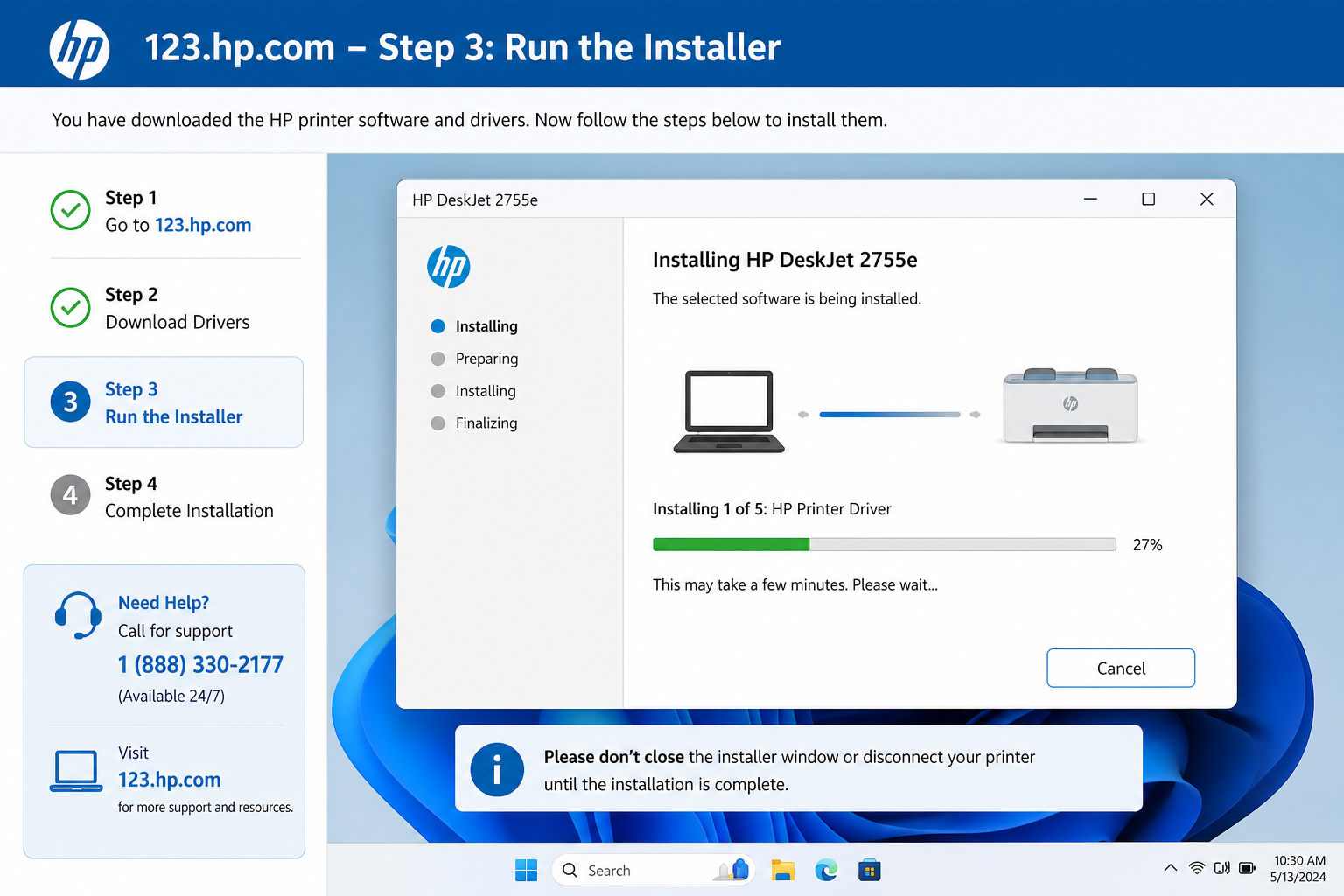
Step 3: Run HP driver installer
- Run downloaded file, accept license
- Follow the installation prompts for your printer and operating system
- Select Wireless or USB when prompted
Step 4: Connect to WiFi
- Ensure printer wireless light blinks
- Select your WiFi network
- Enter password (case-sensitive)
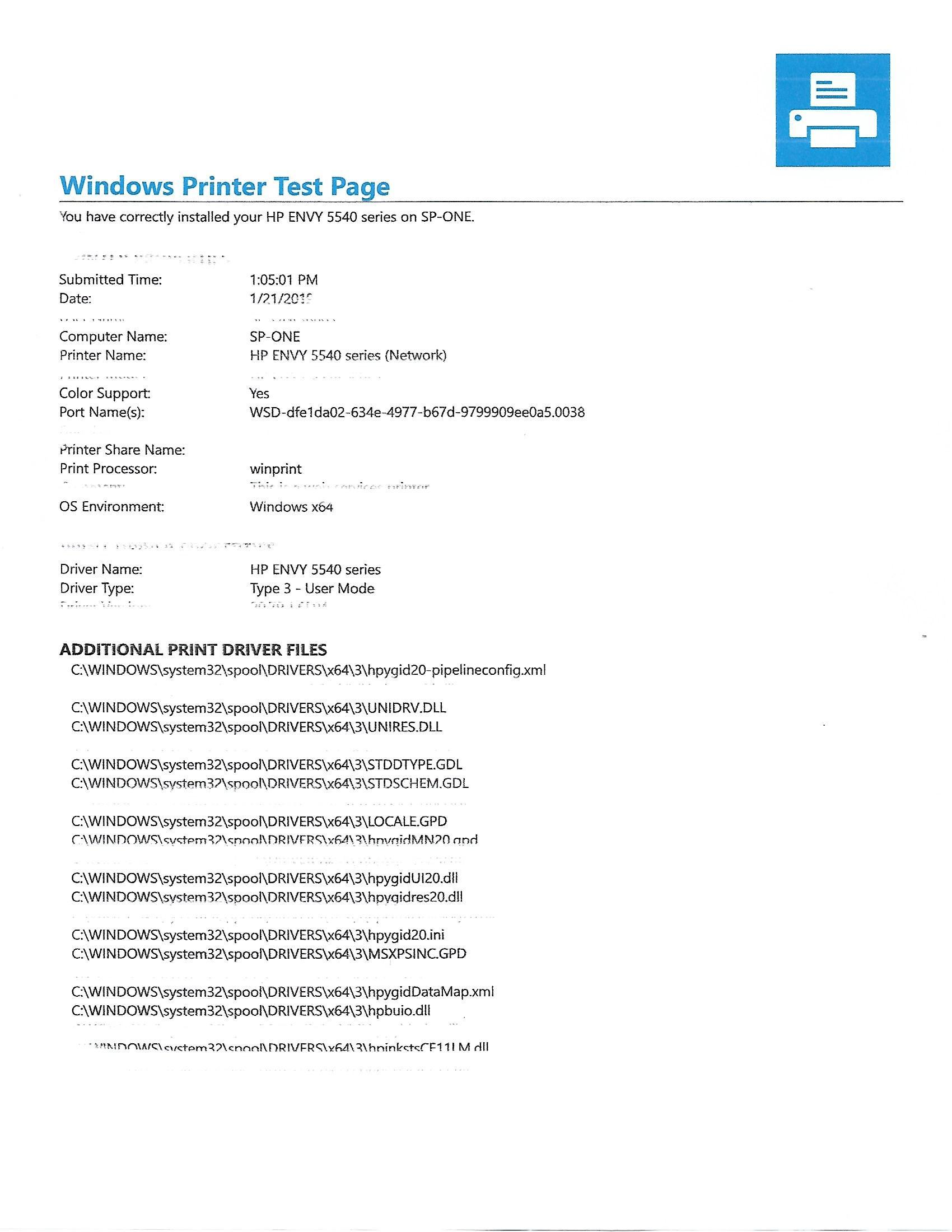
Step 5: Print test page
- Click “Print Test Page” in installer
- If successful, setup complete
- Click Finish
Set Up HP Printer Using HP Smart App (Desktop & Mobile)
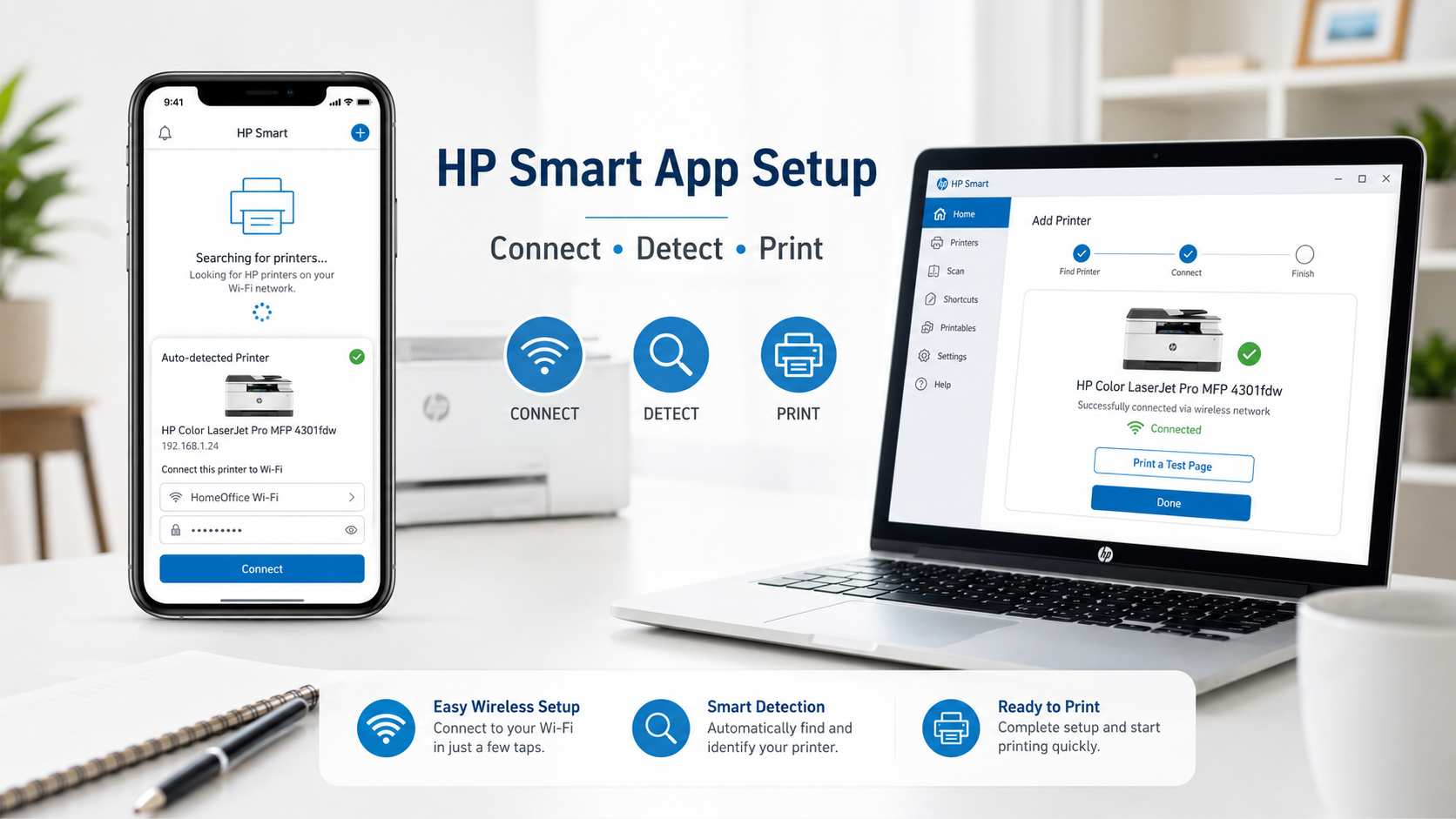
HP Smart is HP's modern printing and scanning application. It simplifies wireless setup, especially for mobile devices. You can use it as an alternative to 123.hp.com when the website redirects or you prefer a guided interface.
How to Connect an HP Printer to Your Phone
iPhone & Android
- Connect the phone to the WiFi network.
- Install/open the HP app or HP Smart as appropriate.
- Turn on Bluetooth and required local-network/location permissions if requested by the app.
- Tap Add Printer.
- Select the HP printer.
- Follow the wireless setup prompts.
- Print a test page/document from the phone.
💻 Windows / macOS
- Follow HP's setup prompts to install the recommended HP app or printer software for your operating system.
- Open the recommended HP software/app.
- Add or select the printer.
- Follow the setup prompts.
- Print a test page.
Set Up Your HP Scanner After Printer Installation
On HP multifunction printers, scanning can generally be configured after the printer has been installed and detected.
- Open HP app/HP Smart where supported.
- Select the installed multifunction printer.
- Select Scan.
- Allow any requested device/network permissions.
- Place the document on the scanner glass or ADF.
- Run a test scan.
- If the scanner is not detected, confirm that the appropriate printer/scanner software is installed and that the computer/phone can communicate with the printer.
Not sure where your HP setup is failing?
Common 123.hp.com Problems & Quick Fixes
🔄 123.hp.com redirects or doesn't load
Clear the browser cache, try a private/incognito window, and verify that a VPN, proxy, browser extension, or network filter is not interfering with access.
🌐 Browser compatibility issues
Use Chrome, Edge, or Safari. Disable ad blockers and allow scripts.
⚠️ "Driver not found" for my model
Visit support.hp.com/drivers and manually select OS.
📱 123.hp.com on mobile
For phones, use HP Smart app instead – mobile browser version may redirect.
Comparison: Which HP Setup Method Should You Use?
| Setup Method | Best For | Internet Needed | Difficulty |
|---|---|---|---|
| 📱 HP Smart App | Mobile / touch-friendly / auto-detection | Yes (initial download) | Very easy |
| 💻 123.hp.com (Desktop) | Desktop printer setup / model-specific software options | Yes (download only) | Easy |
| 🔌 USB Cable | When WiFi fails / first-time configuration | No (driver from CD or pre-downloaded) | Easy |
| 🖥️ Windows Built-in | Basic driver without HP software | Yes (automatic update) | Moderate |
Tip: For most home users, start with HP Smart on mobile or 123.hp.com on desktop. USB is a reliable backup.
Advanced troubleshooting (if setup fails)
Printer not detected
Restart printer and router, use compatible WiFi band or USB fallback. Ensure printer in setup mode.
Printer not detected guide →Connected but not printing
Clear print queue, restart Print Spooler, or set printer as default.
Connected but not printing fix →Printer shows offline after setup
After successful setup, if your HP printer suddenly goes offline, follow our printer offline troubleshooting guide.
🔧 Windows-specific fixes (spooler, firewall, WSD port)
- Print Spooler stuck: Open Services (Win+R → services.msc) → Find "Print Spooler" → Restart → Clear stuck jobs from printer queue.
- Driver unavailable / blocked: Check whether Windows Firewall or third-party security software is blocking printer discovery or the HP installer. Prefer allowing the required HP software or local-network access rather than disabling security protection entirely.
- WSD port issues: Go to Printer Properties → Ports → Uncheck "Web Services Device" → Add Standard TCP/IP port using printer's IP address.
- Offline after setup: Run HP Print and Scan Doctor (official tool) to auto-resolve.
For error 0x0000011b, install the latest Windows updates and run the built-in printer troubleshooter before attempting additional troubleshooting.
💡 Did you know? You can also set up many HP printers using Wi‑Fi Protected Setup (WPS) – press the WPS button on your router, then within 2 minutes press the Wireless button on the printer.
Setup by device
Windows 11
Download from 123.hp.com, run installer, follow wireless prompts. For persistent issues, run HP Print and Scan Doctor.
Windows setup details →macOS
Use 123.hp.com to download driver, add printer via System Settings. HP Smart also available on Mac.
HP Smart App Setup →Android / iPhone
Install HP Smart app from Play Store or App Store, follow auto-detection to complete wireless setup.
HP Smart mobile setup →Setup by connection type
WiFi (Wireless)
Most common method — printer connects to home network. Use HP Smart or 123.hp.com.
Wireless setup guide →USB setup
Direct cable connection. Useful when WiFi is unstable or for initial configuration.
USB installation steps →When 123.hp.com setup fails — common blockers
Installer freezes
Check firewall/security settings and allow required HP software. Resolve HP driver issues →
Driver blocked by Windows
Use "HP Smart" or download basic driver from support.hp.com.
Printer invisible on network
Restart router, ensure printer and PC on same subnet. Printer not detected fixes →
Firewall interference
Check firewall settings and allow HP exceptions instead of disabling protection.
Setup loop (restarts repeatedly)
Uninstall previous HP software, clear temp files, re-download fresh installer.
Connection timeout
Move printer closer to router during setup, check network band compatibility. HP Printer WiFi Setup →
Related setup & troubleshooting guides
Looking for complete wireless, offline, and driver troubleshooting?
Visit the HP Printer Troubleshooting Hub for advanced diagnostics, model-specific guides, wireless setup help, driver installation guidance, and comprehensive troubleshooting resources.
Still Unable to Set Up Your Printer?
If you've completed the steps above and your printer still isn't connecting or being detected, independent technical assistance is available.
1 (888) 663-9101Complete your HP printer setup successfully
Once you have printed the test page, your HP printer is fully configured and ready for everyday use. If you encounter offline errors or connectivity drops later, revisit the offline troubleshooting or WiFi reconnect guide. For a comprehensive library of fixes covering all HP printer models, bookmark the HP Printer Troubleshooting Hub. With the correct drivers and a stable network connection, your printer should remain stable for printing, scanning, and wireless use across Windows, macOS, and mobile devices.
Next steps: Register your printer if desired, install the appropriate HP app or software for your device, and test printing and scanning.
📌 Continue your HP printer journey by exploring our HP Printer Troubleshooting Hub. You can also access our complete guides for HP Printer WiFi Setup, HP Printer Driver Download, HP Smart App Setup, HP Printer Offline, and other HP printer troubleshooting resources.