HP Printer WiFi Not Working?
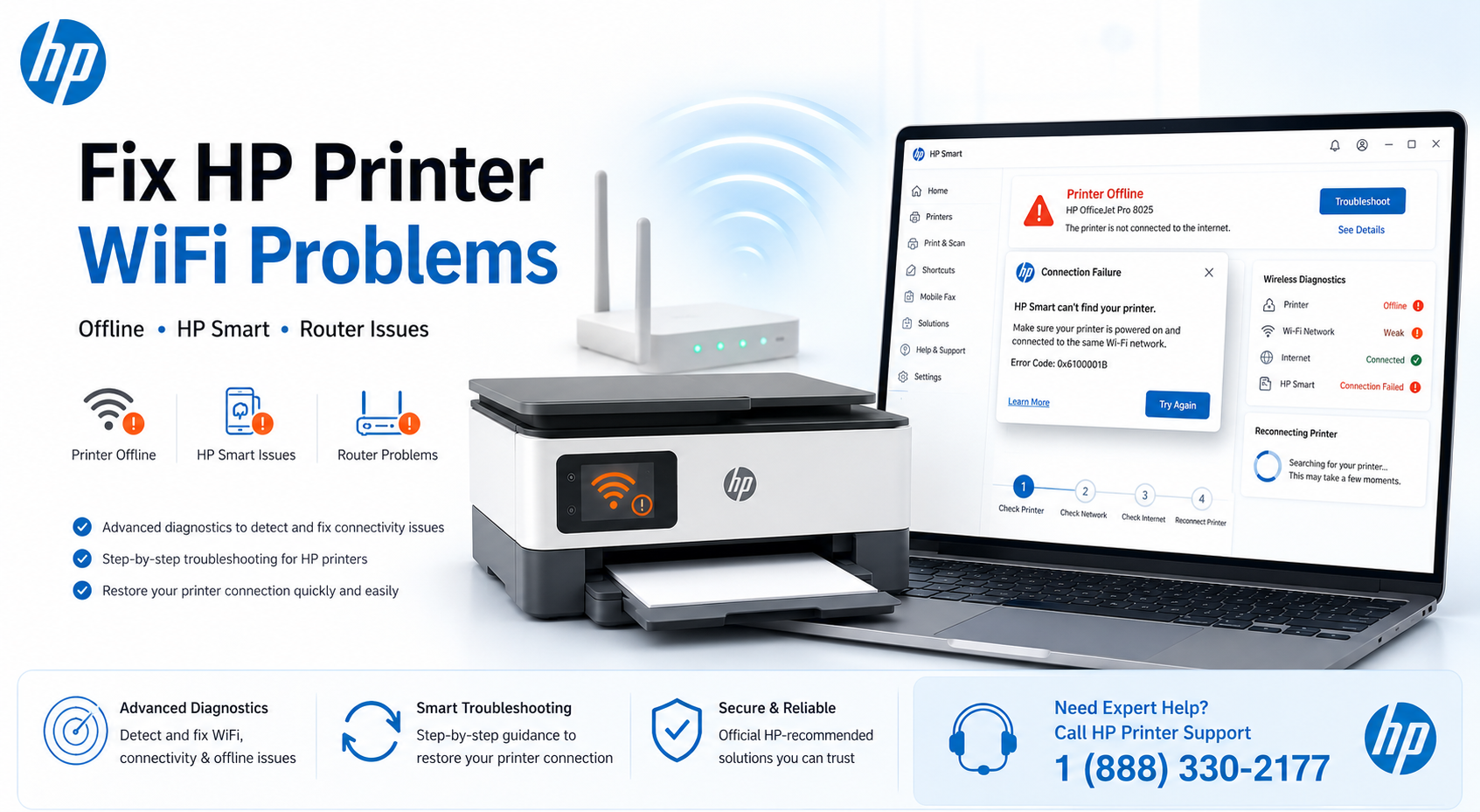
Quick Fixes for HP Printer WiFi Problems
Power cycle printer + router for 30 seconds to clear stale ARP caches and DHCP conflicts.
Most HP printers don't support 5GHz; split SSIDs or disable band steering in router settings.
Force-quit app, revoke & re-grant local network permissions, then toggle Bluetooth.
Delete from Windows/macOS printer list, then rediscover via WiFi and HP Smart.
Network reset on printer panel resolves saved credential mismatches and stale IP leases.
Why Is My HP Printer WiFi Not Working?
Move printer within 15ft of router. Use WiFi analyzer to check signal strength; aim for > -65dBm.
After router or password change, printer holds old credentials. Reset network settings to clear them.
Enable Bluetooth & local network permissions; ensure printer and phone on same VLAN/subnet.
HP printers require 2.4GHz. Disable "band steering" and create separate IoT SSID for compatibility.
Assign static IP outside DHCP range or renew lease. Flush DNS on computer (ipconfig /flushdns).
Disable "client isolation", "AP isolation", or "guest mode" temporarily to allow device discovery.
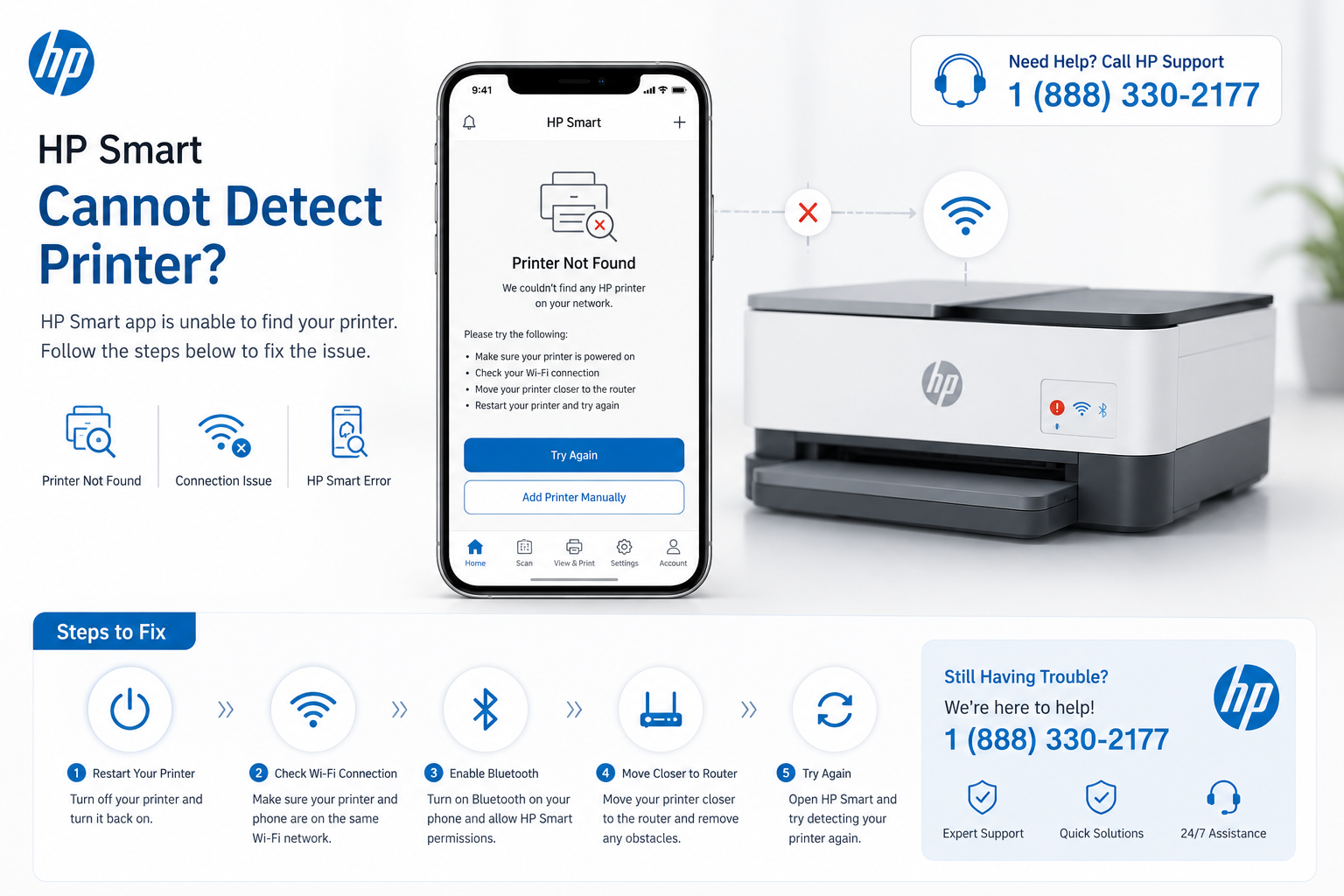
Fix HP Smart Cannot Find Printer
HP Smart relies on mDNS (Bonjour) and Bluetooth discovery. If the app doesn't see your printer, it's often due to network segmentation or missing permissions.
- Restart HP Smart app & toggle Bluetooth off/on (critical for iOS/Android – forces rediscovery)
- Power cycle printer & router to refresh mDNS announcements and ARP tables
- Enable precise location permission (Android) or local network access (iOS) – required for network scanning
- Re-add printer via "Add Printer" → "WiFi" mode; avoid WPS when possible as it may use incorrect band
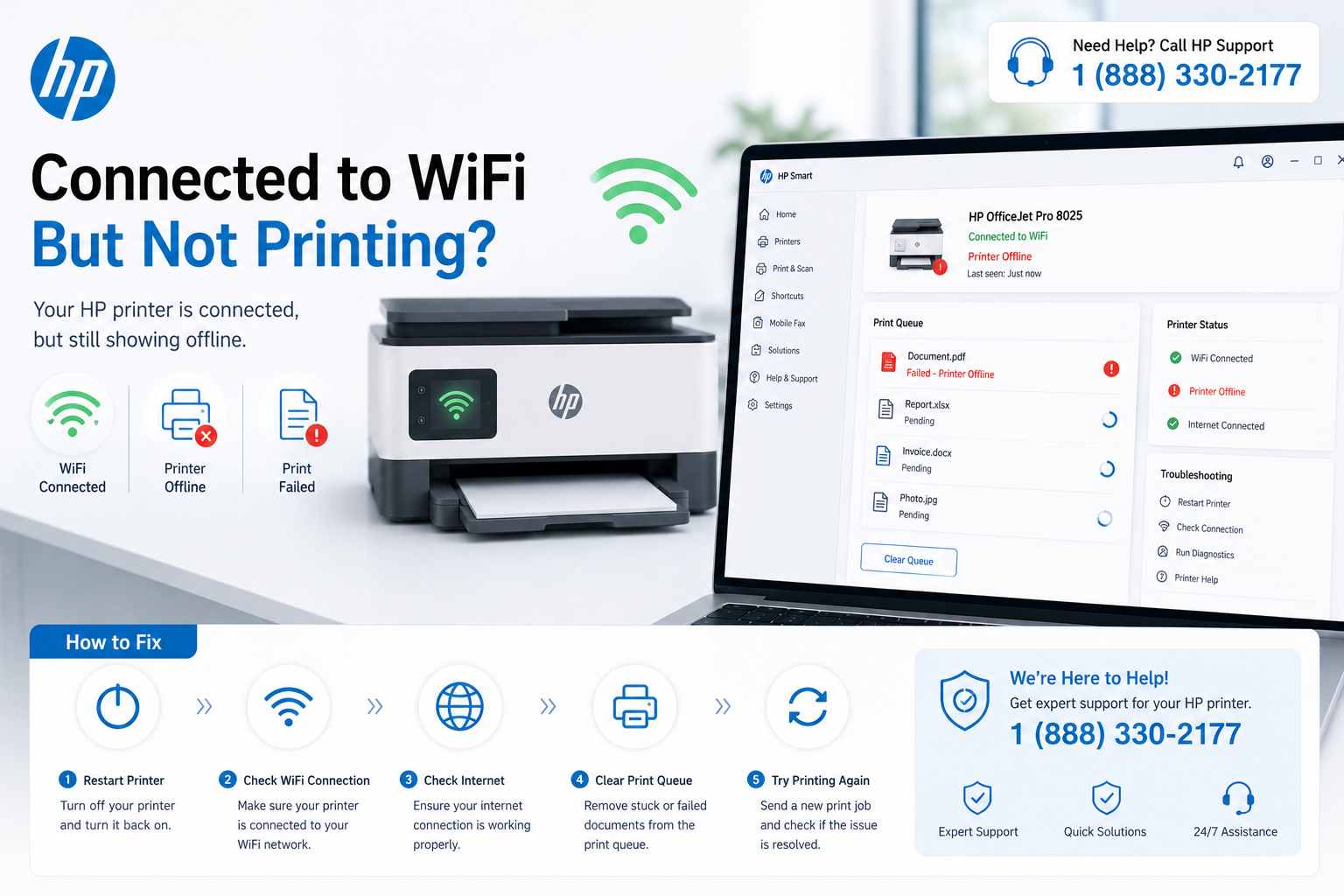
HP Printer Connected to WiFi But Offline
This classic scenario (shows IP but won't print) usually indicates a stale print spooler, duplicate driver entries, or IP conflict.
- Restart Print Spooler service (services.msc → restart) – clears stuck jobs
- Set printer as default, remove all duplicate instances from Devices and Printers
- Renew IP: disable/enable WiFi on printer or assign static IP outside DHCP range to prevent lease expiration
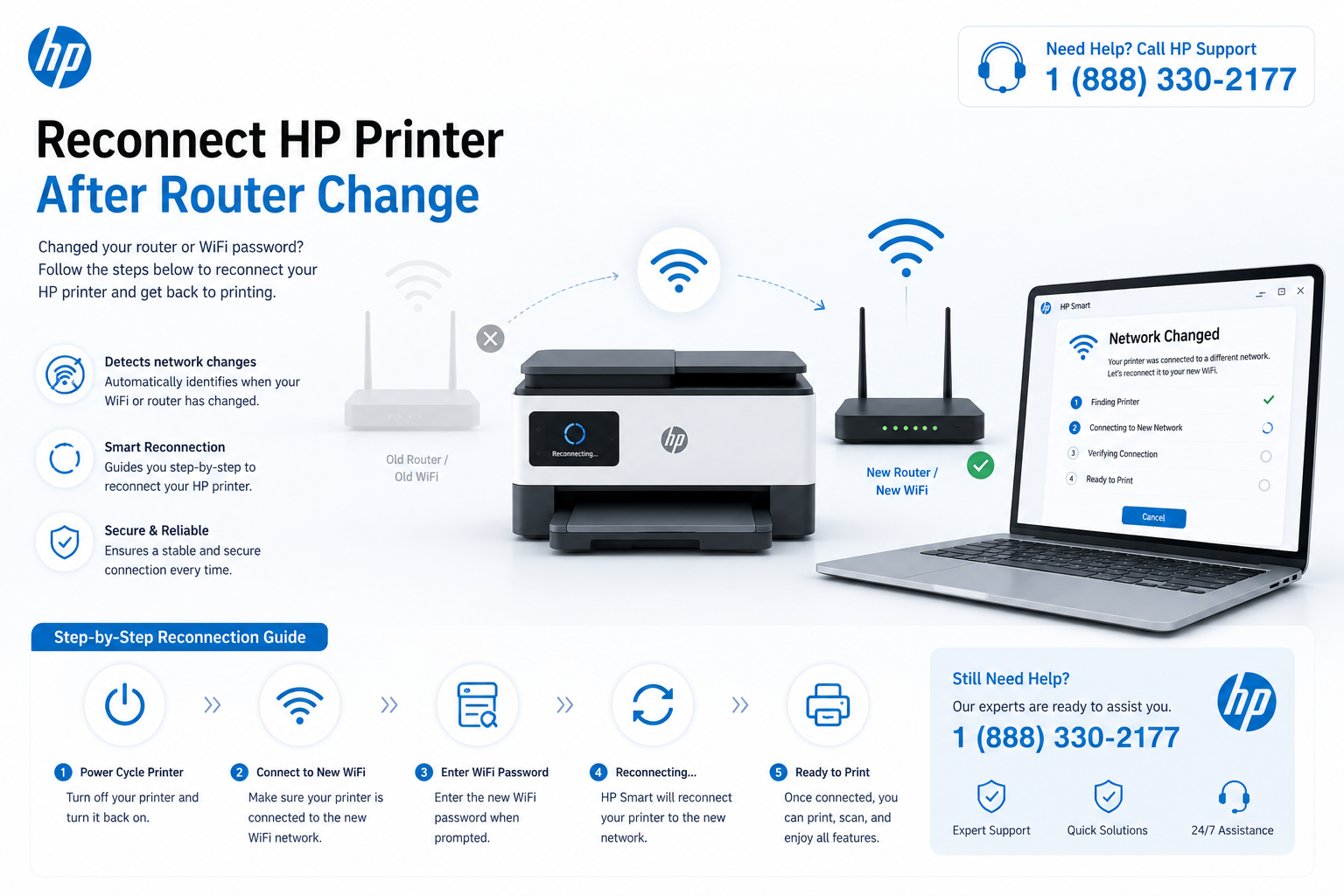
Reconnect HP Printer After Changing Router or WiFi Password
Saved SSID/password mismatch is the #1 cause after a new router. Use the following workflow:
- On printer panel: Network → Restore Network Defaults (clears old credentials)
- Run Wireless Setup Wizard, select new 2.4GHz network, enter password carefully
- Re-add printer inside HP Smart / Windows settings – do not skip this final step
Common Router Issues & Fixes
| Problem | Likely Cause | Fix |
|---|---|---|
| Printer disappears after sleep | Power saving / DHCP lease expiry | Assign static IP or increase lease time in router DHCP settings. |
| HP Smart shows "No printers found" | AP isolation / client isolation enabled | Disable isolation in router admin panel (often under Wireless → Advanced). |
| Intermittent disconnections | 2.4GHz interference, crowded channel | Switch to channel 1,6, or 11; reduce width to 20MHz for better stability. |
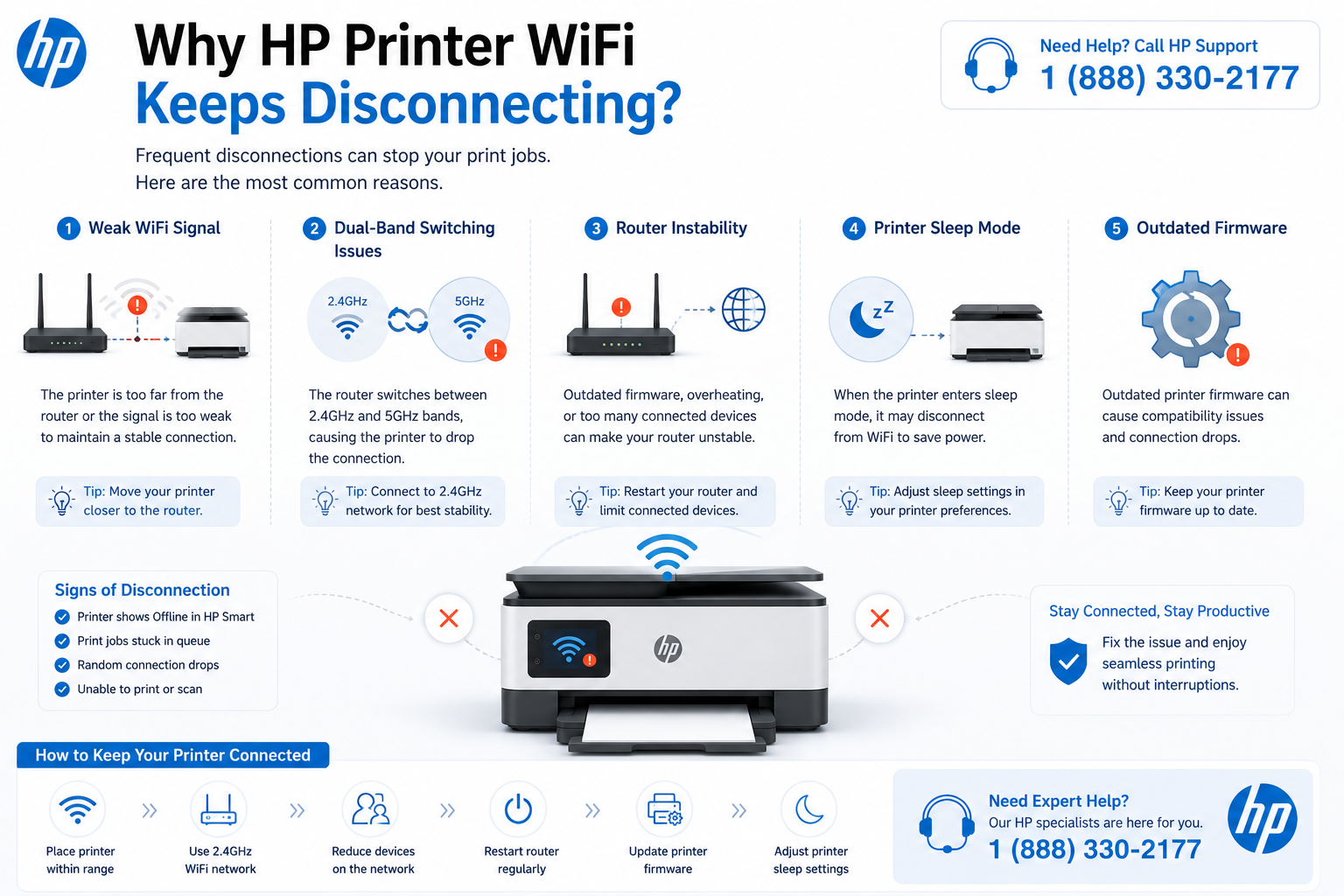
HP Printer Keeps Disconnecting from WiFi
HP Printer Wireless Reset by Model
| HP Series | Reset Method |
|---|---|
| DeskJet 2600/2700/3700 | Press and hold Wireless + Cancel buttons for 5 seconds until lights flash. |
| Envy 6000/7000 series | Settings → Network → Restore Network Defaults → confirm. |
| OfficeJet Pro 8000/9000 | Setup → Network → Restore Network Settings → Yes. |
| LaserJet M200/M400 series | Wireless menu → Restore Network Settings → OK. |
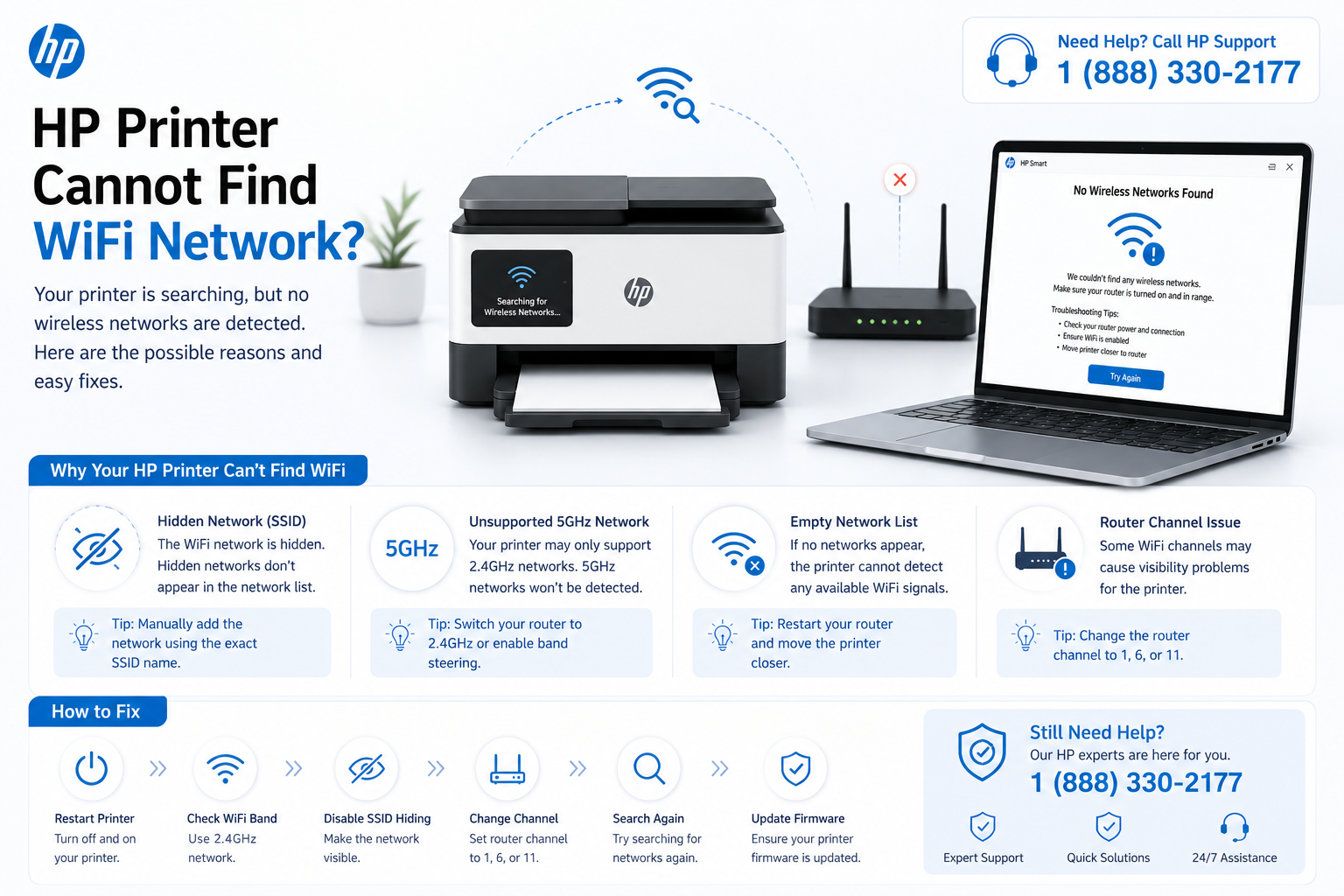
Fix HP Printer Not Detecting Wireless Network
If your printer scans but can't see your SSID, check these technical blockers:
- Hidden SSID – temporarily unhide or add network manually (printer may not support hidden networks)
- 5GHz-only broadcast – force router to emit 2.4GHz; some printers cannot see 5GHz at all
- Outdated printer firmware – update via Ethernet/USB; older firmware may lack newer security protocols
- Router channel width set to 40MHz – reduce to 20MHz for legacy device compatibility