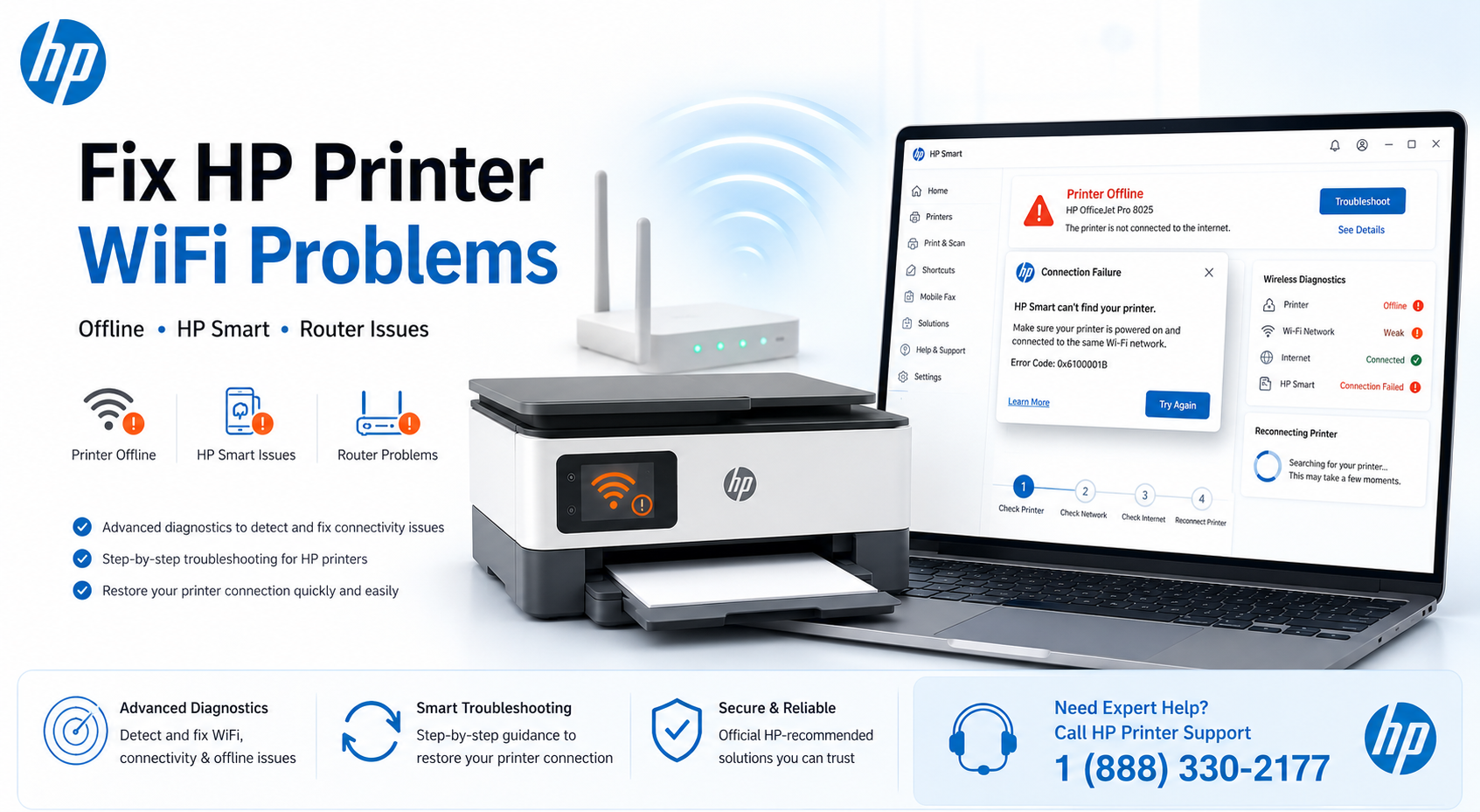
Related HP Wireless Issues
Quick Fixes for HP Printer WiFi Problems
Power cycle printer + router for 30 seconds to clear stale ARP caches and DHCP conflicts.
Most HP printers don't support 5GHz; split SSIDs or disable band steering in router settings.
Force-quit app, revoke & re-grant local network permissions, then toggle Bluetooth.
Delete from Windows/macOS printer list, then rediscover via WiFi and HP Smart.
Network reset on printer panel resolves saved credential mismatches and stale IP leases.
Why Is My HP Printer WiFi Not Working?
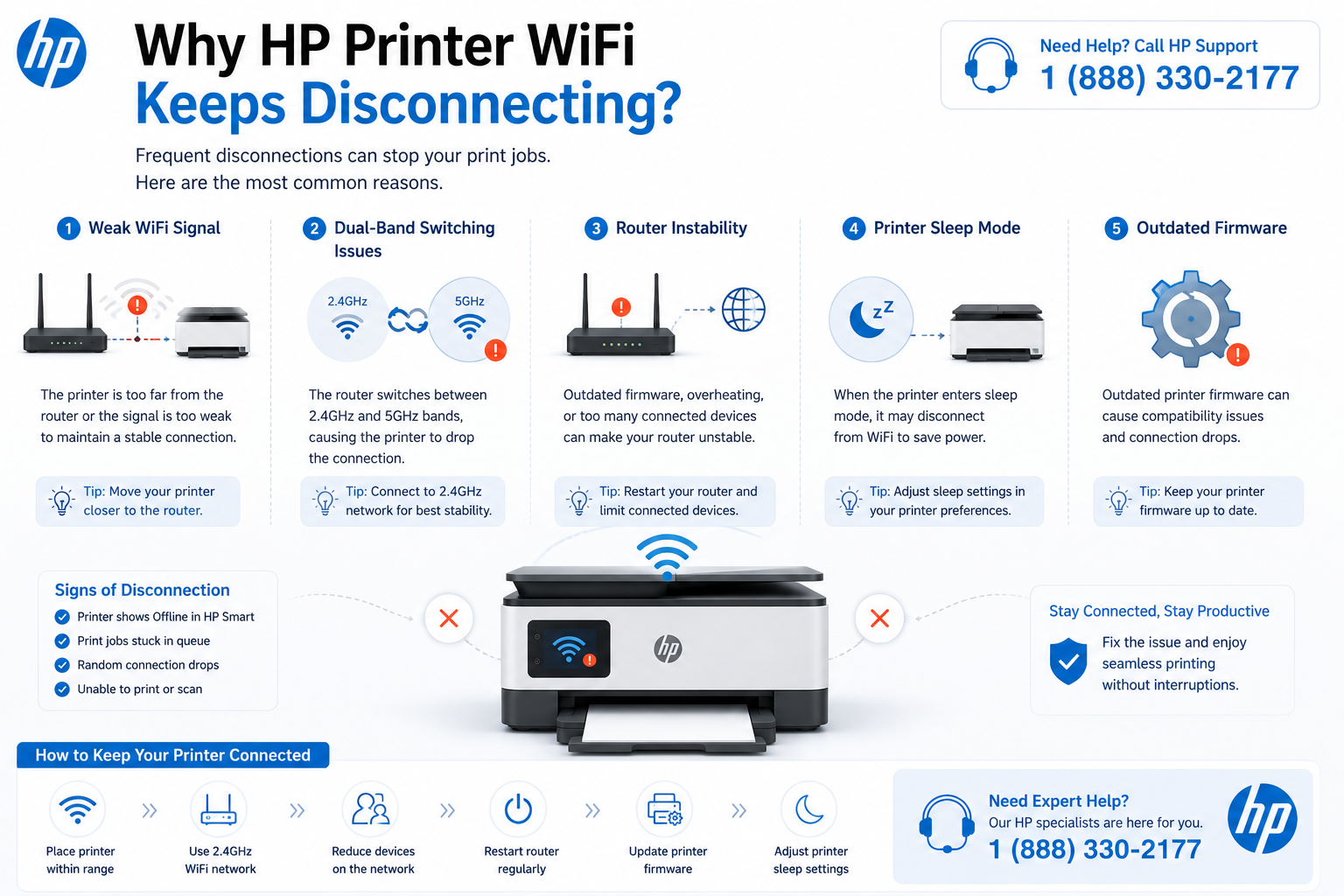
Move printer within 15ft of router. Use WiFi analyzer to check signal strength; aim for > -65dBm.
After router or password change, printer holds old credentials. Reset network settings to clear them.
Enable Bluetooth & local network permissions; ensure printer and phone on same VLAN/subnet.
HP printers require 2.4GHz. Disable "band steering" and create separate IoT SSID for compatibility.
Assign static IP outside DHCP range or renew lease. Flush DNS on computer (ipconfig /flushdns).
Disable "client isolation", "AP isolation", or "guest mode" temporarily to allow device discovery.
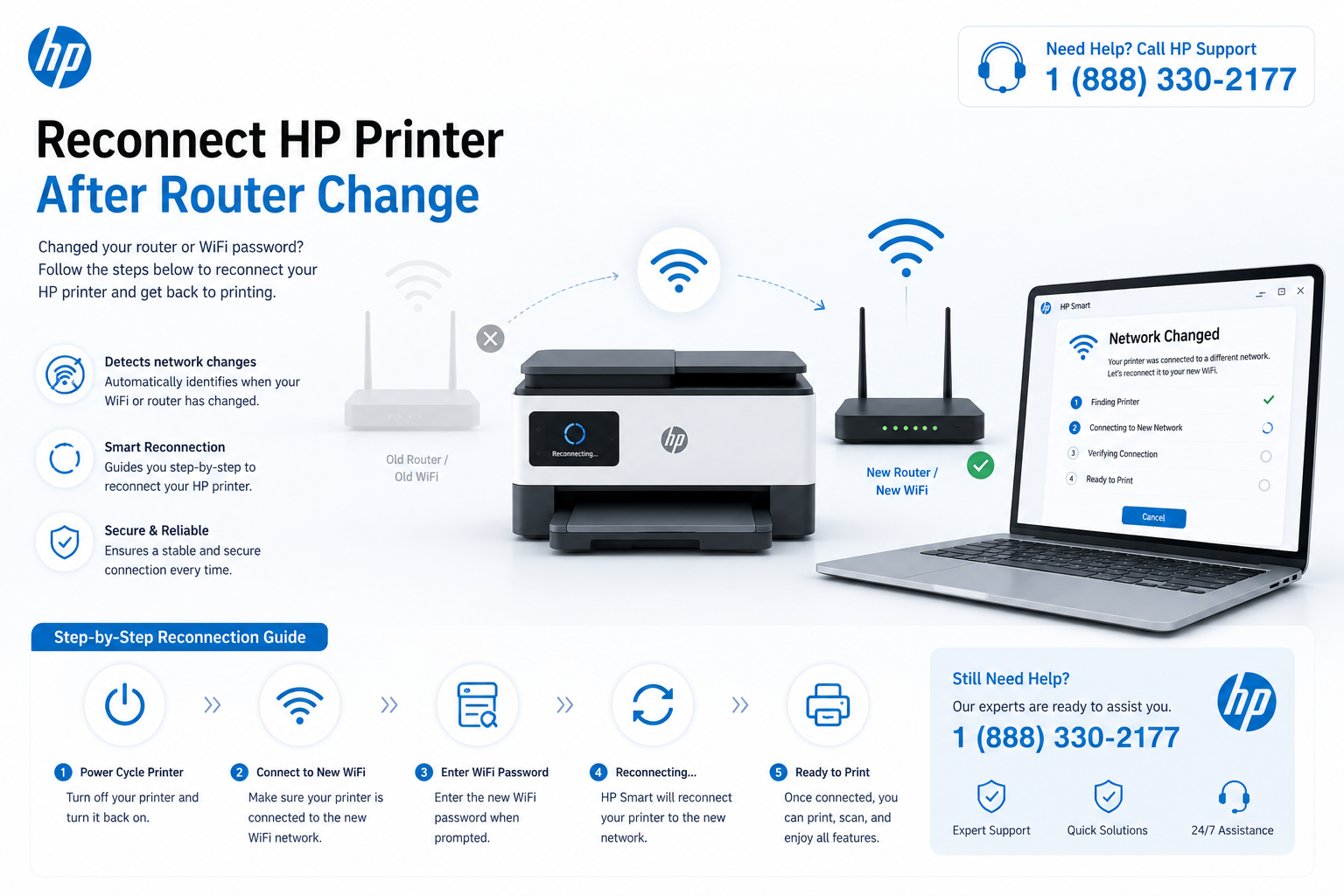
HP Printer WiFi Not Working After Router Change
Changing your router or WiFi password is one of the most common triggers for HP printer wireless failure. Because the printer retains old network credentials, it will attempt to connect to a network that no longer exists or uses an incorrect password. Follow this comprehensive recovery process:
- Step 1 — Clear stored credentials: On your HP printer control panel, navigate to Setup → Network → Restore Network Defaults. This wipes the old SSID and password.
- Step 2 — Configure 2.4GHz band on new router: Access your router admin panel (usually 192.168.0.1 or 192.168.1.1) and ensure the 2.4GHz band is enabled. Many modern routers combine bands; create a dedicated SSID like "HomeNetwork-2.4" for printer compatibility.
- Step 3 — Run Wireless Setup Wizard: On the printer, go to Network → Wireless Setup Wizard. Select your new 2.4GHz network and enter the current WiFi password carefully (case-sensitive).
- Step 4 — Renew IP & rediscover: After connection, print a network configuration page to verify the printer’s IP address. On your computer, remove the old printer entry (Windows: Settings → Bluetooth & devices → Printers & scanners → Remove). Then re-add via HP Smart or "Add printer" → "The printer that I want isn't listed" → select TCP/IP and enter the new IP.
- Step 5 — HP Smart rediscovery: Open HP Smart, tap the + icon → Add Printer. Ensure Bluetooth and location permissions are enabled. The app should discover the printer on the refreshed network. If not, restart your phone and router.
If your new router uses the exact same SSID and password as the old one, a simple power cycle may suffice, but a full network reset (Step 1) is recommended to avoid hidden profile conflicts. For advanced setups, consider assigning a static IP to the printer via the router’s DHCP reservation page to prevent future disconnections.
Fix HP Smart Cannot Find Printer
HP Smart relies on mDNS (Bonjour) and Bluetooth discovery. If the app doesn't see your printer, it's often due to network segmentation or missing permissions.
- Restart HP Smart app & toggle Bluetooth off/on (critical for iOS/Android – forces rediscovery)
- Power cycle printer & router to refresh mDNS announcements and ARP tables
- Enable precise location permission (Android) or local network access (iOS) – required for network scanning
- Re-add printer via "Add Printer" → "WiFi" mode; avoid WPS when possible as it may use incorrect band
If HP Smart continues failing to detect the printer, reinstall the application and complete a fresh setup using our HP Smart Install guide →
HP Smart app setup →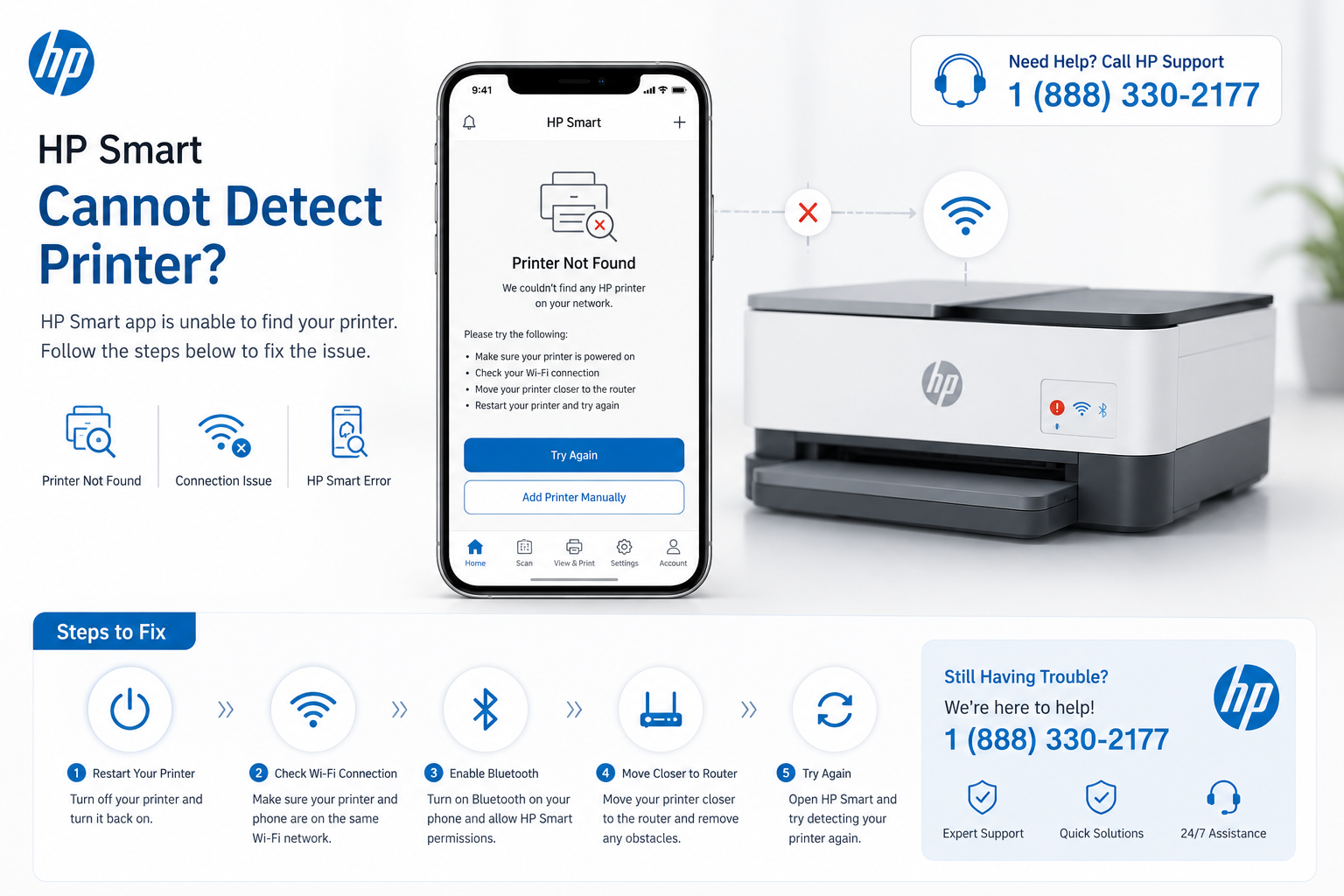
HP Printer Connected to WiFi But Offline
This classic scenario (shows IP but won't print) usually indicates a stale print spooler, duplicate driver entries, or IP conflict.
- Restart Print Spooler service (services.msc → restart) – clears stuck jobs
- Set printer as default, remove all duplicate instances from Devices and Printers
- Renew IP: disable/enable WiFi on printer or assign static IP outside DHCP range to prevent lease expiration
HP Printer Connected to WiFi But Not Printing
One of the most frustrating situations is when your HP printer shows a solid WiFi connection and appears online, yet print jobs never reach the device. This typically indicates a logical communication breakdown rather than a physical WiFi failure. Below are the most common causes and step-by-step solutions to restore printing functionality. See related troubleshooting resources below.
1. Print Queue Stuck or Spooler Corruption
When a print job fails, it can become stuck in the Windows or macOS print queue, blocking all subsequent jobs. Open “Printers & Scanners” (Windows) or “Printers & Scanners” (macOS) and check for pending jobs with error status. Clear the queue completely. Then restart the Print Spooler service: on Windows, press Win + R, type services.msc, locate “Print Spooler”, right-click and select “Restart”. This clears trapped jobs without restarting your PC.
2. Driver Corruption or Mismatched Driver Architecture
HP printers rely on specific drivers for wireless printing. Over time, driver files can become corrupted after Windows updates or software conflicts. Remove the existing printer driver completely: Go to Print Server Properties → Drivers, remove all HP entries, then download the latest full-feature driver from our HP Printer Driver Download page. Install the driver before adding the printer again. This resolves most “spooler crashes” and “printer not responding” errors.
3. IP Address Mismatch (Stale TCP/IP Port)
Even if the printer is connected to WiFi, your computer may be trying to communicate with an old IP address. Print a network configuration page from the printer control panel (Network → Print Network Config). Compare the IP address listed with the one configured in Windows Printer Properties → Ports tab. If different, create a new Standard TCP/IP Port using the printer’s current IP. For persistent issues, assign a static IP via router DHCP reservation to prevent future changes.
4. Offline Mode Accidentally Enabled
Windows and macOS have a hidden “Use Printer Offline” setting that overrides WiFi connection. In Windows, open “Printers & Scanners”, click on your HP printer, select “Open print queue”, then in the “Printer” menu, uncheck “Use Printer Offline”. On macOS, go to System Settings → Printers & Scanners, select the printer, and ensure “Pause” is not enabled. After disabling offline mode, restart the print queue and try printing a test page.
5. Firewall or Security Software Blocking Printer Communication
Windows Defender Firewall or third-party antivirus can block mDNS (Bonjour) and SMB ports required for network printing. Temporarily disable firewall and test printing. If printing works, add an exception for your HP printer’s IP address and for the HP Smart application. For advanced users, allow inbound/outbound rules for ports 9100 (raw printing), 5353 (mDNS), and 631 (IPP).
6. Duplicate Printer Entries Causing Conflicts
Over time, multiple instances of the same HP printer appear in “Printers & Scanners”, leading to confusion about which one is active. Remove all entries except the one currently connected via WiFi. To identify the correct entry, check the “Location” column — it should show the printer’s IP address or hostname. If duplicates persist, run HP Print and Scan Doctor (Windows) or reset the printing system on macOS (right-click in Printers list → Reset printing system).
7. HP Smart Print Failures
HP Smart app may fail to send print jobs even when the printer appears connected. This often occurs after an app update or OS permission change. Force-close HP Smart, clear its cache (Android/iOS: App Info → Storage → Clear Cache), and re-login. On Windows, repair the app via Settings → Apps → HP Smart → Modify → Repair. Also ensure “HP Smart” has local network access permissions. As a final step, uninstall and reinstall HP Smart using our HP Smart Install guide for a clean configuration.
If none of these solutions work, your printer firmware may be outdated. Visit HP Printer Offline or HP Printer Not Printing for advanced recovery methods including factory reset and firmware recovery via USB.
Common Router Issues & Fixes
| Problem | Likely Cause | Fix |
|---|---|---|
| Printer disappears after sleep | Power saving / DHCP lease expiry | Assign static IP or increase lease time in router DHCP settings. |
| HP Smart shows "No printers found" | AP isolation / client isolation enabled | Disable isolation in router admin panel (often under Wireless → Advanced). |
| Intermittent disconnections | 2.4GHz interference, crowded channel | Switch to channel 1,6, or 11; reduce width to 20MHz for better stability. |
HP Printer Keeps Disconnecting from WiFi
HP Printer Wireless Reset by Model
| HP Series | Reset Method |
|---|---|
| DeskJet 2600/2700/3700 | Press and hold Wireless + Cancel buttons for 5 seconds until lights flash. |
| Envy 6000/7000 series | Settings → Network → Restore Network Defaults → confirm. |
| OfficeJet Pro 8000/9000 | Setup → Network → Restore Network Settings → Yes. |
| LaserJet M200/M400 series | Wireless menu → Restore Network Settings → OK. |