HP Smart App Setup: Download, Install & Connect Your HP Printer
By All About Printers Editorial Team
Last updated: May 2026 • Tested on real HP devices
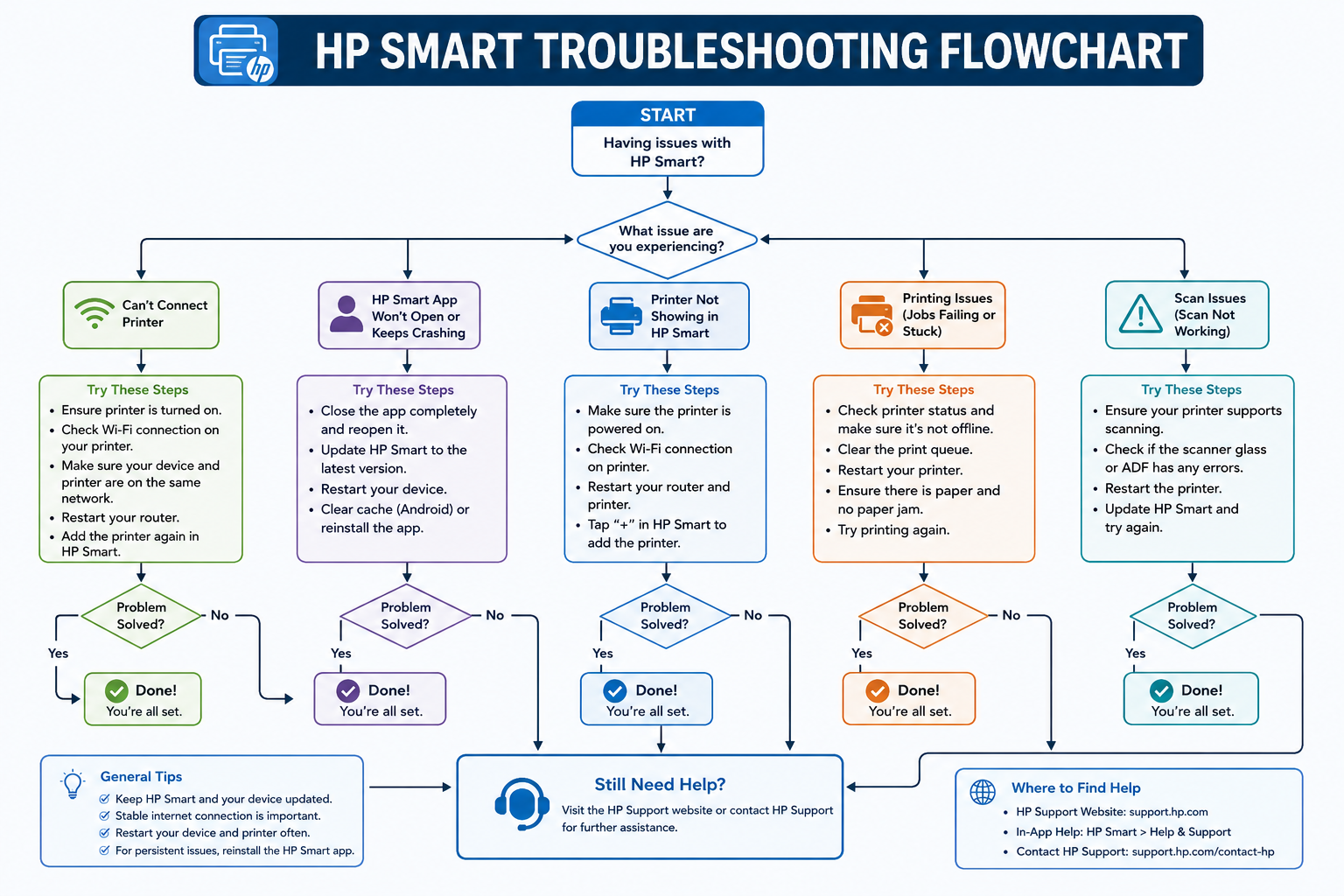
HP Smart app setup is the easiest way to connect your printer wirelessly. Download HP Smart app and follow this step-by-step guide to fix issues like not finding printer, WiFi errors, or offline status on Windows, Mac, Android, and iPhone.
On this page
Complete guide takes 3-5 minutes • Last tested: May 2026 on HP Envy, DeskJet, LaserJet
Quick answer: Your printer isn't in setup mode or devices are on different WiFi networks. During the setup process, hold the Wireless button on your printer for 3-5 seconds until the light starts blinking. Then ensure your phone and printer are connected to the same 2.4GHz WiFi network (most HP printers don't support 5GHz). Reopen the app and tap "Add Printer" - your printer should appear within 10-15 seconds.
More troubleshooting stepsQuick fix: If the app can't find your printer during installation, hold the Wireless button for 5 seconds until light blinks, then reopen the app.
If the app cannot detect your printer, it may be due to driver issues. Follow this printer driver fix guide or install the correct driver using our HP printer driver download guide.
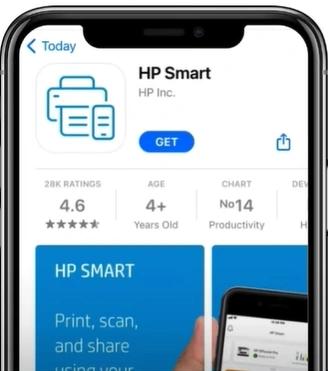
What Is HP Smart?
The official HP app lets you print, scan, check ink levels, and manage your printer from any device.
Mobile Printing
Print from your phone or tablet
Scan Documents
Scan to PDF or JPEG
Ink Monitoring
Track ink levels
Printer Management
Configure and update
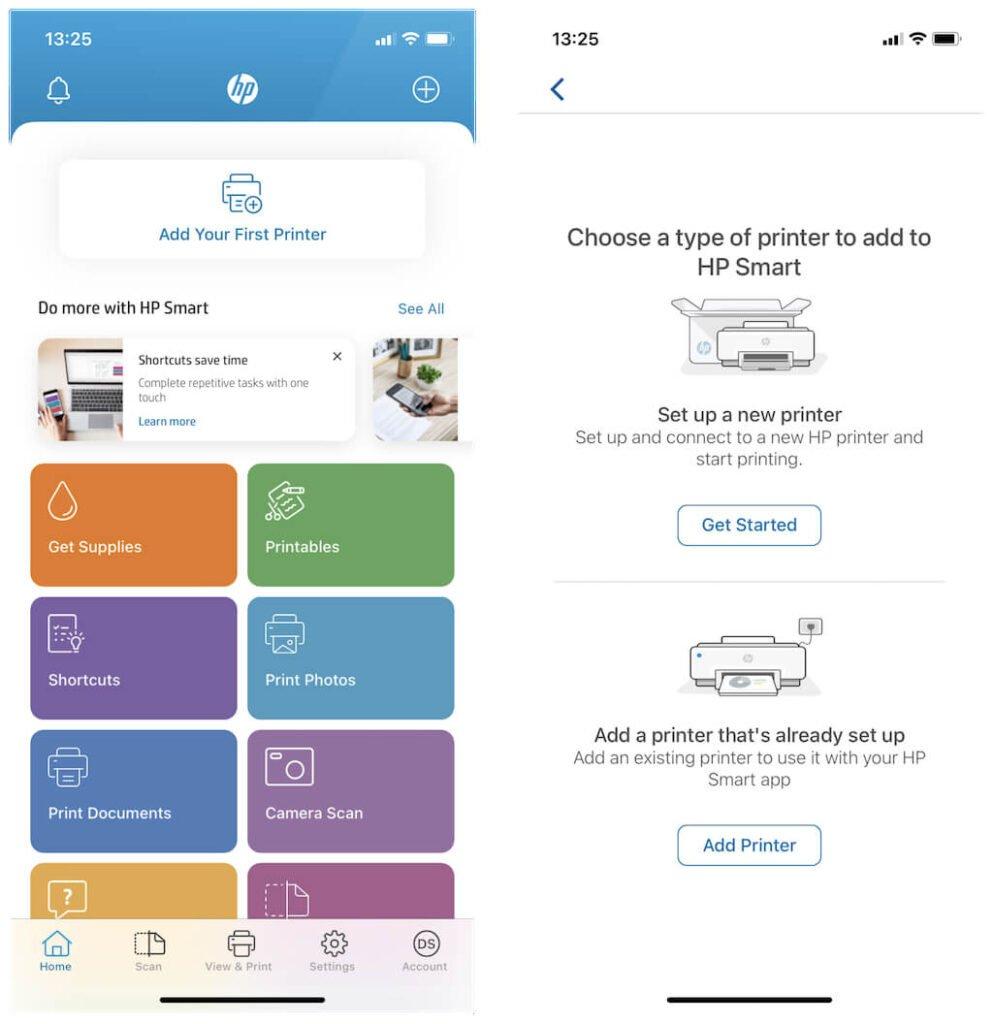
During setup, the app automatically discovers printers on your network
How to Download HP Smart
Choose your platform below - the app is free
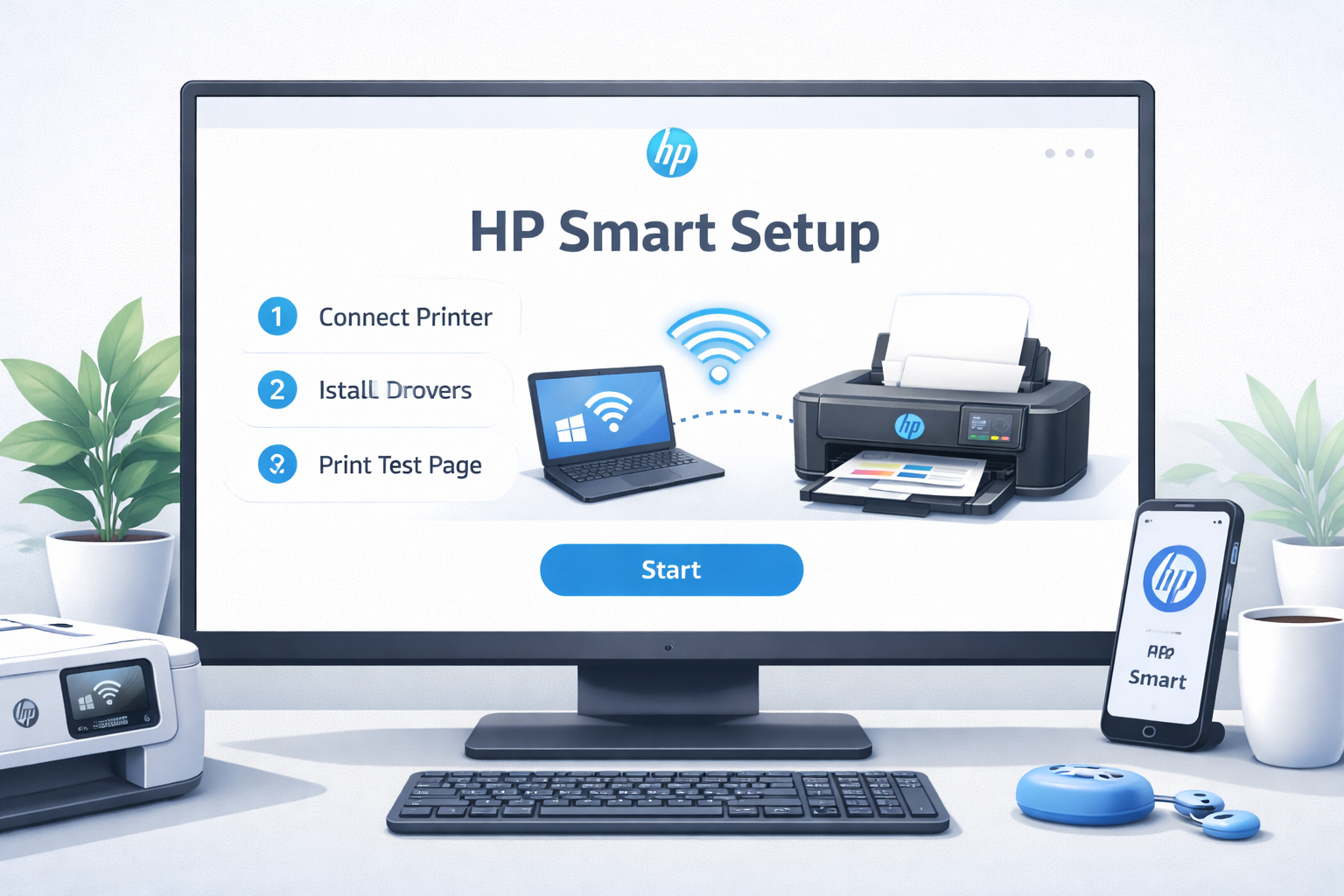
HP Smart App Setup: How to Connect Your Printer
Follow this complete guide for wireless connection
Install the App
- Open your device's app store
- Search for "HP Smart"
- Tap Install/Get
- Open the app after installation
Add Your Printer
- Open the app
- Tap the "+" or "Add Printer" button
- Wait 10-15 seconds for discovery
- Select your printer from the list
Connect to WiFi
- Select your WiFi network
- Enter your password (case-sensitive)
- Wait 30-60 seconds for connection
- Look for solid wireless light on printer
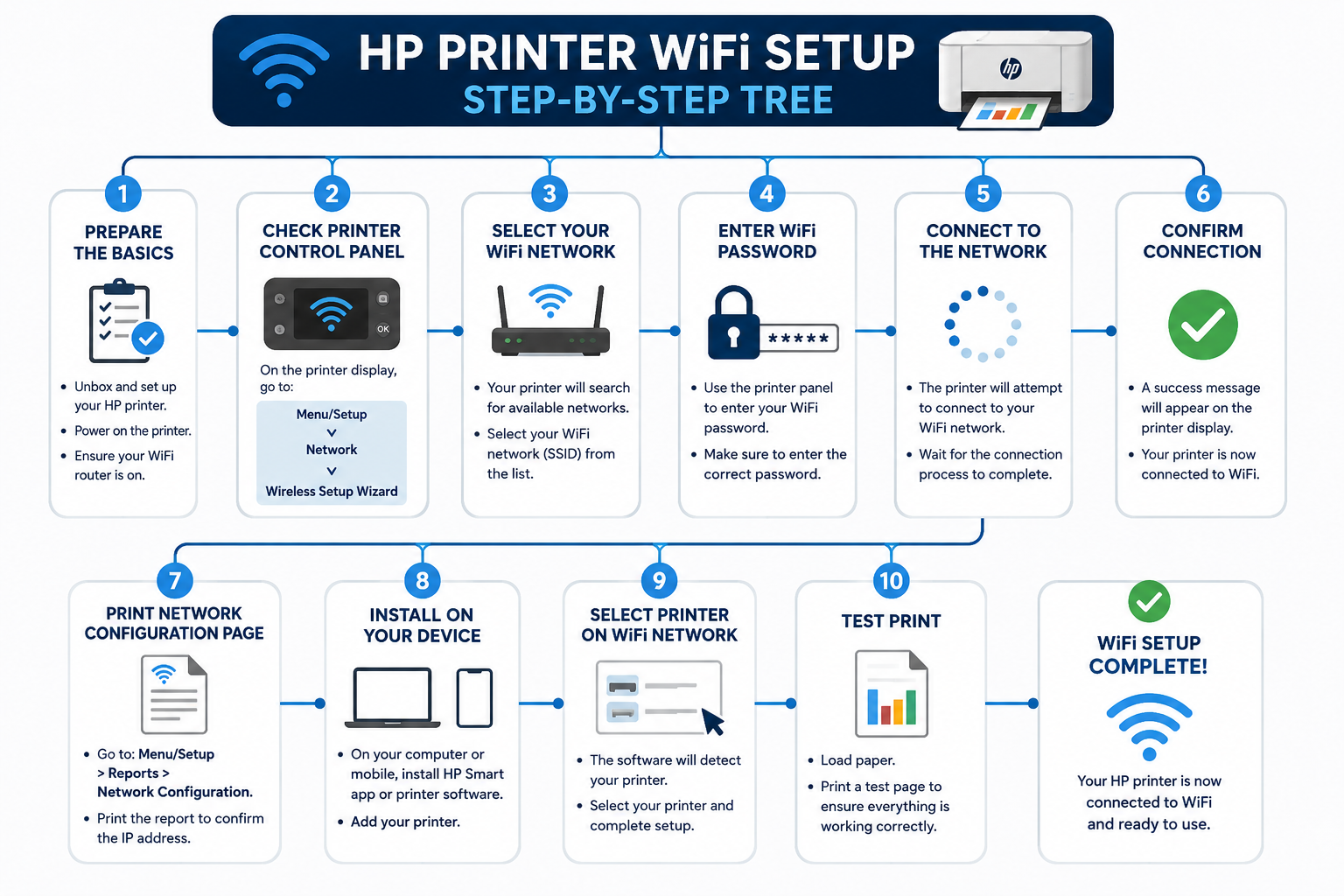
Test Your Setup
- Tap "Print Test Page"
- Register your printer (recommended)
- Check ink levels in the dashboard
- Start printing wirelessly
HP Smart App System Requirements
| Platform | Minimum Version | RAM | Storage |
|---|---|---|---|
| Windows | 10 (64-bit) or 11 | 4 GB | 500 MB |
| macOS | 13 (Ventura) or newer | 4 GB | 500 MB |
| Android | Android 8.0 (Oreo) | 2 GB | 250 MB |
| iOS | iOS 14.0 or later | 2 GB | 250 MB |
Critical: Your printer and mobile device must be on the same 2.4 GHz WiFi network. HP printers do not support 5 GHz or 6 GHz bands during initial setup. If your router broadcasts both bands under the same SSID, temporarily disable 5 GHz in router settings or use the 2.4 GHz guest network.
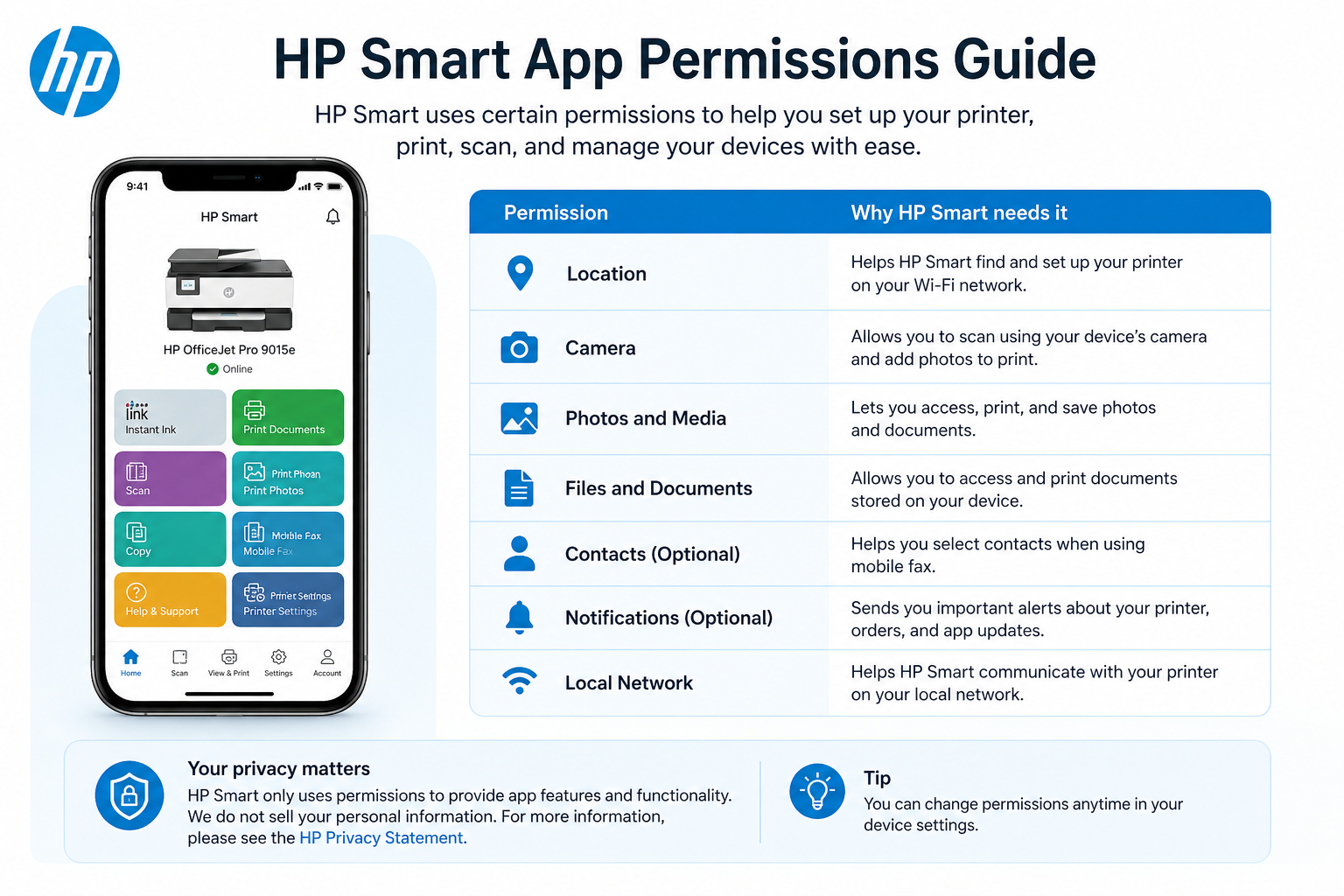
HP Smart App Permissions Explained
Required for WiFi network scanning and printer discovery via local network. The app never sends location data to HP servers.
Allows the app to communicate with your printer using mDNS/Bonjour. Essential for setup and printing.
Used to scan QR codes on HP printers for instant setup. Optional – you can manually enter the printer code.
Required to print documents and photos from your device storage. Also used for saving scanned files.
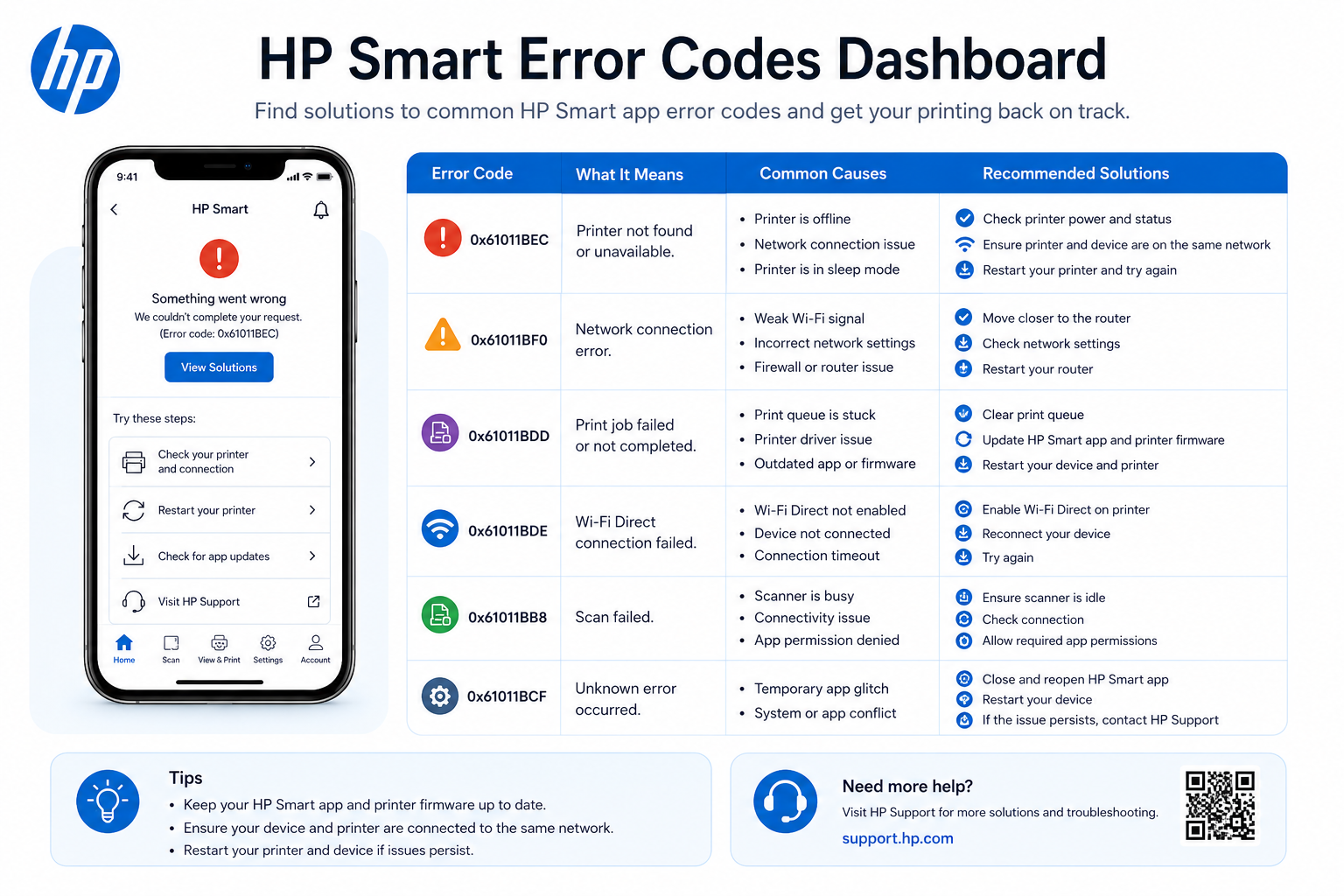
HP Smart Error Codes & Solutions
| Error Message | Likely Cause | Fix |
|---|---|---|
| "Printer unavailable" | Printer sleeping or network lost | Wake printer by pressing power; ensure same WiFi; restart app. |
| "Discovery failed" | Printer not in setup mode | Hold Wireless button 5 sec until light blinks; move printer closer to router. |
| "Cannot communicate" | Firewall or VPN blocking | Disable VPN, allow HP Smart in Windows Defender Firewall. |
| "Setup incomplete" | WiFi password incorrect or 5GHz issue | Re-enter password; connect to 2.4GHz band only. |
| "Printer asleep" | Power save mode | Press power button; disable sleep mode in printer settings. |
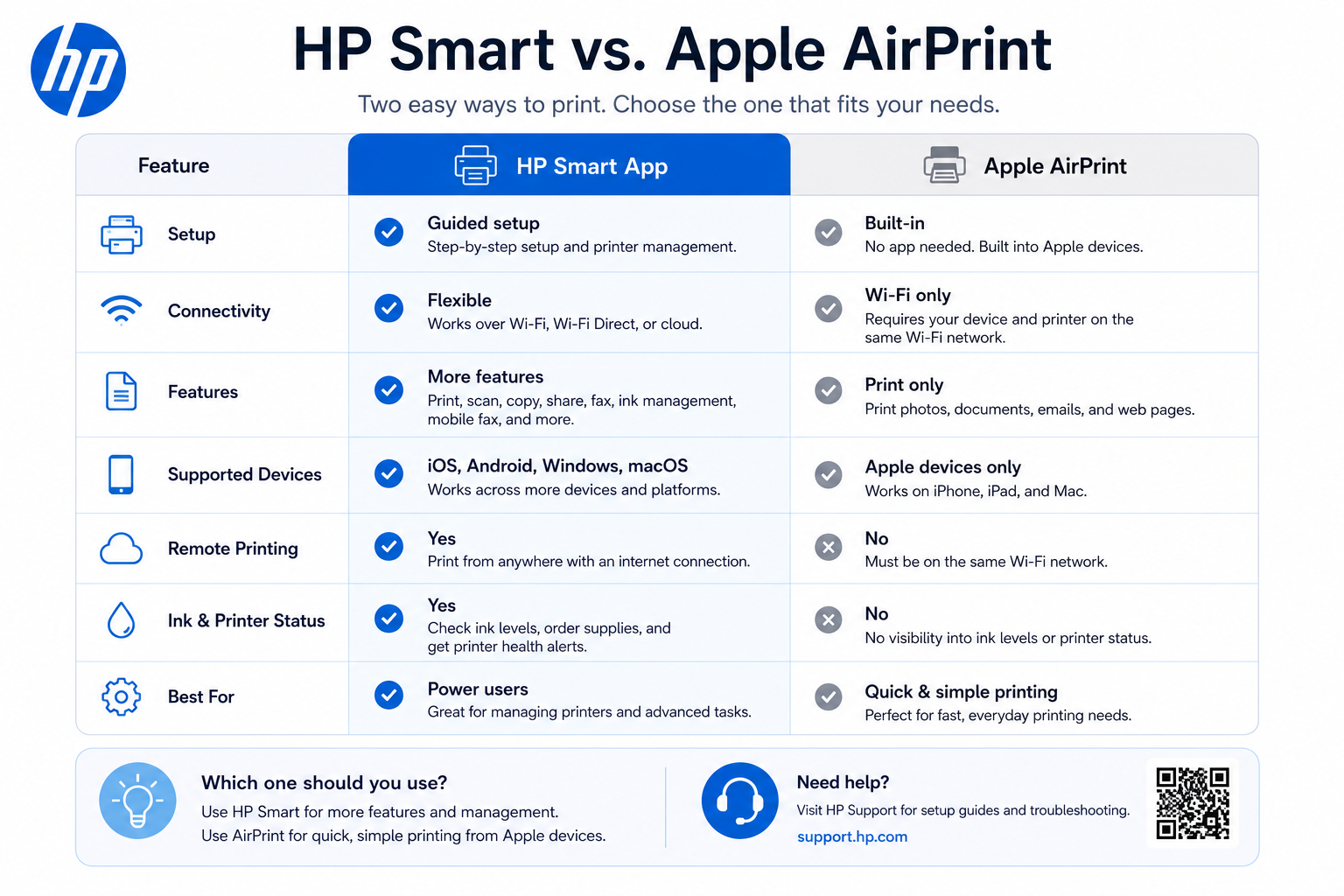
HP Smart vs AirPrint vs Traditional Drivers
| Feature | HP Smart App | Apple AirPrint | Traditional Driver (123.hp.com) |
|---|---|---|---|
| Setup difficulty | Easy (guided) | Automatic (no setup) | Medium (manual download) |
| Mobile printing | Yes (iOS/Android) | Yes (iOS only) | No |
| Scanning | Yes | No (scan separate) | Yes (with full driver) |
| Ink monitoring | Yes | No | No |
| Network requirements | 2.4 GHz WiFi | Same WiFi (any band) | USB or network |
HP Smart Supported Printers
| Printer Series | Supported | Notes |
|---|---|---|
| HP Envy (6000, 7000, Pro) | Full | All features including mobile scan |
| HP DeskJet (2700, 4100, 3700) | Full | WiFi setup works, 2.4GHz only |
| HP OfficeJet (Pro, 8000 series) | Full | Business features supported |
| HP LaserJet (M110we, M200 series) | Full | Print only, scan via separate app |
| HP Smart Tank (500, 600 series) | Full | Ink levels and printing |
| HP Tango | Full | Designed for HP Smart exclusively |
| Legacy (DeskJet 1000, 2000, 3000 series) | Limited | May not appear; use traditional driver |
HP Smart App Not Working on Windows 11
Microsoft Store Cache
Press Win+R, type wsreset.exe, run. Then restart PC and reinstall HP Smart.
Windows Firewall
Allow HP Smart through firewall: Control Panel → Windows Defender Firewall → Allow an app → add HP Smart.
Spooler Service
Open Services (services.msc) → Print Spooler → Restart. Also set startup type to Automatic.
Reset / Reinstall
Settings → Apps → HP Smart → Advanced → Reset. If persists, uninstall and reinstall from Store.
HP Smart App Cannot Scan – Fixes
Scanner Unavailable
Ensure printer is on and connected to same WiFi. Restart printer and app. On Windows, run sfc /scannow.
WIA Service
Windows Image Acquisition (WIA) must be running. Services.msc → Windows Image Acquisition → Automatic → Start.
Scan Button Greyed Out
Re-add printer in HP Smart: remove printer → tap "+" → add again. Also check if printer has "Scan to PC" enabled.
Mobile Scanning Issues
Grant camera and storage permissions. On Android, go to App Info → Permissions → enable Files and Media.
Reset HP Smart App (All Platforms)
Android
Settings → Apps → HP Smart → Storage → Clear Cache & Clear Data. Then reopen app and sign in again.
iOS
Offload app: Settings → General → iPhone Storage → HP Smart → Offload App. Then reinstall from App Store. Your printer pairings will reset.
Windows
Open Settings → Apps → HP Smart → Advanced options → Reset. Alternatively, use PowerShell: Get-AppxPackage *HPSmart* | Remove-AppxPackage then reinstall from Store.
Mac
Delete the app from Applications folder, then clear preferences: ~/Library/Preferences/com.hp.HP-Smart.plist. Reinstall from Mac App Store.
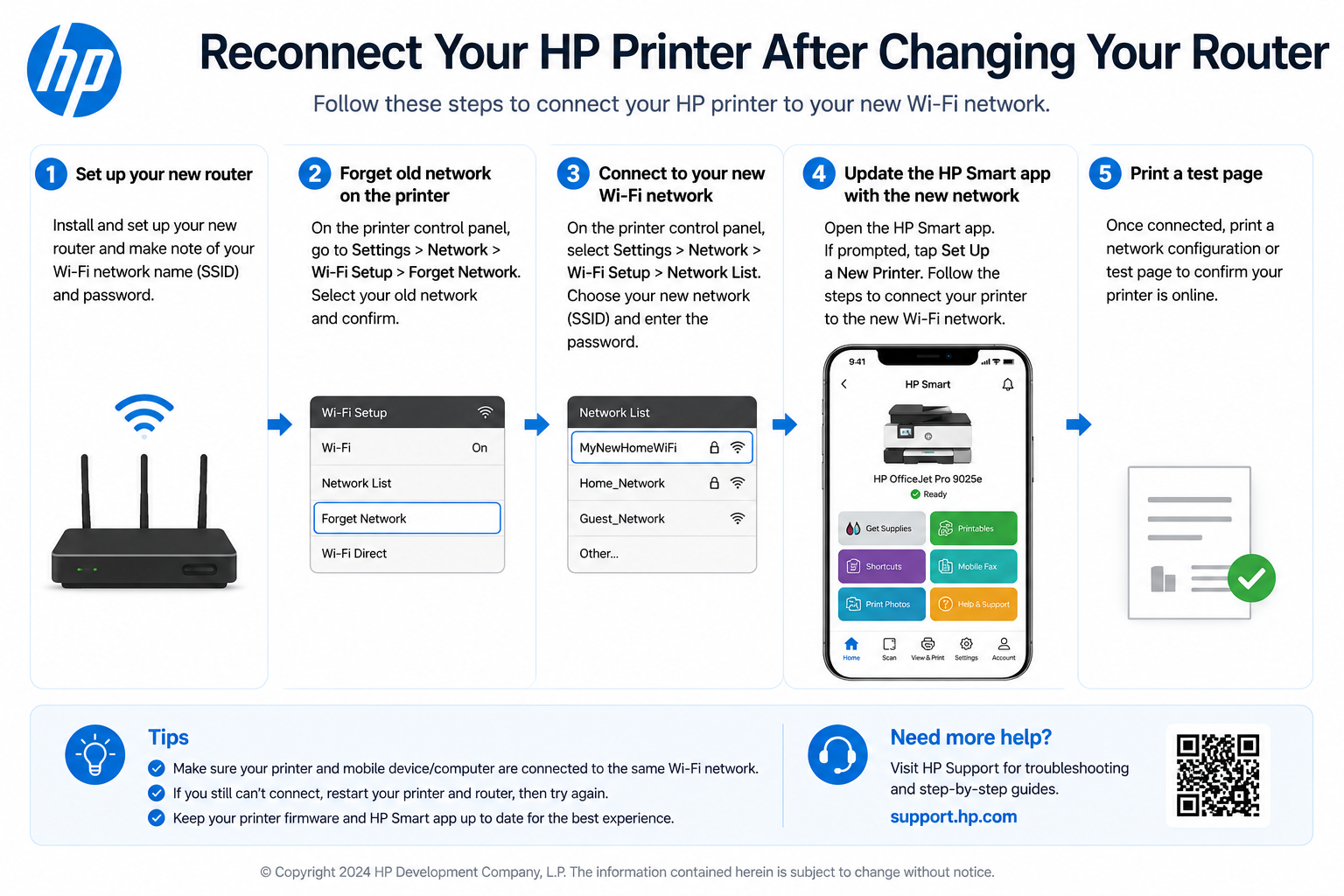
Reconnect Printer After Router Change
Changed your WiFi password, router, or ISP? Your printer will lose connection. Follow these steps:
- On printer control panel, press and hold the Wireless button for 3 seconds until light blinks.
- Open HP Smart app → tap your printer (if still visible) → tap "Printer Settings" → "Network" → "Restore Network Defaults".
- If printer is missing, tap "Add Printer" and follow the standard setup with the new WiFi credentials.
- For printers without a touchscreen, use the HP Smart app's "Reconnect" wizard under "Add Printer" → "Reconnect an existing printer".
Complete Troubleshooting Guide
Solutions for common issues during printer connection
For a complete overview, visit our printer troubleshooting hub.
App Can't Find Printer
- Ensure printer powered on and within 10 feet of router
- Put printer in setup mode (hold Wireless button 3-5 sec until light blinks)
- Make sure devices on same WiFi network
- Restart the app completely
- Temporarily disable VPN/firewall
WiFi Setup Fails
- Verify WiFi password (case-sensitive)
- Move printer within 10-15 feet of router
- Check for 2.4GHz band (5GHz not supported)
- Restart router (unplug 30 seconds)
- Use WPA2 security (not WPA3)
Can't Get the App
- Ensure 500MB+ free storage space
- Check internet connection stability
- Download only from official app stores
- Clear app store cache
- Check OS version: Android 8+, iOS 14+, Windows 10+
Printer Offline
- Check printer's wireless light (should be solid)
- Restart printer (unplug 30 seconds)
- Remove and re-add printer in app
- Print network config page to verify WiFi