Printer Driver Not Working? 7 Fixes That Work (Windows & Mac)
📌 If your printer is connected but not printing, follow this complete troubleshooting guide.
📌 If your HP printer is showing offline, follow this HP printer offline fix guide.
How to Fix Printer Driver Not Working (Quick Answer)
To fix a printer driver not working, restart the print spooler, reinstall or update the driver, reconnect the printer, and set it as default. Most issues are caused by corrupted drivers or system conflicts and can be resolved in under 5 minutes.
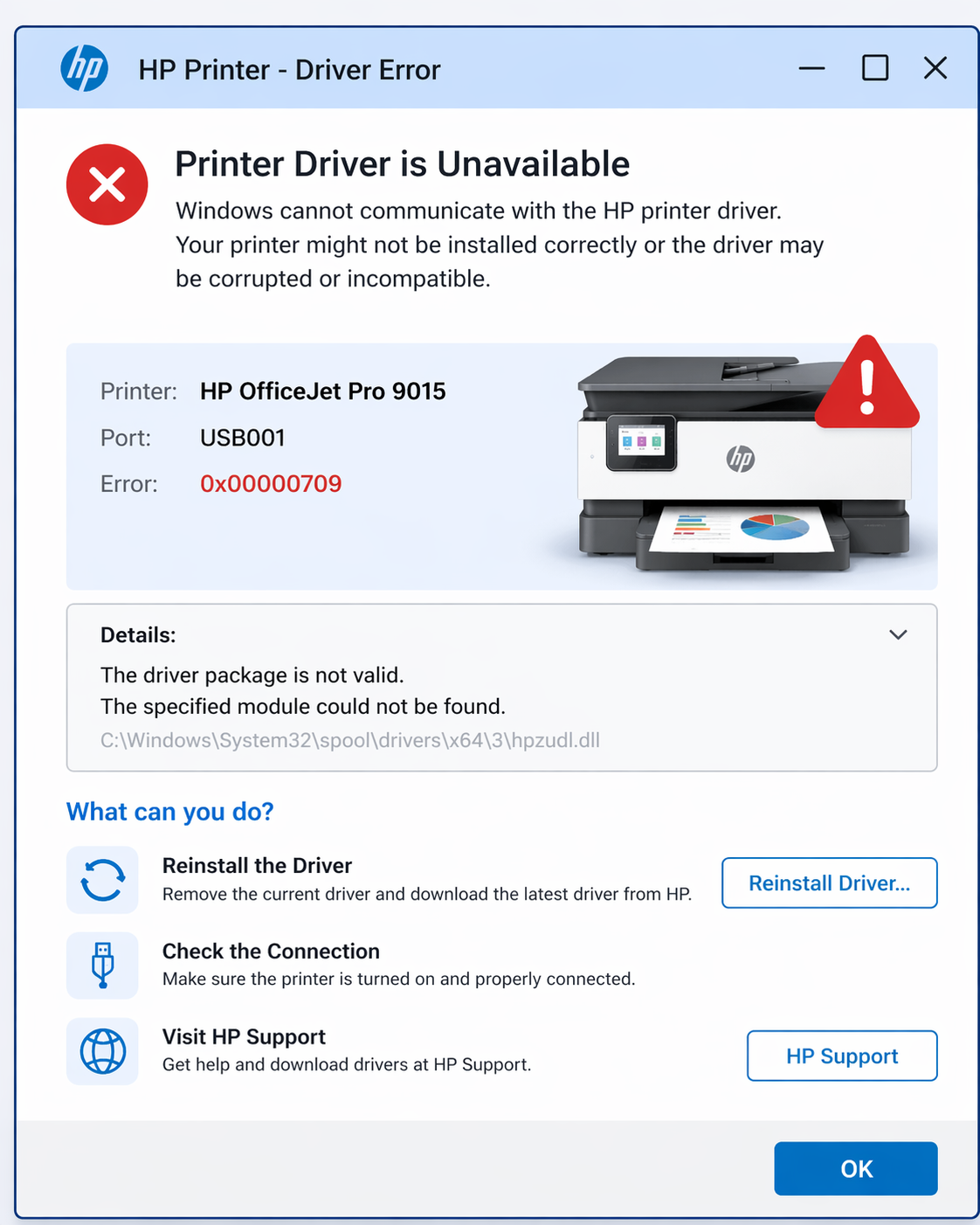
🚀 Quick Diagnosis – Fix Printer Driver Issues
- 🔧 Print Spooler error → restart spooler service
- 📦 Driver corrupted → reinstall driver
- 🖥️ Windows update conflict → roll back driver
- 📡 Connection issue → reconnect printer
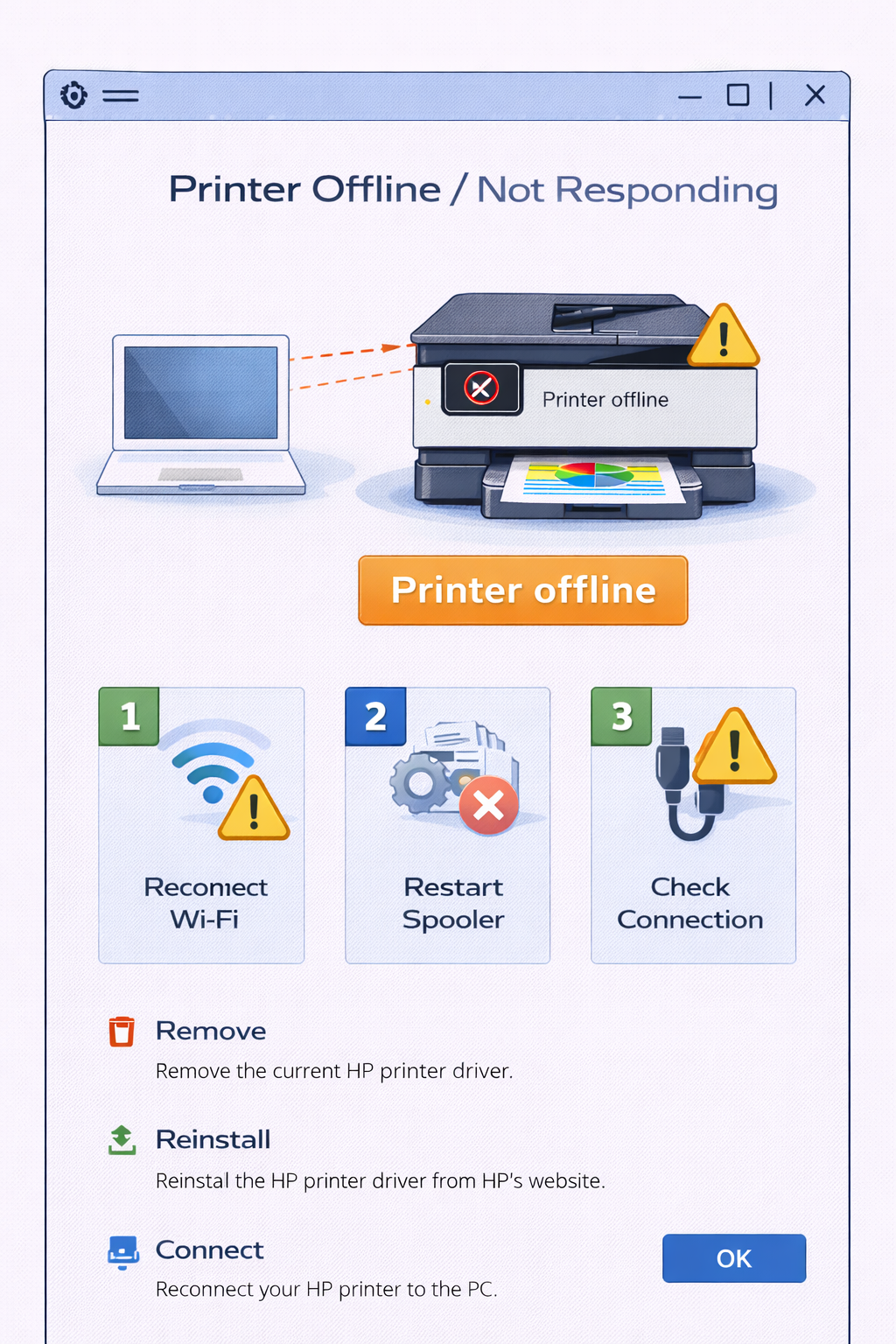
📊 Printer Driver Not Working – Quick Reference
| Problem | Immediate Fix |
|---|---|
| Printer driver not working | Restart spooler + reinstall driver |
| Printer not detected | Reconnect USB/WiFi + update driver |
| Driver unavailable error | Download driver from manufacturer |
| Print jobs stuck | Clear queue + restart spooler |
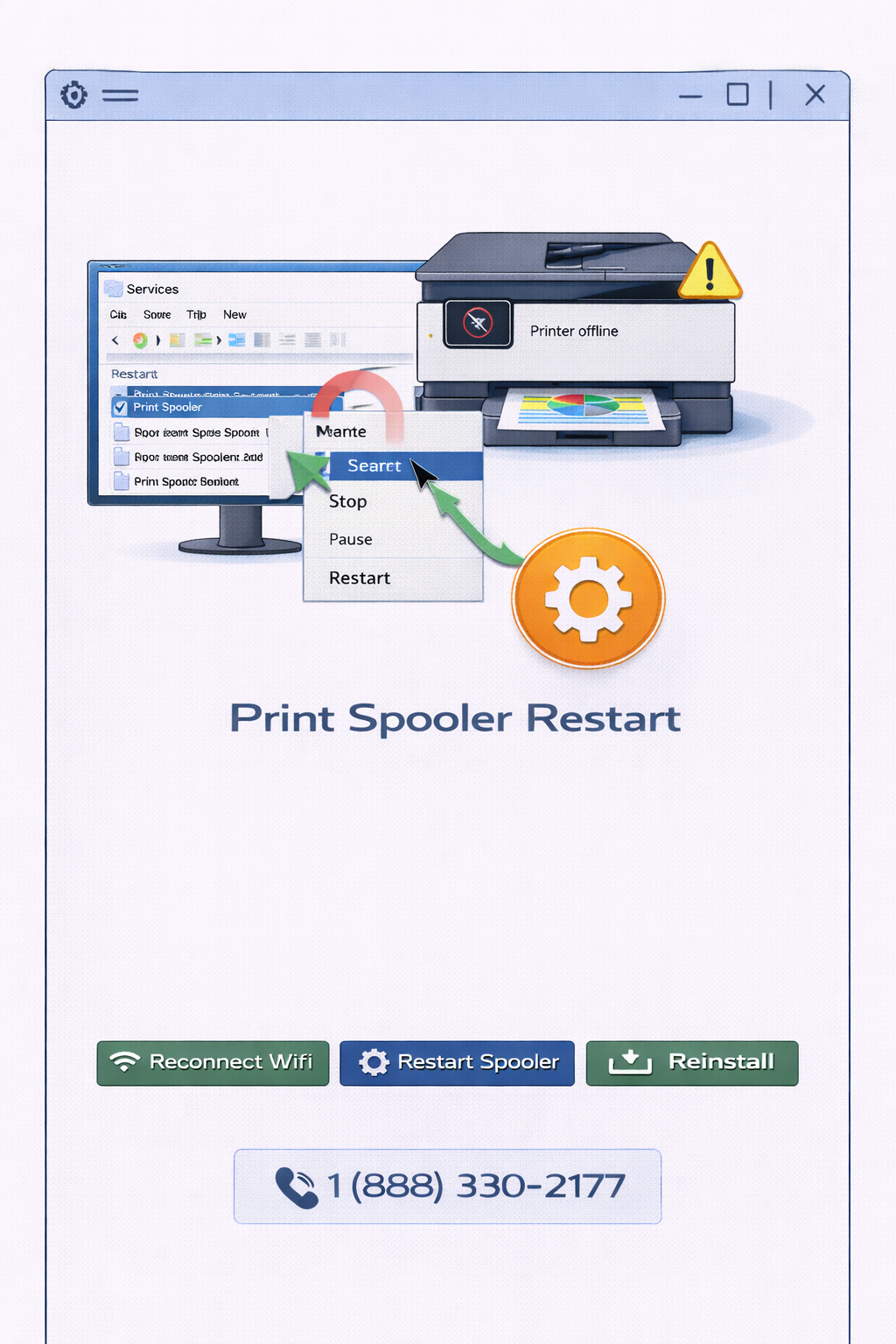
🔧 Fix 1: Restart Print Spooler (Windows)
The print spooler manages all print jobs. Restarting it clears many driver-related errors.
- Press
Windows + R, typeservices.msc, press Enter - Scroll down to Print Spooler
- Right-click and select Restart
- If Restart is unavailable, click Stop, wait 10 seconds, then Start
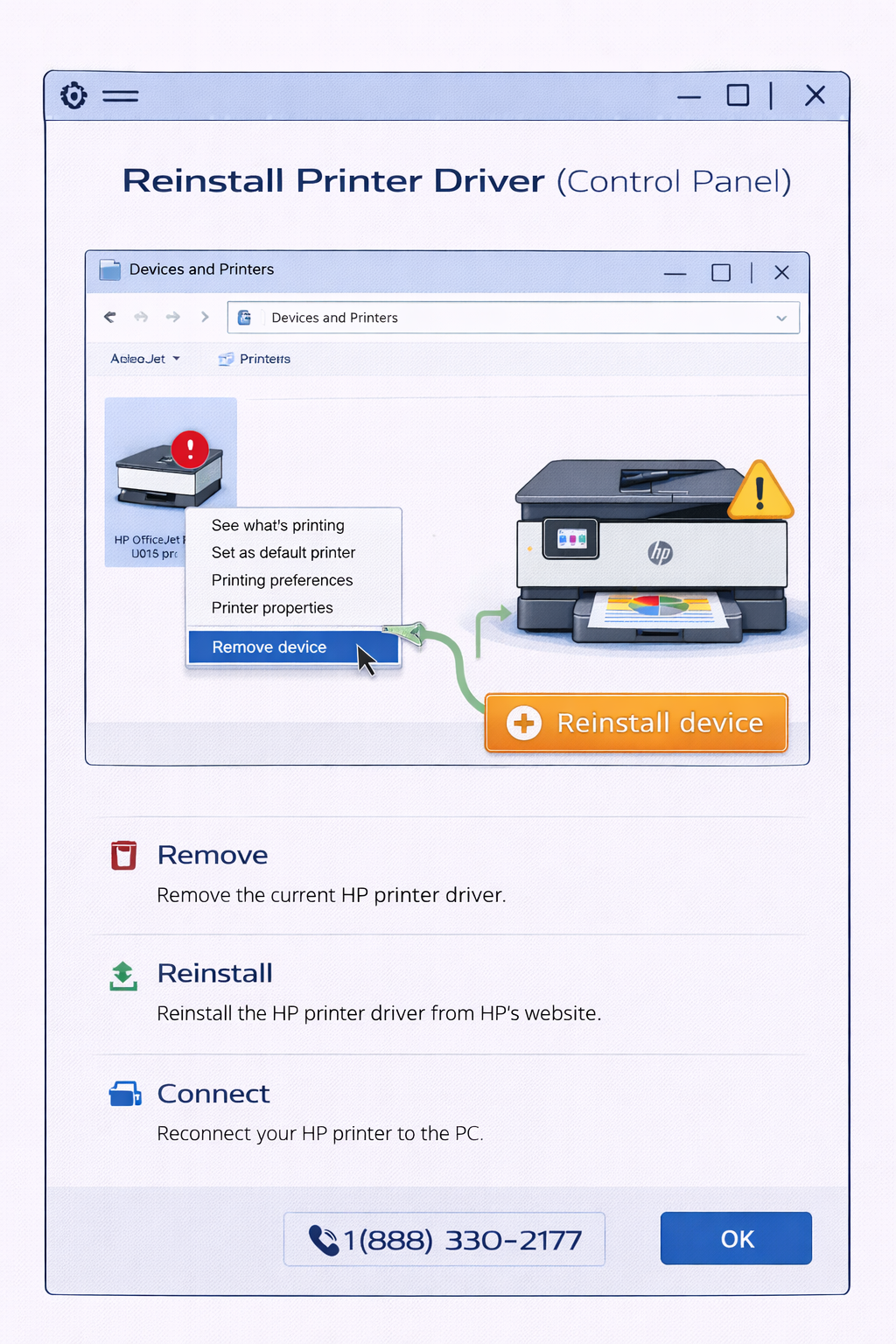
📦 Fix 2: Reinstall Printer Driver
Corrupted drivers are a leading cause of printer problems. Reinstalling them often resolves the issue.
- Open Control Panel → Devices and Printers
- Right-click your printer and select Remove Device
- Restart your computer
- Download the latest driver from your printer manufacturer's website
- Run the installer and follow the setup wizard
For HP printers, follow this HP printer setup guide for detailed steps.
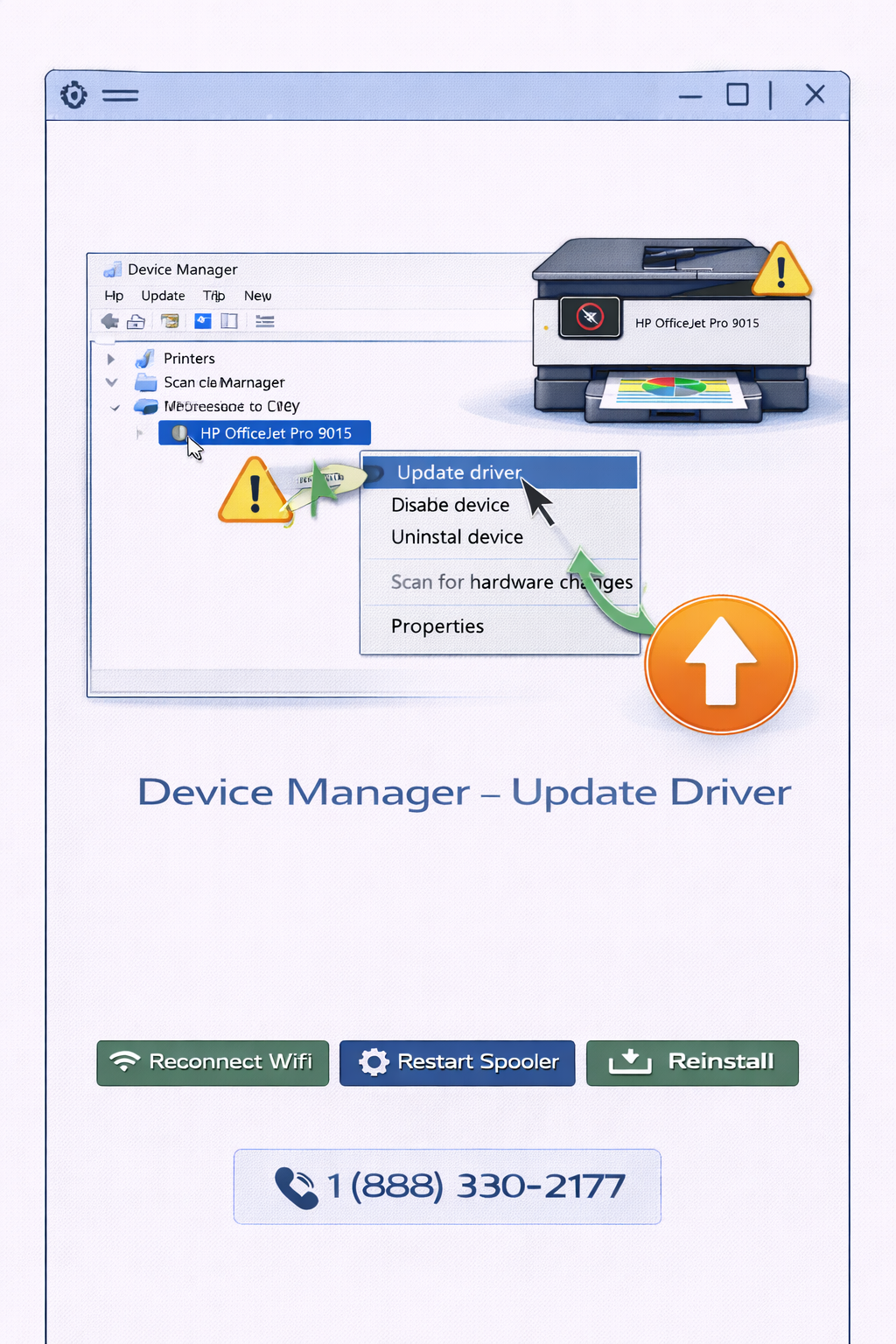
⬆️ Fix 3: Update Printer Driver
- Open Device Manager (right-click Start button)
- Expand Print queues or Printers
- Right-click your printer → Update driver → Search automatically for drivers
- If Windows doesn't find a new driver, visit the manufacturer's support site
⚠️ Printer Driver Not Working on Windows 11
If your printer driver is not working on Windows 11, follow these additional steps:
- Run the printer troubleshooter: Settings → System → Troubleshoot → Other troubleshooters → Printer → Run
- Roll back recent updates: Settings → Windows Update → Update history → Uninstall updates
- Use compatibility mode: Right-click driver installer → Properties → Compatibility → Run as Windows 10
- Disable driver signature enforcement: Advanced startup → Disable driver signature enforcement (temporary)
Windows 11 updates can sometimes break printer drivers. Reinstalling the driver or restoring the previous update usually resolves the issue.
📶 Fix 4: Fix Printer Driver Not Working Due to Connection Issues
Connection problems often look like driver issues. Ensure your printer is properly connected.
- USB connection: Try a different USB port and cable
- WiFi connection: Ensure printer and computer are on the same network
- Restart router: Unplug for 30 seconds, then plug back in
If your printer cannot connect to WiFi, follow this HP WiFi setup failed guide for detailed troubleshooting.
📌 If your printer is connected but still not printing after fixing driver issues, follow this complete troubleshooting guide.
🍏 Mac Printer Driver Not Working – Fix
- Open System Settings → Printers & Scanners
- Remove your printer by clicking the minus (-) button
- Restart your Mac
- Click Add Printer, Scanner, or Fax and re-add your printer
- If issues persist, Reset printing system (right-click in the printers list)
🔁 Advanced Fix: Completely Reset Printer System
If none of the above steps worked, a complete reset resolves deep driver corruption issues.
- Remove printer from Windows/Mac settings
- Uninstall printer driver from Device Manager
- Delete driver files from
C:\Windows\System32\spool\drivers(Windows) - Restart your computer
- Reinstall the latest driver from the manufacturer's website
🧠 Why Printer Driver Stops Working
Printer driver issues typically occur after Windows/macOS updates, due to corrupted driver files, USB/WiFi connection problems, or conflicts with other software. This issue is common across many printer models and is usually resolved with simple troubleshooting steps.
Driver issues often cause your printer to appear offline. If you see this issue, follow this HP printer offline fix guide for additional troubleshooting.
Driver issues are often caused by system conflicts or updates, as commonly documented in printer troubleshooting resources. This is one of the most common printer problems and can usually be fixed with simple troubleshooting steps.
- OS updates: New updates can break driver compatibility
- Corrupted files: Driver files can become damaged over time
- Connection issues: USB or WiFi problems can appear as driver errors
- Spooler crashes: Print spooler service stops responding
🔍 Common Printer Driver Issue Variations
- Printer driver not working Windows 11
- Printer driver unavailable error
- Printer not detected driver issue
- Printer driver stopped working after update
- HP printer driver not working
- Canon printer driver not responding
🔗 Related Printer Troubleshooting Guides
❓ Frequently Asked Questions – Printer Driver Not Working
⚡ Still having printer driver problems?
Our printer experts can diagnose and fix your driver issue remotely in minutes.
🎙️ Talk to Printer Expert