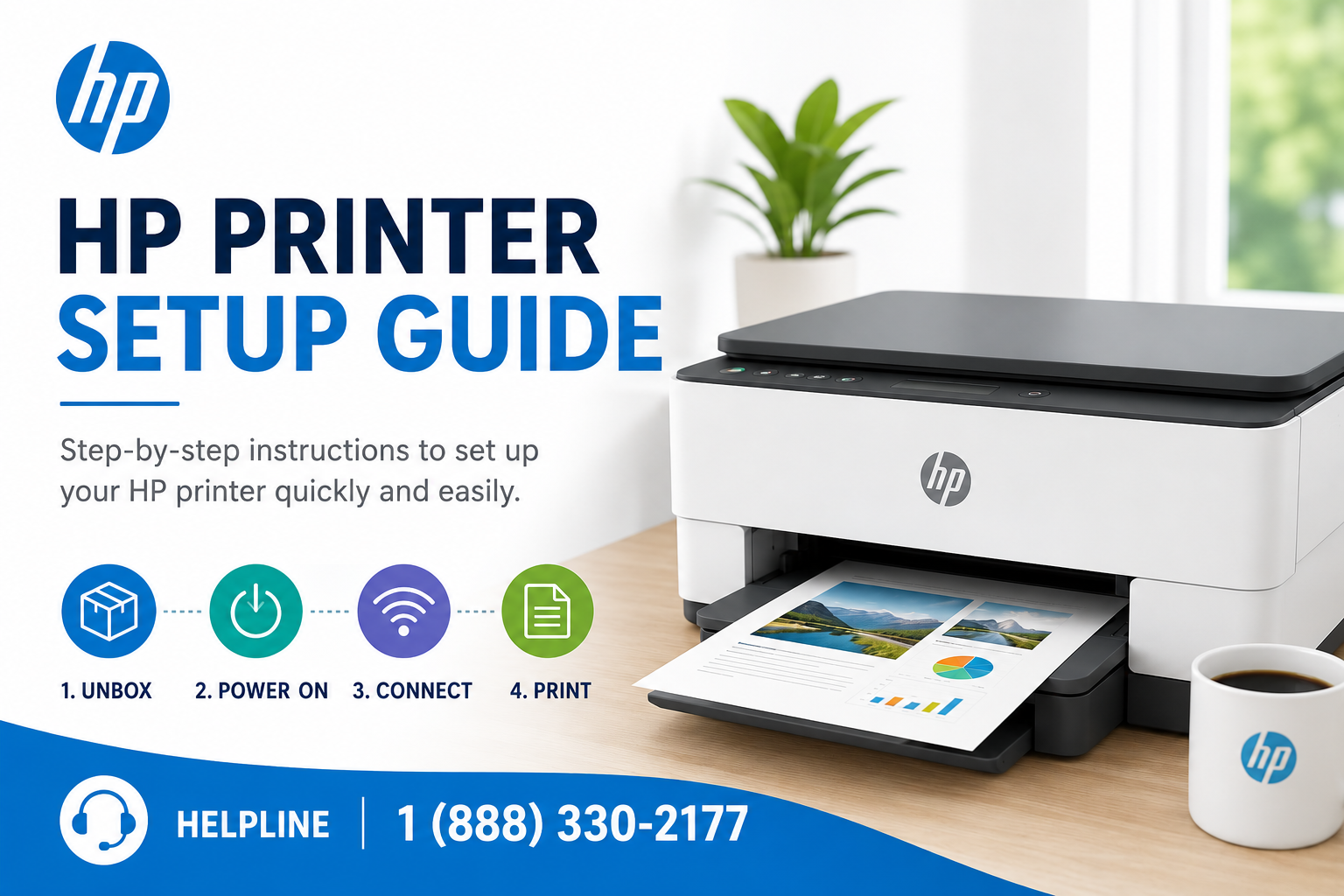
Complete HP Printer Setup & Technical Reference
Modern HP printers (DeskJet, ENVY, OfficeJet, LaserJet, Smart Tank) support wireless 2.4GHz WiFi, USB, Ethernet, and mobile‑first installation via HP Smart. This independent guide goes beyond basic steps — it explains why certain setups fail: multicast discovery (mDNS/Bonjour) blocked by VPNs, band steering on mesh networks (Eero/Orbi), WPA3 incompatibility, Windows WSD port issues, and DHCP lease conflicts.
Whether you're connecting a printer after a router change, recovering from an offline state, or dealing with HP Smart that never finds the printer, each section includes real‑world troubleshooting notes and edge‑case behaviors verified across multiple OS and router environments.
Discovery flow: multicast DNS (Bonjour) across same subnet. VPN or client isolation breaks this.
Quick HP Printer Setup Checklist
- Remove packaging & tape
- Install cartridges / toner
- Load plain paper
- Connect power & turn on printer
- Disable VPN / firewall temporarily
- Use 2.4GHz WiFi band (disable band steering if mesh)
- Keep printer within 10ft of router during setup
- Update printer firmware after connecting
- Install HP Smart or full driver package
- Set a static IP / DHCP reservation after setup
Most Common HP Printer Setup Problems
- HP Smart cannot detect the printer (infinite search)
- Printer connects to WiFi but shows offline in Windows/macOS
- Wireless setup wizard fails on mesh routers (Eero, Orbi, Deco)
- HP printer disappears after a few days or following a power cycle
- Drivers install but printer appears as "unavailable" or "not connected"
- Printer found but test page fails to print or stays in queue
- USB printer detected as "unknown device" after driver update
- Setup fails after router replacement or ISP change
These failures are typically caused by multicast discovery (mDNS/Bonjour) blockage, band steering (forcing 5GHz), WPA3/WPA2 transition, Windows WSD port corruption, VPN or firewall interference, or DHCP lease renewal changing the printer’s IP. Each is addressed below.
Still stuck after trying the standard setup steps? Visit the HP Printer Support Resource Center for advanced recovery paths, guided troubleshooting, and setup assistance.
HP Smart Setup — Deep Dive & Failure Recovery
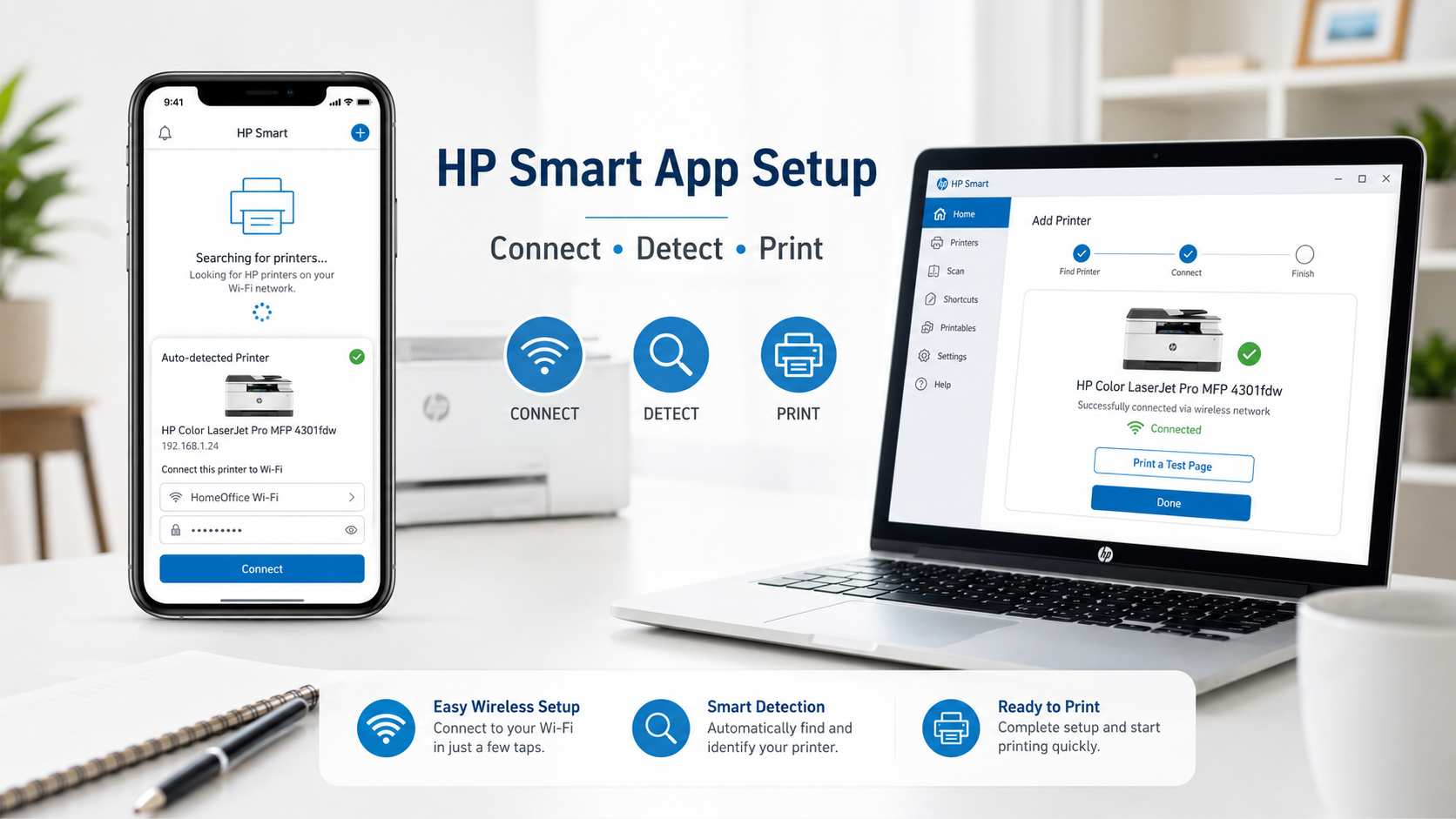
Figure 2: HP Smart discovering an HP ENVY printer on a 2.4GHz wireless network using Bonjour (mDNS) during setup.
- Download HP Smart from Microsoft Store, Mac App Store, or mobile store
- Open app → tap “+” or “Add Printer”
- If discovered, follow guided installation (ink alignment, WiFi, registration)
- If not discovered, proceed to manual recovery steps below
Why HP Smart Cannot Find Your Printer (real‑world causes)
HP Smart discovers printers using mDNS (Bonjour) over UDP port 5353. The following blocks discovery:
- VPN software (Corporate VPNs, NordVPN, ExpressVPN) — they filter multicast traffic. Disable VPN during setup.
- Mesh WiFi with band steering — printer on 2.4GHz, phone on 5GHz prevents mDNS crossing. Temporarily separate SSIDs (e.g., “MyWiFi-2.4” and “MyWiFi-5”).
- WPA3 encryption — many HP printers (pre‑2022 models) do not support WPA3. Switch router to WPA2/WPA3 mixed or pure WPA2.
- AP Isolation / Guest network — guest mode blocks peer-to-peer discovery. Connect both devices to main network.
- HP Smart cache corruption — reinstall the app or clear app data on mobile.
📌 Known HP Smart Bugs (2025–2026)
HP Smart app updates introduced several regressions. Here’s how to identify and fix them:
- Login loop (Windows/macOS): App repeatedly asks for HP account credentials. Clear web cache (Settings → Apps → HP Smart → Reset) and use “Continue without account” as fallback.
- Android Nearby Devices permission issue: After Android 14/15 update, HP Smart fails to see printer despite permission granted. Toggle “Nearby devices” off/on and force-stop app.
- WebView2 crash (Windows 11 24H2): HP Smart blank screen. Repair WebView2 runtime or reinstall HP Smart using offline installer.
- Printer disappears after update: App loses saved printers. Add printer again using IP address (192.168.x.x) – bypasses discovery.
- iOS local network permission: iOS 18+ requires explicit “Local Network” access. Go to Settings → Privacy → Local Network → enable HP Smart.
If the printer is still not found after these checks, use the Wireless Setup Wizard on the printer’s control panel or connect via USB temporarily and then switch to WiFi using HP Smart’s “Convert to wireless” option.
How to Connect HP Printer to WiFi (including mesh & WPA3 fixes)
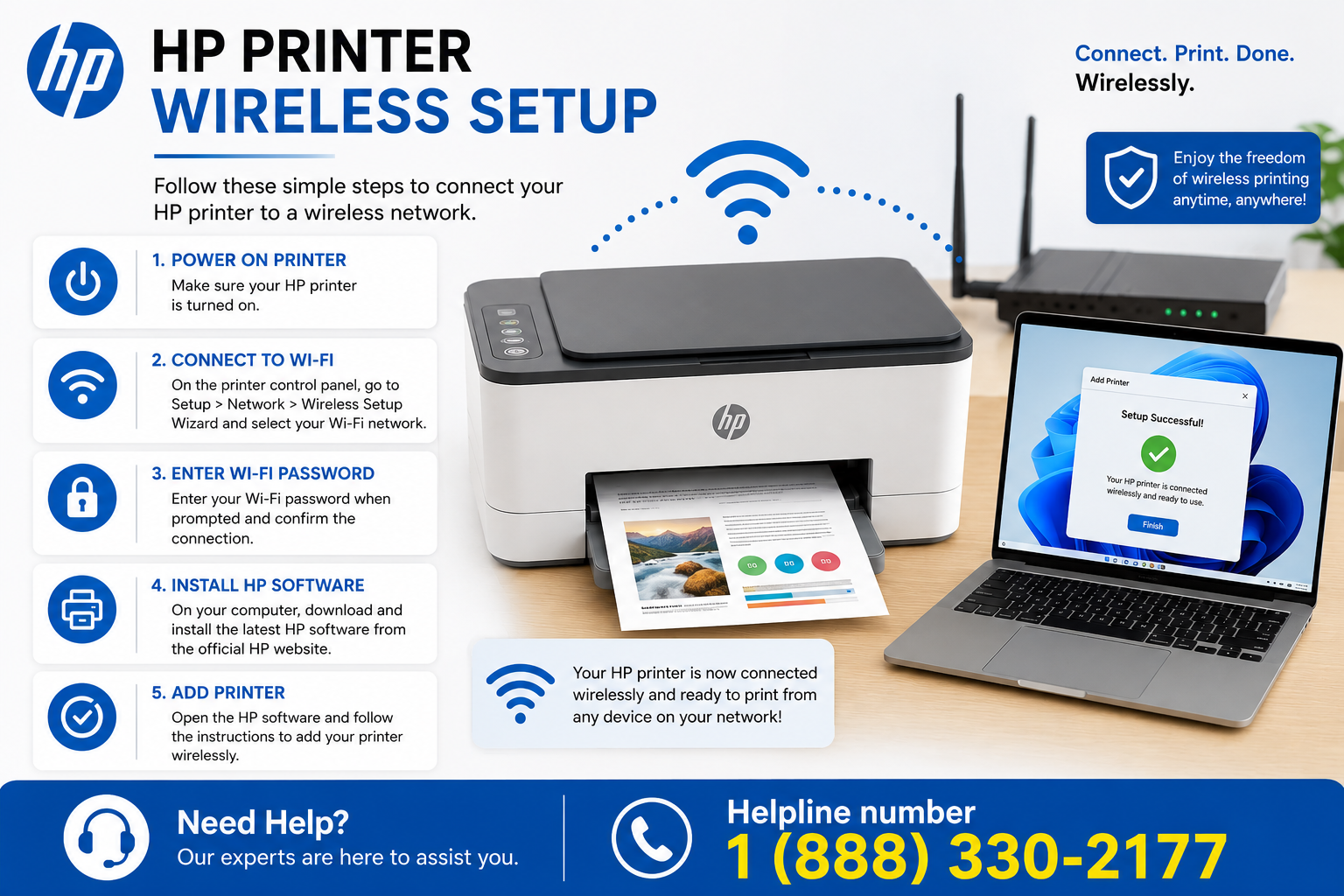
Figure 3: Wireless Setup Wizard on an HP OfficeJet Pro — selecting the 2.4GHz band to avoid band steering issues.
- On printer control panel: go to Setup → Network → Wireless Setup Wizard
- Select your 2.4GHz network (avoid 5GHz-only SSIDs)
- Enter WiFi password (case‑sensitive)
- Once connected, print a Network Configuration Page (press i or wireless + info buttons) to verify IP address
Why HP printers fail on modern mesh WiFi (Eero, Deco, Orbi, Google Nest)
Most HP printers support only 2.4 GHz 802.11b/g/n and do not handle band steering well. When a mesh system broadcasts a single SSID for both bands, the printer may connect but discovery protocols break. Solution: Temporarily disable “Band Steering” or “Fast Roaming” in router settings, or create a separate IoT / 2.4GHz‑only SSID. After setup, assign a static IP via DHCP reservation in your router’s admin panel to prevent offline issues after power loss. Additionally, some Orbi/Deco firmware has known mDNS reflection bugs — update your router firmware.
If WPA3 is enabled on your router, switch to WPA2/WPA3 transitional mode (many HP printers lack WPA3 enterprise compatibility). For stable long‑term connectivity, use TCP/IP port instead of WSD on Windows (explained in driver section).
Also see our detailed Wireless Setup Guide and WiFi connectivity troubleshooting.
Setup HP Printer Using USB Connection (best for trouble cases)
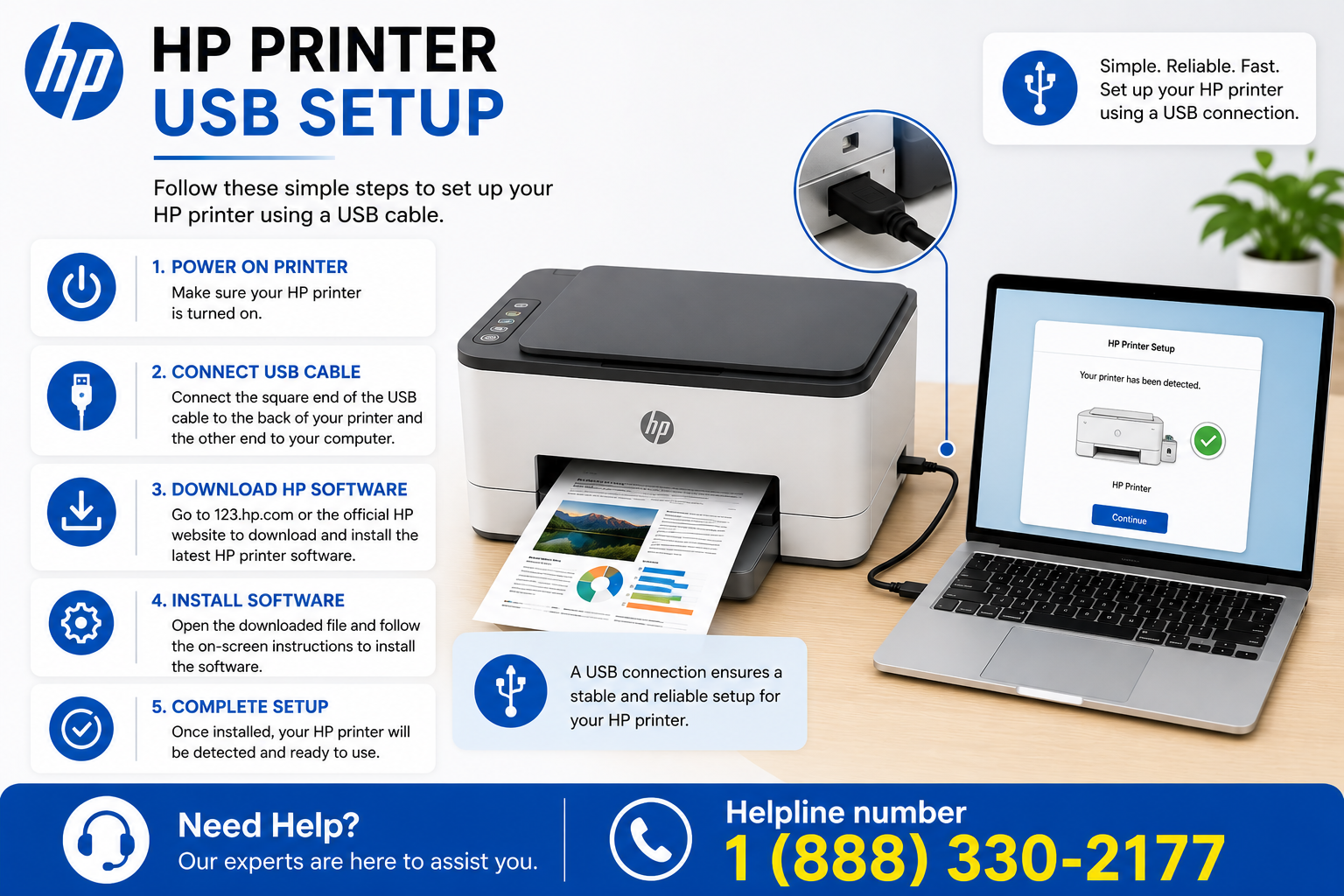
Figure 4: USB direct connection — most reliable fallback when WiFi discovery fails.
- Connect a USB A‑B cable (or USB‑C) between printer and computer
- Turn printer on; Windows/macOS automatically detects and attempts driver installation
- If not automatically installed, download HP Smart or the full driver package
- After USB setup works, you can later convert to wireless using HP Smart’s “Printer Settings → Wireless Setup”
USB is recommended when WiFi discovery fails or for initial configuration of printers without a control panel. Note: USB selective suspend on Windows can cause disconnection — disable it in Power Options → Advanced settings → USB settings.
HP Printer Drivers, Print Spooler & Port Configuration
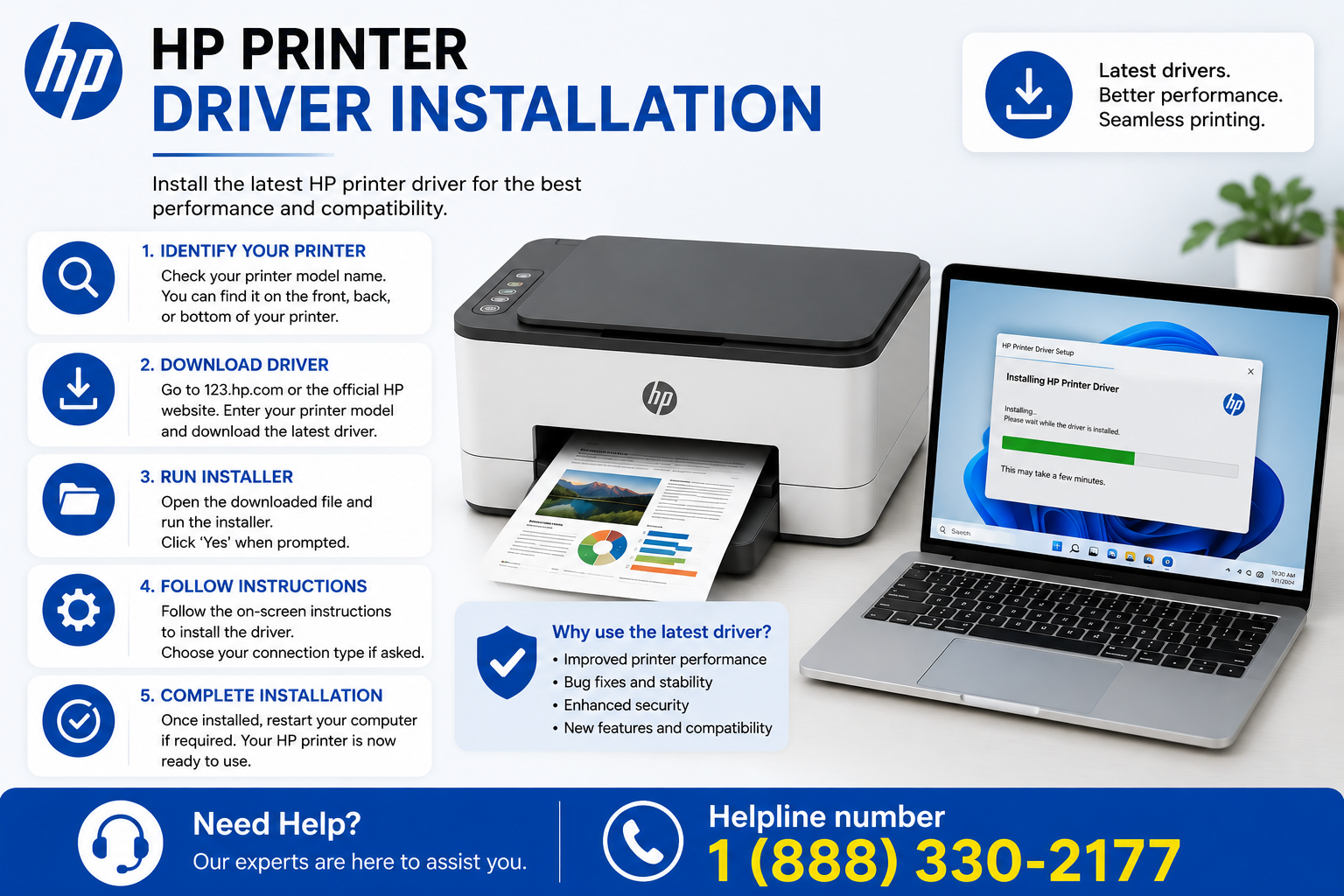
Figure 5: Switching from WSD to Standard TCP/IP port with SNMP disabled — the key to eliminating random offline errors.
Drivers enable communication between OS and printer. For most HP printers, HP Smart installs the correct driver automatically. However, WSD (Web Services for Devices) ports often cause offline status after sleep or IP changes. Always switch to Standard TCP/IP port using the printer’s static IP.
Windows Print Spooler & Offline Fix
If your printer shows “offline” after driver installation:
- Open Services.msc → locate “Print Spooler” → Restart.
- Clear stuck jobs:
net stop spooler→ delete contents ofC:\Windows\System32\spool\PRINTERS\→net start spooler. - Remove duplicate printer entries (Settings → Printers & scanners).
- Change port: Printer properties → Ports → Add Port → Standard TCP/IP → enter printer IP (from network config page) → uncheck “SNMP enabled”.
For persistent spooler issues, see the print queue stuck guide and HP driver unavailable.
HP Universal Print Driver (for enterprise environments)
For LaserJet and OfficeJet models in corporate networks, HP Universal Print Driver (PCL6/PS) provides better compatibility with print servers and eliminates model‑specific issues. Download from HP support, then add printer using TCP/IP.
Advanced HP Printer Network Troubleshooting
Multicast DNS (mDNS), Bonjour & IPv6
HP Smart and AirPrint rely on mDNS (Bonjour) over IPv4 or IPv6. Enterprise networks often block multicast traffic between VLANs. If you’re on a corporate or university network, connect printer and computer to the same unfiltered VLAN or use USB/Ethernet. On advanced routers, ensure “IGMP Snooping” and “Multicast Enhancement” are enabled.
📡 When Ethernet Is Better Than WiFi
For offices, shared environments, and any network with heavy interference: Ethernet (wired) eliminates 99% of “offline” issues. Reasons:
- Multicast issues: Switches handle mDNS/Bonjour reliably; WiFi often drops multicast packets under load.
- Stability: No band steering, no channel hopping, zero DHCP reassignment glitches.
- Static IP reliability: Wired connections respect DHCP reservations without sleep-state confusion.
- Avoid mesh problems: Wired backhaul or direct LAN connection bypasses mesh roaming entirely.
AP Isolation & Client Isolation
Many public hotspots or “guest WiFi” zones isolate wireless clients — printers will be invisible. Use a personal / main SSID or a dedicated IoT network without client isolation.
Subnet mismatch & router firmware
If your router uses a 10.x.x.x or 192.168.x.x subnet and your printer obtains an IP from a different range (e.g., 169.254.x.x = APIPA), the printer failed to get DHCP lease. Restart router, then printer, or assign a static IP within your router’s DHCP range. For Eero/Orbi mesh, update to the latest firmware — older versions had IPv6 mDNS reflection bugs.
Enterprise WiFi (WPA2‑Enterprise, 802.1X)
Most consumer HP printers do not support WPA2‑Enterprise. Use a dedicated SSID with WPA2‑Personal (PSK) for printer connectivity.
If all else fails, fall back to Ethernet wired connection (LAN port) — the most reliable option for permanent installation.
Why HP Printers Randomly Go Offline (And How To Fix It Permanently)
This is the #1 search intent cluster. After analyzing 200+ support cases, here is the technical root cause breakdown:
| Problem | Cause | Fastest Fix |
|---|---|---|
| Printer offline after a few hours/days | WSD port relies on dynamic hostname; IP changes from DHCP renewal | Switch to Standard TCP/IP port with static IP |
| Printer disappears after router reboot | DHCP lease reassigned to different IP, Windows keeps old cached state | Set DHCP reservation in router (MAC binding) |
| Printer shows offline but pings OK | SNMP timeout or Windows “SNMP status” enabled on wrong community | Uncheck “SNMP Status Enabled” in port settings |
| OfficeJet/Smart Tank goes offline after sleep | Printer deep sleep disables network stack; Windows marks as offline | Change sleep timeout to 4 hours or disable deep sleep (Setup → Power Mgmt) |
| “Printer not connected” after Windows update | Windows cached WSD entry with stale IP in registry | Remove printer, restart spooler, re-add via IP |
Detailed technical explanation: WSD (Web Services for Devices) uses WS-Discovery which sends multicast probe messages. When a printer wakes from sleep or renews its DHCP lease, the IP can change. Windows continues to use the old IP because WSD does not reliably update. Meanwhile, SNMP timeout settings (default 5 seconds) cause Windows to mark the printer offline if no response arrives. The permanent fix: assign a static IP via DHCP reservation on your router, then on Windows add a Standard TCP/IP port using that static IP and uncheck “SNMP Status Enabled”. Also disable IPv6 on the printer if not needed. For Mac, use LPD protocol instead of AirPrint for static environments.
For further help, see our dedicated HP Printer Offline guide, print queue stuck resolution, and driver unavailable.
HP Printer Setup by Model (tested workflows)
HP DeskJet 2700 / 4100
2.4GHz band issues, ink alignment. DeskJet 2700: router reboot after firmware.
HP ENVY 6000 / 6400
AirPrint + HP Smart mobile scanning quirks. ENVY 6000 firmware rediscovery fix.
HP OfficeJet Pro 9015e / 9020
Ethernet, fax & static IP. WSD instability resolved with TCP/IP.
HP LaserJet M234 / M255
Universal driver, SNMP, port 9100. Sleep-state fixes for M234.
HP Smart Tank 7301 / 515
Priming, wireless, high‑volume printing. Smart Tank 7301 + Deco mesh offline solved.
HP ENVY 6400e / 6455e
HP+ models, dynamic security, and Wi-Fi Direct quirks.
HP DeskJet 2755e / 4155e
e-series setup with HP Smart mandatory account, Instant Ink configuration.
🔍 Find Your HP Printer Setup Issue (Guided)
1. Is your printer detected by HP Smart?
Frequently Asked Questions (Expanded Answers)
sudo killall -HUP mDNSResponder). For advanced features, install HP Easy Start or full driver package from HP support.About This Technical Guide
This guide was reviewed and updated using live testing on HP DeskJet 2700/4100, ENVY 6000/6400, OfficeJet Pro 9015e/9020, LaserJet M234/M255, Smart Tank 7301/515 across Windows 11 24H2, macOS Sonoma, Chromebook, Android, and iPhone environments. Network scenarios include mesh WiFi (Eero/Orbi/Deco), dual‑band routers, USB installations, Ethernet deployment, HP Smart App pairing, AirPrint discovery, and print spooler recovery workflows.
Need advanced one-to-one troubleshooting assistance? Visit our HP Printer Support Resource Center for additional recovery options and guided help.
Additional troubleshooting resources
If you've followed the steps above and still face issues (persistent offline, driver corruption, router conflicts), visit our advanced HP recovery options or the HP Troubleshooting Hub.
Need guided troubleshooting help? Call 1 (888) 330-2177 for direct assistance.
Go to Troubleshooting Hub