Setting up an HP printer correctly ensures reliable printing, stable wireless connections, and proper driver installation. Whether you are installing a new HP printer, reconnecting a printer after changing networks, or setting up wireless printing, this guide explains the complete HP printer setup process.
This guide covers:
- HP printer setup using HP Smart
- Wireless (WiFi) printer setup
- USB printer installation
- Installing the correct HP printer drivers
- Fixing common HP printer setup problems
Quick HP Printer Setup Checklist
- Remove all packaging materials from the printer
- Install ink cartridges or toner
- Load paper into the tray
- Turn on the printer
- Connect the printer to power
- Ensure your computer is connected to the same WiFi network
Once the printer is ready, proceed with the setup methods below.
🔍 Find Your HP Printer Setup Issue
Answer a few questions to get the right solution.
1. Is your printer detected by HP Smart?
How HP Printer Setup Works
HP Printer Setup Using HP Smart
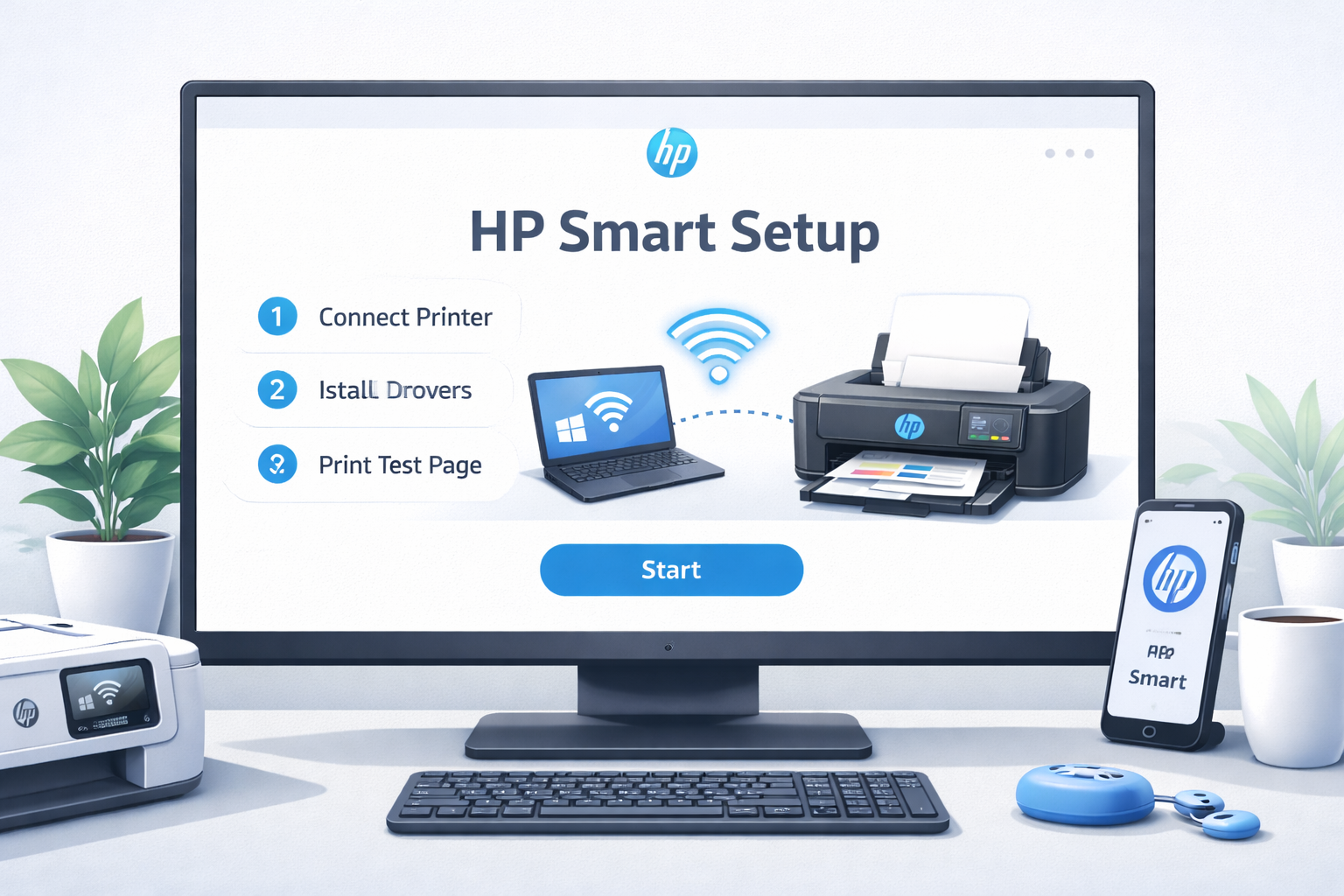
The easiest way to install an HP printer is by using the HP Smart application, which automatically installs drivers and connects the printer to your network.
Steps:
- Download HP Smart from the HP website or app store
- Open the application
- Click Add Printer
- Select your HP printer from the list
- Follow the setup instructions
HP Smart will automatically install the correct drivers and complete the printer setup.
🔧 To install HP printer using HP Smart, simply follow the steps above – it's the quickest and most reliable method for most users.
HP Wireless Printer Setup (WiFi)
Most HP printers connect to a wireless network using the Wireless Setup Wizard or HP Smart.
Steps to connect your HP printer to WiFi:
- Turn on the printer
- Place the printer near the WiFi router
- Open Wireless Setup Wizard on the printer control panel
- Select your WiFi network
- Enter the WiFi password
- Confirm the connection
Once connected, install the printer on your computer using HP Smart or your system printer settings.
📶 For HP wireless printer setup, ensure your router is broadcasting a 2.4GHz signal – many HP printers do not support 5GHz networks. If your printer fails to connect, try the USB method first and then switch to wireless.
HP Printer Setup Using USB
If wireless setup fails, you can install the printer using a USB cable.
Steps:
- Connect the USB cable between the printer and computer
- Turn on the printer
- Windows or macOS will detect the printer automatically
- Install the driver when prompted
After installation, you can switch the printer to wireless mode.
🌐 For hp printer wifi setup after USB installation, access the printer's network settings via its control panel and choose your WiFi network. This two‑step approach often resolves stubborn connection issues.
Install the Correct HP Printer Driver
Printer drivers allow the computer to communicate with the printer. If the driver is missing or outdated, you may see problems like:
- Printer not printing
- Printer driver unavailable
- Printer not detected
Follow the driver installation guide: Printer Driver Download & Installation Guide
Common HP Printer Setup Problems
Printer Not Detected
Ensure the printer and computer are connected to the same network. Printer Not Detected
HP Printer Not Connecting to WiFi
Restart the router and reconnect the printer. HP Printer Not Connecting to WiFi
Printer Driver Unavailable
Reinstall the correct printer driver. HP Printer Driver Unavailable
HP Printer Not Responding
Check the printer status and restart the spooler. Printer Not Responding
Need Help Setting Up Your HP Printer?
If your HP printer is not installing or connecting correctly, a technician can help diagnose the problem and complete the setup quickly.
Speak With Printer SupportIf you are looking for instructions for a specific printer series, choose your model below to continue the setup process.
Find Your HP Printer Setup Guide
Select your printer series below to find the correct setup instructions, driver downloads, and wireless installation guide.