HP Printer Printing Blank Pages? Try This First Before Replacing Ink
Reviewed by Printer Support Specialists
Works for HP DeskJet, OfficeJet, Envy & LaserJet printers.
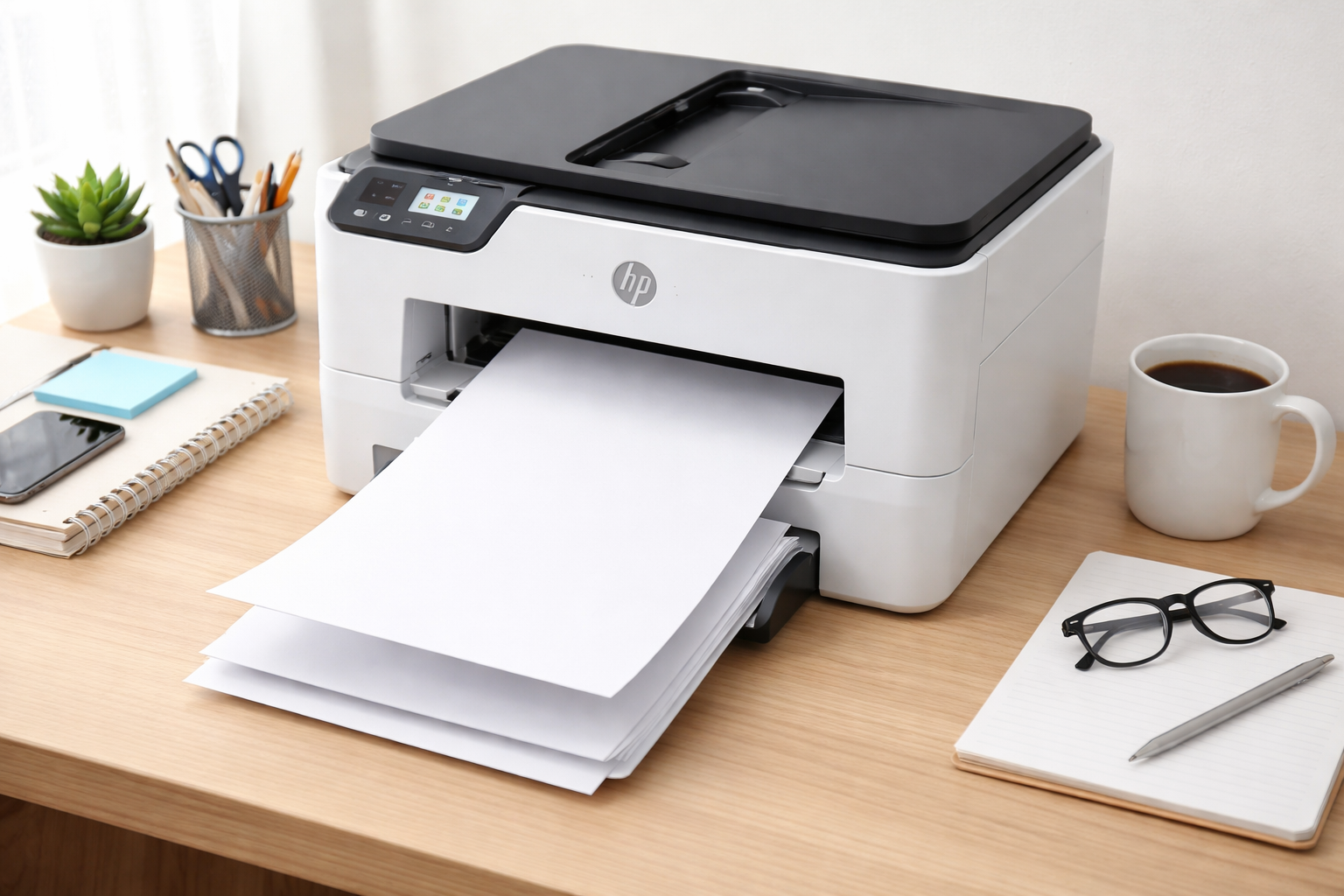
HP printer printing blank pages? If your printer is producing empty sheets even with full ink, don’t replace cartridges yet. In most cases, the issue is caused by clogged printheads or incorrect settings — and can be fixed in minutes.
If your printer prints blank pages but shows ink levels full, follow the steps below to restore printing quickly.
Try This First (Fixes Most Blank Page Issues)
- Run printhead cleaning (2–3 times)
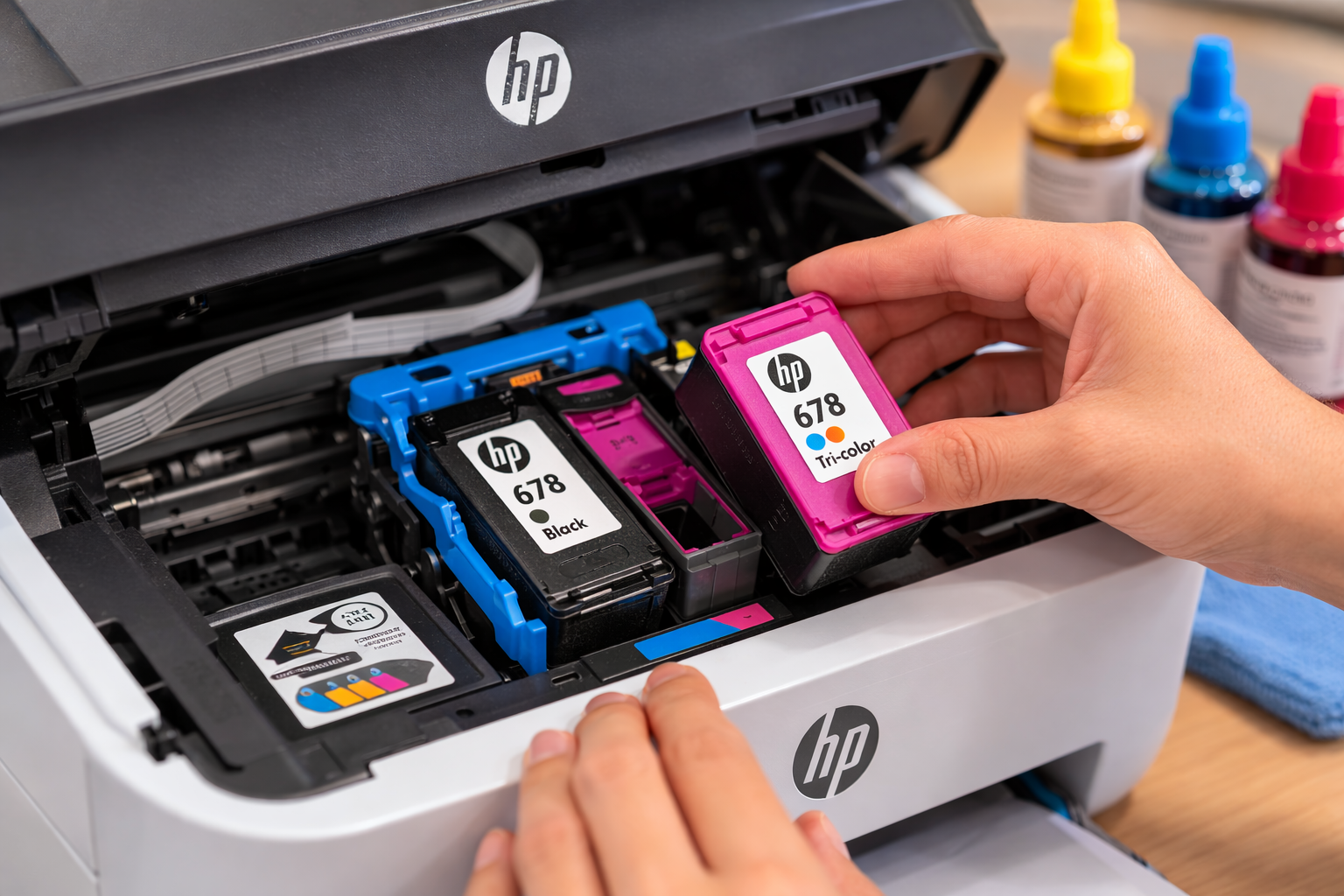
- Check if cartridge tape is removed
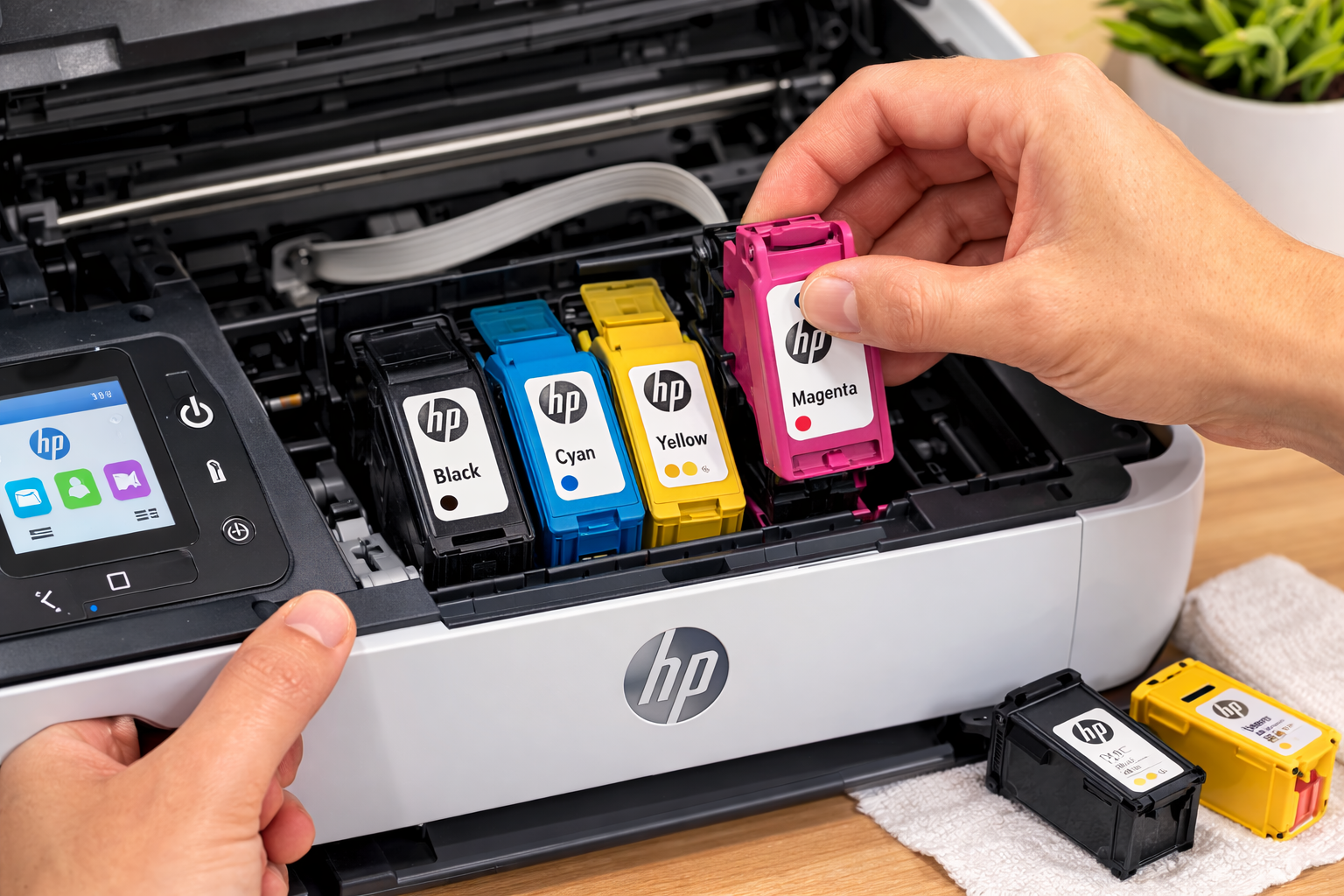
- Reinstall ink cartridges properly
This solves most blank page issues in under 5 minutes.
⏱ Most users fix this issue in under 5 minutes.
Follow this quick flow if you're not sure what's causing the blank pages:
📋 Table of Contents
How to Fix HP Printer Printing Blank Pages (Step-by-Step)
Fix 1 — Check Ink Cartridges
Open the printer cover and inspect cartridges. Remove protective tape if present. Reinstall firmly until they click.
Fix 2 — Clean Printhead
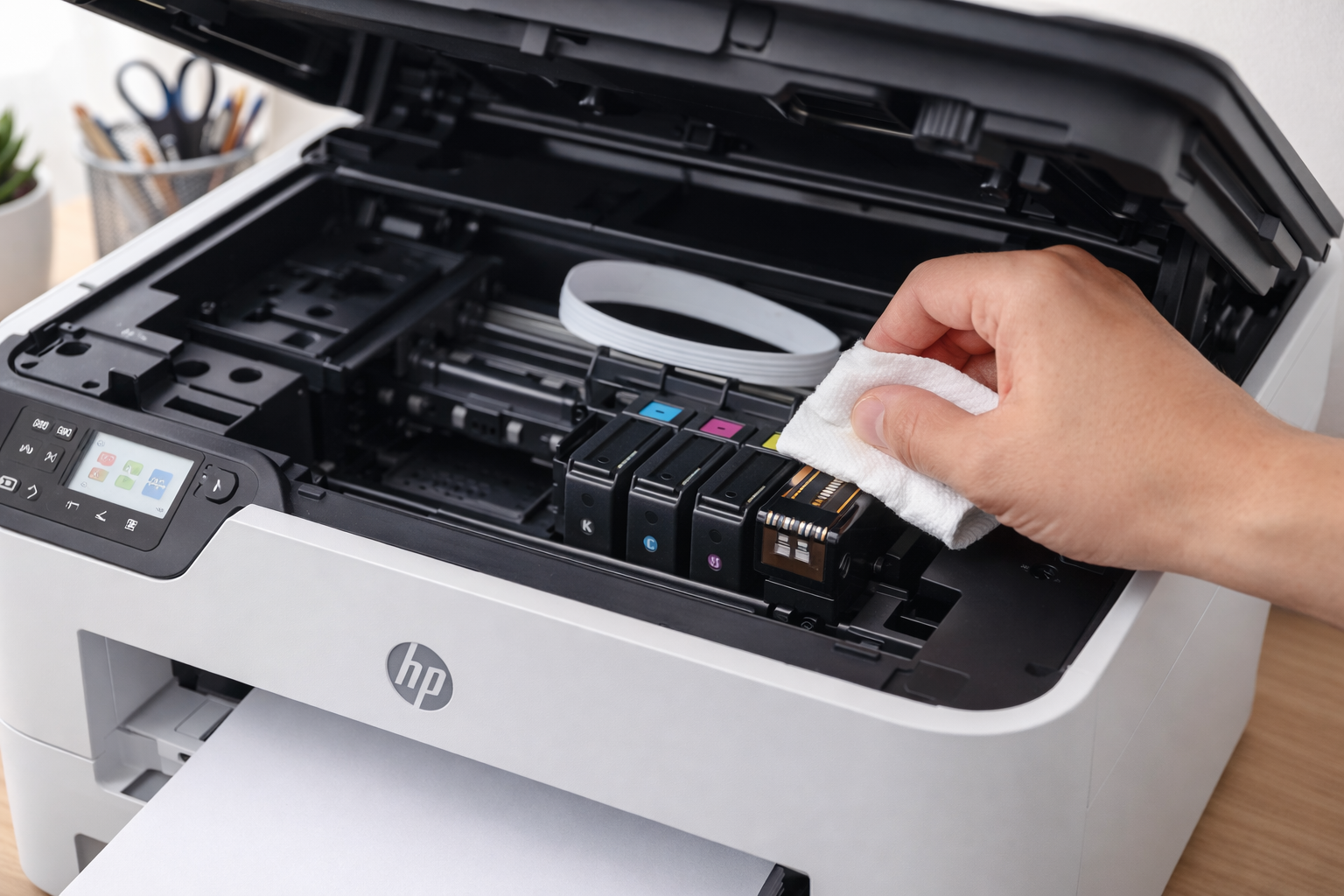
Run the printhead cleaning utility (2-3 times) from HP software or printer control panel. Print a test page after each cycle.
Fix 3 — Align Printer Cartridges
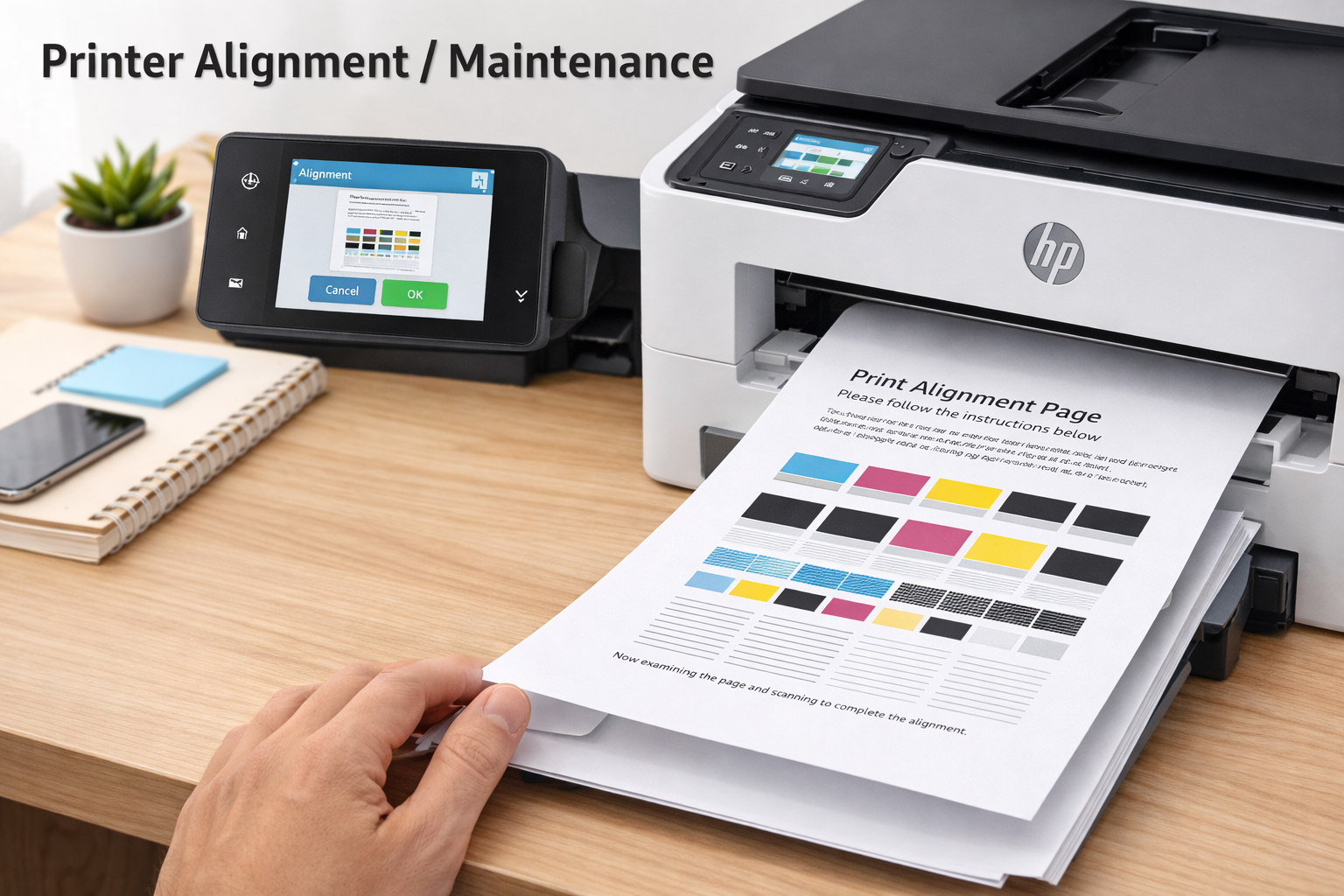
Run alignment utility from printer maintenance settings to ensure proper ink distribution.
Fix 4 — Restart Printer
Power cycle: unplug printer for 60 seconds, then plug back in. Restart your computer as well.
Fix 5 — Update Printer Driver
Install latest drivers from HP support or Device Manager. Driver updates also fix Solve HP Printer Offline Problem.
Fix 6 — Clear Print Queue
Cancel all pending jobs and restart the spooler service (Windows) or reset printing system (Mac).
Fix 7 — Reset Printer
Factory reset as a last resort. Refer to your manual for specific steps.
Quick Fix Summary
- Blank pages with ink → Clean printhead
- After cartridge change → Remove tape
- No ink printing → Reinstall cartridges
- Still blank → Update drivers
Problem → Fix Mapping
- Printer prints blank pages → Clean printhead
- Blank after new cartridge → Remove protective tape
- Ink full but no print → Run cleaning cycle
- Still blank → Update drivers
Common Causes of HP Printer Printing Blank Pages
- Clogged printhead – Dried ink blocks nozzles.
- Empty or faulty cartridges – Even if ink levels appear fine.
- Protective tape still attached – New cartridge seals.
- Incorrect printer settings – Paper type mismatches.
- Outdated printer drivers – Communication errors.
- Printhead alignment issues – Misaligned cartridges.
3. HP Printer Printing Blank Pages But Ink Full
When blank pages appear with full cartridges, the printhead is likely clogged. Run cleaning cycles 2-3 times. If needed, manually clean with distilled water.
4. HP Printer Printing Blank Pages After Cartridge Change
- Verify orange protective tape is completely removed.
- Confirm cartridge compatibility.
- Reinstall until you hear a click.
- Run alignment and cleaning utilities.
5. Fix on Windows 10/11
Windows Steps
- Run Windows Printer Troubleshooter.
- Reinstall printer driver via Device Manager.
- Clear print spooler (services.msc → stop spooler → delete files in spool\PRINTERS → restart spooler).
- Manually download latest driver from HP support.
More help: Fix HP Printer Not Printing Issue.
6. Fix on Mac
Mac Steps
- Remove and re-add printer in System Settings.
- Reset printing system (right-click printer list).
- Run HP Utility → Clean function.
- Update macOS for latest drivers.
More help: Solve HP Printer Offline Problem.
7. When Blank Pages Mean Hardware Failure
Hardware Signs
- Printhead failure – replacement required.
- Mainboard issues – professional repair.
- Cartridge chip errors – try genuine HP cartridges.
- Ink system failure – may need printer replacement.
8. Advanced Troubleshooting
- Manual printhead cleaning with distilled water.
- Check firmware updates on HP support.
- Inspect mainboard – professional service.
Still Printing Blank Pages?
If your printer is still producing blank pages after these steps, the issue may be related to hardware or driver conflicts.
Continue troubleshooting above or explore related fixes for offline, driver, and connection problems.
Official guidance: HP support documentation.
10. Frequently Asked Questions
An HP printer printing blank pages error can be frustrating, but most causes have straightforward solutions. In most cases, your printer will be printing normally within minutes.