Use this complete guide to install your HP printer via 123.hp.com and fix any setup issues.
HP Printer Setup Wizard: Download, Install & Troubleshooting Guide
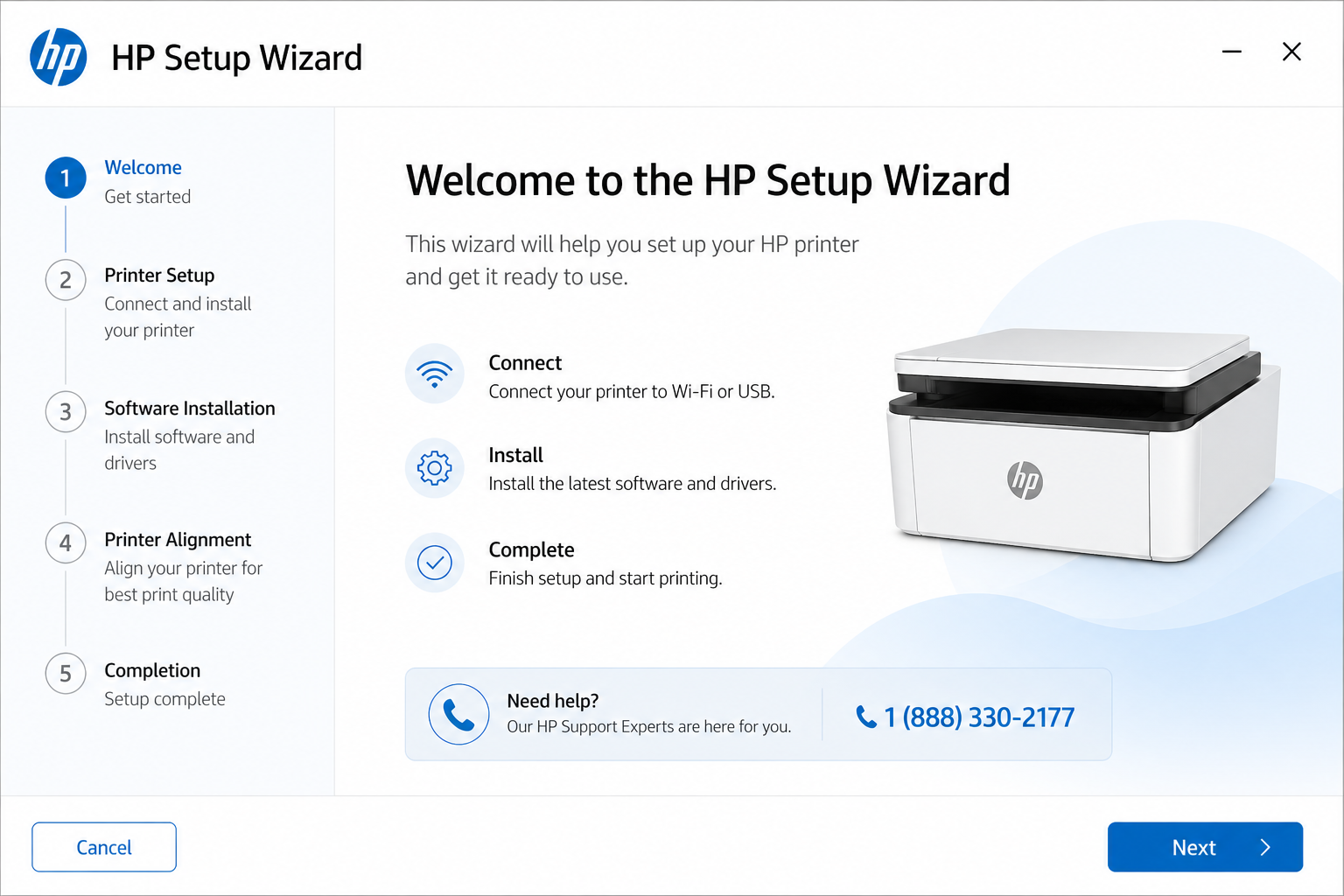
HP setup wizard stuck on “searching for printer”? Follow the troubleshooting steps below to complete installation successfully.
Last reviewed: May 2026
Download HP Setup Wizard
Get the HP printer installation utility directly from HP servers. No third-party downloads required. You can download the HP setup wizard directly from 123.hp.com/download for the latest version.
If the setup wizard fails, HP Smart app is a more modern alternative that automatically detects printers and simplifies installation. Both methods work, but HP Smart often resolves detection issues faster.
- Download from 123.hp.com – recommended HP download source
- Compatible with Windows and Mac (both Intel and Apple Silicon)
- Alternative: Use the HP Smart app for a modern installation experience
The Setup Wizard automatically detects your printer model and installs the correct drivers. After downloading, run the file and follow the on-screen instructions. If the wizard fails to launch, temporarily disable your antivirus/firewall.
What is HP Printer Setup Wizard?
The HP Printer Setup Wizard is the HP printer installation utility that guides you through installation, network configuration, and driver setup. It is automatically downloaded from 123.hp.com and is essential for:
- Installing HP printer drivers
- Connecting printer to WiFi network
- Completing 123.hp.com setup
- Detecting and configuring new printers
You will typically use it when setting up a new printer, reconnecting to a different WiFi network, or fixing connection issues. For persistent problems after installation, check the HP printer offline guide.
Step-by-Step Setup Guide
Go to 123.hp.com
Open your browser and visit the official HP setup page.
Enter printer model
Type your model (e.g., DeskJet, Envy, LaserJet).
Download software
Click Download to get the HP Setup Wizard.
Run installer
Launch the downloaded file and follow prompts.
Select Wireless Setup Wizard
Choose your connection type (WiFi recommended).
Connect to WiFi
Select your network and enter password – then complete installation.
HP Wireless Setup Wizard (Alternative Method)
If you don't have a computer nearby or the software download fails, use the printer's built-in Wireless Setup Wizard directly from its control panel. This method works without any computer or drivers.
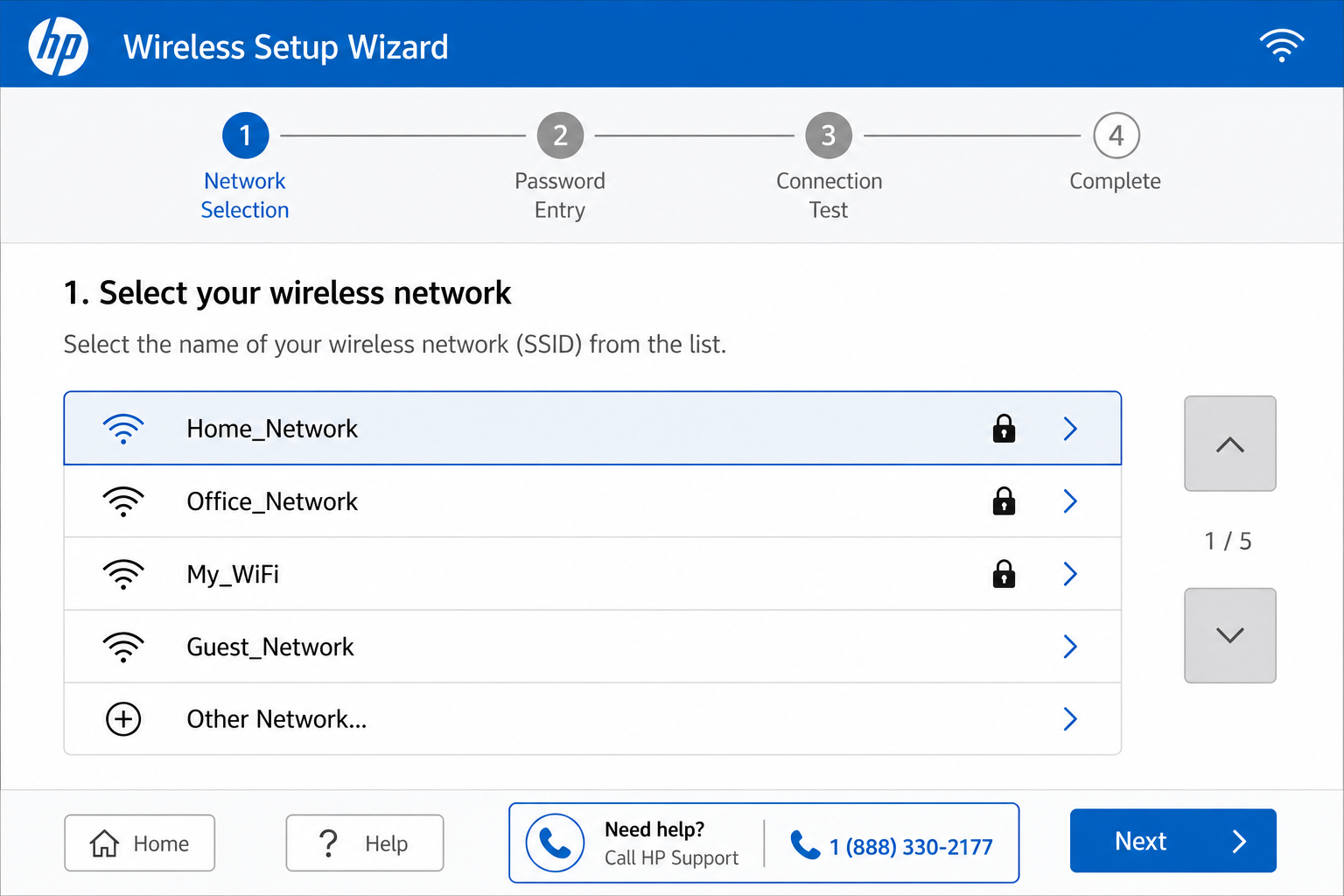
- Using printer panel: Navigate to Settings → Network → Wireless Setup Wizard (exact menu varies by model).
- Without computer: Select your WiFi network, enter the password using the printer's keypad or touchscreen.
- Reset wireless settings: If the printer won't connect, go to Network → Restore Network Defaults and try again.
After the printer connects to WiFi, it will obtain an IP address. Write it down – you may need it if the computer setup wizard still cannot detect the printer. For help with IP-based connections, see WiFi connection guide.
Troubleshooting Common Issues
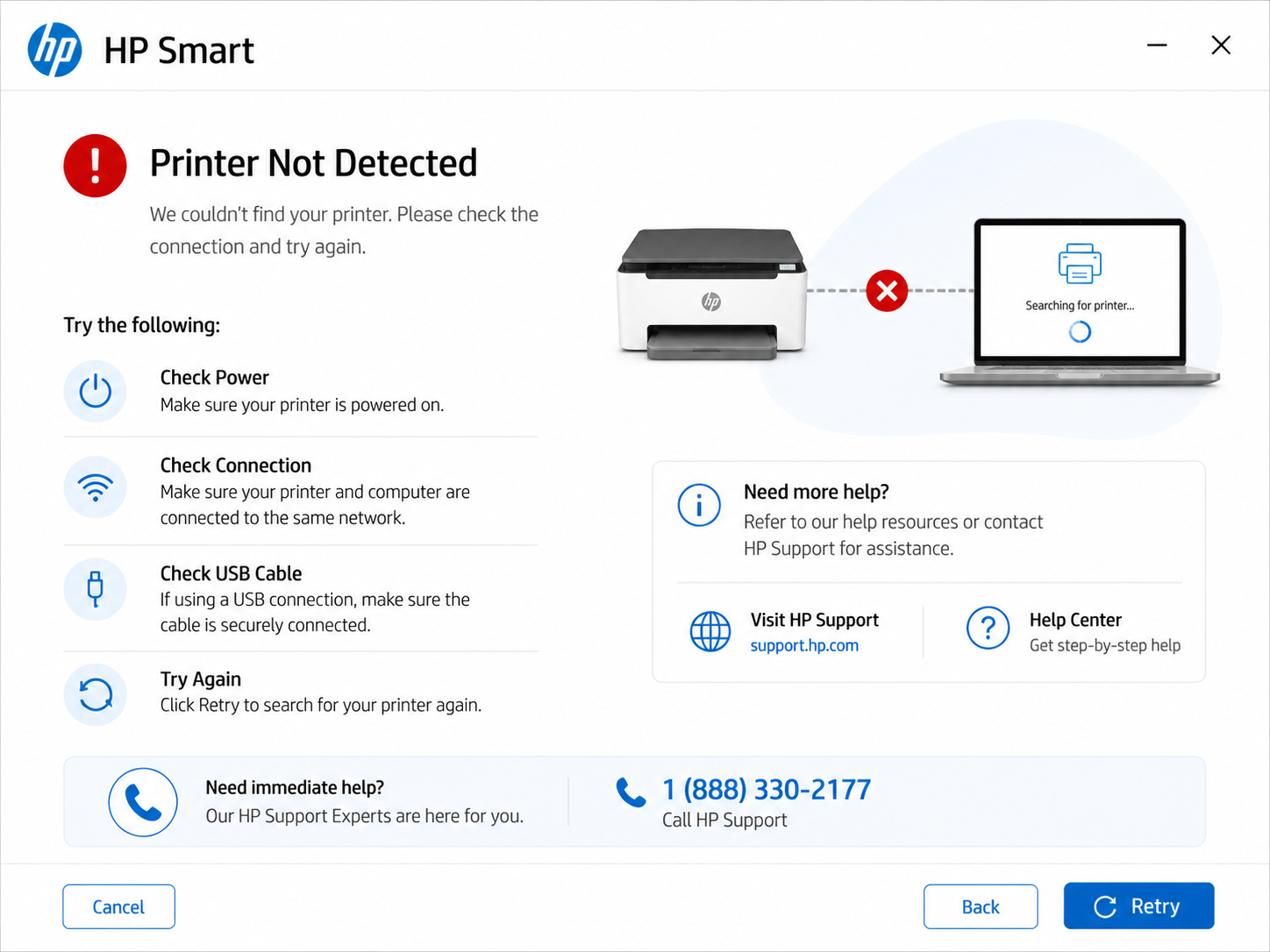
Common issues you might face:
- Setup wizard not detecting printer
- Stuck on “Searching for printer”
- Cannot connect to WiFi
- Installation fails at 99%
Quick fixes:
- Restart your printer, router, and computer
- Ensure printer and PC are on the same WiFi network (2.4 GHz band)
- Temporarily disable VPN or firewall
- Use HP Smart install as an alternative method
- Reinstall drivers manually: download HP printer drivers
- If print jobs are stuck in the queue, clear the print queue using this guide – a full queue can block the setup wizard.
If your printer shows offline after successful setup, go to HP printer offline fix.
How to Connect HP Printer to WiFi Using Setup Wizard
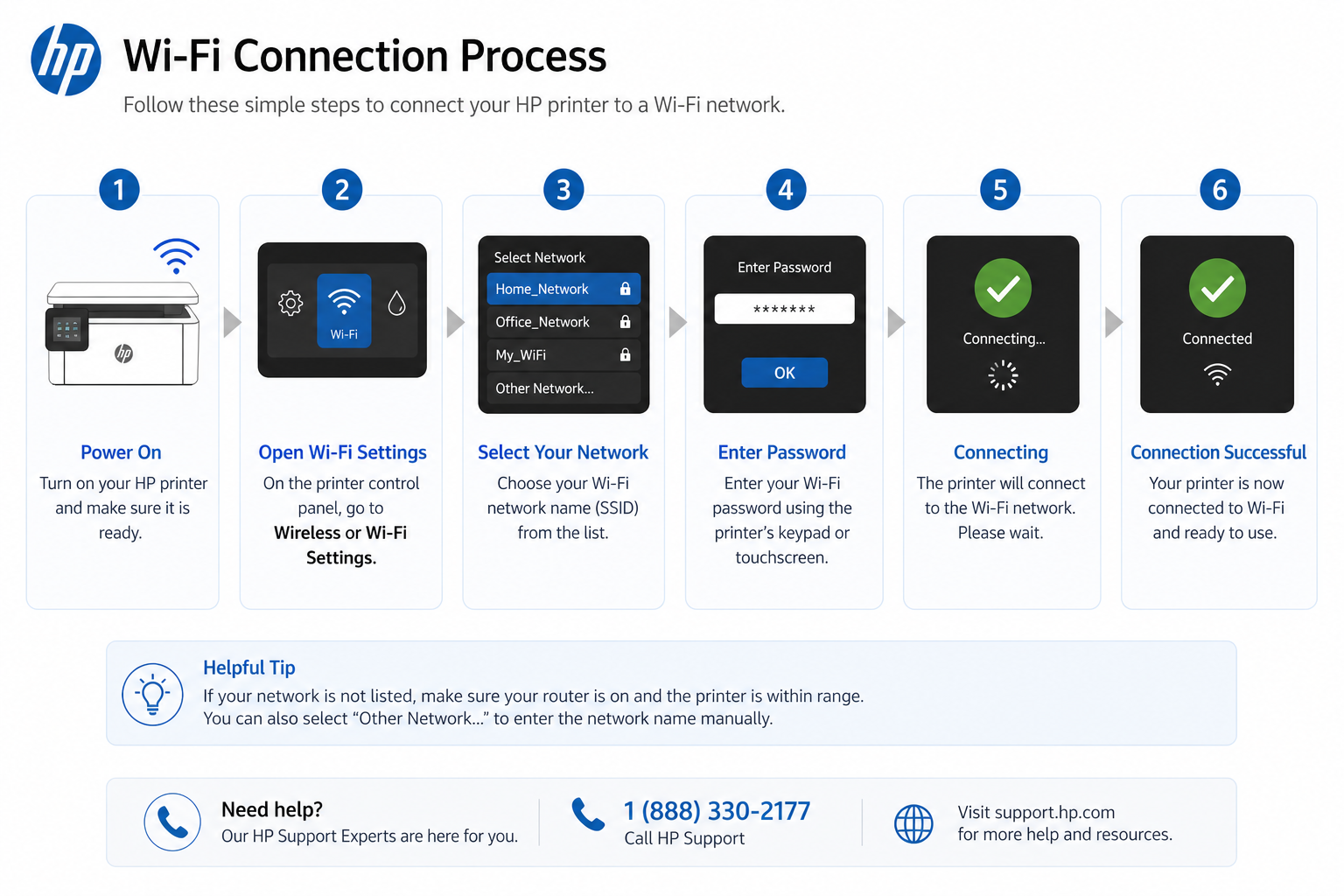
- Turn ON the printer and place it near your router.
- Press the Wireless button + Cancel button simultaneously for 5 seconds (on most models).
- Open the HP Setup Wizard from your computer (downloaded from 123.hp.com).
- Select your printer from the detected list.
- Choose your WiFi network and enter the password.
- Wait for the connection confirmation.
Alternative: Use the HP Smart app for a more modern interface — it works on Windows, Mac, and mobile.
Install HP Printer Without CD (Setup Wizard Method)
- Visit 123.hp.com on your browser.
- Download the full software package (includes setup wizard and drivers).
- Run the installer and choose "Wireless" or "USB" connection.
- The wizard will automatically detect your printer.
HP Smart Alternative Setup
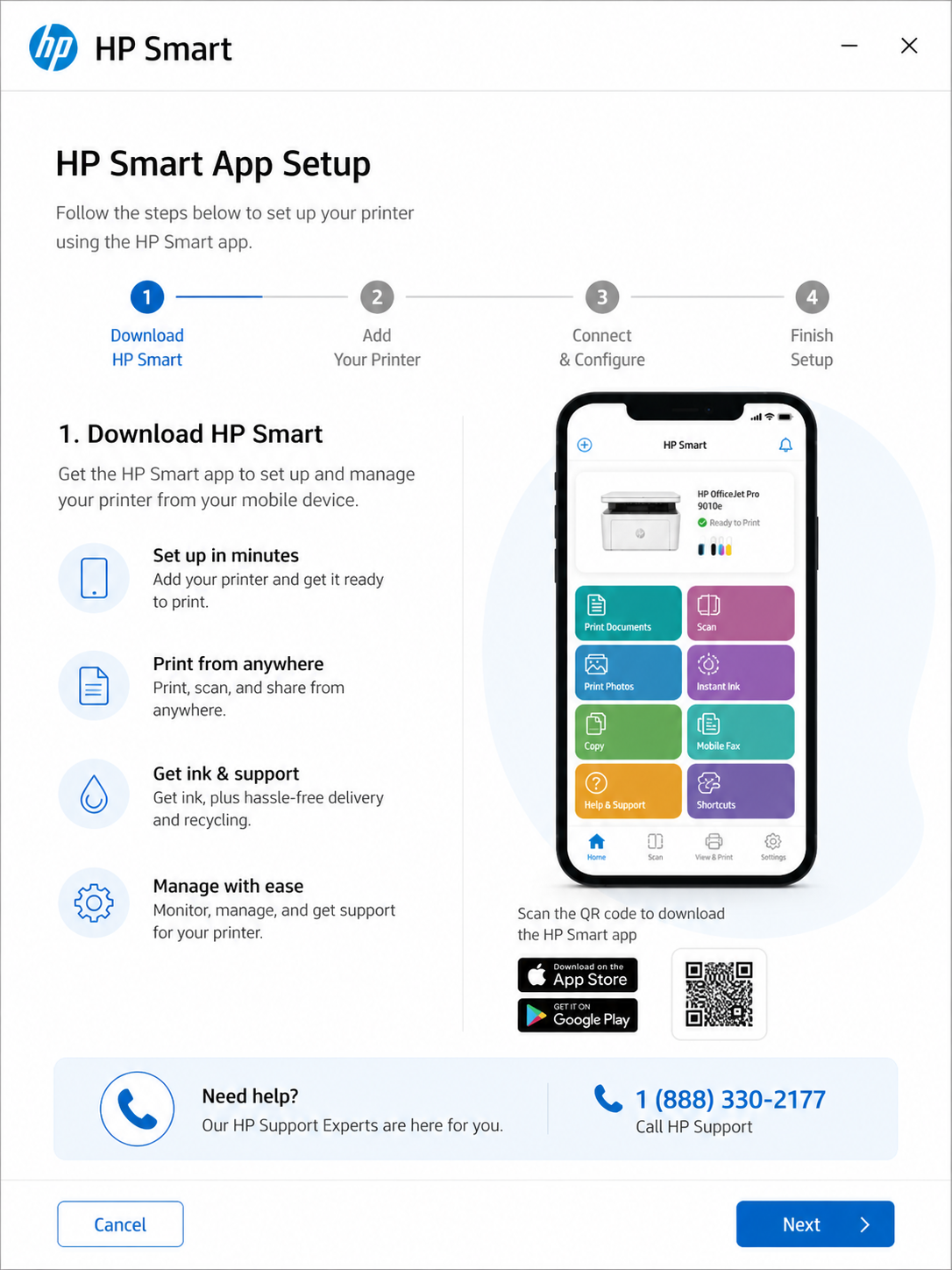
The HP Smart app (recently renamed to HP app) is the easiest way to install your printer on Windows, Mac, iOS, and Android. It automatically detects printers on your network and guides you through WiFi setup.
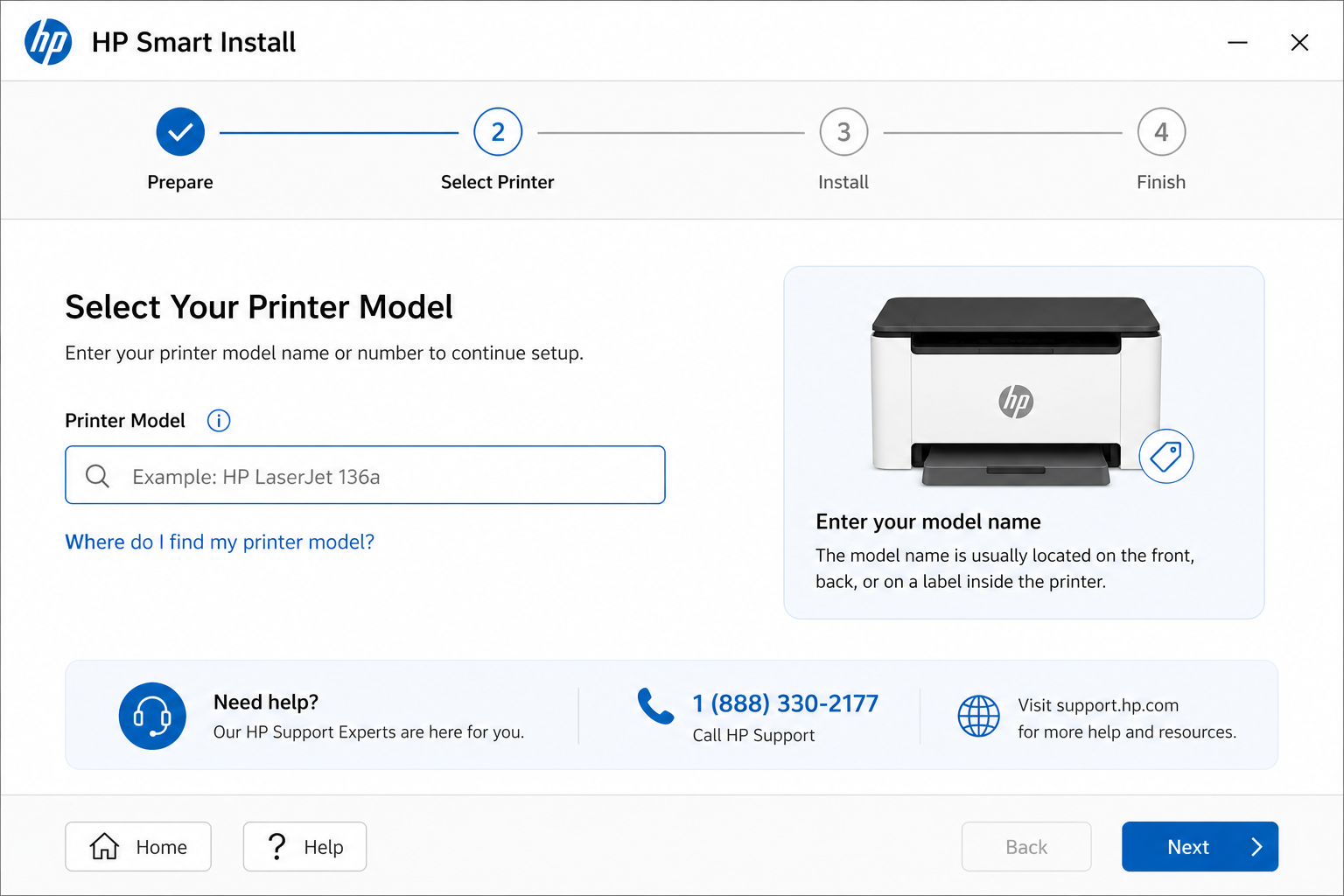
If the classic Setup Wizard fails, download HP Smart from your device's app store or follow our dedicated HP Smart install guide.
Setup HP Printer on Windows, Mac, and Mobile
Use downloaded setup wizard or go to Settings → Devices → Add Printer.
Use AirPrint or HP Smart. Add printer via System Settings → Printers & Scanners.
Download HP Smart app from App Store/Google Play, tap + to add printer.
Full mobile connection guide →
Additional Resources
Frequently Asked Questions
How do I install HP printer setup wizard?
Download it from 123.hp.com, run the file, and follow the on-screen instructions. It will automatically install drivers and configure your printer.
Why is HP setup wizard not working?
Usually due to network interruptions, firewall blocking, or outdated drivers. Restart devices, disable VPN, or use HP Smart install as an alternative.
Can I install HP printer without CD?
Yes, absolutely. Use the online setup wizard from 123.hp.com or the HP Smart app. Both methods are free and work for all modern HP printers.
Why can't setup wizard find my printer?
Check WiFi connection, restart printer, or try USB. Also see printer not detected for advanced diagnostics.
What to do if HP printer goes offline after setup?
This is common – follow our dedicated HP printer offline fix guide (restart spooler, disable SNMP, assign static IP).
How to connect HP printer to WiFi without setup wizard?
Use the printer's front panel: go to Network → Wireless Setup Wizard, select your SSID, enter password. Or use WiFi connection guide.
Complete Your HP Printer Setup Successfully
The HP Printer Setup Wizard remains one of the easiest ways to install HP printers on Windows, Mac, and wireless networks. If the standard setup process fails, alternative methods such as HP Smart or manual wireless configuration can usually restore connectivity quickly.
For broader troubleshooting help, including offline errors, WiFi problems, driver installation issues, and printer detection failures, visit the complete HP Printer Setup hub.