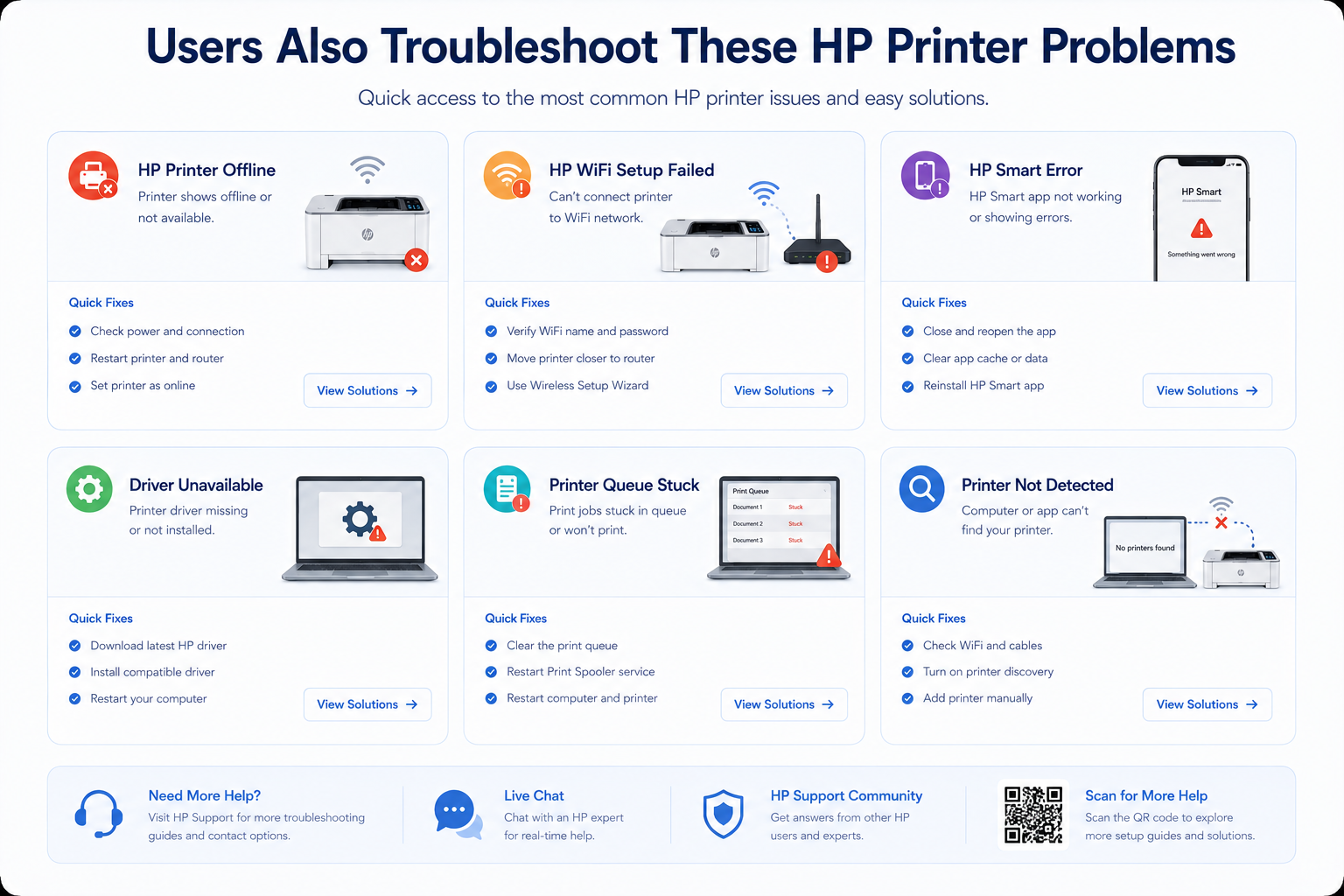
HP Printer Not Connecting to WiFi?
Wireless fixes, router reconnect steps & HP Smart troubleshooting
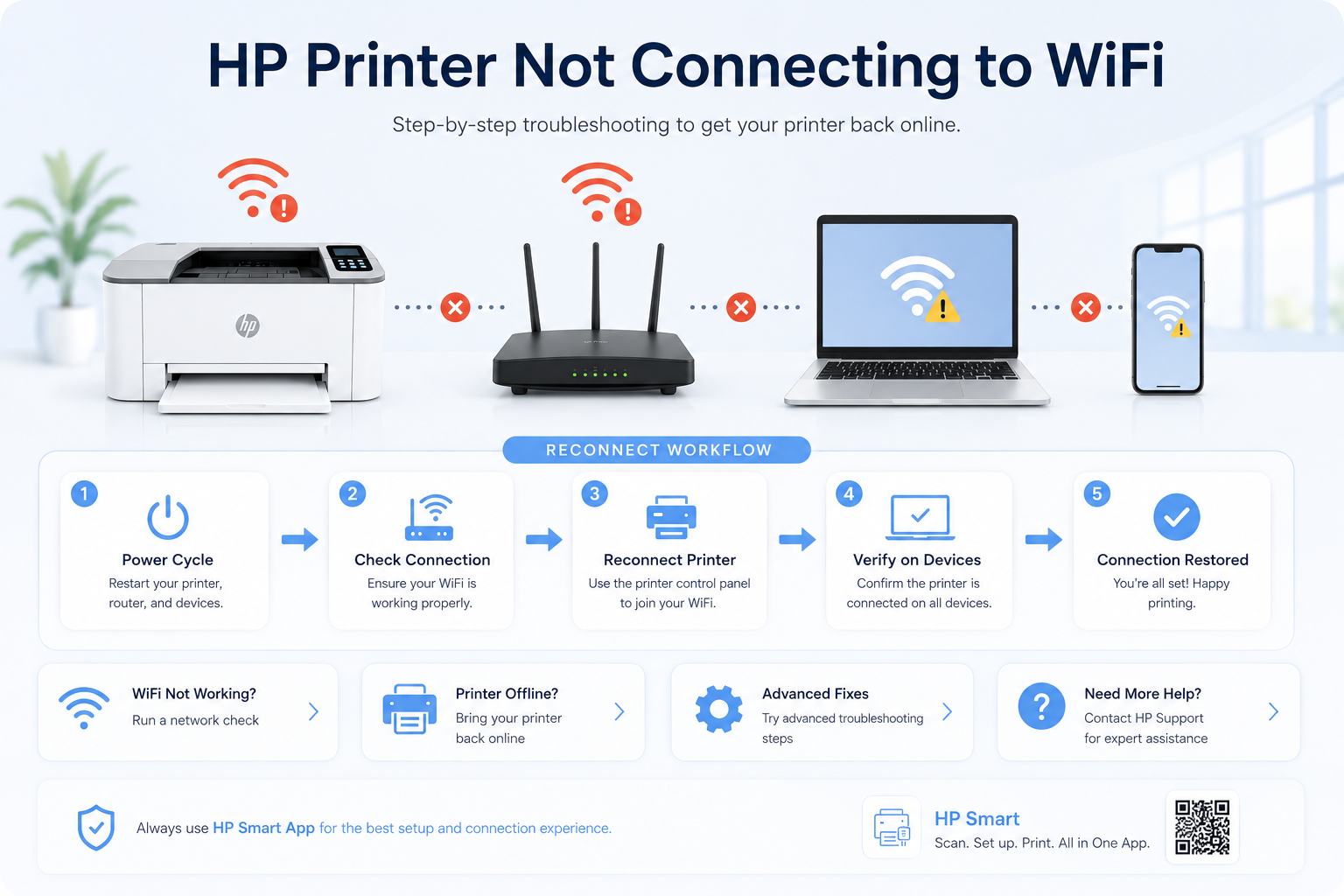
If your HP printer is not connecting to WiFi, shows offline, disappears from HP Smart, or cannot detect your wireless network, this guide walks through fixes for HP DeskJet, ENVY, OfficeJet, LaserJet, and Smart Tank printers. Restore wireless printing in minutes.
What Problem Are You Facing?
Printer cannot find WiFi
5GHz network, router issue, weak signal, wireless disabled.
HP Smart cannot detect printer
VPN enabled, different network, location permissions disabled.
HP printer shows offline
IP conflict, sleep mode, driver issue, network disconnect.
Router or WiFi password changed
Stored credentials outdated, printer still using old SSID.
Printer disconnects repeatedly
Weak signal, router interference, DHCP conflicts.
WPS setup failed
WPS disabled on router, timeout exceeded, unsupported mode.
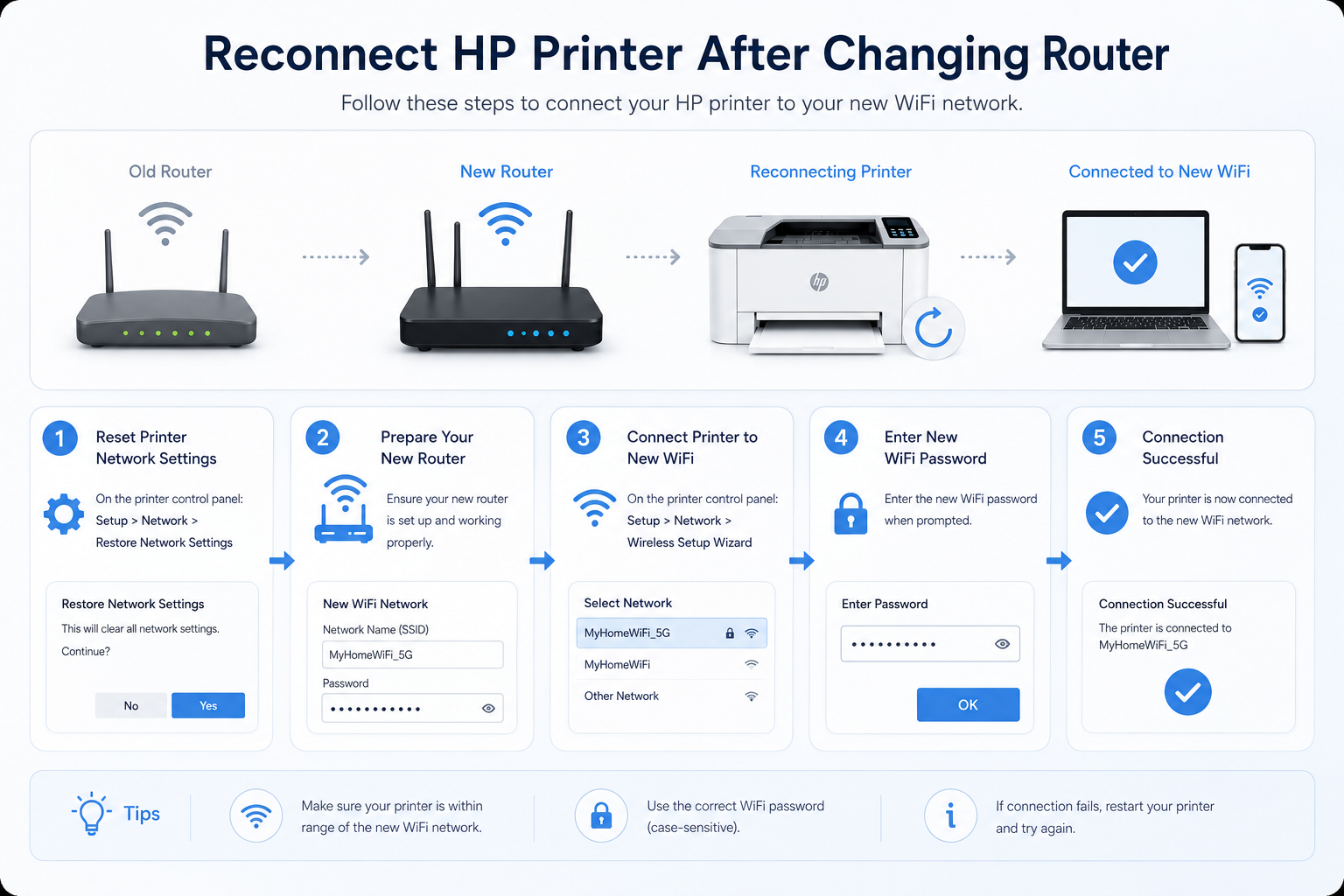
Reconnect HP Printer After Changing Router or WiFi Password
Your printer stores old network credentials. After changing the router or WiFi password, the printer still tries connecting to previous network.
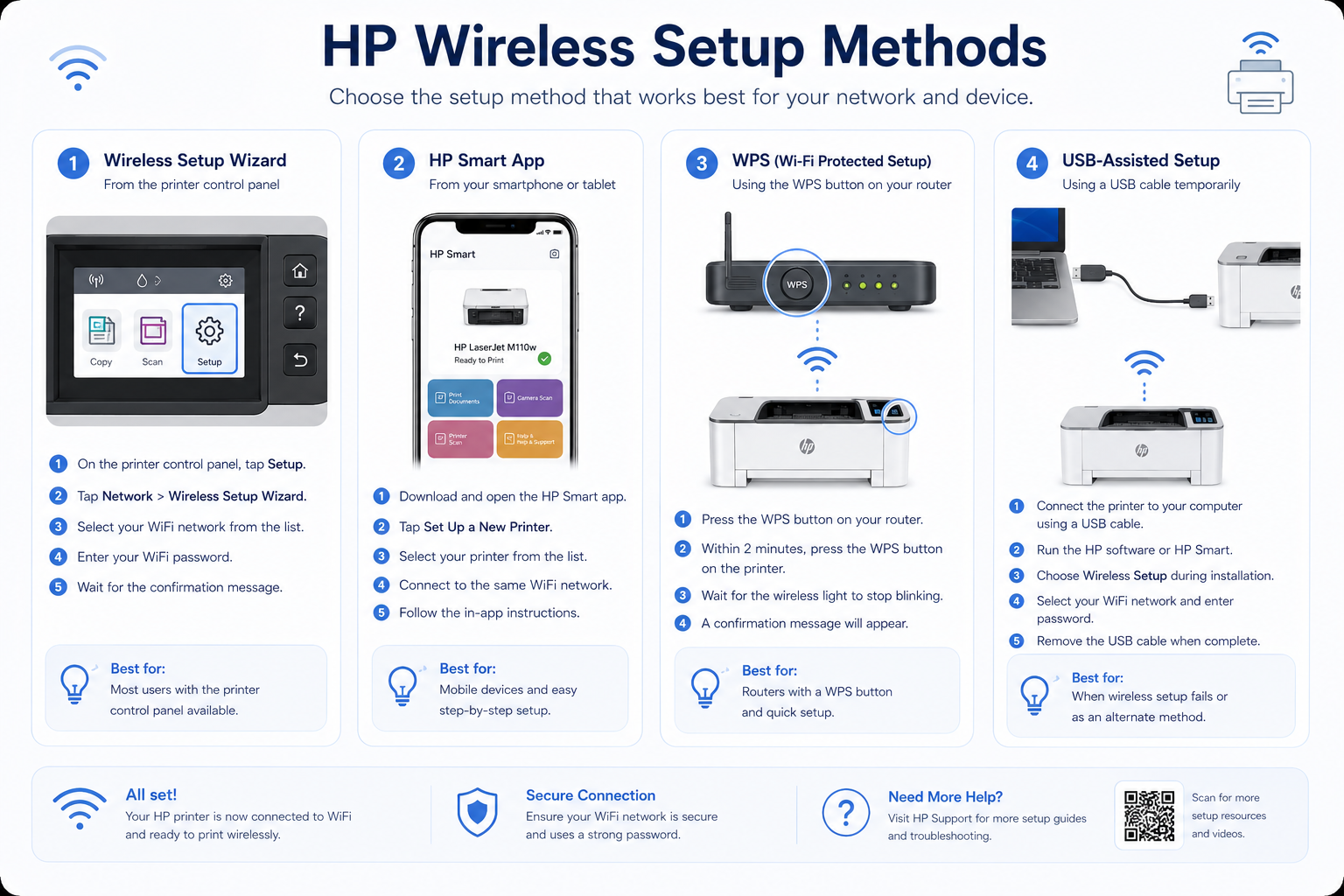
Method 1 — Wireless Setup Wizard: Setup → Network Settings → Restore Network Defaults → Wireless Setup Wizard → select new network → enter password.
Method 2 — HP Smart App: Open HP Smart → remove old printer → tap Add Printer → allow permissions → guided setup.
Method 3 — USB Assisted Setup: Connect USB temporarily, run HP Easy Start, configure wireless.
7 Ways to Fix HP Printer WiFi Connection Problems
Fix 1 — Restart Router and Printer
Turn off printer, unplug router 60 sec, restart modem/router, turn printer on. Refreshes DHCP handshake.
Fix 2 — Use 2.4GHz Instead of 5GHz
Many HP printers support only 2.4GHz. Enable 2.4GHz band on router or use separate SSID.
Fix 3 — Reset HP Printer Network Settings
Setup → Network → Restore Network Defaults → restart printer → run Wireless Setup Wizard.
Fix 4 — Update HP Printer Firmware
Via HP Smart or HP Support. Fixes compatibility issues & random disconnects.
Fix 5 — Reinstall Printer Drivers
Windows: Device Manager → remove printer → restart → install latest. Mac: remove from Printers & Scanners → re-add via Bonjour.
Fix 6 — Disable VPN or Firewall Temporarily
VPN often blocks HP Smart discovery. Disable VPN while setting up printer.
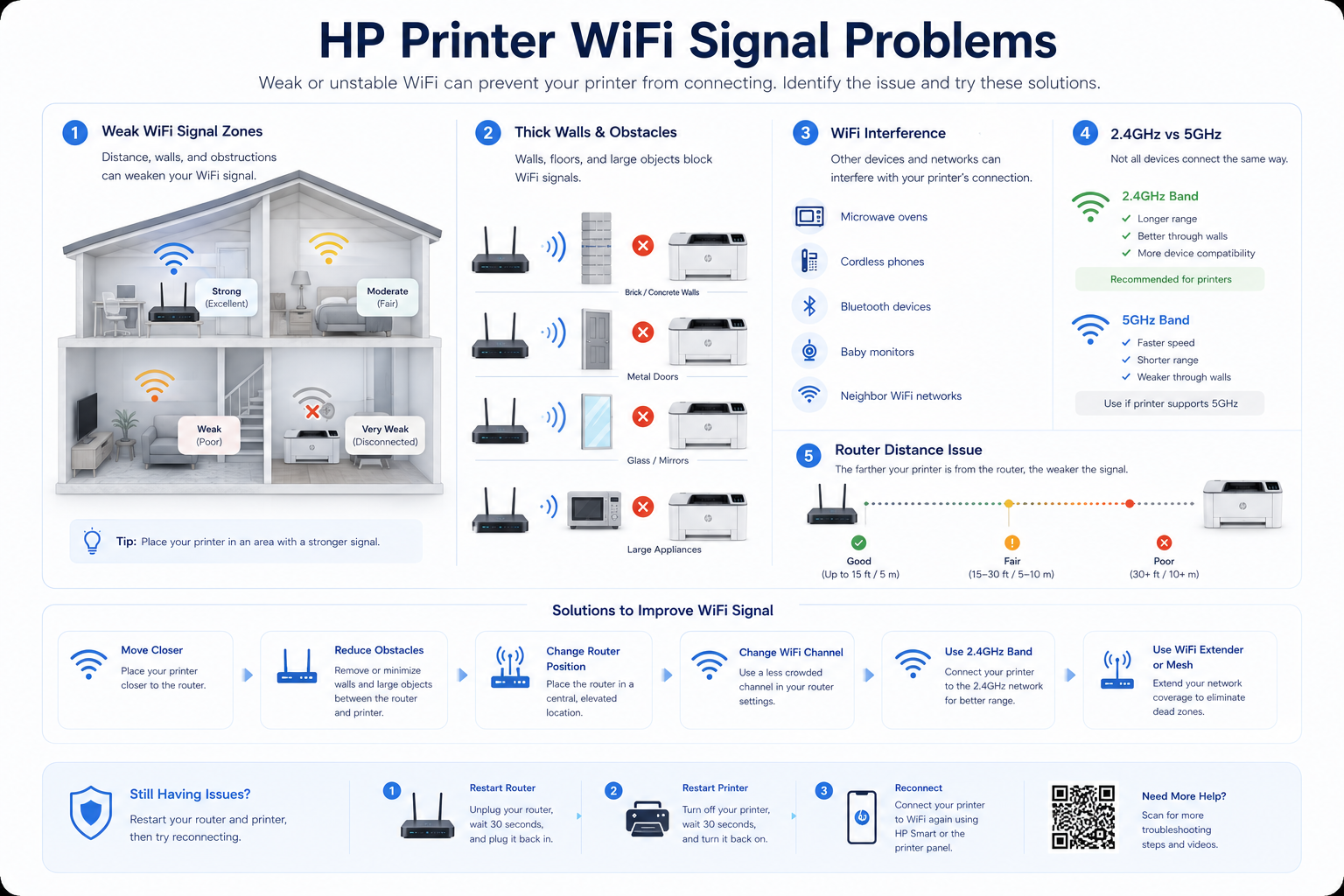
Fix 7 — Move Printer Closer to Router
Eliminate weak signal, thick walls, interference.
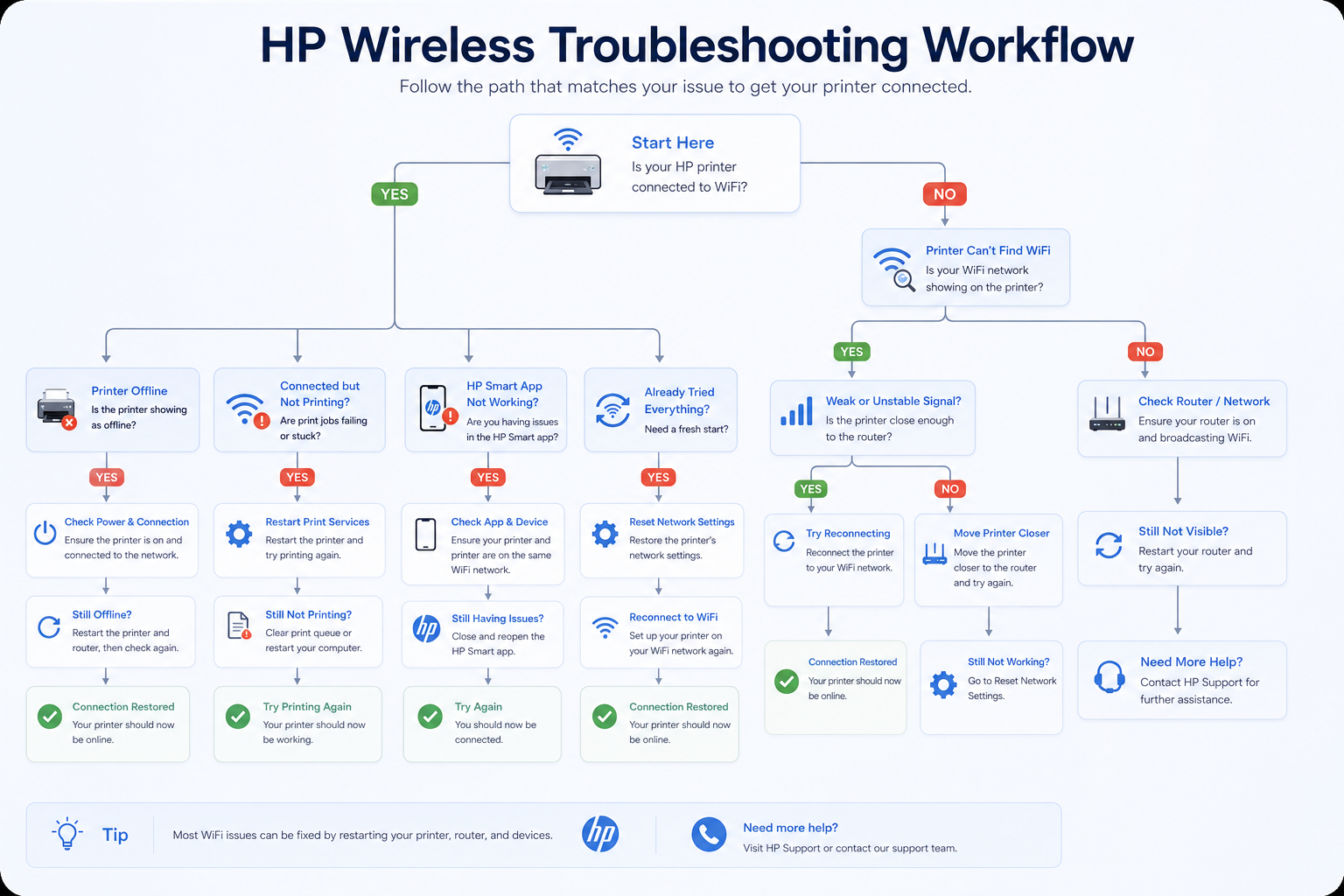
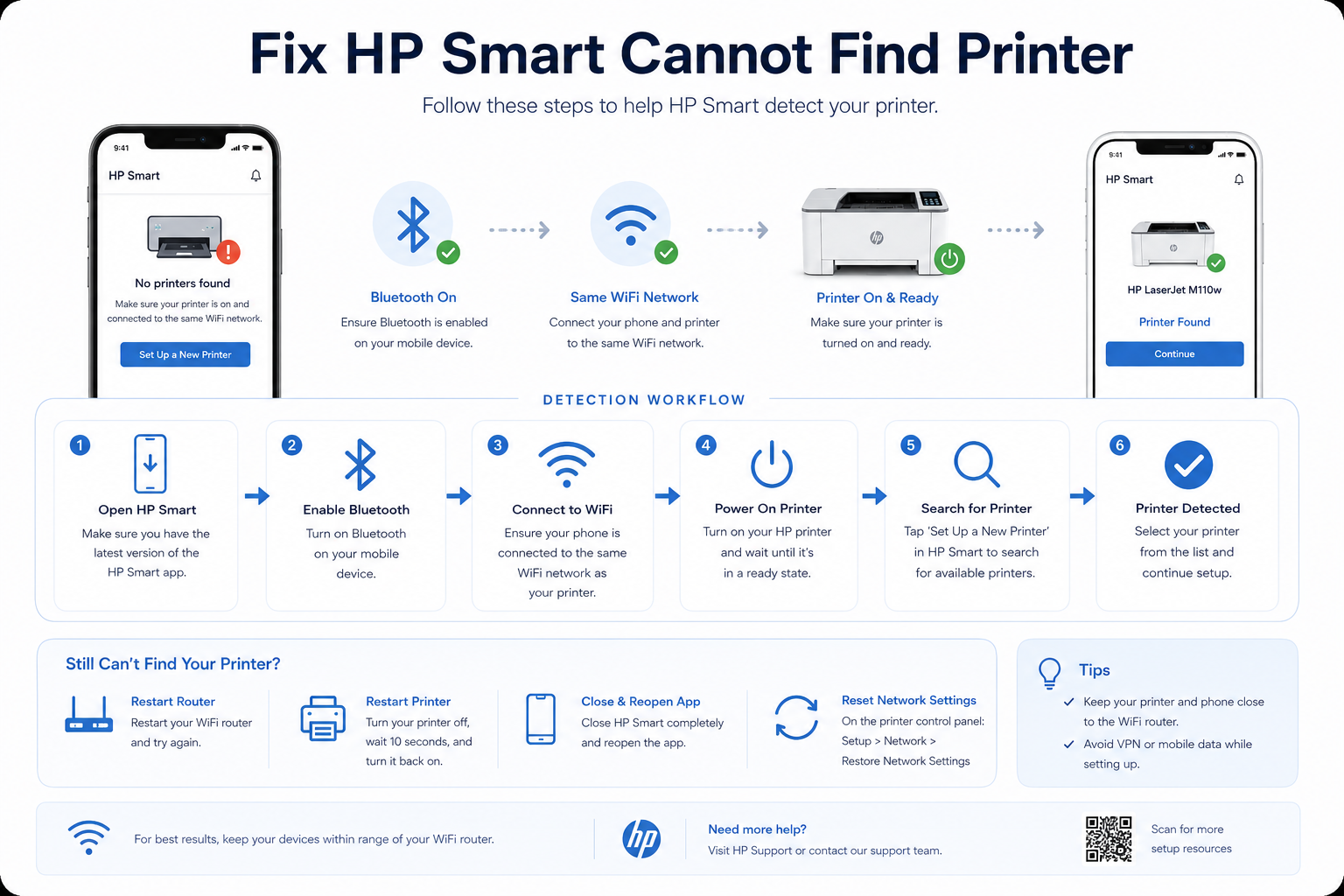
HP Smart App Cannot Find Printer
On Mobile
Enable Bluetooth & location permissions, same WiFi, disable VPN, restart HP Smart.
On Windows/Mac
Restart HP Smart, remove printer profile, reboot, disable firewall temporarily.
HP Printer Offline After Connecting to WiFi
Printer connects but appears offline due to IP change, SNMP conflict, or driver mismatch.
Windows Fix: Control Panel → Devices and Printers → right-click HP printer → Printer Properties → Ports → Disable SNMP Status Enabled.
Mac Fix: Remove printer, re-add via Bonjour, restart Mac.
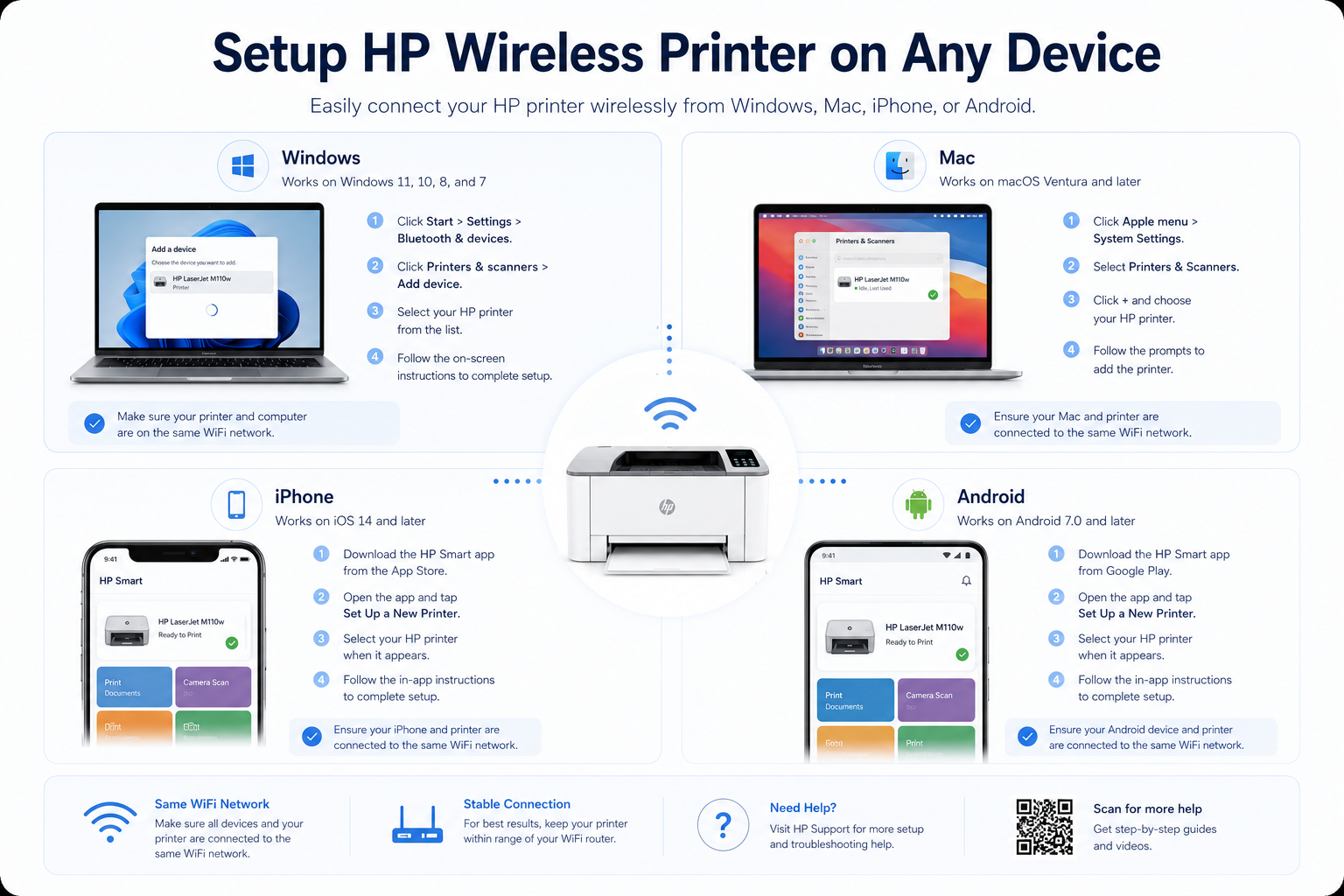
Add HP Wireless Printer: Windows, Mac, iPhone & Android
Settings → Bluetooth & Devices → Printers & Scanners → Add Device → select HP.
System Settings → Printers & Scanners → Add Printer → Bonjour printer.
Same WiFi → share menu → Print → select HP.
HP Print Service Plugin → enable → document → print.
HP Printer WiFi Light Meanings
| Light Status | Meaning |
|---|---|
| Solid blue light | Connected successfully |
| Blinking blue light | Attempting to connect |
| Orange/amber light | Wireless error or disconnected |
| Flashing wireless icon | WPS pairing mode active |
| No wireless light | WiFi disabled |
Compatible HP Printer Models
HP DeskJet, ENVY, OfficeJet, LaserJet, Smart Tank, Tango, Neverstop — works with all modern wireless HP printers.
Still Having HP Printer WiFi Problems?
Independent printer setup assistance for HP Smart issues, wireless failures, router reconnect & driver conflicts.
Call 1 (888) 330-2177