HP Envy WiFi Setup: 5 Easy Steps to Connect Your HP Envy Printer to WiFi
Step-by-step guide to connect your HP Envy printer to WiFi and fix common wireless setup problems.
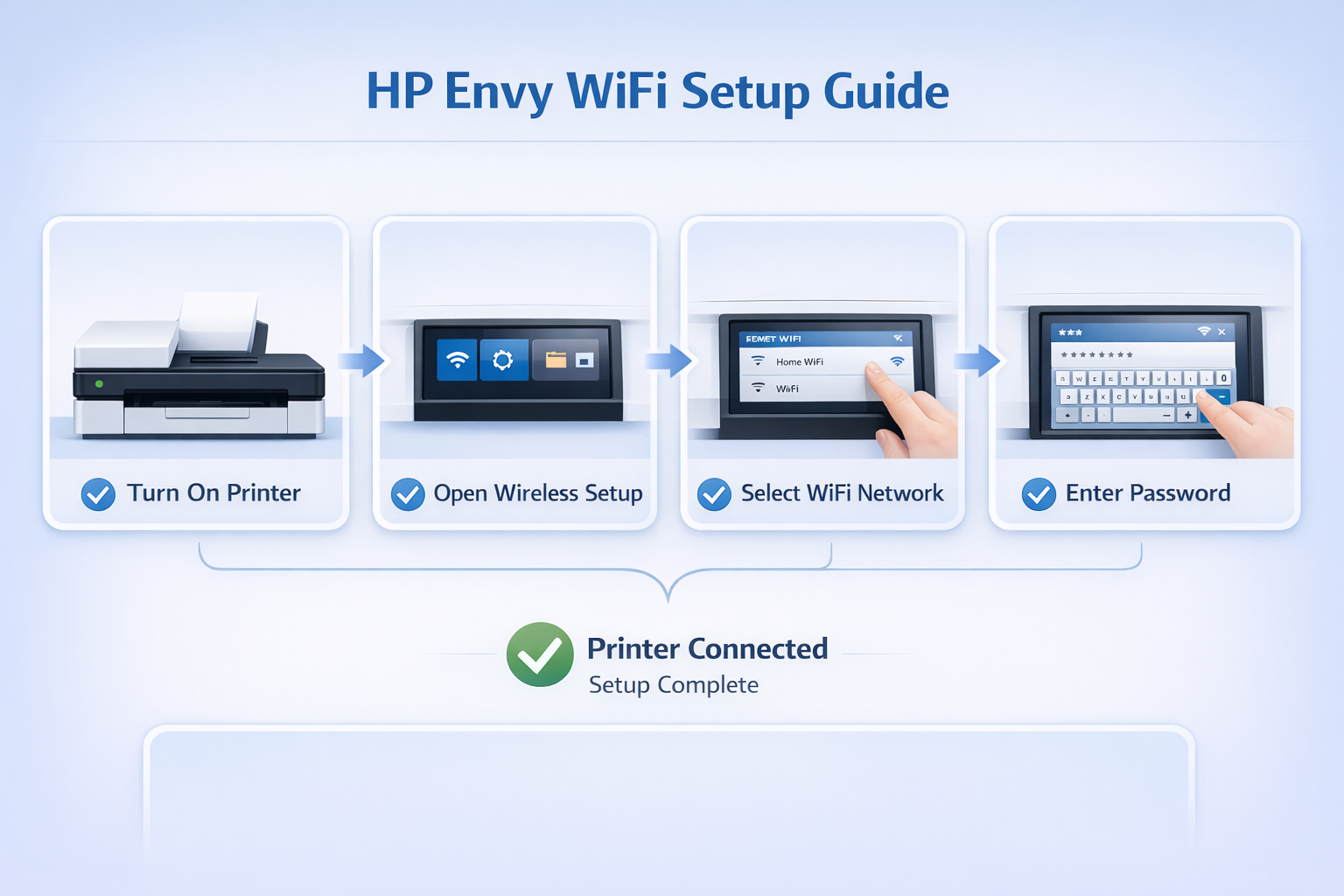
Step-by-step HP Envy WiFi setup guide for connecting the printer to a wireless network.
HP Envy WiFi Setup allows you to connect your HP Envy printer to a wireless network so you can print from computers, laptops, and mobile devices. Once the printer connects to your wireless network, you can use features like HP Smart printing, mobile printing, and wireless scanning.
This guide explains how to complete HP Envy wireless setup step by step and fix common wireless problems. For official documentation, visit the HP Support page.
Supported models include:
- HP Envy 4500
- HP Envy 5055
- HP Envy 6000 series
- HP Envy 6400 series
- HP Envy 7640
HP Envy WiFi Setup steps to connect printer to wireless network
HP Envy WiFi Setup Requirements
Before starting HP Envy wireless network setup, make sure:
- The printer is powered ON
- Your router is working properly
- The computer or mobile device is connected to the same WiFi network
- You know the WiFi password
Meeting these requirements helps avoid common HP Envy WiFi connection issues.
HP Envy WiFi Setup Using Wireless Setup Wizard
Most HP Envy printers allow wireless configuration using the printer screen. This is the most common method to connect HP Envy printer to WiFi.
Steps
- Turn on the printer
- Open Setup or Network Settings on the printer display
- Select Wireless Setup Wizard
- Choose your WiFi network name
- Enter the WiFi password
- Confirm the connection
After a few seconds, the printer connects to the network. This completes the HP Envy printer WiFi connection process.
HP Envy WiFi setup showing printer connected to router, computer, and phone
HP Envy Wireless Setup Using HP Smart App
The HP Smart App provides the easiest way to complete HP Envy wireless setup. You can download it from the official HP printer support page.
Steps
- Install the HP Smart App on your computer or phone
- Open the application
- Click Add Printer
- Select your HP Envy printer
- Follow the on-screen instructions
The app automatically completes the HP Envy wireless printer setup.
You can also use the HP Smart app to:
- Print documents
- Scan files
- Check ink levels
- Manage printer settings
HP Envy WPS WiFi Setup
If your router supports WPS, you can connect the printer without entering a password – a quick alternative for HP Envy wireless network setup.
Steps
- Press the WPS button on the router
- Press the Wireless button on the printer
- Wait for the connection to complete
The printer automatically connects to the wireless network. This method is commonly used for quick HP Envy printer WiFi connection.
Add HP Envy Printer to Computer After WiFi Setup
After completing the wireless configuration, add the printer to your computer.
Windows
- Open Settings
- Select Printers & Scanners
- Click Add Printer
- Select your HP Envy printer
Mac
- Open System Settings
- Select Printers & Scanners
- Click Add Printer
Your computer will detect the printer automatically after successful HP Envy wireless setup.
Test the HP Envy Wireless Printing
To confirm the wireless setup works:
- Open a document
- Click Print
- Select your HP Envy printer
If the document prints successfully, the HP Envy wireless setup is complete.
HP Envy WiFi Setup Troubleshooting
Sometimes wireless setup fails. Here are common problems and fixes. For further assistance, check the HP support documentation.
HP Envy Printer Not Connecting to WiFi
Possible causes:
- Wrong WiFi password
- Printer connected to old network
- Weak signal
- Router configuration issues
Fix:
- Restart the printer and router
- Reset printer network settings
- Run the Wireless Setup Wizard again
Reset HP Envy Network Settings
Resetting network settings fixes most HP Envy WiFi problems and lets you start fresh.
Steps
- Open Setup on printer panel
- Select Network Settings
- Choose Restore Network Defaults
- Restart the printer
Then repeat the wireless setup process.
HP Envy WiFi setup troubleshooting flowchart
| Problem | Cause | Solution |
|---|---|---|
| Printer not detected | Driver issue | Reinstall driver |
| Printer offline | Network conflict | Restart router |
| WiFi connection failed | Wrong password | Reconnect printer |
| Printer not printing | Queue stuck | Clear print queue |
Need Help With HP Envy WiFi Setup?
Our printer experts can help you connect your printer to WiFi, fix connection issues, and troubleshoot wireless errors.
Contact Printer SupportHP Envy WiFi Setup for All Models
This guide works for a wide range of HP Envy printers. Below are some common models – click any model to find specific setup instructions (coming soon).
HP Envy WiFi Setup FAQs
Follow the methods above: use the Wireless Setup Wizard on the printer control panel, the HP Smart app, or WPS if your router supports it. This will complete your HP Envy wireless setup.
This can happen due to wrong password, weak signal, or router issues. Restart devices and reset network settings as shown in the troubleshooting section.
Open Setup → Network Settings → Restore Network Defaults, then restart the printer and repeat the wireless setup process.
Successfully completing HP Envy WiFi Setup ensures your printer is ready for wireless printing from any device. If you encounter any issues, the troubleshooting steps above will help you resolve them quickly.