Printer Driver Problems – Causes, Troubleshooting, and Solutions
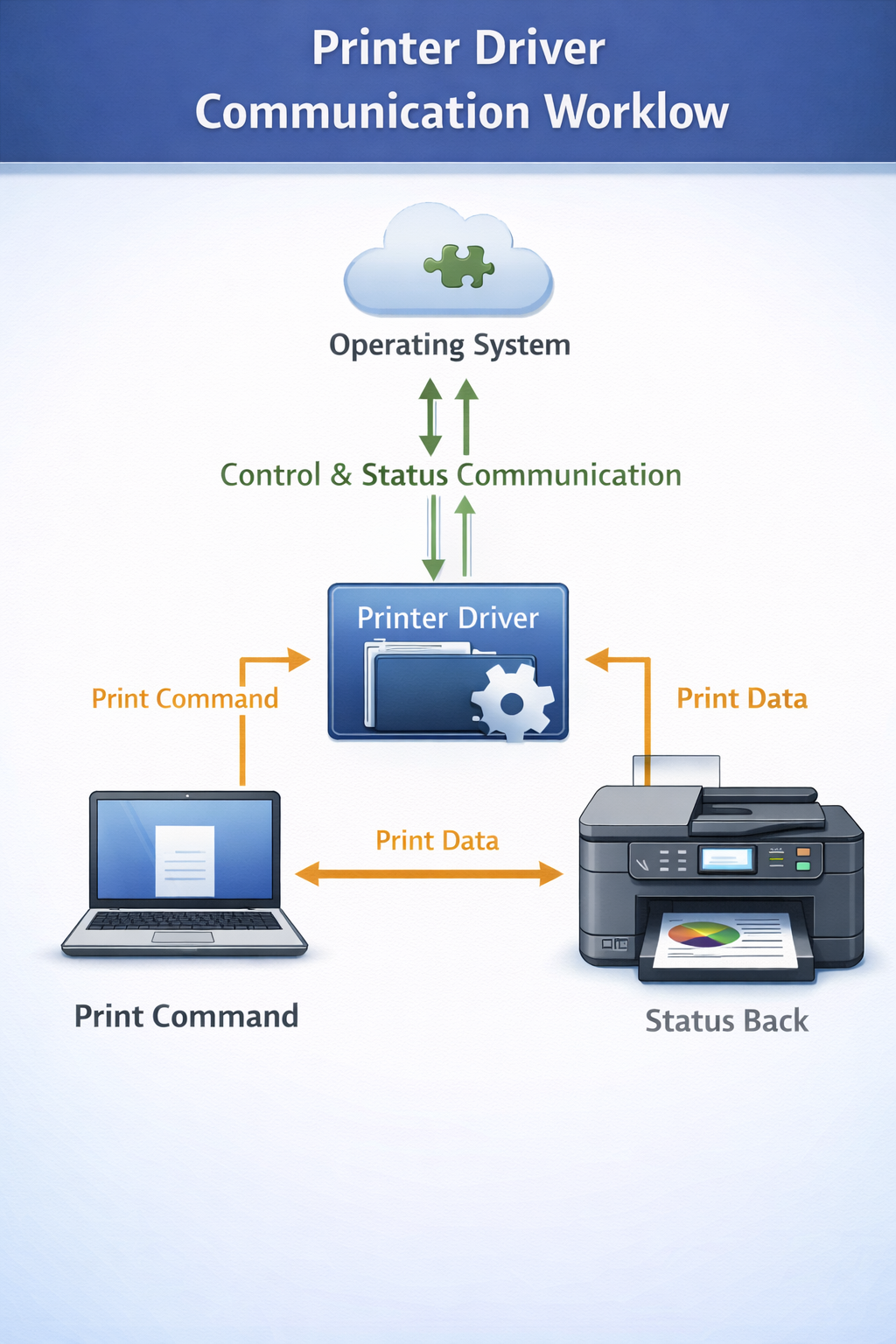
Printer driver problems occur when the software that allows a computer to communicate with a printer does not function correctly. Printer drivers act as translators between the operating system and the printer hardware. Without a properly functioning driver, the computer cannot send print commands in a format that the printer understands.
When driver problems occur, users may experience issues such as printers not printing, printers not being detected by the computer, print jobs becoming stuck in the queue, or error messages appearing during printing.
Printer driver issues are among the most common causes of printing failures. These problems may occur because drivers become outdated, corrupted, incompatible with the operating system, or incorrectly installed.
This guide explains how printer drivers work, the common causes of printer driver problems, and the troubleshooting steps that can help diagnose and resolve driver-related printing issues.
Common Printer Driver Problems
Printer driver problems are among the most common causes of printing errors. A printer driver acts as a communication layer between the computer and the printer hardware. Without a properly functioning driver, the printer cannot interpret printing instructions correctly.
Driver problems can occur when the driver becomes outdated, corrupted, incompatible with the operating system, or incorrectly installed. When these issues occur, the computer may fail to send print commands properly, resulting in printing failures or error messages.
Many users encounter driver-related issues after operating system updates, hardware changes, or incorrect driver installations. Because drivers translate print data into instructions the printer can understand, any failure in this translation process can prevent documents from printing correctly.
Examples of common printer driver problems include:
- printer driver unavailable error
- printer not responding to commands
- printer appearing offline
- documents printing incorrectly
- printer queue becoming stuck
Understanding these issues can help users diagnose printing problems more effectively.
What Is a Printer Driver
A printer driver is a software component that allows a computer operating system to communicate with a printer. The driver converts print commands from applications into instructions that the printer hardware can understand.
For example, when a user prints a document from a word processor, the application sends the document to the operating system. The operating system then passes the document to the printer driver, which converts it into a printer-specific format.
Different printers require different drivers because printers use different technologies and communication protocols.
Without the correct driver installed, the printer may not function properly or may not be detected by the computer at all.
Why Printer Driver Problems Occur
Printer driver problems can occur for many reasons.
Common causes include:
- outdated printer drivers
- corrupted driver files
- incompatible operating system updates
- incorrect driver installation
- driver conflicts with other printers
- incomplete driver updates
Operating system updates sometimes introduce compatibility changes that require updated printer drivers. If the installed driver is not compatible with the updated operating system, printing errors may occur.
Driver problems may also occur if multiple printers are installed on the same computer and conflicting drivers interfere with each other.
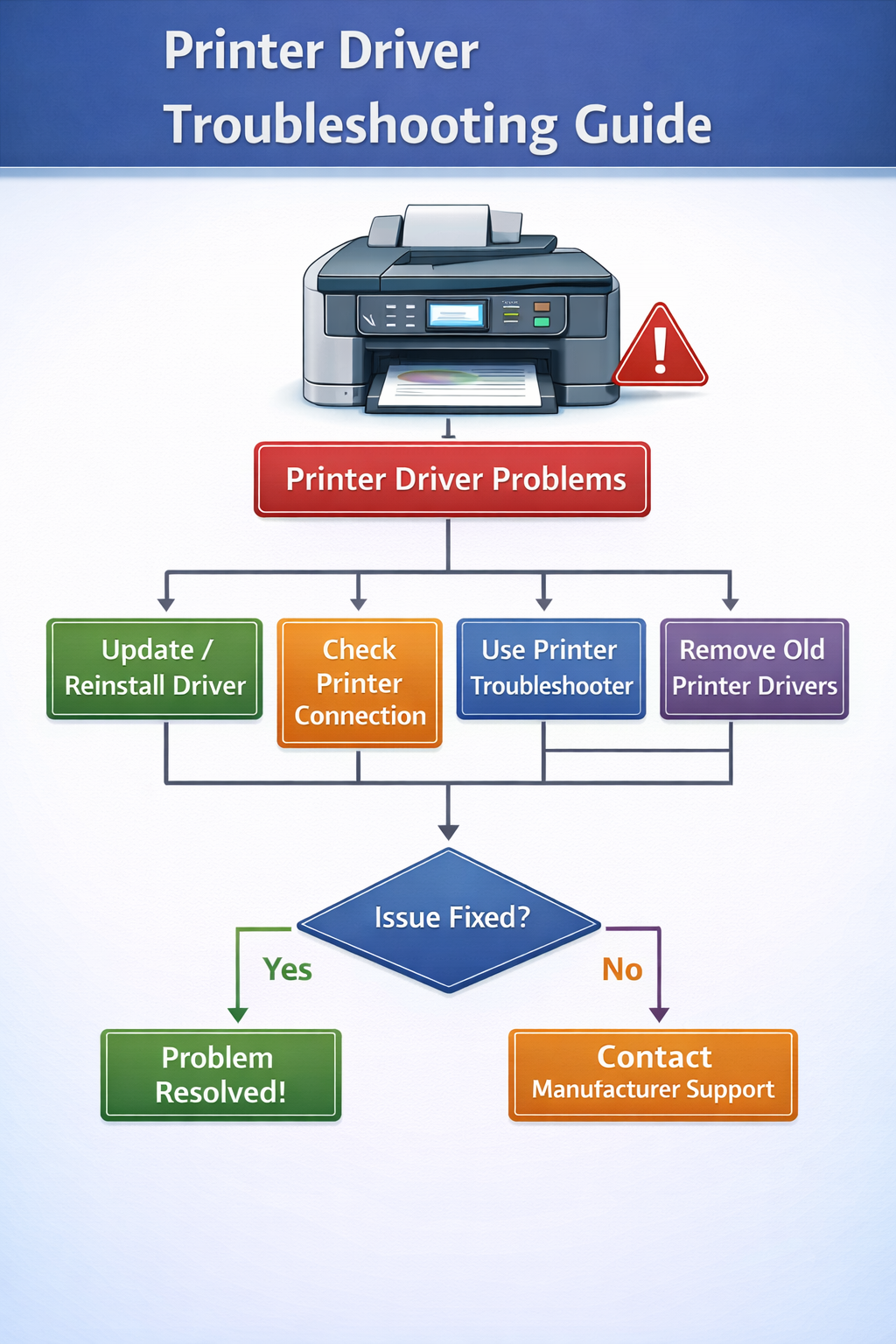
Printer Driver Problem Flowchart
Symptoms of Printer Driver Problems
Printer driver issues can cause a variety of printing errors.
Common symptoms include:
- Printer not detected by the computer
- Printer appearing offline
- Documents failing to print
- Print jobs stuck in the queue
- Error messages during printing
- Printer printing incorrect characters or formatting
Sometimes the printer appears installed correctly but does not respond when users attempt to print documents.
In other cases, the printer may appear multiple times in the system printer list because different driver versions were installed.
How Printer Drivers Work
Printer drivers convert digital documents into printer instructions.
The printing process generally follows this sequence:
- Application creates document
- Operating system processes print command
- Printer driver converts document into printer language
- Printer receives instructions and prints the page
If the driver fails during any step of this process, the printer may not receive the correct instructions.
Modern printers often support several driver types, including:
- PCL drivers
- PostScript drivers
- Universal printer drivers
Each driver type communicates with the printer using a specific command language.
Troubleshooting Printer Driver Problems
When printer driver problems occur, troubleshooting usually focuses on identifying communication errors between the computer and the printer.
The most common troubleshooting steps include:
Restart printer and computer
restarting the printer and computer
Check connections
checking cable or wireless connections
Update printer driver
updating the printer driver
Reinstall driver
reinstalling the driver
Restart print spooler
restarting the print spooler service
Restarting devices often resolves temporary driver conflicts because it resets the communication session between the operating system and the printer.
Updating drivers is also one of the most effective ways to resolve driver-related issues. Outdated drivers may not work correctly with newer operating systems, leading to printing errors or compatibility problems.
If updating the driver does not resolve the problem, reinstalling the driver may remove corrupted files that prevent the printer from functioning correctly.
Step-by-Step Printer Driver Troubleshooting
The following troubleshooting steps can help diagnose printer driver problems.
Check Printer Installation
Verify the printer appears in the list of installed printers.
Restart Computer
Reset system services to resolve temporary driver conflicts.
Restart Printer
Clear internal errors that may interfere with communication.
Update Printer Driver
Install the latest driver from manufacturer website.
Reinstall Driver
Uninstall and install a fresh copy to remove corrupted files.
Official Printer Driver Support Resources
Users should download drivers only from official manufacturer support websites.
Operating System Compatibility Issues
Printer drivers must be compatible with the operating system installed on the computer.
Operating system upgrades sometimes require updated drivers.
For example:
- Windows updates may introduce driver compatibility changes
- macOS updates may require new printer drivers
Using drivers designed for older operating system versions may result in printing errors.
Network Printer Driver Issues
Network printers often require additional driver configuration.
Possible causes of driver problems with network printers include:
- incorrect IP address configuration
- driver communication errors
- network discovery issues
Network printers must be properly configured so that the driver can locate the printer on the network.
Network Printer Driver Workflow
How to Prevent Printer Driver Problems
Several practices can help prevent driver problems.
Helpful recommendations include:
- keeping printer drivers updated
- installing drivers from official manufacturer websites
- avoiding duplicate driver installations
- restarting printers after driver updates
Related Printer Troubleshooting Guides
Users experiencing printer driver problems may also encounter other printing issues such as: printer queue stuck, printer not detected, printer not printing, printer not responding.
See these related guides:
How This Website Helps Users Understand Printer Problems
All About Printers provides independent informational resources explaining printers and printing technology.
The guides on this website help users understand: printer troubleshooting methods, printer driver installation, printing technology and hardware components, maintenance practices for printers.
Frequently Asked Questions
© All About Printers — independent printer guides