Connect HP Printer to WiFi
Wireless setup, router changes & offline fixes
Connecting your HP printer to WiFi enables wireless printing from Windows, macOS, iPhone, iPad, and Android devices without cables. This guide covers HP Smart app setup, the built-in Wireless Setup Wizard, WPS button method, and USB-assisted configuration. If you've changed your router or WiFi password, follow the reconnect after router change section. Troubleshoot common issues like printer offline, 5GHz vs 2.4GHz compatibility, and HP Smart detection failures. Whether you own an HP DeskJet, ENVY, OfficeJet, LaserJet, or Smart Tank, these steps will help you restore wireless printing quickly.
Recommended before you start
- WiFi network name (SSID) and password ready
- Router powered on and within 15 feet of printer
- HP printer plugged in and turned on
- HP Smart app installed (optional but recommended)
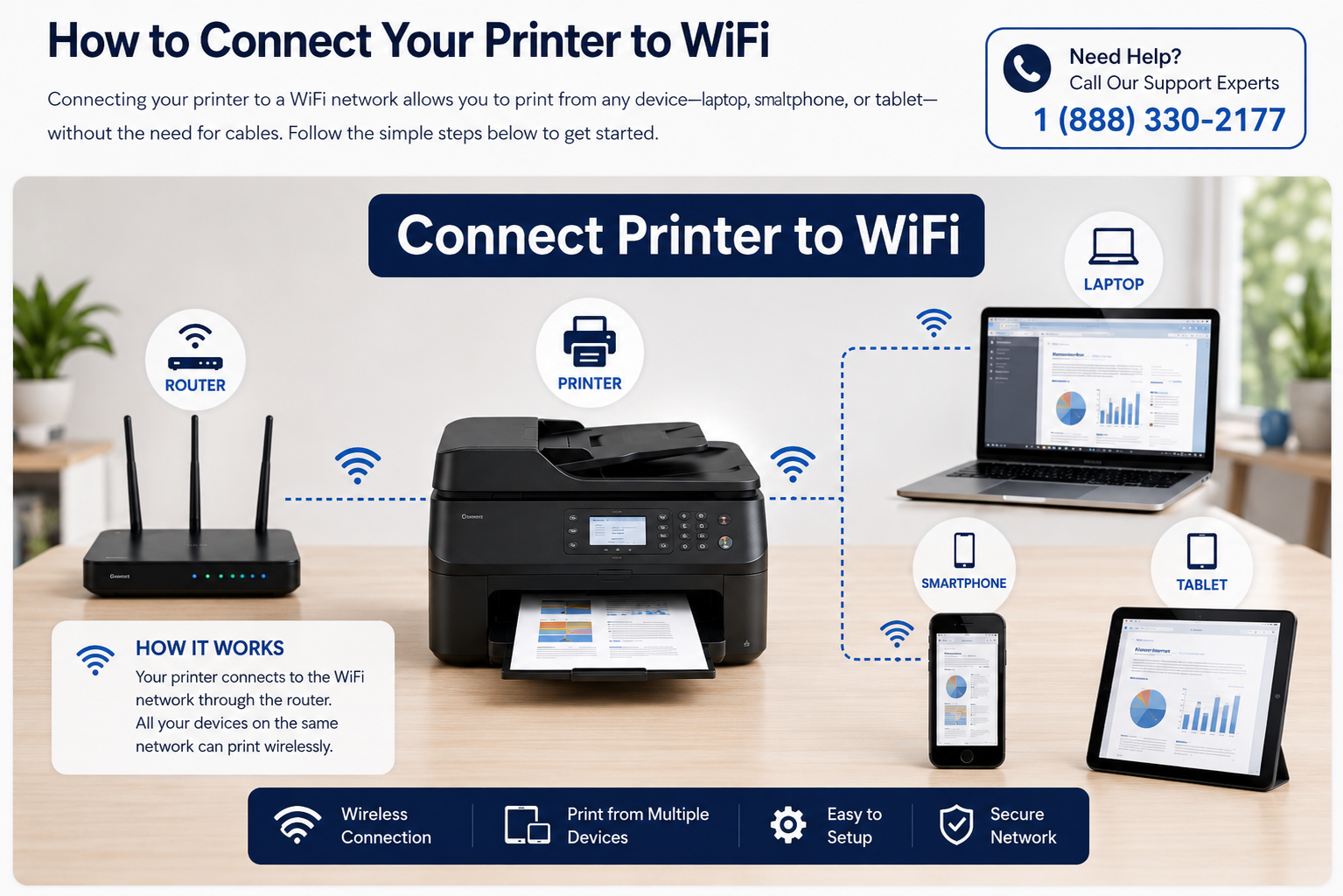
Setup, reconnect & router change scenarios
First‑time wireless setup
New HP DeskJet, ENVY, OfficeJet, LaserJet? Use HP Smart, control panel Wireless Setup Wizard, or WPS button.
Reconnect after router change
Changed Wi‑Fi password or got new router? HP printer stays offline until you update credentials. Jump to router change section.
Offline recovery & diagnosis
“Printer offline” after Wi‑Fi working? Refresh IP, disable SNMP, or re‑add via HP Smart.
HP Smart + HP Easy Start
Modern HP printers work best with HP Smart app — supports Wi‑Fi setup, printing, and troubleshooting.
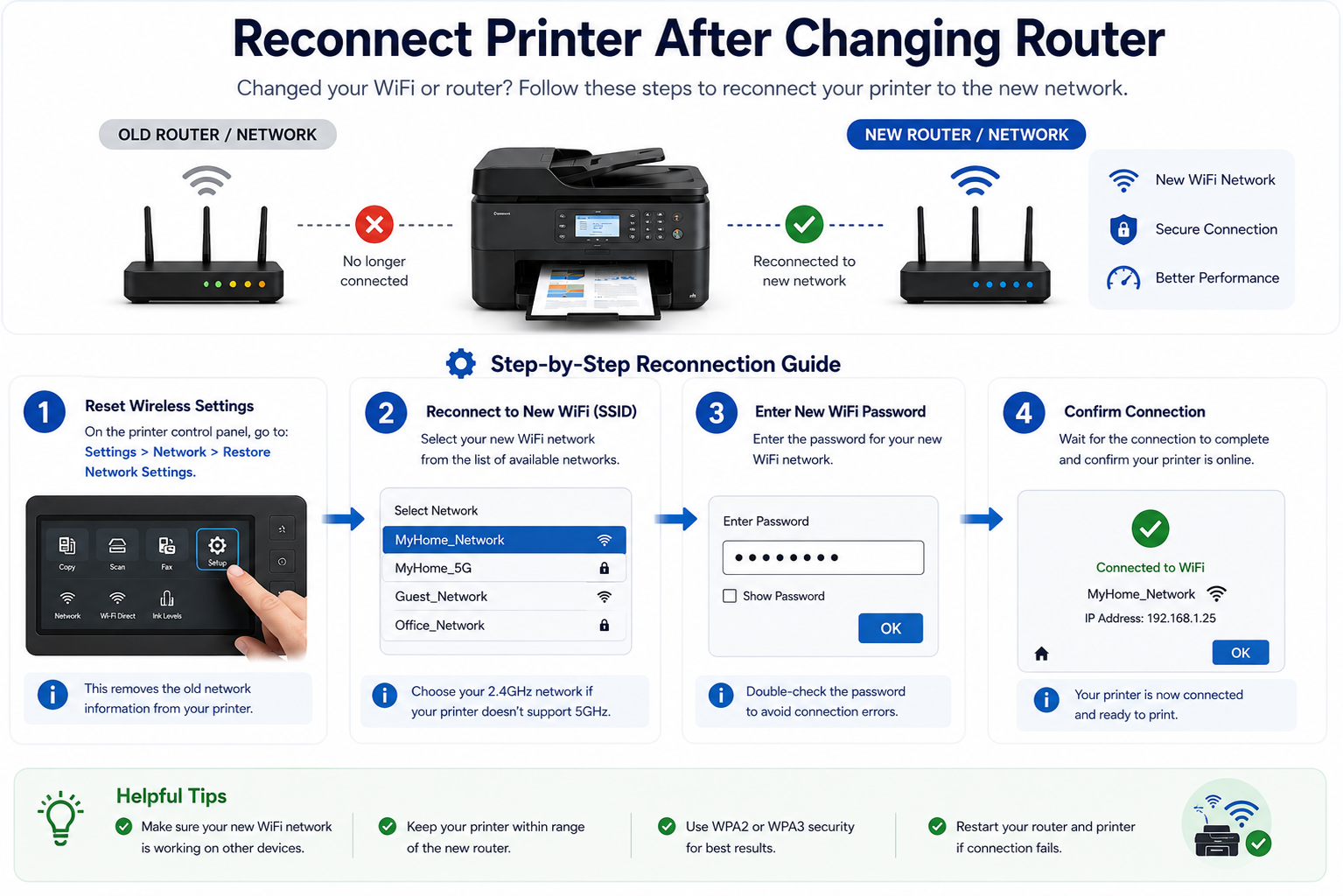
Changed router or Wi‑Fi password? Reconnect HP printer
After changing your network name or password, your HP printer won’t automatically reconnect. Follow these HP‑specific steps.
Reset network settings
On printer control panel: Setup → Network → Restore network defaults → then run Wireless Setup Wizard again.
Use HP Smart app
Open HP Smart → tap printer icon → “Advanced Settings” → “Network” → update Wi‑Fi credentials.
USB‑assisted reconfiguration
Connect USB cable temporarily → run HP Easy Start → update wireless settings → remove USB.
WPS push button
Press WPS on router → within 2 min go to printer Wi‑Fi settings → choose WPS option.
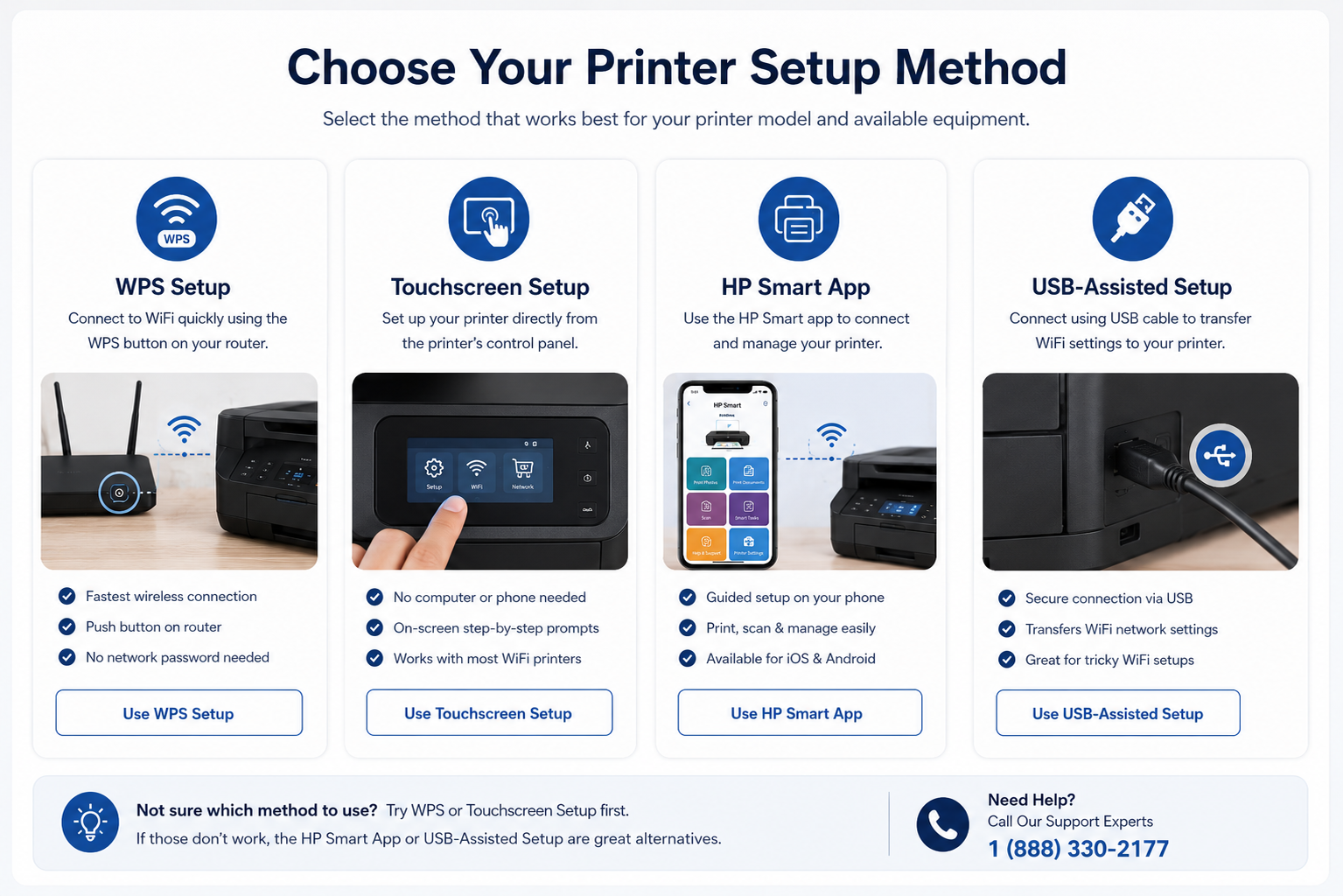
6 ways to connect HP printer to Wi‑Fi
Touchscreen wizard
Setup → Network → Wireless Setup Wizard → pick SSID → enter password.
WPS button (router)
Press router WPS → printer WPS button within 2 min.
HP Smart app
Install HP Smart → tap “+” → follow guided Wi‑Fi setup.
USB‑assisted (HP Easy Start)
Download HP Easy Start from support.hp.com → USB cable → configure Wi‑Fi.
Control panel without touch
Use buttons + network report → enter Wi‑Fi details via embedded web server.
HP Wireless Direct + app
Enable HP Wireless Direct → connect phone → HP Smart sends network credentials.
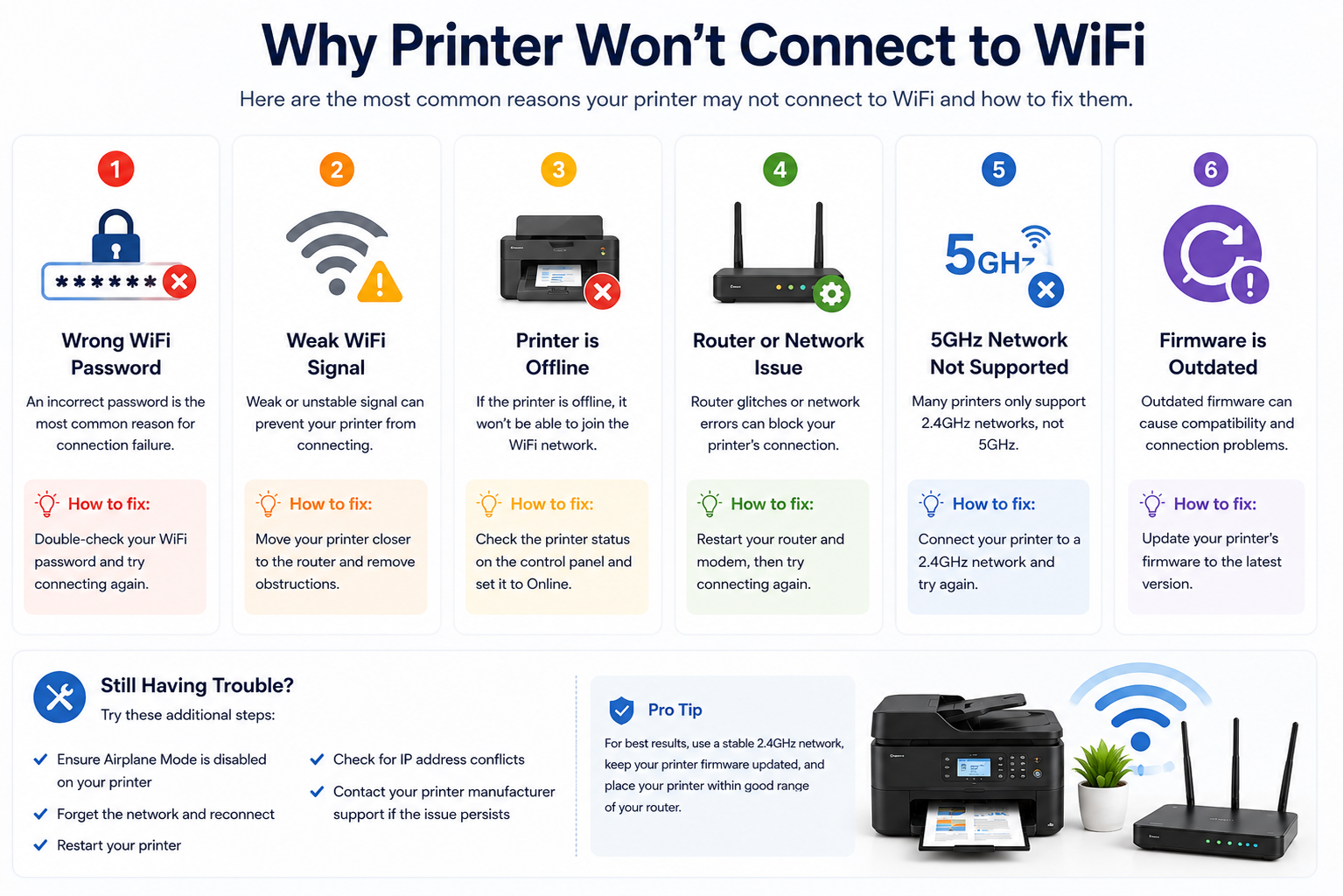
HP wireless diagnostic & signal help
Incorrect password
Re‑enter password (case‑sensitive), use HP Smart.
HP printer shows offline
Set as default printer, run HP Print and Scan Doctor.
5GHz network not visible
Enable 2.4 GHz on router.
HP Smart can't find printer
Allow location permissions, disable VPN, USB fallback.
Outdated HP firmware
Update via HP Smart or HP support.
Quick reference: signal & router fixes
| Problem | Recommended Fix |
|---|---|
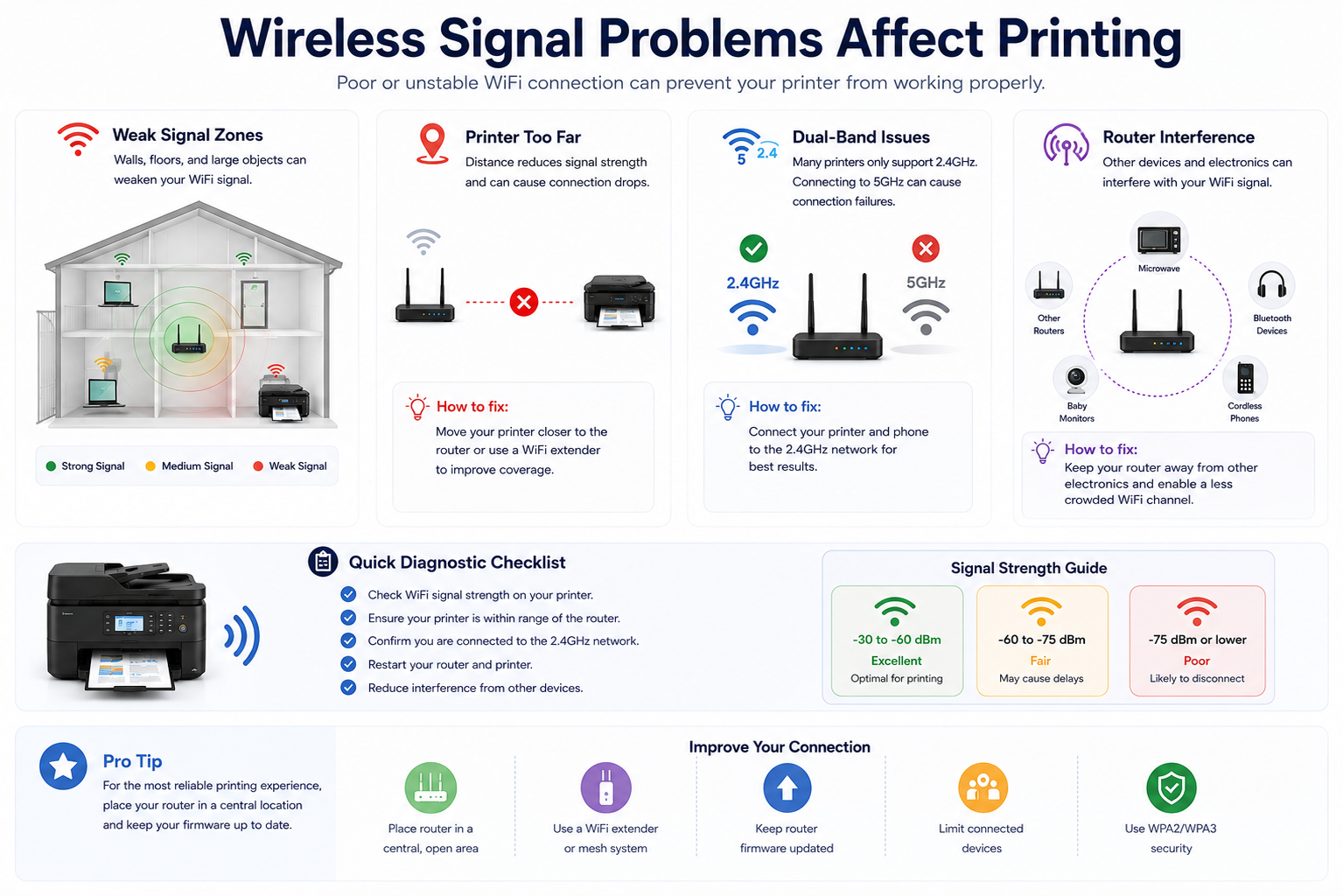
| Weak or intermittent signal | Move printer within 15 feet of router, avoid thick walls/metal objects |
| Printer cannot see 5GHz network | Most HP printers support 2.4GHz only — enable 2.4GHz band in router settings |
| Band steering interference | Temporarily disable band steering on router; create separate 2.4GHz SSID |
| MAC address filtering active | Add printer's MAC address (from network config report) to router's allowed list |
| WiFi password rejected | Verify case‑sensitive password, re‑enter using HP Smart or control panel |
HP printer WiFi light meanings
Attempting to connect — check password and signal.
Connected successfully.
Wi‑Fi disabled or error — re‑run wizard.
WPS mode active.
Reset network settings when: Printer cannot find any Wi‑Fi network, shows “WiFi setup failed”, or router changed and HP Smart cannot discover it.
Weak Wi‑Fi signal & router compatibility
- Move printer within 15 feet of router, avoid thick walls.
- Switch router to 2.4 GHz only for setup.
- Disable band steering.
- Update router firmware and check MAC filtering.
Still unable to connect your HP printer to WiFi?
Independent printer setup assistance available for HP Smart, router changes, offline printers, and wireless password errors.
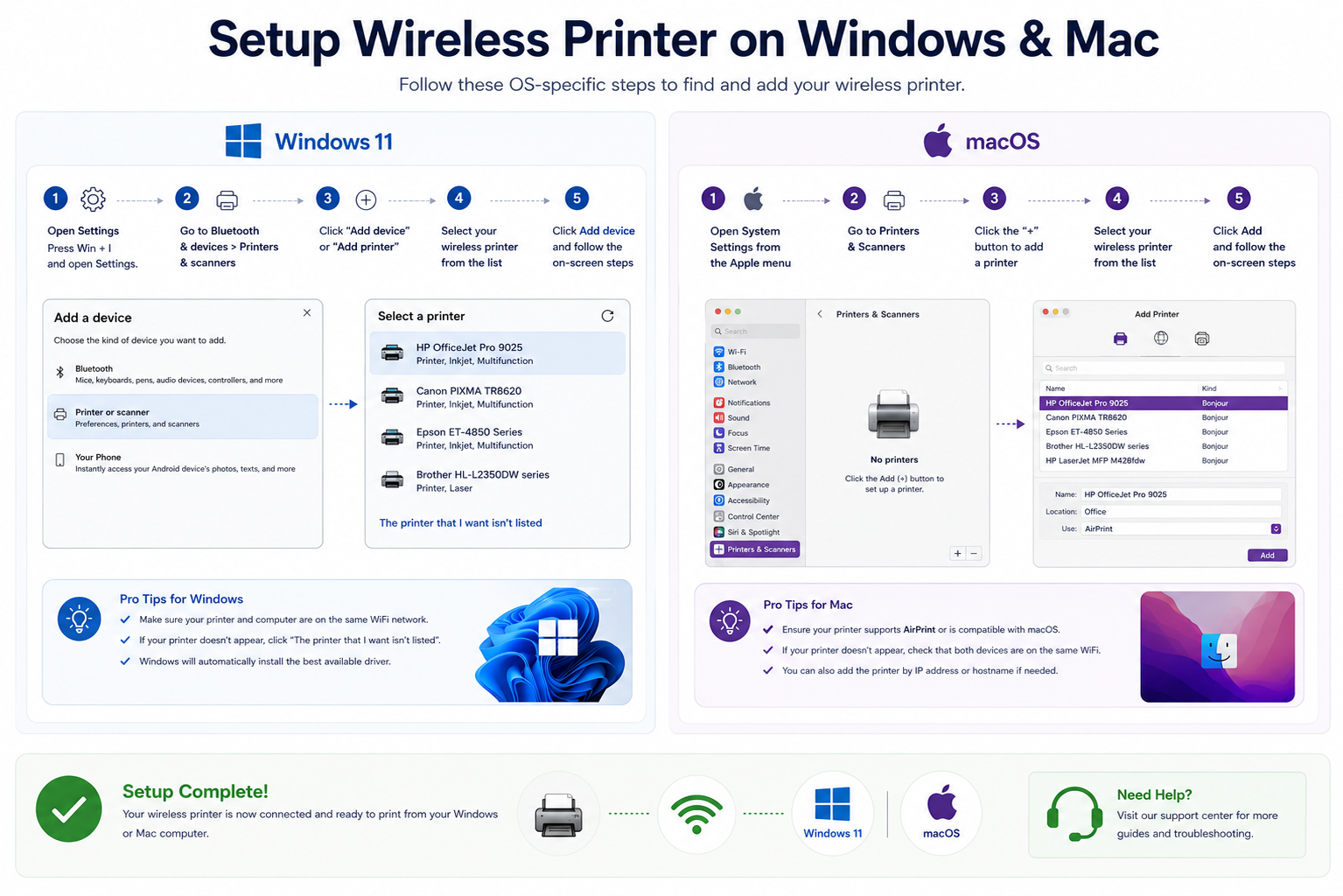
Add HP wireless printer on your device
Windows 11/10
Settings → Bluetooth & devices → Printers & scanners → Add device → select HP printer → HP Smart driver.
macOS
System Settings → Printers & Scanners → Add Printer → Bonjour HP model → add.
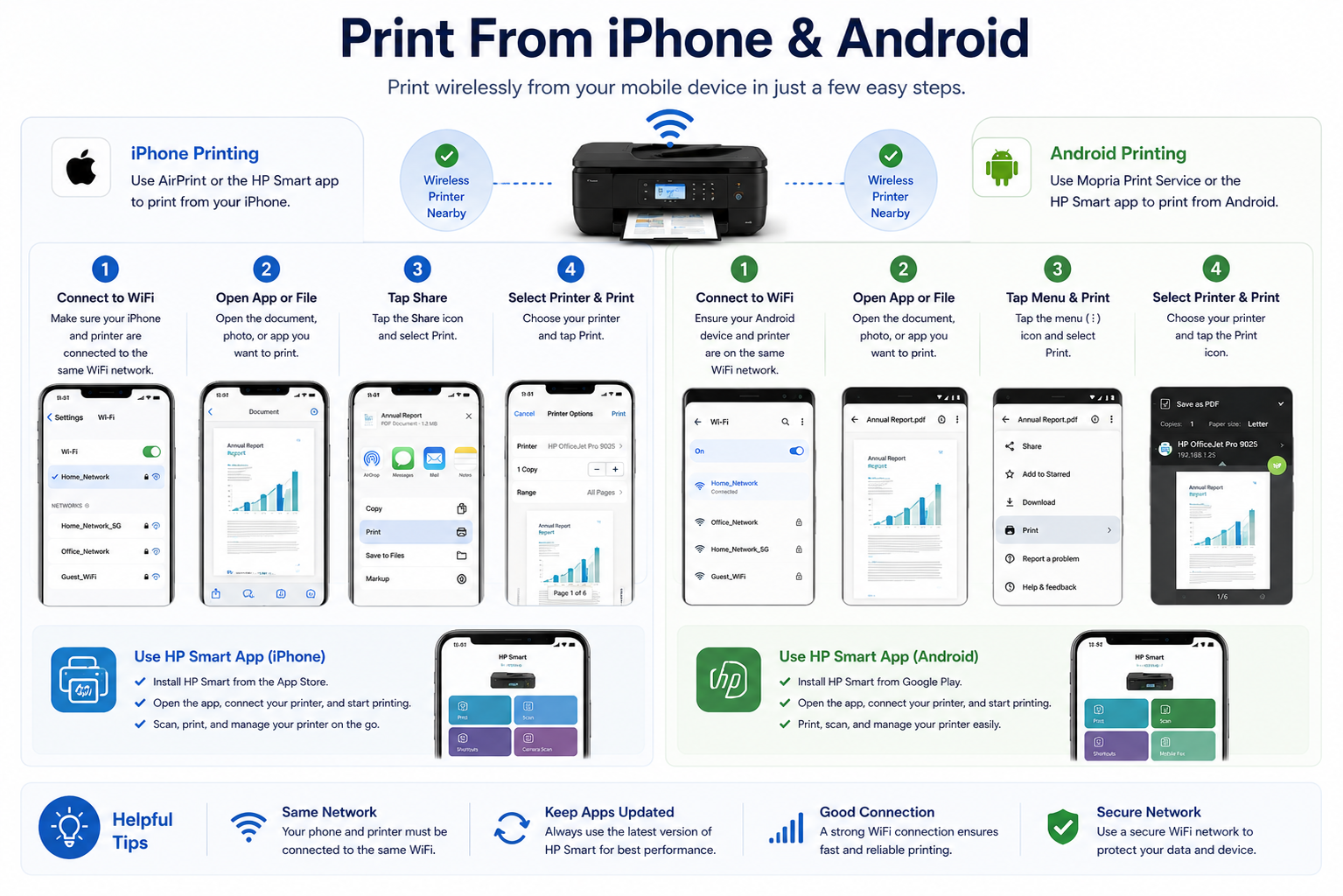
iPhone / iPad (AirPrint)
Same Wi‑Fi → share document → Print → select HP AirPrint printer.
Android (HP Print Service)
Settings → Connected devices → Printing → HP Print Service Plugin → enable.
Compatible HP printer models
HP printer wireless troubleshooting hub
HP printer not connecting to WiFi
Guide →Connect HP printer to WiFi
Wireless setup →HP Smart app setup
Mobile & desktop →HP printer setup on Windows
Driver & network →HP printer setup on macOS
AirPrint →HP WiFi setup failed
Error fixes →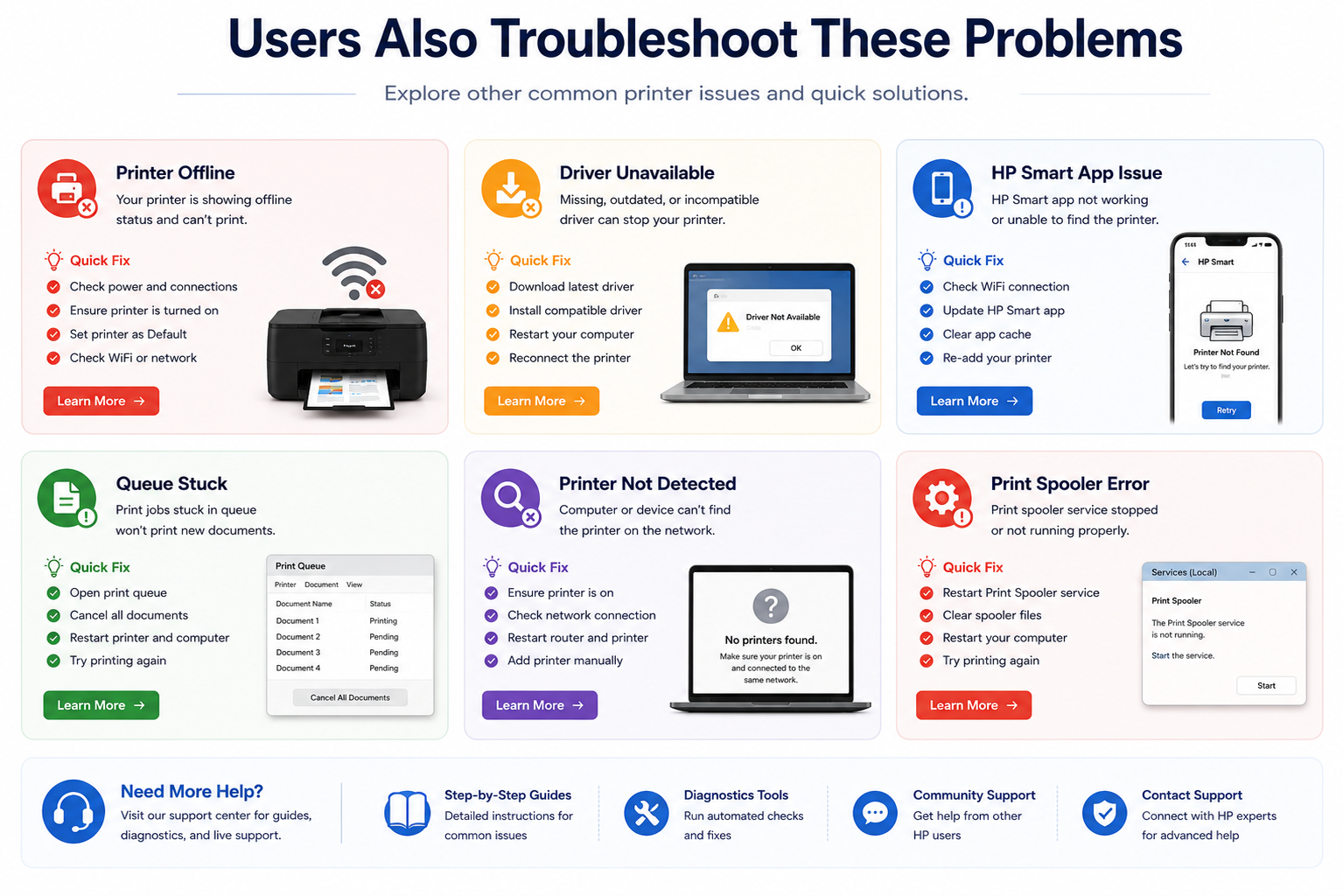
Frequently asked questions – HP printer WiFi
Most common causes: 5GHz-only network (switch router to 2.4GHz), MAC address filtering, or outdated printer firmware. Restart both router and printer, then re‑run Wireless Setup Wizard. If issue persists, temporarily disable VPN or firewall.
Most HP DeskJet, ENVY, and OfficeJet models support 2.4GHz only. High‑end LaserJet models may support dual-band. Check your printer’s specifications on HP support. If your router broadcasts only 5GHz, enable 2.4GHz in router settings.
On printer: go to Setup → Network → Restore network defaults, then run Wireless Setup Wizard. Alternatively, use HP Smart app: tap printer icon → Advanced Settings → Network → update credentials. For USB-assisted, connect USB cable and run HP Easy Start.
Driver mismatch, SNMP status disabled, or IP address conflict. On Windows: go to printer properties → ports → disable SNMP. On Mac: remove printer and re-add via Bonjour. Run HP Print and Scan Doctor for automatic fix.
Print a Network Configuration Report from printer panel (usually under Wireless or Network settings). Alternatively, check router’s connected devices list or open HP Smart → Printer Settings → Network.
Yes, most HP printers support WPS button method. Press WPS on your router, then within 2 minutes press the WPS button on your printer (or select WPS option in wireless menu). Ensure your router has WPS enabled.
Based on widely used home Wi‑Fi configurations and HP support workflows