✔ 7 proven fixes | ✔ Works in 5 min | ✔ HP Smart + Router + Win11
HP WiFi Setup Failed? 7 Fixes That Work (2026 Guide)
HP WiFi setup failed? Don't worry — this common error means your printer can't connect to your wireless network. This guide covers 7 proven fixes for HP Smart app issues, router problems, and Windows 11 connection errors.
📌 If your printer is connected but not printing, follow this complete troubleshooting guide.
📌 If your HP printer is showing offline, follow this HP printer offline fix guide.
Connection issues can sometimes be caused by driver conflicts, which you can fix using this printer driver troubleshooting guide — outdated or corrupted drivers are a hidden culprit behind many WiFi setup failures.
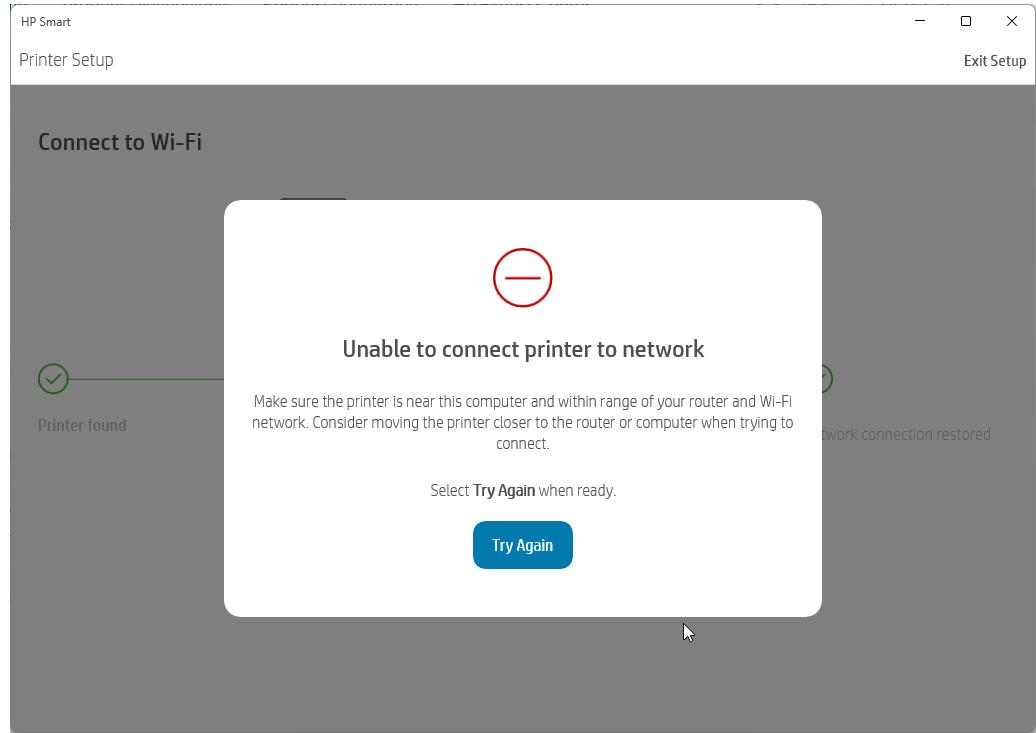
Figure 1: HP Smart showing "Unable to connect printer to network" — follow the steps below to resolve.
How to Fix HP WiFi Setup Failed (Quick Answer)
To fix HP WiFi setup failed, restart the printer and router, reconnect using HP Smart, ensure correct password, and reset wireless settings. Most issues are caused by network or setup mode problems and can be resolved in under 5 minutes.
🚀 Quick Diagnosis – 7 Ways to Fix HP WiFi Setup Failed
- 📱 HP Smart not finding printer → reinstall app + reconnect
- 📶 Router issue → restart + move printer closer
- 🔑 Wrong password → re-enter WiFi credentials
- ⚠️ Setup mode timeout → reset printer's wireless settings
- 💻 Windows 11 firewall → disable temporarily
- 🔄 IP conflict → assign static IP
- 📡 2.4GHz band → force router to use 2.4GHz
📊 HP WiFi Setup Failed – Quick Reference
| Issue | Fix |
|---|
| HP Smart app not finding printer | Reinstall HP Smart + enable location permissions |
| Printer won't connect to WiFi | Restart router + use Wireless Setup Wizard |
| Setup mode timeout | Reset printer network settings + retry |
| Wrong password error | Re-enter WiFi password carefully |
🔧 Fix #1: Quick Power Cycle & Basic Checks
- ✅ Restart everything: Turn off printer, unplug router for 60 seconds, restart both.
- 📱 Use HP Smart app: Open HP Smart → Add Printer → follow setup wizard.
- 🔑 Check password: Ensure you're entering the correct WiFi password (case-sensitive).
🔵 Fix #2: Verify HP Printer Setup Mode (Blue Light Blinking)
Before starting WiFi setup, ensure your printer is in setup mode. The blue blinking light indicates the printer is ready to connect.
- Press and hold the Wireless button on the printer control panel until the blue light starts blinking.
- Activate setup mode by selecting "Wireless Setup Wizard" from the printer's network menu.
- If the light isn't blinking, restart the printer and try again.
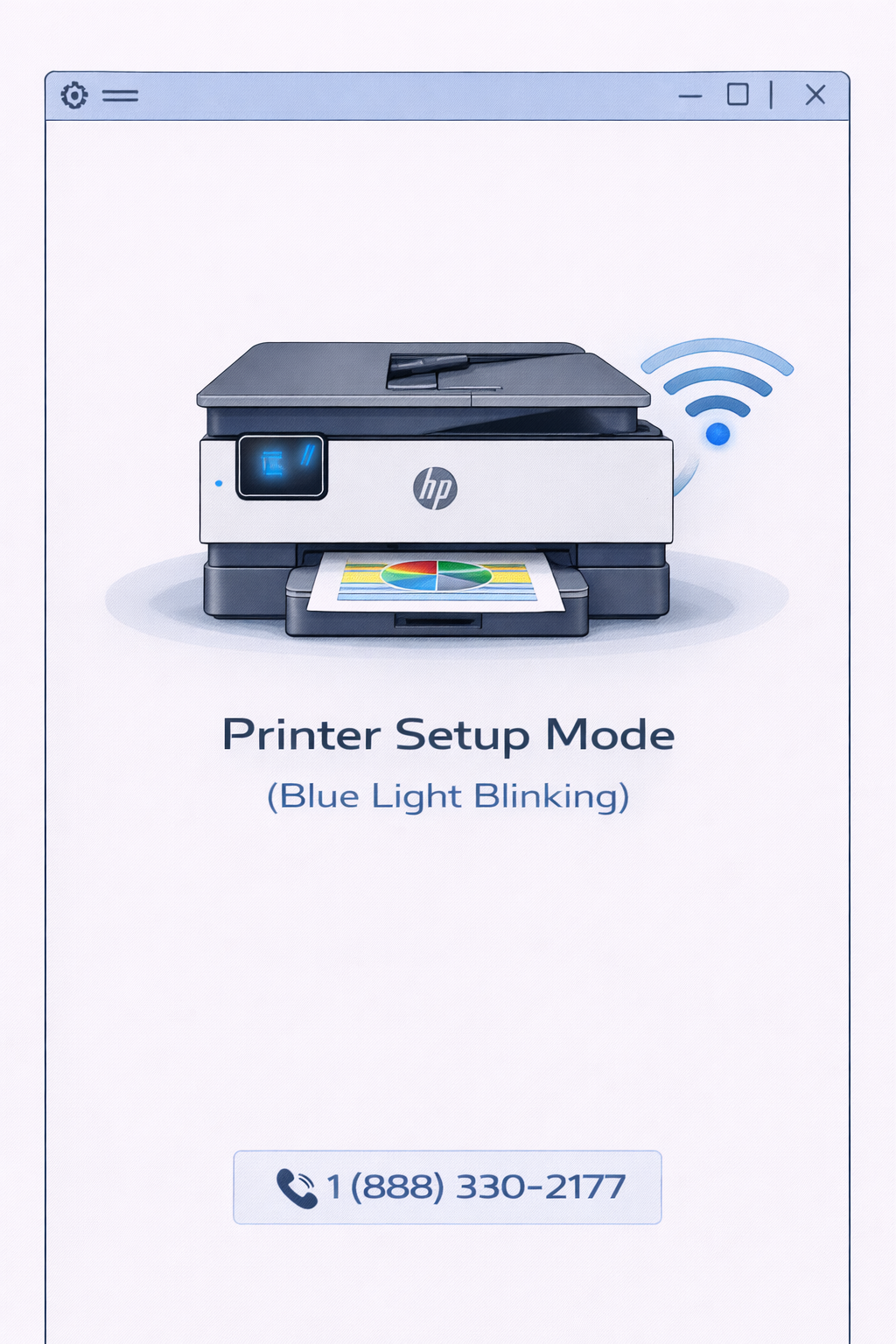
Figure 2: Blue blinking light indicates printer is in setup mode — ready to connect to WiFi.
📱 Fix #3: HP Smart App Not Finding Printer – Resolution
If the HP Smart app cannot find your printer during WiFi setup, follow these steps. For a complete walkthrough, check our HP Smart App Setup guide.
- Reinstall HP Smart: Uninstall → restart device → reinstall from official store.
- Enable permissions: Grant location and local network access to HP Smart.
- Use printer's IP address: Manually add printer using its IP (find via network config page).
- Try WPS connection: Use router's WPS button if available.
Driver problems can also cause connection failures. If your printer shows offline, follow this HP printer offline fix guide.
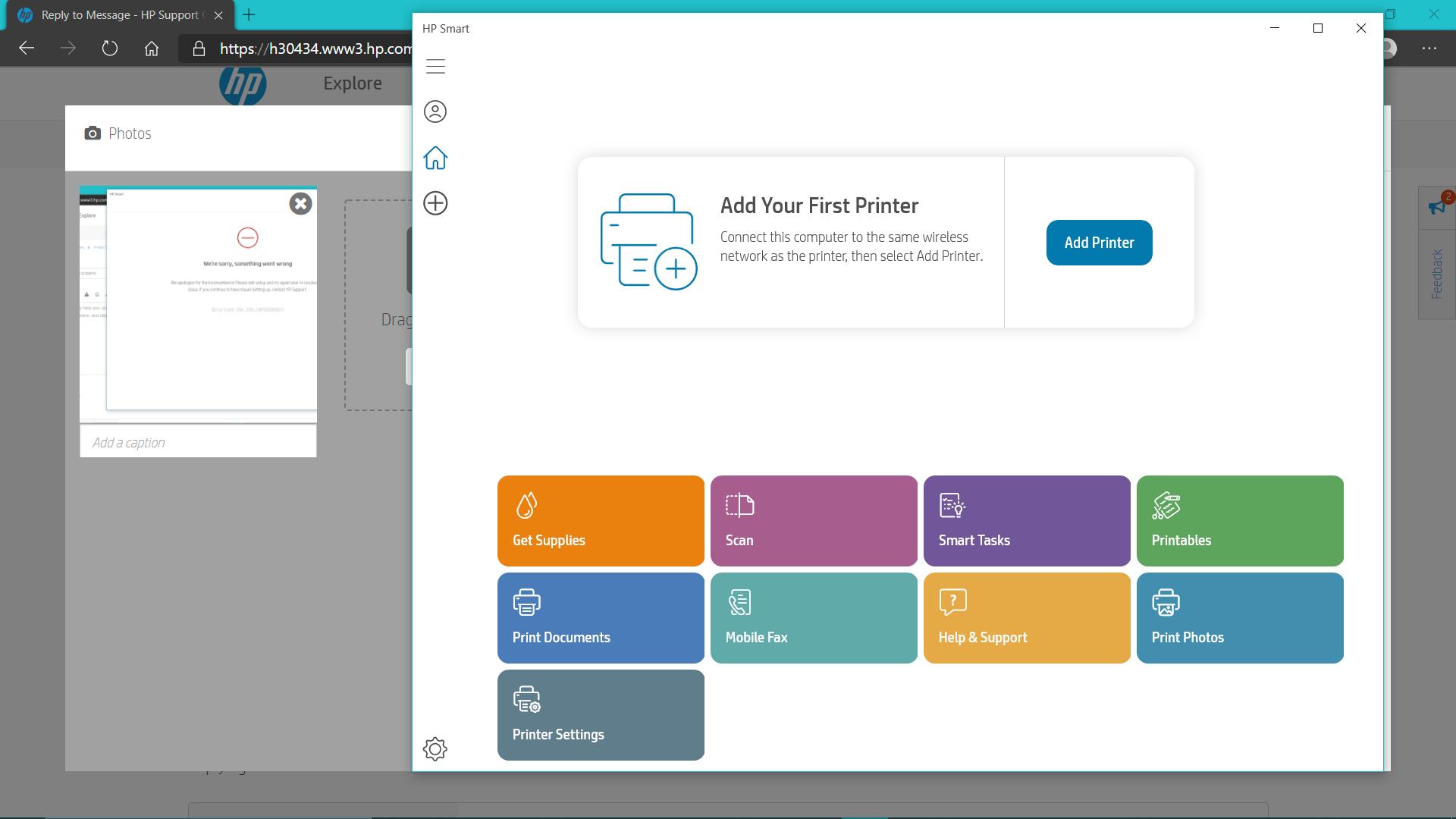
Figure 3: HP Smart app's "Add Printer" screen — use this to reconnect your printer.
📶 Fix #4: Router & Network Optimization for HP Printer
Network issues are a leading cause of setup failures. If you're still having trouble, see our HP printer offline fix guide.
- Move printer closer to router: Weak signal causes timeouts during setup.
- Use 2.4GHz band: Many HP printers don't support 5GHz networks.
- Disable MAC filtering: Temporarily turn off router MAC filtering during setup.
- Check for interference: Move other electronics away from printer and router.
📌 If your printer connects to WiFi but still doesn't print, follow this complete troubleshooting guide.
🔧 If connection issues continue, you may also need to update or reinstall printer drivers to restore communication.
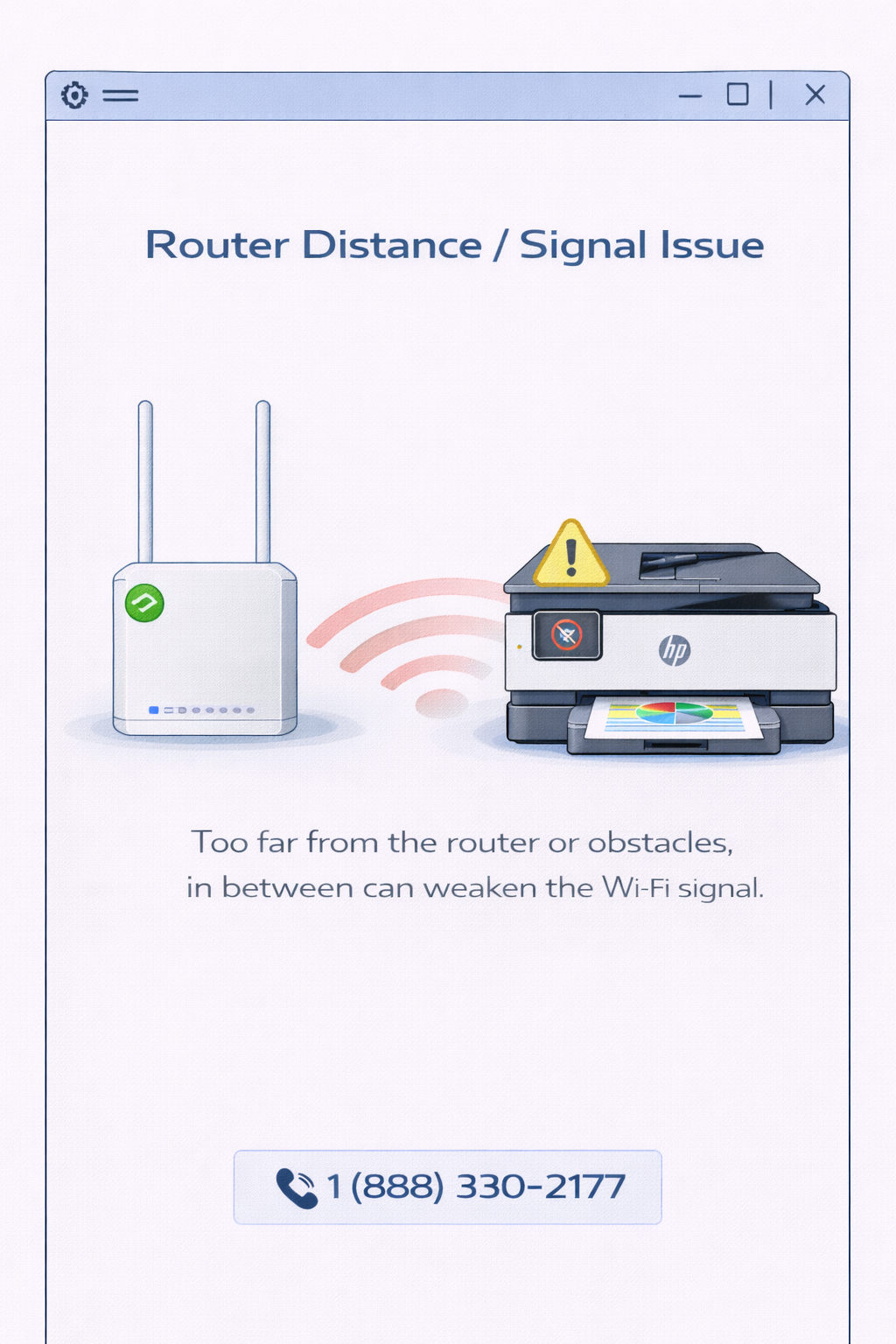
Figure 4: Weak WiFi signal due to distance or obstacles — move printer closer to router.
🔄 Fix #5: Reset HP Printer Wireless Settings Completely
If previous steps didn't work, reset your printer's network settings completely.
- Press and hold the Wireless Reset button (usually on the back or side of the printer).
- Restore network defaults: On printer control panel, go to Settings → Network → Restore Network Defaults.
- Restart printer and retry WiFi setup from scratch.
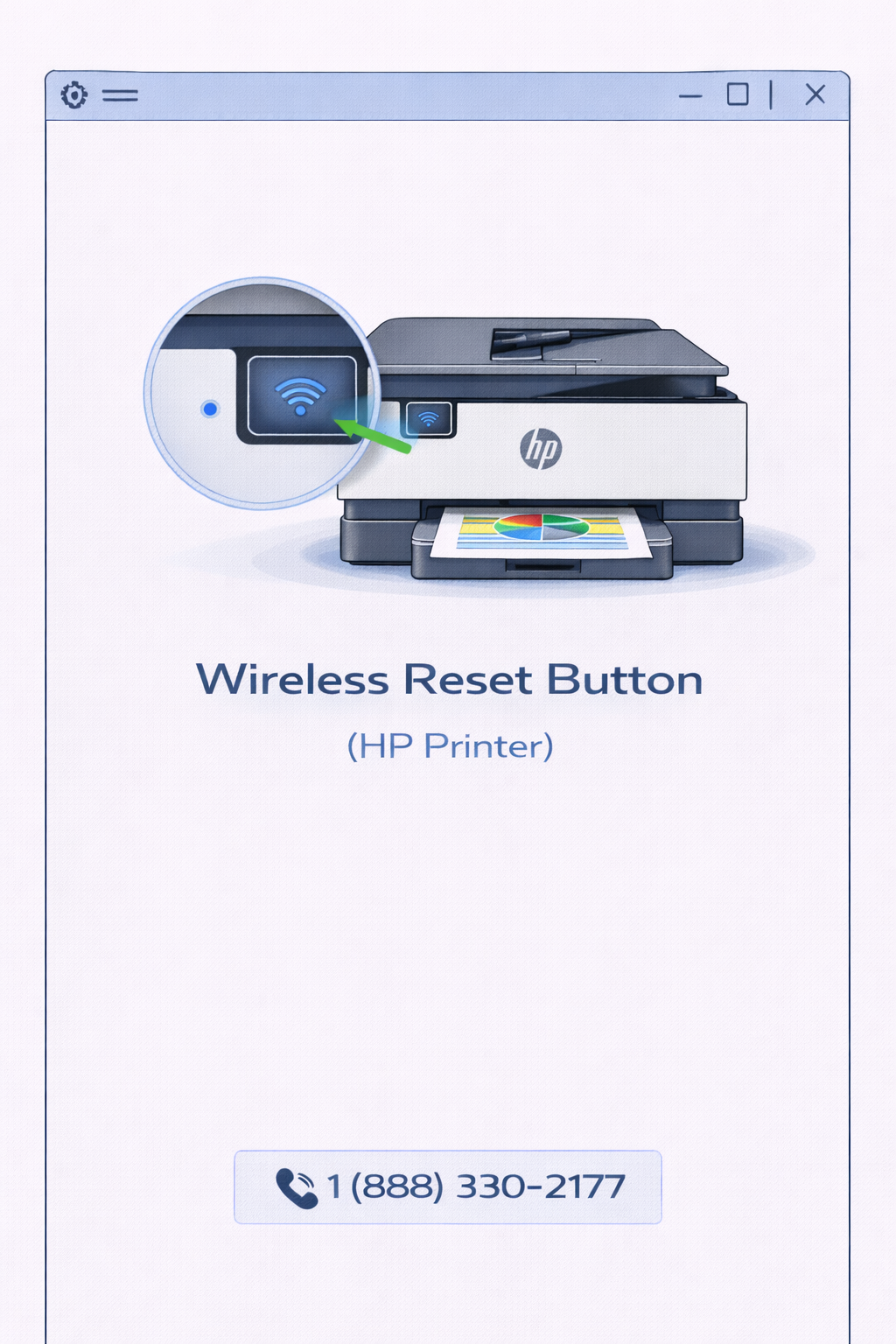
Figure 5: Use the Wireless Reset button on your HP printer to reset network settings.
⚠️ Fix #6: HP WiFi Setup Failed on Windows 11 – Step-by-Step
If HP WiFi setup fails on Windows 11, ensure network discovery is enabled, disable firewall temporarily, and reinstall HP Smart app. Windows network settings can block printer detection.
- Enable Network Discovery: Control Panel → Network and Sharing Center → Change advanced sharing settings → Turn on network discovery.
- Temporarily disable Windows Defender Firewall: Settings → Privacy & Security → Windows Security → Firewall & network protection → Turn off temporarily during setup.
- Reinstall HP Smart from Microsoft Store: Uninstall, restart, then reinstall the latest version.
- Run printer troubleshooter: Settings → System → Troubleshoot → Other troubleshooters → Printer → Run.
This issue affects many Windows 11 users after updates, but can usually be resolved by adjusting network settings.
🔧 If connection issues continue after setup, you may also need to update or reinstall printer drivers to restore full communication.
⚙️ Fix #7: Driver & Offline Connection Repair
Even after successful WiFi setup, outdated drivers can cause communication failures. If your printer connects to WiFi but still won't print, you may need to update or reinstall printer drivers.
Driver problems can also cause offline errors. If your printer shows offline after setup, follow this HP printer offline fix guide for additional steps.
- Update drivers: Device Manager → Print queues → right-click HP printer → Update driver.
- Reinstall printer: Remove printer from Windows settings → add again.
- HP Print and Scan Doctor: Run HP's diagnostic tool for automatic fixes.
🧠 Why HP WiFi Setup Fails – Common Causes
HP WiFi setup failures typically occur due to network interference, incorrect password entry, router firewall settings, or the printer being too far from the router.
This issue is common across many HP printer models and is usually resolved with simple troubleshooting steps.
For additional network diagnostic guidance, Microsoft’s official Windows network troubleshooting confirms that router placement and 2.4GHz band compatibility are critical for printer connectivity.
- Network band mismatch: Printer only supports 2.4GHz, but router uses 5GHz.
- HP Smart app glitches: Outdated app or missing permissions.
- Router security settings: WPA3 may not be compatible with older printers.
- Setup mode timeout: Printer exits setup mode before connection completes.
🔗 Related HP Printer Resources
For more help, check these guides:
❓ Frequently Asked Questions – HP WiFi Setup Failed
1️⃣ Why does HP Smart app keep saying printer not found?
This typically happens due to network configuration mismatches, missing location permissions on your mobile device, or the printer not being in wireless setup mode. Start by ensuring your printer’s blue light is blinking (setup mode). Then reinstall HP Smart, grant all required permissions (location + local network), and temporarily disable any VPN or ad-blocker that might interfere with discovery. For persistent cases, manually add the printer using its IP address, which you can print from the printer’s network configuration page.
2️⃣ How to fix HP printer won't connect to WiFi?
First, power cycle both your router and printer: unplug router for 60 seconds, restart printer, then plug router back in. Move the printer within 10 feet of the router to eliminate signal weakness. Access the printer’s control panel, go to Wireless or Network Settings, and run the “Wireless Setup Wizard” – this forces the printer to scan for available networks. Make sure you select a 2.4 GHz network (most HP printers do not support 5 GHz). If the wizard fails, try using the WPS button method: press WPS on your router, then within 2 minutes press the Wireless button on the printer.
3️⃣ Does router placement affect HP WiFi setup?
Absolutely. Physical distance and obstacles like walls, metal appliances, or even fish tanks can degrade the 2.4 GHz signal significantly. During initial setup, the printer performs a handshake that requires strong, uninterrupted signal; otherwise, the connection times out. Place the printer in the same room as the router, ideally with line-of-sight. After a successful connection, you can move the printer back, but if you experience dropouts, consider a WiFi extender or a mesh node near the printer location.
4️⃣ How to reset HP printer network settings?
On most HP printers with a touchscreen: navigate to Setup (gear icon) → Network Setup → Restore Network Settings or Restore Network Defaults. Confirm the reset. For printers without a touchscreen: press and hold the Wireless button and the Cancel button (X) simultaneously for 5-10 seconds until the power light blinks. After resetting, the printer will forget all previous WiFi credentials and return to setup mode. You then need to run the Wireless Setup Wizard again or use HP Smart to reconfigure.
5️⃣ Can firewall block HP printer WiFi setup?
Yes, both router firewalls and Windows Defender Firewall can block the mDNS or Bonjour protocols that HP Smart uses to discover printers. On Windows 11, temporarily disable the firewall via Windows Security → Firewall & network protection → turn off for private network during setup. On your router, check if AP isolation or client isolation is enabled – this prevents devices from seeing each other on the same network. Also ensure that your router’s “Multicast” or “IGMP snooping” settings are not blocking discovery packets.
6️⃣ Why does HP printer lose WiFi connection after setup?
This usually stems from IP address conflicts (DHCP lease expiration) or power-saving features. When the router reassigns a new IP to the printer, your computer still tries to reach the old IP. To fix this, assign a static IP to your printer via router admin interface (DHCP reservation) using the printer’s MAC address. Additionally, on the printer’s settings, disable “IPv6” if not needed and set “WiFi Power Save Mode” to “Off” to prevent the printer from sleeping and disconnecting.
7️⃣ How to fix HP printer offline after WiFi setup?
Even if the WiFi icon shows connected, Windows may mark the printer as offline due to spooler corruption or driver mismatch. Go to Control Panel → Devices and Printers → right-click your HP printer → “See what’s printing” → click “Printer” menu and uncheck “Use Printer Offline”. Then restart the Print Spooler service: open Services.msc, find “Print Spooler”, restart it. Finally, remove and re-add the printer via HP Smart. For persistent offline errors, our detailed
HP printer offline guide provides advanced fixes.
8️⃣ How to fix HP WiFi setup failed on Windows 11?
Windows 11’s enhanced security often blocks legacy printer discovery. First, enable Network Discovery: Settings → Network & internet → Advanced network settings → Advanced sharing settings → Turn on network discovery. Second, go to “Bluetooth & devices” → “Printers & scanners” → “Add device” and let Windows search. If HP Smart still fails, install the “HP Print and Scan Doctor” from HP’s official site; it automatically resets firewall rules and reconfigures the driver stack. Finally, ensure your Windows 11 is fully updated because Microsoft has released patches addressing Wi-Fi printer discovery bugs (KB505xxxx series).
⚡ Still can't get your HP printer online?
Our printer experts can diagnose and fix your WiFi setup issue remotely in minutes.
🎙️ Talk to Printer Expert