HP OfficeJet Printer Setup – Step-by-Step Guide to Install and Connect Your Printer
Quickly set up your HP OfficeJet printer – driver installation, WiFi connection, and mobile printing.
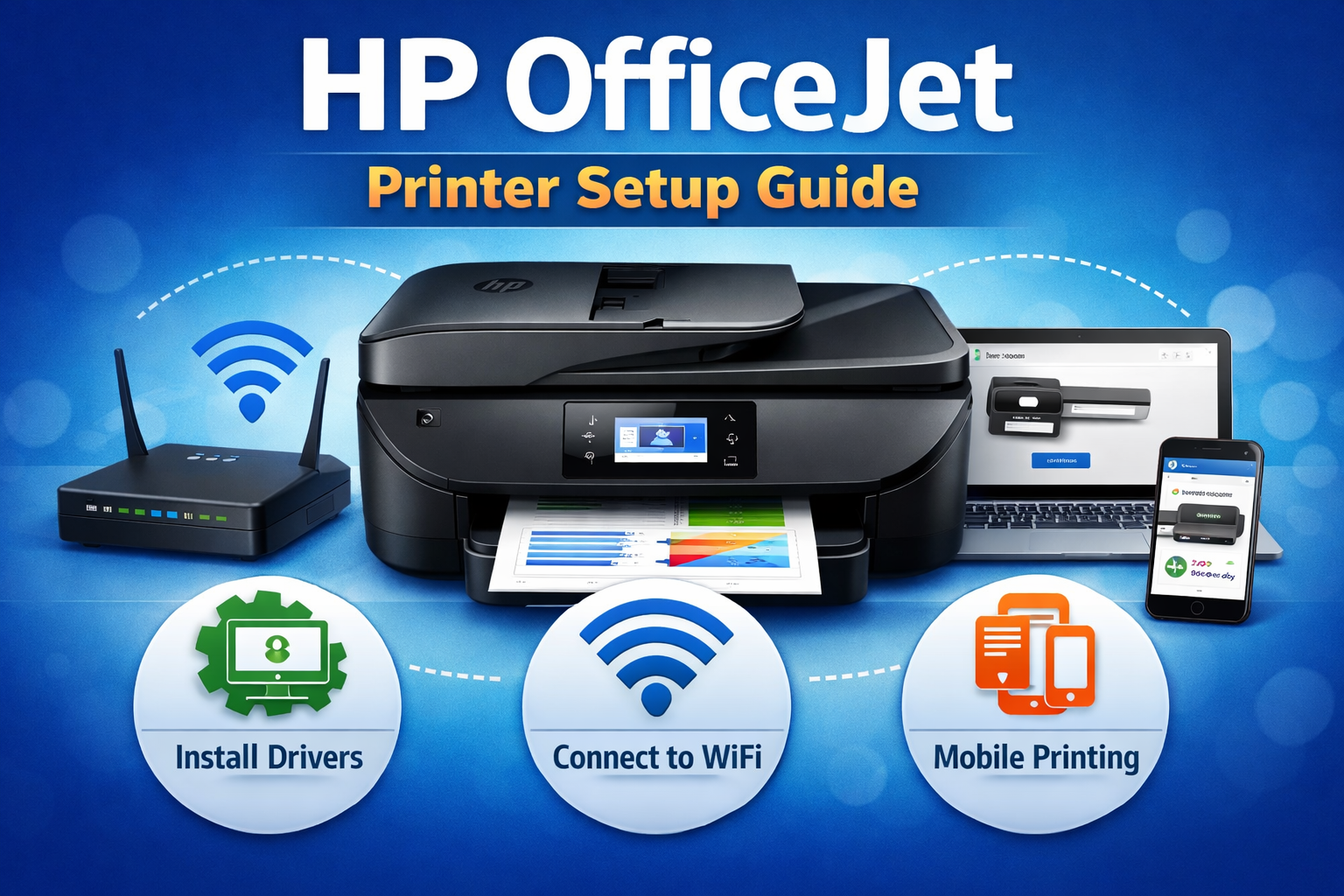
Complete HP OfficeJet printer setup including WiFi connection and driver installation
HP OfficeJet printer setup is quick when you follow the correct steps. Whether you want to connect hp officejet printer to wifi, install drivers, or configure it with a computer, this guide explains everything in simple steps.
This setup tutorial works for most OfficeJet models including:
- HP OfficeJet 3830
- HP OfficeJet 4650
- HP OfficeJet 5255
- HP OfficeJet Pro series
- HP OfficeJet 8010 / 8020 / 8600 / 8710
Follow the instructions below to complete your HP OfficeJet printer setup and start printing within minutes.
HP OfficeJet Printer Setup Process (Visual Workflow)
Follow this simple visual guide to complete your HP OfficeJet setup quickly. Each step is explained in detail below.
Unbox and Prepare the HP OfficeJet Printer
Before starting the installation, prepare the printer properly.
- Remove the printer from the box.
- Remove all protective tapes and packaging materials.
- Connect the power cable to the printer.
- Turn on the printer using the power button.
- Install the ink cartridges in their slots.
- Load plain paper into the input tray.
Once the printer powers on, the display panel will show the initial configuration screen.
Install HP OfficeJet Printer Software & Driver
Installing the correct driver allows the printer to communicate with your computer. This is a key part of hp officejet printer installation.
Setup steps
- Turn on the printer.
- Open the printer installation wizard on your computer (or download HP Smart from 123.hp.com).
- Choose your printer model.
- Follow the installation instructions on the screen.
- Complete the driver installation.
Most modern HP printers use the HP Smart app, which guides you through connecting the printer and installing the drivers automatically.
HP OfficeJet WiFi Setup: Connect Your Printer to Wireless Network
Wireless printing allows you to print from laptops, phones, and tablets. This section explains how to connect hp officejet printer to wifi quickly.
Method 1 – Wireless Setup Wizard
- On the printer screen open Setup or Network Settings.
- Select Wireless Setup Wizard.
- Choose your WiFi network name.
- Enter the WiFi password.
- Wait until the printer connects to the network.
When the wireless light stops blinking, the printer is successfully connected.
Method 2 – Connect using WPS
- Press the WPS button on your router.
- Within 2 minutes press the WPS button on the printer.
- Wait for the printer to connect automatically.
This method connects the printer without entering the WiFi password.
Connect HP OfficeJet Printer to Computer
After completing the hp officejet wifi setup, add the printer to your system.
Windows
- Open Settings → Devices → Printers & Scanners
- Click Add Printer
- Select your HP OfficeJet printer
- Install the recommended driver
Mac
- Open System Settings
- Select Printers & Scanners
- Click Add Printer
- Choose your OfficeJet printer
Once added, print a test page to confirm the setup.
Connect HP OfficeJet Printer to Mobile Phone
You can print directly from a smartphone.
- Install the HP Smart App.
- Open the app and sign in.
- Tap Add Printer.
- Select your OfficeJet printer.
- Complete the wireless setup.
The HP Smart app also allows you to: print documents, scan files, check ink levels, and manage printer settings.
HP OfficeJet USB Setup (Alternative Method)
If WiFi setup fails, use a USB cable. This is an alternative way to install hp officejet printer.
- Connect the printer to the computer using a USB cable.
- Install the printer software.
- Follow the setup wizard instructions.
- Choose USB connection when prompted.
The system will automatically detect the printer and install the correct drivers.
Test Your HP OfficeJet Printer
After setup, verify the printer is working correctly.
Print test page
- Open Printer Settings
- Select Print Test Page
- Check print quality and alignment
If the test page prints correctly, your HP OfficeJet printer setup is complete.
HP OfficeJet Printer Setup Troubleshooting
If your printer is not detected or fails to connect, try these fixes. For detailed help on install hp officejet printer, refer to the table below.
| Problem | Possible Cause | Solution |
|---|---|---|
| Printer not detected | Driver missing | Reinstall printer driver |
| Printer offline | Network issue | Restart router |
| Printer not printing | Queue stuck | Clear print queue |
| Printer not connecting to WiFi | Wrong password | Reconnect using wizard |
Quick Setup Checklist
- Printer is powered ON
- Ink cartridges installed
- Paper loaded in tray
- Computer connected to WiFi
- Router working properly
Need Help With HP OfficeJet Printer Setup?
Our printer experts can help you install HP OfficeJet drivers, fix WiFi setup problems, and troubleshoot printer errors.
Contact Printer SupportHP OfficeJet Printer Setup for All Models
This guide works for a wide range of HP OfficeJet printers. Below are some common models – click any model to find specific setup instructions (coming soon).
HP OfficeJet Printer Setup FAQs – Complete hp officejet setup guide
Open the Wireless Setup Wizard from the printer control panel, select your WiFi network, and enter the network password. This is the core of hp officejet wifi setup.
This usually happens when the printer driver is missing or the printer is connected to a different network. Follow our hp officejet printer installation guide above to resolve it.
Yes. Most HP OfficeJet printers support wireless setup using the HP Smart app. This hp officejet setup guide covers both wireless and USB methods.