Printer Queue Stuck: 10 Powerful Fixes to Clear a Stuck Print Queue
When your printer queue is stuck, print jobs remain pending and new documents refuse to print. This problem is common on both Windows and network printers and is usually caused by a stalled print spooler, corrupted print job, or driver conflict.
If your printer keeps showing “printing” but nothing happens, follow the troubleshooting steps below to clear the printer queue and restore printing quickly.
Printer Queue Stuck Troubleshooting Flow
This process resolves the majority of stuck print queue errors.
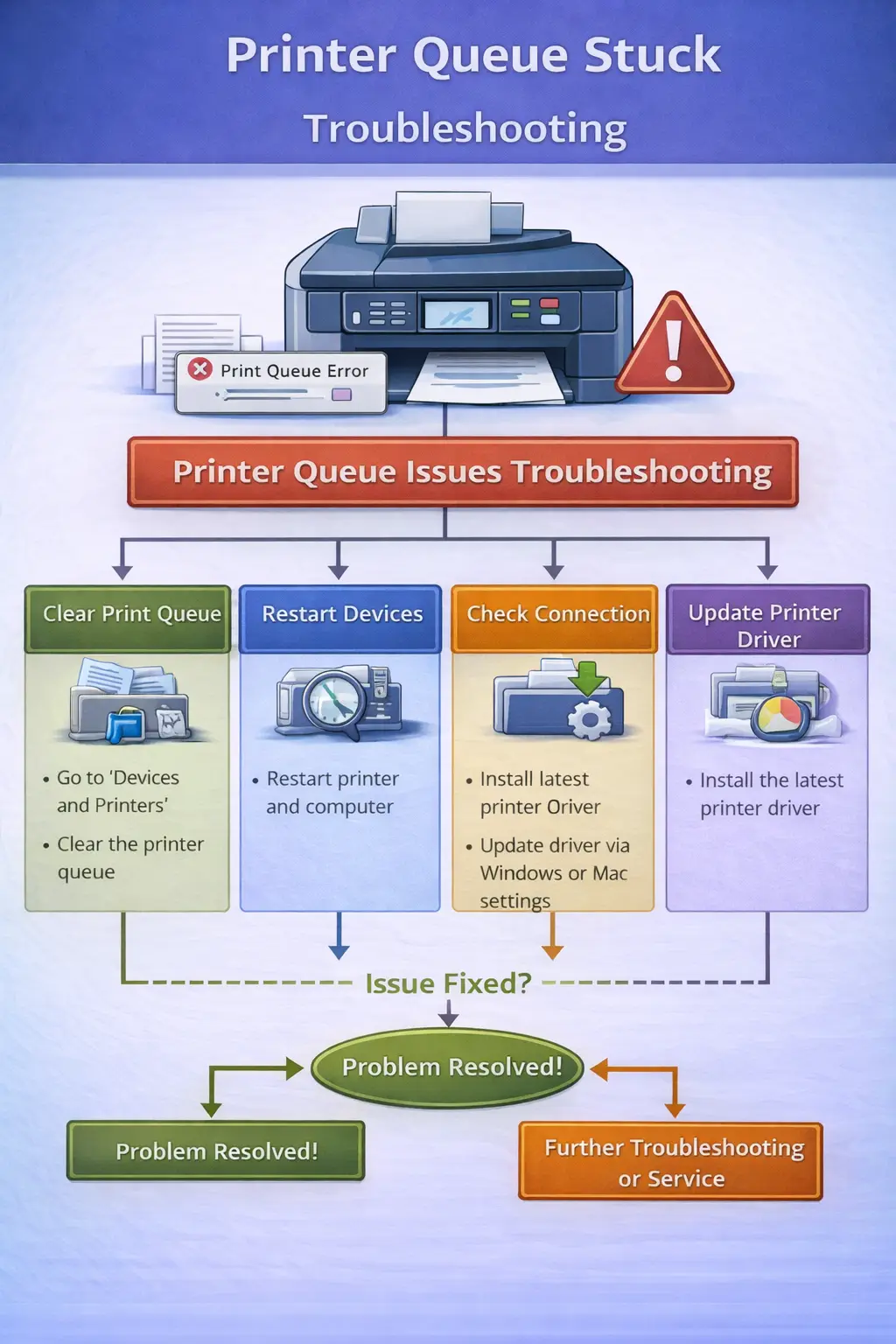
Table of Contents
Why Is My Printer Queue Stuck?
A printer queue becomes stuck when the printer cannot process the pending print job.
Common causes include:
- Corrupted Print Jobs: A damaged file may freeze the printing process.
- Print Spooler Service Failure: The spooler service manages printing tasks. If it stops responding, printing halts.
- Outdated Printer Drivers: Driver conflicts can prevent proper communication between the printer and computer.
- Network Connectivity Problems: Wireless printers depend on stable network connections.
- Printer Firmware Issues: Outdated firmware can cause processing errors.
Understanding these causes helps diagnose the problem quickly.
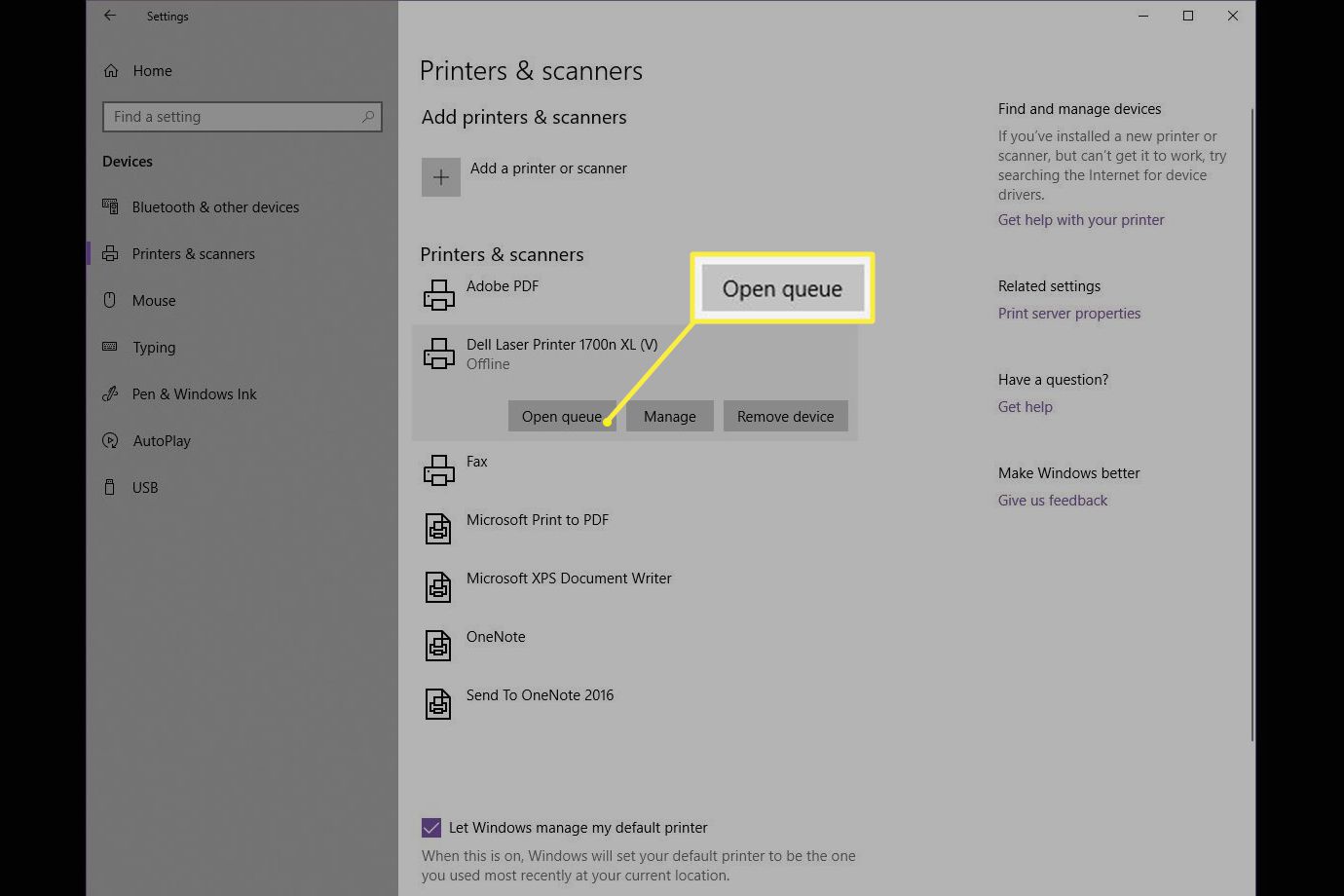
Printer Queue Stuck Fix: Step-by-Step Guide
Fix 1: Cancel All Print Jobs
The first step is clearing the stuck print job.
Steps:
- Open Control Panel
- Click Devices and Printers
- Locate your printer
- Double-click the printer icon
- Open the Print Queue
- Right-click pending jobs
- Select Cancel
Once all jobs are canceled, send a new print command.
Fix 2: Restart the Print Spooler
The print spooler service controls printing operations in Windows. Restarting the service can resolve queue errors.
Steps:
- Press Windows + R
- Type: services.msc
- Locate Print Spooler
- Right-click the service
- Select Restart
After restarting the spooler, test printing again.
Related guide: Printer Spooler Error
Fix 3: Clear the Spooler Folder
Sometimes stuck files remain in the printer spool directory.
Steps:
- Stop the print spooler service.
- Navigate to:
C:\Windows\System32\spool\PRINTERS - Delete all files inside the folder.
- Restart the print spooler service.
This removes corrupted print jobs.
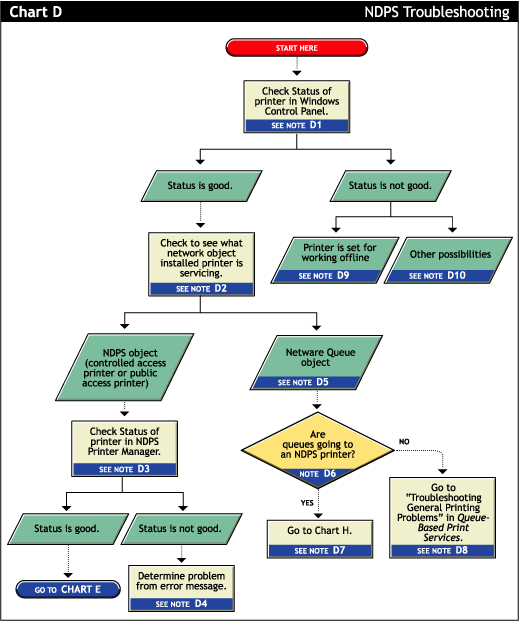
Fix 4: Restart the Printer and Computer
Restarting devices can clear temporary system errors.
Steps:
- Turn off the printer.
- Shut down your computer.
- Wait 30 seconds.
- Turn both devices back on.
- Send a test print after restarting.
Fix 5: Update Printer Drivers
Outdated drivers can cause queue problems.
Steps:
- Open Device Manager
- Expand Printers
- Right-click your printer
- Click Update Driver
- Select Search Automatically
Installing the latest drivers can resolve compatibility issues.
Related guide: Printer Driver Unavailable
Fix 6: Remove and Reinstall the Printer
If driver updates do not work, reinstall the printer.
Steps:
- Open Devices and Printers
- Right-click your printer
- Select Remove Device
- Restart your computer
- Add the printer again
Reinstallation resets configuration errors.
Fix 7: Check Network Connection
Wireless printers may stop processing print jobs if the connection drops.
Steps:
- Ensure printer and computer use the same WiFi network.
- Restart your router.
- Reconnect the printer.
Related guide: Printer Not Connecting to WiFi
Fix 8: Use Command Prompt to Clear Print Queue
Advanced users can clear the queue using commands.
Steps:
- Open Command Prompt as Administrator and run:
net stop spoolerdel %systemroot%\System32\spool\printers\* /Qnet start spooler
These commands stop the spooler, clear queued jobs, and restart the service.
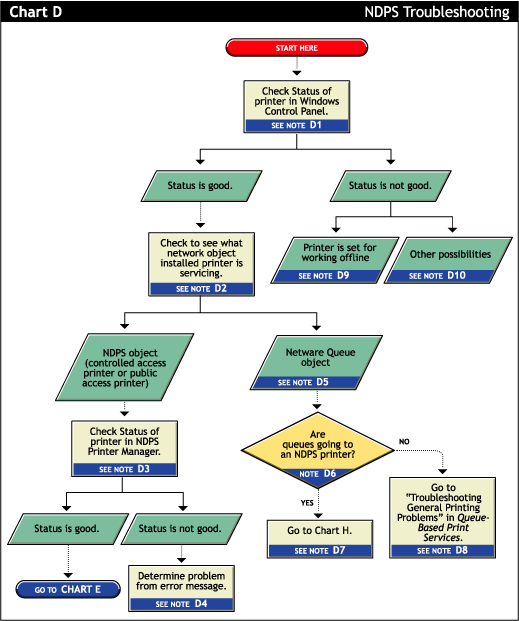
Fix 9: Disable “Use Printer Offline”
If the printer is accidentally set to offline mode, jobs may remain stuck.
Steps:
- Open Devices and Printers
- Right-click your printer
- Select See what's printing
- Click Printer
- Uncheck Use Printer Offline
Fix 10: Run Windows Printer Troubleshooter
Windows includes a built-in tool that detects printing issues automatically.
Steps:
- Open Settings
- Go to System
- Click Troubleshoot
- Select Printer Troubleshooter
- Follow instructions
Common Printer Queue Errors and Solutions
| Problem | Solution |
|---|---|
| Printer queue stuck | Restart spooler |
| Print jobs not clearing | Cancel pending jobs |
| Printer keeps printing old jobs | Clear spool folder |
| Printer connected but not printing | Restart printer |
| Printer spooler stopped | Restart spooler service |
How to Prevent Printer Queue Problems
Preventive maintenance can reduce queue errors.
- Keep Drivers Updated: Install the latest printer drivers regularly.
- Maintain Stable Network Connections: Wireless printers should remain connected to the same network.
- Avoid Large Corrupted Files: Large PDF or image files may stall the printer queue.
- Restart Printers Periodically: Regular restarts prevent system conflicts.
Frequently Asked Questions
Why does my printer queue keep getting stuck?
A stuck queue usually occurs due to corrupted print jobs, spooler errors, or outdated drivers.
How do I clear a stuck printer queue?
Cancel pending print jobs, restart the print spooler, and clear the spool folder.
Why are my print jobs not clearing?
A damaged print file or spooler service failure may prevent jobs from clearing.
How do I restart the printer spooler?
Open services.msc, locate Print Spooler, and restart the service.
Can outdated drivers cause queue problems?
Yes, outdated drivers often cause printing conflicts and stuck queues.
Conclusion
A printer queue stuck problem can prevent documents from printing and disrupt workflow. Fortunately, most queue issues can be resolved by canceling print jobs, restarting the spooler service, clearing the spool folder, or updating printer drivers.
Following the troubleshooting steps above should restore normal printing and prevent recurring queue errors.
External Resource
For additional troubleshooting guidance, review Microsoft's official documentation on fixing printer problems.
© All About Printers — independent printer guides