Printer Paper Jam: 9 Powerful Ways to Fix Paper Jam Problems Fast
Printer paper jam problems are one of the most common issues people encounter when using printers at home or in offices. When a sheet of paper becomes stuck inside the printer, printing stops and the device may display a warning message indicating a jam.
A paper jam in a printer can happen for many reasons, including misaligned paper, worn rollers, overloaded trays, or debris inside the machine. Fortunately, most paper feed problems can be resolved quickly using simple troubleshooting steps.
This guide explains why paper jam errors occur, how to remove jammed paper safely, and how to prevent future paper jams.
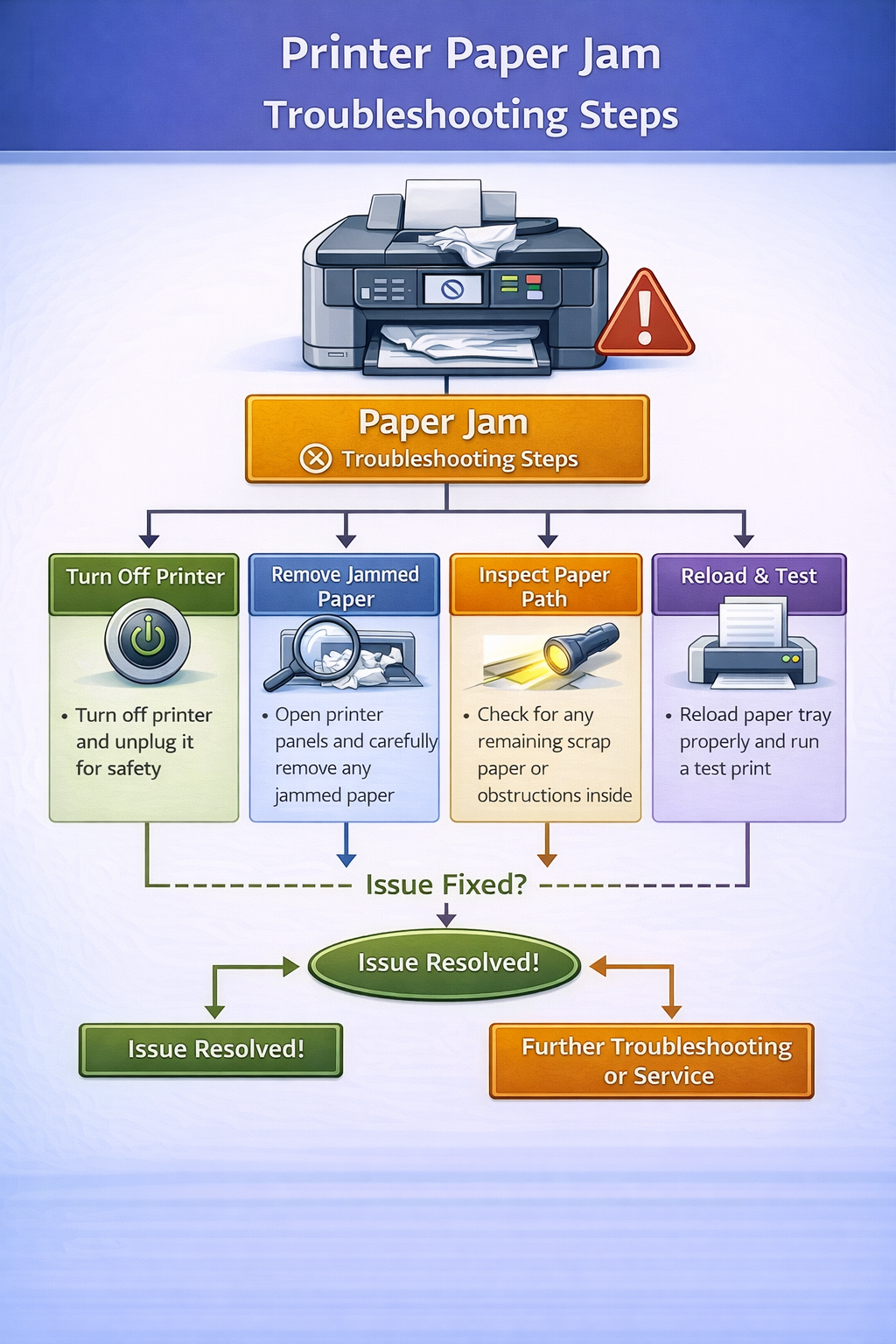
Why Printer Paper Jam Happens
A paper jam usually occurs when the printer cannot move paper smoothly through its internal rollers. Printers rely on precise mechanical systems to feed paper from the tray to the printhead.
Several factors may interrupt this process:
- misaligned paper in the tray
- damaged or curled sheets
- worn printer rollers
- foreign objects inside the printer
- overloaded paper trays
When any of these issues occur, the printer may stop feeding paper and trigger a paper jam warning.
Paper feeding mechanisms are a critical part of printer design and require precise alignment for smooth printing.
https://en.wikipedia.org/wiki/Printer_(computing)
Understanding these causes makes it easier to apply the correct fix.
Common Causes and Solutions
| Problem | Cause | Fix |
|---|---|---|
| Paper stuck in tray | misaligned paper stack | reload paper properly |
| Multiple sheets feeding | overloaded tray | reduce paper quantity |
| Paper stuck in rollers | worn or dirty rollers | clean rollers |
| Jam near output tray | paper path obstruction | remove debris |
This table helps identify where the jam occurs and the best way to resolve it.
Paper Jam Fix: Step-by-Step Guide
1. Turn Off the Printer
Always power off before removing stuck paper.
2. Remove Paper From the Tray
Pull out the tray and check for bent sheets.
3. Open the Printer Cover
Access internal components through front or rear panel.
4. Pull Jammed Paper Slowly
Grip firmly and pull in the direction of paper flow.
5. Check Rear Access Panel
Many jams occur in the rear rollers.
6. Clean the Printer Rollers
Use a soft cloth to remove dust and residue.
7. Reload Paper Correctly
Align edges and adjust tray guides.
8. Restart the Printer
Power on after clearing the obstruction.
9. Print a Test Page
Verify normal operation.
How to Diagnose Paper Feeding Problems
If your printer repeatedly jams, diagnosing the exact cause can help prevent recurring issues. Check the following areas:
- paper tray alignment
- printer rollers
- internal paper path
- print queue errors
If the paper feeds unevenly, the printer may struggle to move paper through its rollers. Inspect the rollers for wear or buildup.
Paper Jam in Different Printer Brands
Different printer brands may experience paper jams for different reasons.
HP Printers
HP printers often display jam messages when rollers become worn or dirty.
Canon Printers
Canon printers may experience jams when paper is loaded incorrectly in the cassette tray.
Epson Printers
Epson printers may trigger jam errors when foreign objects block the paper path.
Brother Printers
Brother printers sometimes report jams when sensors detect irregular paper movement.
Understanding brand-specific issues helps users troubleshoot faster.
Signs Your Printer Rollers Need Cleaning
Dirty rollers are a common reason printers struggle to feed paper. Signs include:
- multiple sheets feeding together
- paper slipping during printing
- repeated paper jams
Cleaning the rollers can improve paper feeding performance.
How to Maintain Your Printer
Regular maintenance reduces the chances of paper feeding problems. Maintenance tips include:
- cleaning rollers every few months
- storing paper in dry environments
- avoiding overloaded paper trays
- inspecting printer interior for debris
Proper maintenance helps printers operate reliably.
How to Prevent Printer Paper Jam
Preventing paper jams requires proper maintenance.
Use High-Quality Paper
Low-quality paper may curl or tear during printing.
Store Paper Properly
Paper should be stored in a dry environment to avoid moisture.
Avoid Overloading Trays
Too many sheets can cause multiple pages to feed simultaneously.
Clean Rollers Regularly
Cleaning rollers improves paper grip.
Inspect Printer Interior
Occasionally check for debris or foreign objects.
Learn More About Printing Technology
Printer technology relies on mechanical rollers and sensors to move paper through the printer. Read more on Wikipedia.
Printer drivers also control communication between computers and printers. Learn about printer drivers.
Related Printer Troubleshooting Guides
If your printer continues to experience issues, these guides may help:
Frequently Asked Questions About Printer Paper Jam
Why does my printer keep jamming?
Frequent jams may occur because of worn rollers, damaged paper, or overloaded trays.
How do I remove jammed paper safely?
Turn off the printer, open the access panel, and gently remove the stuck sheet in the direction of the paper path.
Can bad paper cause jams?
Yes. Poor-quality or damp paper may curl or stick together.
Why does my printer show a jam but no paper is stuck?
Small fragments may remain inside, or sensors may detect an obstruction.
Final Thoughts
A printer paper jam is a frustrating but common problem. Fortunately, most jams can be fixed by turning off the printer, removing stuck paper carefully, cleaning rollers, and reloading paper correctly.
By following the troubleshooting steps in this guide, users can quickly resolve paper jam errors and restore normal printing.
Regular maintenance and proper paper handling help prevent future jams and keep printers functioning reliably.
© All About Printers — independent printer guides