Printer Not Responding? 9 Powerful Fixes That Get Your Printer Working Again
If your printer not responding, it usually means your computer cannot communicate with the printer properly. This problem may occur when you try to print a document and nothing happens, or when your system shows an error message stating that the printer is offline or not responding.
A printer not responding issue can be caused by connection problems, outdated drivers, network configuration errors, or a stuck print queue. The good news is that most of these issues can be fixed quickly without replacing the printer.
This guide explains the most common causes of the printer not responding problem and provides step-by-step solutions to restore normal printing.
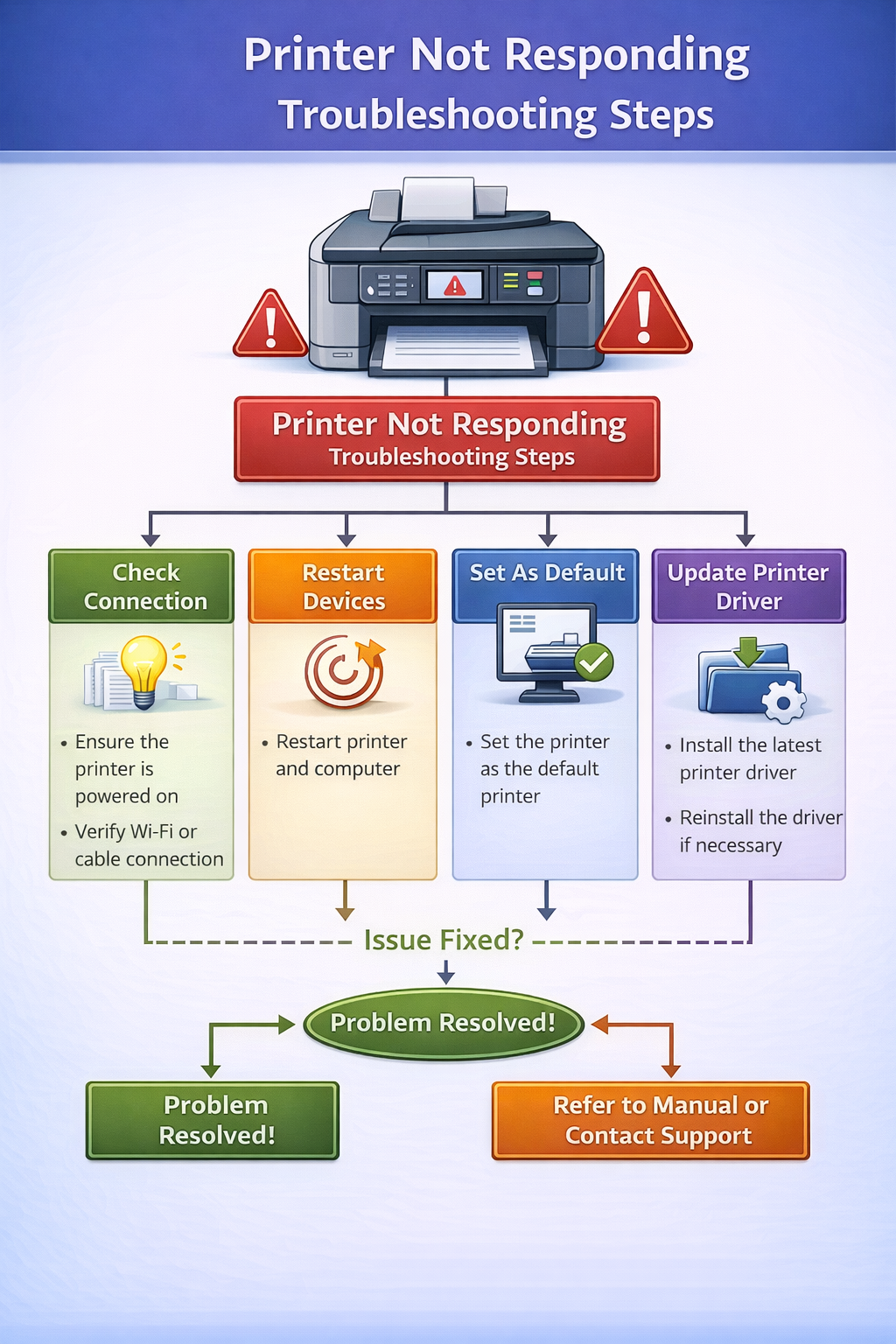
Why Is My Printer Not Responding?
When a printer not responding, the most common reason is that the computer cannot communicate with the printer over USB or Wi-Fi.
Several factors can cause this communication failure:
- Printer connection issues
- Incorrect printer settings
- Stuck print jobs
- Outdated printer drivers
- Network configuration problems
Modern printers rely on drivers and network protocols to communicate with computers. If any part of this system fails, the printer not responding error may appear.
Common Causes of Printer Not Responding
| Problem | Description | Fix |
|---|---|---|
| Printer offline | Printer disconnected from network | Reconnect printer |
| Driver error | Outdated or corrupted driver | Update driver |
| Stuck print queue | Pending print jobs block new jobs | Clear queue |
| Network conflict | Printer on different network | Reconnect WiFi |
| Firmware error | Temporary internal glitch | Restart printer |
These problems are common across most printer brands including HP, Canon, Epson, and Brother.
9 Fixes for Printer Not Responding
1. Check the Printer Connection
If your printer not responding, first verify that the printer is connected correctly.
For USB printers: Ensure the USB cable is firmly connected; try another USB port; test with another cable.
For wireless printers: Verify the printer is connected to the correct Wi-Fi network; ensure the computer is on the same network.
Network issues are one of the most common reasons printers stop responding.
2. Restart the Printer and Computer
Restarting devices often resolves temporary errors.
Steps: Turn off the printer → Restart the computer → Turn the printer back on → Try printing again.
A simple restart can reset internal communication errors.
3. Clear the Print Queue
A stuck print job can cause the printer not responding error.
Steps: Open Devices and Printers → Right‑click your printer → Select “See what’s printing” → Cancel all pending print jobs.
After clearing the queue, send the document again.
4. Set the Printer as Default
Sometimes your computer may try to send print jobs to another printer.
Steps: Open Printer Settings → Locate your printer → Click “Set as Default Printer”.
Setting the correct printer as default helps avoid communication problems.
5. Update Printer Drivers
Outdated drivers frequently cause a printer not responding problem. Printer drivers allow your computer to communicate with printer hardware. If the driver becomes outdated, communication may fail.
You can learn more about how printer drivers work here: Printer driver. Updating the driver usually resolves compatibility issues.
6. Disable Printer Offline Mode
If the printer is set to offline mode, it will not respond to print commands.
Steps: Open Devices and Printers → Right‑click the printer → Click “Use Printer Online”.
Once the printer is online, try printing again.
7. Restart the Print Spooler Service
The print spooler manages print jobs in Windows. If the spooler stops working, the printer not responding error may occur.
Steps: Press Windows + R → Type services.msc → Locate Print Spooler → Restart the service.
Restarting the spooler can fix communication problems.
8. Reinstall the Printer
If none of the previous steps work, reinstalling the printer may resolve the issue.
Steps: Remove the printer from your system → Restart the computer → Reinstall the printer → Install the latest driver.
Reinstallation resets configuration settings.
9. Update Printer Firmware
Firmware updates fix internal bugs that may cause printers to stop responding.
You can check firmware updates on manufacturer websites such as: HP Support, Canon Support. Firmware updates improve stability and communication reliability.
Printer Not Responding on Wi‑Fi
Wireless printers depend on network communication. If the printer loses connection to the router, it may appear as printer not responding.
Common Wi‑Fi issues include:
- weak signal strength
- router restart
- incorrect Wi‑Fi password
- printer connected to the wrong network
To fix this problem:
- Restart the router
- Reconnect the printer to Wi‑Fi
- Ensure the computer and printer use the same network
Printer Not Responding on Windows
Windows systems sometimes show the printer not responding error due to driver or spooler issues.
Common Windows fixes include:
- restarting the print spooler
- reinstalling printer drivers
- clearing the print queue
- restarting the printer service
Windows troubleshooting tools can also detect connection problems automatically.
Printer Not Responding but Connected
Sometimes a printer appears connected but still does not respond.
This situation may occur when:
- the printer driver is corrupted
- the print queue is blocked
- the printer firmware has a bug
In these cases, reinstalling the printer driver usually resolves the problem.
How to Prevent Printer Not Responding Errors
You can prevent many printing issues by maintaining your printer regularly.
- Keep Printer Drivers Updated: Driver updates improve compatibility with operating systems.
- Restart Your Printer Occasionally: Restarting clears temporary memory errors.
- Use Reliable Network Connections: Wireless printers should stay connected to stable Wi‑Fi networks.
- Keep Printer Firmware Updated: Firmware updates fix software bugs and improve reliability.
Preventive maintenance reduces the chances of encountering a printer not responding problem.
Frequently Asked Questions
Why does my printer say not responding?
This usually occurs when the computer cannot communicate with the printer due to connection problems, outdated drivers, or stuck print jobs.
How do I fix a printer not responding?
Restart the printer, check the connection, clear the print queue, and reinstall the printer driver.
Can Wi‑Fi issues cause a printer not responding error?
Yes. Wireless printers must be connected to the same network as the computer to receive print commands.
Why is my wireless printer connected but not responding?
The printer may be connected to the network but unable to communicate with the computer due to driver problems or blocked print jobs.
Final Thoughts
A printer not responding problem is usually caused by connection issues, driver errors, or blocked print jobs. Fortunately, most of these problems can be fixed using simple troubleshooting steps such as restarting the printer, clearing the print queue, or updating the printer driver.
By following the solutions in this guide, you can restore communication between your computer and printer and resume printing without interruption.
Related Printer Troubleshooting Guides
Official Manufacturer Support
© All About Printers — independent printer guides
Leave a Reply