Printer Not Connecting to WiFi? 10 Powerful Fixes to Restore Wireless Printing
Printer not connecting to WiFi is a common issue that prevents wireless printers from communicating with computers, phones, or networks. When this happens, the printer may appear offline, fail to detect the network, or refuse to print documents.
Wireless printers rely on stable network communication between the router, printer, and computer. If any part of this connection fails, the printer may experience wireless connectivity problems.
This guide explains why a printer not connecting to WiFi issue happens and provides step-by-step solutions to restore the wireless connection quickly.
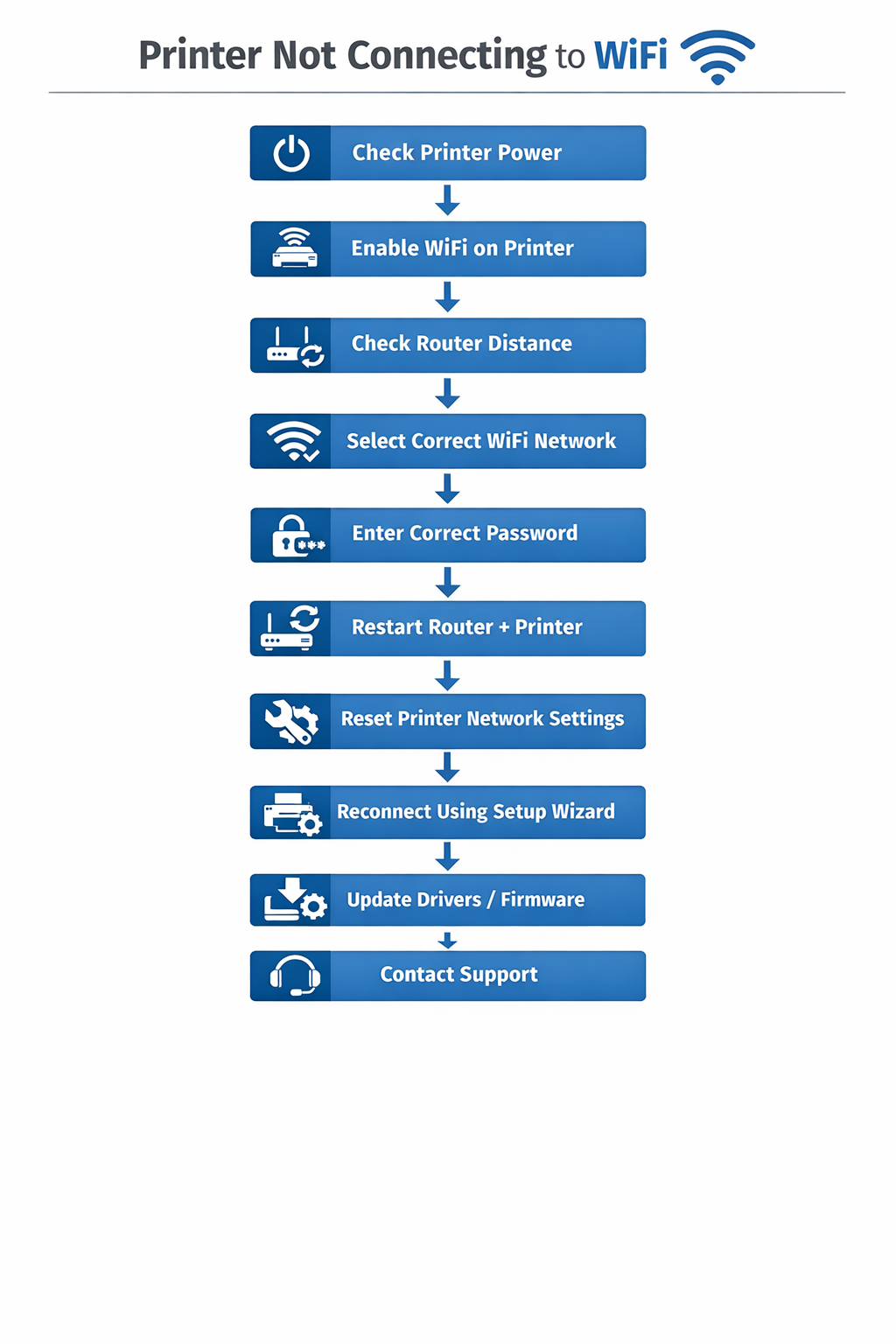
Table of Contents
- Why Printer Not Connecting to WiFi Happens
- Common Symptoms of WiFi Connection Problems
- Printer Not Connecting to WiFi Fix: Step-by-Step Guide
- Printer Not Connecting to WiFi on Windows
- Printer Not Connecting to WiFi on Wireless Networks
- Troubleshooting Workflow
- How to Prevent WiFi Printer Problems
- Frequently Asked Questions
Why Printer Not Connecting to WiFi Happens
Several issues may cause a printer not connecting to WiFi problem.
Common causes include:
- incorrect WiFi password
- weak wireless signal
- router compatibility issues
- outdated printer firmware
- network configuration problems
Wireless printers depend on network connectivity to function properly. If the printer cannot communicate with the router, printing will fail.
Learn more about printer technology: https://en.wikipedia.org/wiki/Printer_(computing)
Understanding these causes helps identify the correct solution for a wireless printing issue.
Common Symptoms of WiFi Connection Problems
Users experiencing a wireless printer issue may notice:
- printer cannot find wireless network
- printer shows offline status
- printer disconnects repeatedly
- wireless printing fails
These symptoms indicate a communication issue between the printer and the network.
Printer Not Connecting to WiFi Fix: Step-by-Step Guide
Follow these troubleshooting steps to resolve a wireless printer connection problem.
1. Restart the Printer and Router
Restarting network devices often resolves temporary connection errors.
Steps:
- Turn off the printer
- Restart the WiFi router
- Turn the printer back on
Restarting devices may restore the wireless connection.
2. Check WiFi Network Settings
Ensure the printer is connected to the correct network.
Many homes have multiple networks such as:
- 2.4 GHz network
- 5 GHz network
Some printers only support 2.4 GHz networks, which may cause a printer not connecting to WiFi issue.
3. Move the Printer Closer to the Router
Weak signals may prevent printers from connecting to WiFi.
Try moving the printer closer to the router to improve signal strength.
4. Reconnect the Printer to WiFi
Reconnect the printer using the wireless setup menu.
Steps:
- Open printer network settings
- Select Wireless Setup Wizard
- Choose your WiFi network
- Enter the password
Reconnecting may resolve the WiFi printing problem.
5. Update Printer Firmware
Outdated firmware may cause wireless connectivity issues.
Manufacturers often release firmware updates that improve compatibility with routers.
Updating firmware may fix a wireless printer connection error.
6. Restart the Computer
Restarting the computer resets network connections and may restore wireless communication.
7. Reinstall the Printer Driver
Driver issues may prevent wireless printers from functioning properly.
Steps:
- Remove the printer from system settings
- Download the latest driver
- reinstall the printer
Printer drivers allow the operating system to communicate with the printer. Learn more about printer drivers: https://en.wikipedia.org/wiki/Printer_driver
8. Reset Printer Network Settings
Resetting the network settings removes incorrect configurations.
Steps:
- open printer settings
- select Network Reset
- reconnect the printer to WiFi
This may resolve a wireless connection problem.
9. Check Router Compatibility
Older routers may not support certain printer wireless protocols.
Updating the router firmware or using a different router may solve connectivity problems.
10. Print a Network Test Page
Most printers include a network diagnostic page that shows WiFi status.
Printing this page helps identify connection issues.
Common Wireless Printer Problems
| Problem | Cause | Solution |
|---|---|---|
| printer cannot detect network | weak signal | move printer closer |
| printer disconnects frequently | network interference | restart router |
| printer offline | incorrect settings | reconnect WiFi |
| slow wireless printing | network congestion | improve signal |
Tables help quickly identify the cause of WiFi printing issues.
Printer Not Connecting to WiFi on Windows
Wireless printers may fail to connect on Windows systems due to driver conflicts or incorrect network settings.
Restarting the printer, reinstalling drivers, and reconnecting the network usually resolves the problem.
Printer Not Connecting to WiFi on Home Networks
Home networks may cause wireless printing issues because of:
- network congestion
- router configuration errors
- interference from other devices
Improving router placement and updating firmware may fix the wireless printer issue.
Printer WiFi Troubleshooting Workflow
Follow this diagnostic process.
This workflow helps identify the problem quickly.
How to Prevent WiFi Printer Problems
Preventive maintenance reduces the chances of wireless printer errors.
Recommended practices include:
- keeping printer firmware updated
- maintaining stable WiFi networks
- restarting routers periodically
- installing updated printer drivers
Following these practices helps prevent wireless connection issues.
Related Printer Troubleshooting Guides
If the problem continues, explore these guides:
These guides explain additional solutions for printer problems.
Frequently Asked Questions
Why is my printer not connecting to WiFi?
A printer not connecting to WiFi issue may occur due to weak signals, incorrect passwords, outdated firmware, or router compatibility problems.
How do I reconnect my printer to WiFi?
Open the printer wireless setup wizard and reconnect the printer using the correct WiFi network and password.
Why does my wireless printer keep disconnecting?
Network interference or weak WiFi signals may cause the printer to disconnect repeatedly.
Conclusion
A printer not connecting to WiFi problem can prevent wireless printing, but it is usually easy to fix. Restarting the router, reconnecting the printer, updating firmware, and reinstalling drivers often restore the wireless connection.
Following the troubleshooting steps in this guide will help resolve wireless printer issues and restore reliable wireless printing.
© All About Printers — independent printer guides