Printer Keeps Disconnecting? 10 Powerful Fixes to Restore Printer Connection
Printer keeps disconnecting from WiFi or the computer is a common problem that causes printers to repeatedly go offline and interrupt printing tasks. If your printer keeps disconnecting, the problem may be related to network stability, outdated drivers, or incorrect router settings.
When a printer repeatedly loses connection, it may connect successfully for a short time but then lose communication with the computer or network. This issue commonly affects wireless printers connected to home or office networks.
Most printer connection problems are caused by network instability, outdated drivers, router issues, or incorrect printer settings. Fortunately, there are several troubleshooting steps that can restore a stable connection.
This guide explains why a printer keeps disconnecting and provides step-by-step solutions to fix the problem.
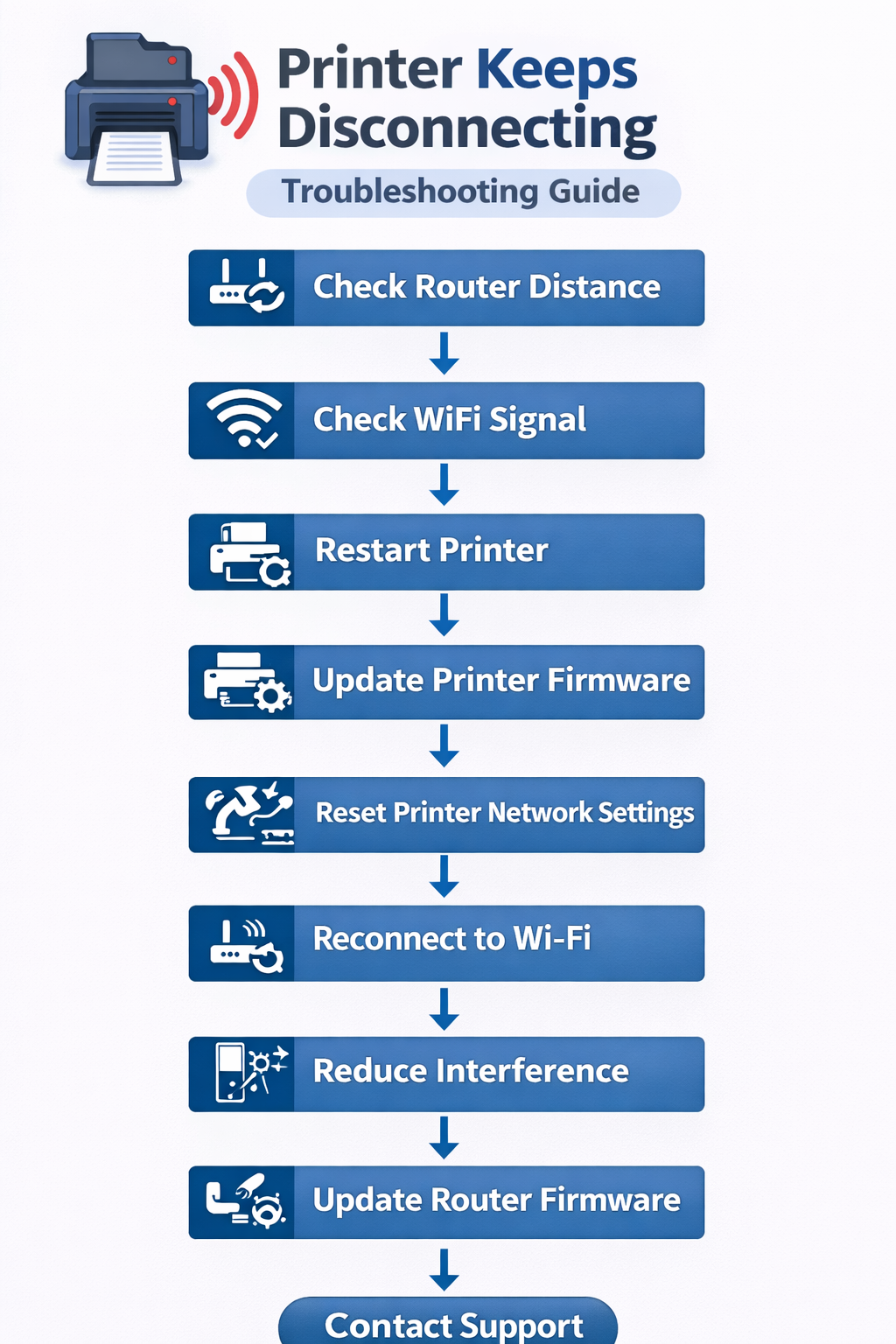
Table of Contents
Why Printer Keeps Disconnecting
Several technical issues may cause a printer to repeatedly lose its connection.
Common causes include:
- weak WiFi signal
- outdated printer drivers
- router compatibility issues
- incorrect network settings
- printer firmware problems
Wireless printers depend on reliable communication with the network router. If the signal becomes unstable, the printer may disconnect frequently.
Learn more about printer technology: https://en.wikipedia.org/wiki/Printer_(computing)
Understanding these causes helps diagnose the printer disconnection problem.
Printer Keeps Disconnecting Fix: Step-by-Step Guide
Follow these troubleshooting steps if your printer repeatedly loses connection from WiFi or the computer.
1. Restart the Printer and Router
Restarting devices resets network connections.
Steps:
- turn off the printer
- restart the WiFi router
- turn the printer back on
This may resolve temporary network errors.
2. Move the Printer Closer to the Router
Weak WiFi signals can cause a printer to frequently disconnect.
Place the printer closer to the router to improve signal strength.
3. Check WiFi Network Compatibility
Some printers only support 2.4 GHz wireless networks.
If your router uses both 2.4 GHz and 5 GHz networks, ensure the printer connects to the correct one.
4. Update Printer Drivers
Outdated drivers may cause communication problems.
Steps:
- open Device Manager
- locate the printer
- select Update Driver
Learn more about printer drivers: https://en.wikipedia.org/wiki/Printer_driver
Updating drivers may fix the printer disconnection issue.
5. Update Printer Firmware
Manufacturers often release firmware updates that improve network stability.
Updating firmware can prevent connection drops.
6. Assign a Static IP Address
When the router assigns a new IP address, the printer may lose connection.
Assigning a static IP address ensures the printer always uses the same network address.
7. Disable Printer Power-Saving Mode
Some printers disconnect when entering sleep mode.
Disable power-saving settings to keep the printer connected.
8. Reconnect the Printer to WiFi
Reconnect the printer using the wireless setup wizard.
Steps:
- open printer network settings
- select Wireless Setup Wizard
- reconnect to the WiFi network
9. Remove and Reinstall the Printer
Reinstalling the printer may fix configuration problems.
Steps:
- remove the printer from system settings
- restart the computer
- reinstall the printer driver
10. Reset Printer Network Settings
Resetting the network configuration clears incorrect settings.
Reconnect the printer to WiFi after the reset.
Common Printer Connection Problems
| Problem | Cause | Solution |
|---|---|---|
| Printer disconnects often | weak WiFi signal | move printer closer |
| Printer goes offline | driver issue | update drivers |
| Printer disappears | network conflict | assign static IP |
Tables help quickly identify the cause of a printer disconnection issue.
How to Fix Printer Keeps Disconnecting Issues
If you have tried the basic steps and your printer continues to disconnect, there are additional advanced fixes that may help resolve persistent connectivity problems.
Consider checking for interference from other electronic devices, updating your router's firmware, or using a WiFi extender to boost signal strength in areas where the printer is located.
When to Reset Printer Network Settings
Sometimes a printer keeps disconnecting because of incorrect wireless configuration. Resetting the printer network settings removes saved Wi-Fi connections and allows the printer to reconnect properly.
Typical steps include:
- open printer network settings
- select reset network configuration
- reconnect the printer to Wi-Fi
- print a network test page
This often restores stable wireless printing.
Check Router Firmware
Sometimes a printer keeps disconnecting because the router firmware is outdated. Updating the router firmware can improve network stability and prevent wireless devices from losing connection.
Steps:
- log in to the router settings
- check for firmware updates
- install the latest version
- restart the router
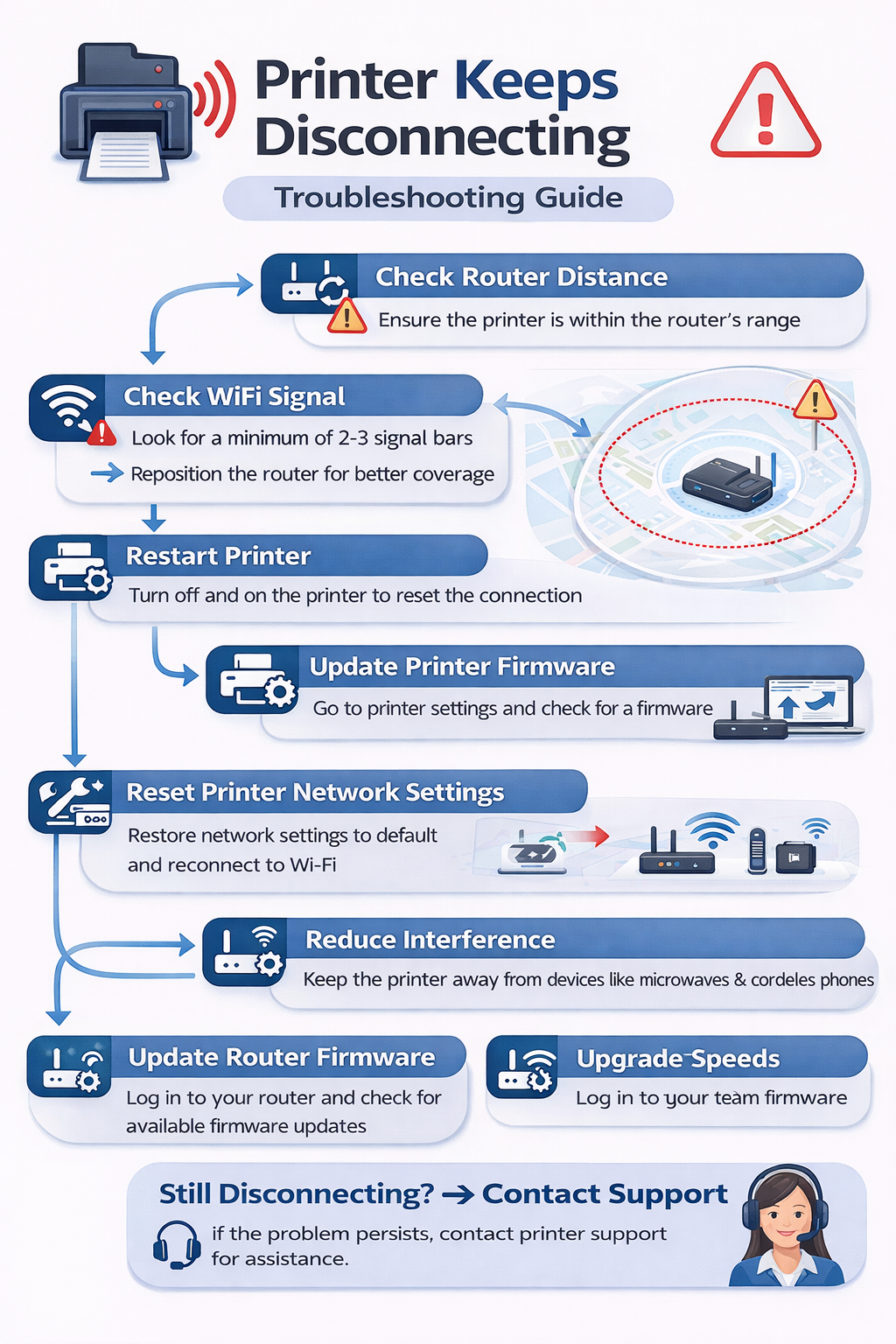
Printer Keeps Disconnecting on WiFi Networks
If a printer frequently loses connection, the wireless network may be unstable. Wireless printers depend on stable Wi-Fi networks. Learn more about wireless networking here: https://en.wikipedia.org/wiki/Wireless_network
Possible causes include:
- network interference
- outdated router firmware
- weak wireless signals
Improving router placement and updating firmware may restore stable printing.
Printer Keeps Disconnecting on Windows
Windows systems may experience connection problems due to outdated drivers or incorrect printer settings.
Updating drivers and reinstalling the printer can often fix the printer disconnection problem.
How to Prevent Printer Keeps Disconnecting Problems
If your printer keeps disconnecting, maintaining a stable Wi-Fi network and updating printer drivers regularly can prevent repeated connection problems. Regular firmware updates and proper router placement also help maintain a reliable connection.
Troubleshooting Workflow
Use the following workflow if your printer keeps disconnecting.
Related Printer Troubleshooting Guides
If the issue continues, explore these guides. If your printer frequently loses connection, you may also want to read our guide on fixing a printer queue stuck problem.
These guides provide additional solutions for printer issues.
How to Prevent Printer Connection Problems
Preventive maintenance helps avoid a printer disconnection problem.
Recommended practices include:
- maintaining strong WiFi signals
- updating printer firmware regularly
- keeping printer drivers updated
- reducing network interference
These steps help maintain a stable connection.
Frequently Asked Questions
Why does my printer keep disconnecting from WiFi?
A printer keeps disconnecting problem is usually caused by weak WiFi signals, outdated drivers, or router configuration issues.
How do I stop my printer from disconnecting?
Restart the router, update drivers, and ensure the printer is connected to a stable network.
Can router problems cause printer disconnections?
Yes. Network congestion or router firmware problems may cause printers to disconnect repeatedly.
Conclusion
A printer keeps disconnecting problem can interrupt printing and reduce productivity, but it is usually easy to fix. If your printer keeps disconnecting, following the troubleshooting steps in this guide should help restore a stable connection and prevent future printing interruptions. Restarting the router, improving WiFi signal strength, updating drivers, and resetting network settings can restore a stable connection.
Following these troubleshooting steps will help resolve printer disconnection issues and ensure reliable printing. For more solutions, visit our complete printer troubleshooting guide.
© All About Printers — independent printer guides