Printer Driver Unavailable? 10 Powerful Fixes to Restore Your Printer Driver
Printer driver unavailable is a common error that appears when a computer cannot communicate properly with a printer. Users often encounter this issue when attempting to print documents, and the system displays messages such as “Driver unavailable” or “Printer driver unavailable.”
This error typically occurs on Windows systems when the operating system cannot access the correct driver for the printer. A printer driver unavailable problem may happen after system updates, driver corruption, or incorrect printer installation.
Fortunately, most driver errors can be resolved with a few simple troubleshooting steps. This guide explains why a printer driver unavailable error occurs and how to fix it quickly.
Why Printer Driver Unavailable Happens
A printer driver unavailable error means that the system cannot access the software required to communicate with the printer.
Several factors may cause this issue.
Common causes include:
- outdated printer drivers
- corrupted driver files
- incomplete printer installation
- Windows update conflicts
- incompatible printer drivers
Printer drivers are essential software components that allow operating systems to send commands to printer hardware. Learn more about printer drivers: https://en.wikipedia.org/wiki/Printer_driver
Understanding these causes helps identify the correct solution for a printer driver unavailable problem.
Common Symptoms of Printer Driver Unavailable
Users experiencing a printer driver issue may notice the following symptoms:
- printer appears in settings but cannot print
- “driver unavailable” message in printer status
- print jobs fail to start
- printer cannot be selected for printing
These symptoms indicate that the computer cannot properly communicate with the printer driver.
Printer Driver Unavailable Fix: Step-by-Step Guide
Follow these troubleshooting steps to resolve a printer driver problem.
1. Restart the Printer and Computer
Restarting devices can resolve temporary driver communication issues.
Steps:
- turn off the printer
- restart the computer
- turn the printer back on
This simple action sometimes resolves a printer driver error.
2. Update Printer Drivers
Outdated drivers are the most common cause of a printer driver problem.
Steps:
- open Device Manager
- locate Printers
- right-click your printer
- select Update Driver
Updating the driver may restore printer functionality. Printer hardware overview: https://en.wikipedia.org/wiki/Printer_(computing)
3. Reinstall the Printer Driver
If the driver is corrupted, reinstalling it may fix the issue.
Steps:
- remove the printer from Printers & Scanners settings
- download the latest driver from the manufacturer website
- install the driver again
Reinstalling the driver often resolves printer driver errors.
4. Run Windows Update
Windows updates may include new printer drivers.
Steps:
- open Settings
- select Windows Update
- check for updates
Updating Windows may resolve a driver error.
5. Install the Printer Manually
Sometimes the system cannot automatically detect the correct driver.
Steps:
- open Printers & Scanners
- click Add printer
- select Add manually
- choose the correct driver
Manual installation may fix a printer driver error.
6. Restart the Print Spooler Service
The print spooler service manages printer communication.
Steps:
- press Windows + R
- type services.msc
- locate Print Spooler
- click Restart
Restarting the spooler can restore printer functionality.
7. Check Printer Compatibility
Older printers may not support newer operating systems. In this case, install a compatible driver or a universal printer driver. Compatibility issues may cause driver errors.
8. Remove Duplicate Printers
Duplicate printers in system settings may create driver conflicts.
Steps:
- open Printers & Scanners
- remove unused printers
- keep only the correct printer installed
Cleaning up duplicates may resolve the driver problem.
9. Install Manufacturer Drivers
Using generic drivers may cause compatibility problems. Installing official drivers from the printer manufacturer may fix the issue.
10. Print a Test Page
After troubleshooting, print a test page to confirm the driver works correctly. If the printer prints successfully, the printer driver issue has been resolved.
Printer Driver Unavailable on Windows
The printer driver error is most common on Windows systems.
This usually happens when:
- Windows installs a generic driver
- the driver becomes corrupted after updates
- the printer installation fails
Reinstalling the correct driver usually resolves the problem.
Printer Driver Unavailable After Windows Update
Some users encounter a printer driver error after updating Windows.
Possible causes include:
- incompatible drivers
- removed drivers during updates
- system configuration changes
Installing the latest driver version usually restores functionality.
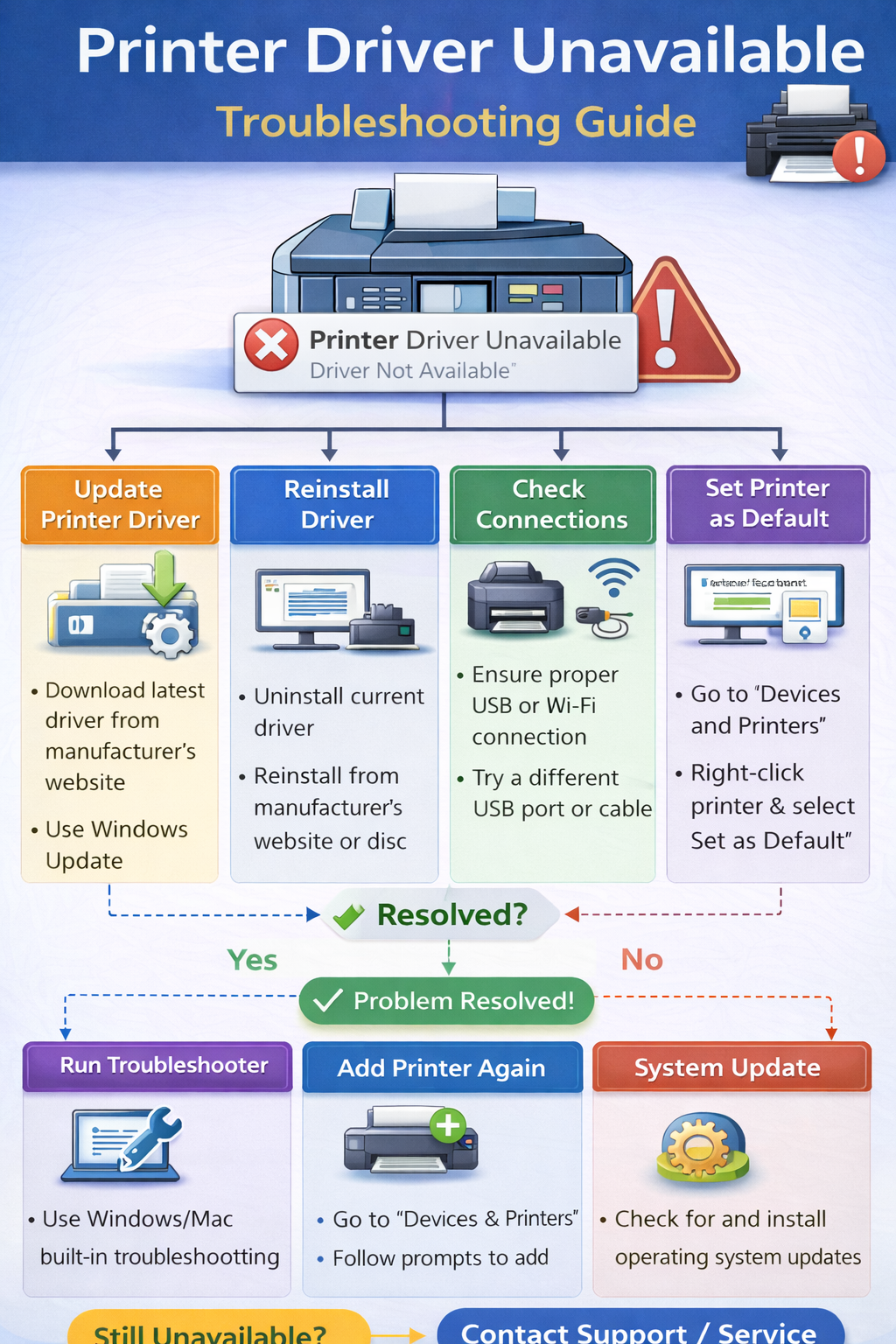
Printer Troubleshooting Workflow
Use this diagnostic workflow if your printer driver is unavailable.
This process helps identify the cause quickly.
How to Prevent Printer Driver Problems
Preventive maintenance helps reduce driver errors.
Recommended practices include:
- updating printer drivers regularly
- installing drivers from official sources
- keeping the operating system updated
- avoiding duplicate printer installations
Following these practices helps prevent driver problems.
Related Printer Troubleshooting Guides
If your printer still does not work, explore these guides.
These guides explain solutions for other common printer issues.
Frequently Asked Questions
Why does my printer say driver unavailable?
A printer driver unavailable error usually occurs because the installed driver is outdated, corrupted, or incompatible with the operating system.
How do I fix printer driver unavailable in Windows?
Update the printer driver, reinstall the printer, and restart the print spooler service.
Can Windows updates cause driver errors?
Yes. Some Windows updates may replace or remove printer drivers, causing driver errors.
What should I do if my printer driver is still unavailable?
Try installing the manufacturer's driver directly from their support website.
Conclusion
A printer driver unavailable error can prevent printing entirely, but it is usually easy to fix. By updating drivers, reinstalling the printer, restarting spooler services, and installing manufacturer drivers, users can restore printer functionality quickly.
Following the troubleshooting steps in this guide will help resolve printer driver unavailable issues and ensure reliable printing performance.
© All About Printers — independent printer guides