Printer Connected But Not Printing: 9 Easy Fixes That Work
If your printer is connected but not printing, it can be extremely frustrating—especially when you urgently need to print documents. In many cases, the printer appears online and properly connected to the computer or WiFi network, yet nothing happens when you send a print job.
This issue can occur due to several reasons, including stuck print queues, outdated drivers, incorrect printer settings, connectivity issues, or spooler service errors. Even though the printer appears connected, the communication between your computer and printer may be interrupted.
The good news is that most printer problems can be fixed quickly with a few troubleshooting steps. In this guide, we will walk you through common causes and proven fixes to resolve the printer connected but not printing issue.
Printer Connected But Not Printing Troubleshooting Flow
This structured approach helps identify where the communication breakdown is happening.
Table of Contents
Why Is My Printer Connected But Not Printing?
Several technical issues may prevent a printer from printing even when it appears connected.
Some of the most common causes include:
- Stuck Print Queue: When multiple print jobs remain stuck in the queue, the printer cannot process new commands.
- Incorrect Default Printer: Your computer may be sending documents to a different printer.
- Driver Issues: Outdated or corrupted printer drivers may prevent the computer from communicating with the printer.
- Printer Spooler Errors: The print spooler service manages all printing tasks. If it stops working, printing fails.
- Network Connectivity Problems: Wireless printers depend on stable network connections.
- Software Conflicts: Security software or outdated operating systems may interfere with printing.
Understanding these causes will help you diagnose the problem more effectively.
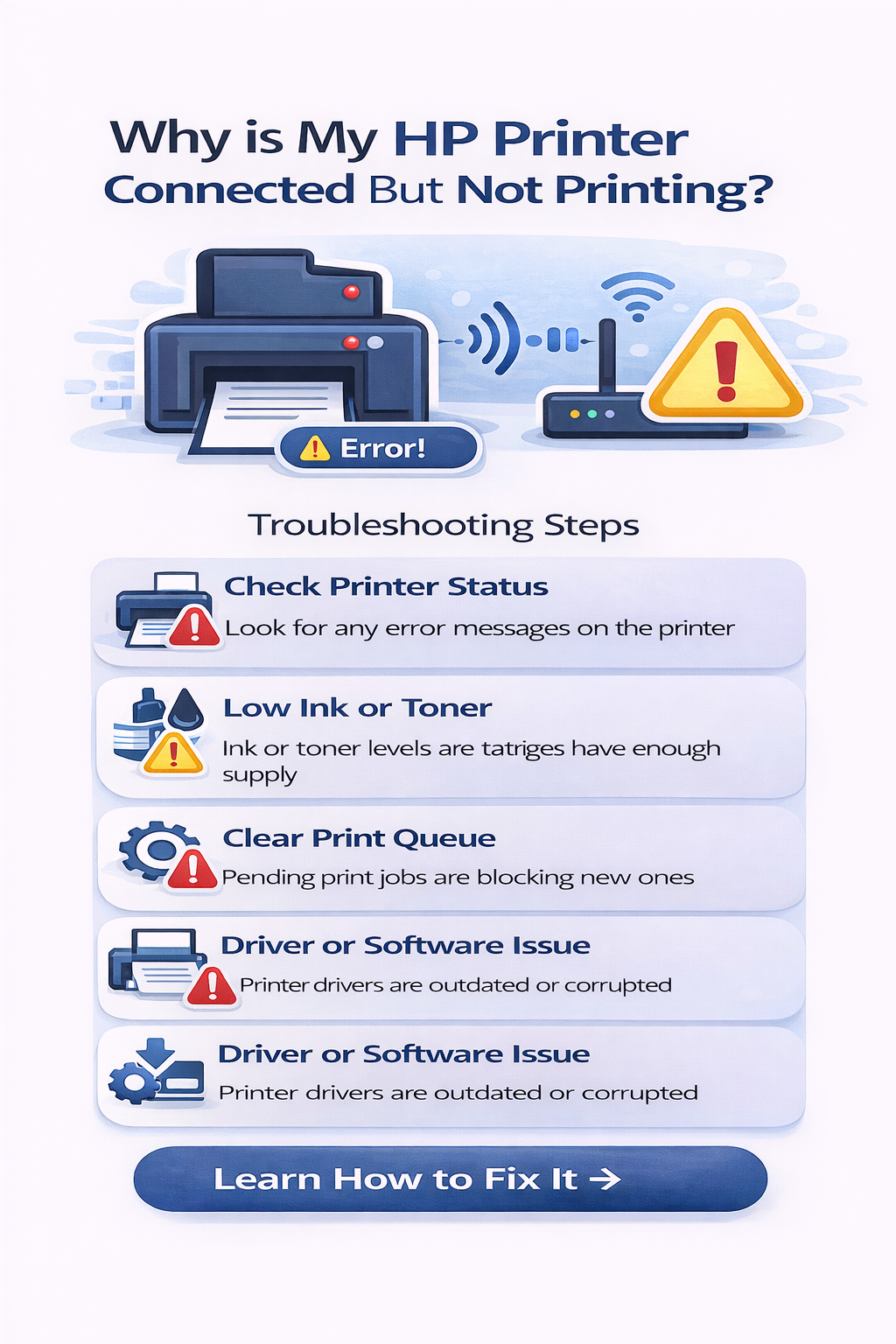
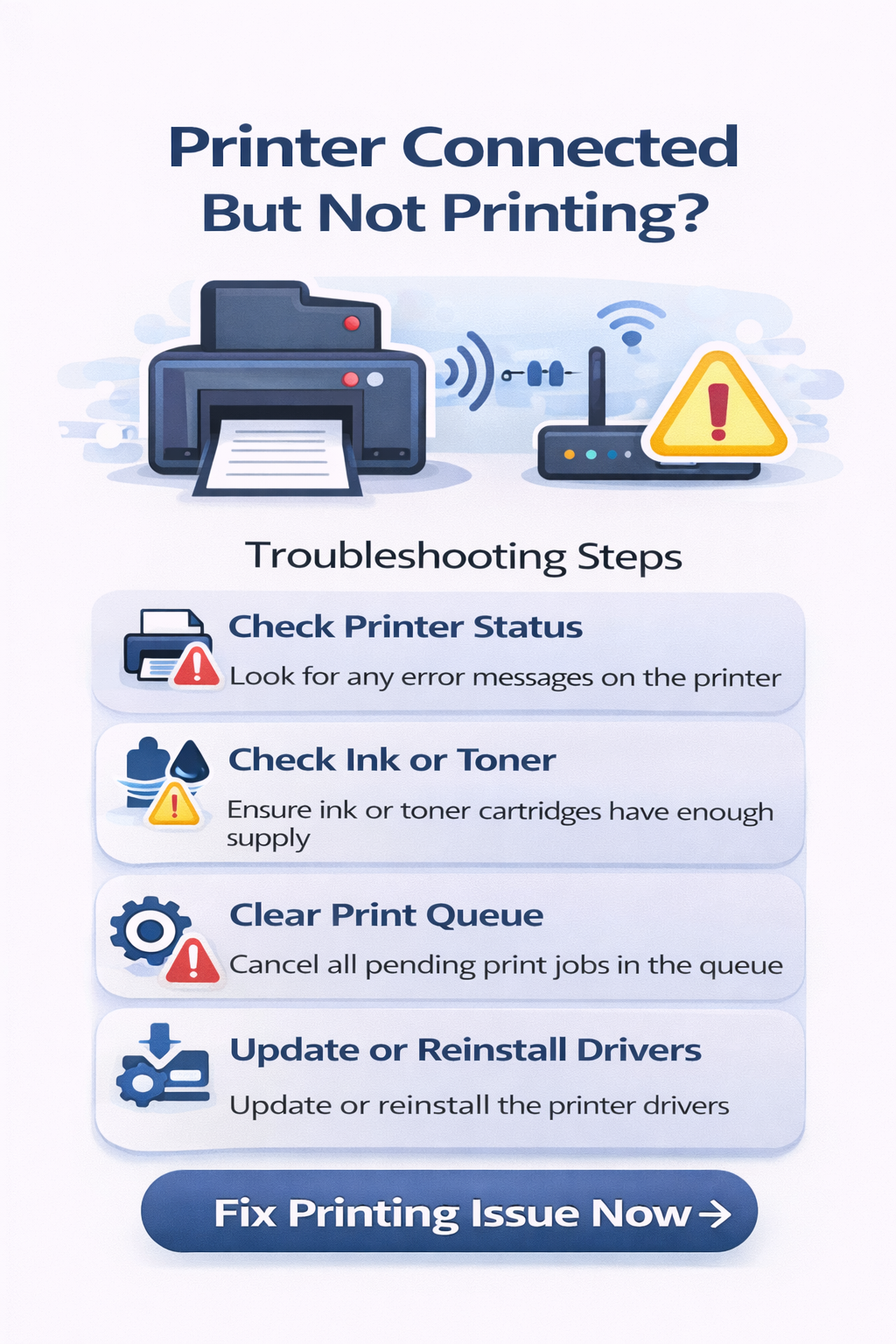
Printer Connected But Not Printing Fix: Step-by-Step Guide
Fix 1: Restart the Printer
One of the simplest and most effective troubleshooting methods is restarting the printer. Restarting the printer clears temporary errors that may be preventing printing.
Steps:
- Turn off the printer.
- Unplug the power cable.
- Wait for 30 seconds.
- Plug the printer back in.
- Turn the printer on.
After restarting the printer, try printing a test document. This often resolves minor connectivity issues.
Fix 2: Check the Default Printer
If multiple printers are installed on your computer, the system may send print jobs to the wrong device.
Steps to Set the Default Printer:
- Open Control Panel.
- Click Devices and Printers.
- Locate your printer.
- Right-click the printer.
- Select Set as Default Printer.
Once the correct printer is set as default, send another print job.
Fix 3: Check the Printer Status
Sometimes the printer is set to "Use Printer Offline" mode. This prevents the printer from receiving print commands.
Steps:
- Open Devices and Printers.
- Double-click your printer.
- Click Printer in the menu.
- Uncheck Use Printer Offline.
After disabling offline mode, try printing again.
Fix 4: Clear the Print Queue
A stuck document in the queue can block new print jobs.
Steps:
- Open Devices and Printers.
- Double-click your printer.
- Open the Print Queue.
- Cancel all pending jobs.
After clearing the queue, send a new print command. If print jobs remain stuck frequently, you may need to restart the spooler service.
Fix 5: Restart the Print Spooler Service
The print spooler service manages communication between the computer and printer. If this service stops working, printing may fail.
Steps:
- Press Windows + R.
- Type: services.msc
- Locate Print Spooler.
- Right-click the service.
- Click Restart.
Restarting the spooler resolves many printing problems.
Fix 6: Update Printer Drivers
Outdated drivers are one of the most common causes of printer issues. Drivers allow your operating system to communicate with the printer.
Steps:
- Open Device Manager.
- Expand Printers.
- Right-click your printer.
- Click Update Driver.
- Choose Search automatically for drivers.
If driver problems persist, uninstall and reinstall the printer driver.
Fix 7: Check WiFi Connection
If you are using a wireless printer, network issues may interrupt communication. Make sure the printer and computer are connected to the same WiFi network.
Basic Checks:
- Verify the WiFi signal strength.
- Restart the router.
- Reconnect the printer to WiFi.
- Confirm the correct network password.
Wireless connectivity problems are a common cause of printing failures.
Fix 8: Remove and Reinstall the Printer
If none of the above methods work, reinstalling the printer may resolve configuration issues.
Steps:
- Open Devices and Printers.
- Right-click the printer.
- Select Remove Device.
- Restart your computer.
- Add the printer again.
Reinstalling the printer resets configuration errors.
Fix 9: Run Windows Printer Troubleshooter
Windows includes a built-in tool to diagnose printer problems.
Steps:
- Open Settings.
- Go to System.
- Click Troubleshoot.
- Select Printer Troubleshooter.
- Follow the instructions.
This tool can automatically fix many printer issues.
Common Printer Problems and Solutions
| Problem | Possible Solution |
|---|---|
| Printer connected but not printing | Restart printer and clear queue |
| Printer offline | Check network connection |
| Printer not detected | Reinstall drivers |
| Printer printing blank pages | Check ink cartridges |
| Printer driver unavailable | Update drivers |
Understanding these issues helps troubleshoot printer problems faster.
How to Prevent Printer Problems
Preventive maintenance can reduce printer issues.
- Keep Drivers Updated: Regularly update printer drivers.
- Maintain Printer Hardware: Clean printheads and rollers periodically.
- Check Ink and Toner Levels: Low ink cartridges may affect printing.
- Maintain Network Stability: Ensure stable WiFi connections.
- Restart Devices Occasionally: Restarting printers and routers prevents communication errors.
Proper maintenance ensures reliable printing performance.
Frequently Asked Questions
Why does my printer show connected but not print?
This usually happens due to stuck print jobs, driver conflicts, or incorrect printer settings.
Why does my printer receive the document but not print?
The printer may receive the job but cannot process it due to queue errors or spooler issues.
How do I reset a printer connection?
Restart the printer, reconnect it to WiFi, and reinstall the printer driver if necessary.
Why is my wireless printer connected but not printing?
Wireless printers may stop printing due to network interference or weak signals.
Conclusion
A printer connected but not printing problem can occur for several reasons, including driver issues, spooler errors, network problems, and incorrect printer settings. Fortunately, most of these problems can be resolved using simple troubleshooting steps.
By restarting the printer, clearing the print queue, updating drivers, and checking network connections, you can quickly restore printing functionality.
If problems continue, reinstalling the printer or running the Windows printer troubleshooter can help resolve deeper system issues.
External Resource
For additional troubleshooting guidance, you can review Microsoft's official documentation on fixing printer issues.
© All About Printers — independent printer guides