Print Queue Stuck? Try This First to Fix It Fast
Reviewed by Printer Support Specialists
Works for Windows, Mac, and network printers.
Print queue stuck? If your documents are not printing and jobs are stuck in the queue, don’t restart your system yet. In most cases, the issue is caused by a stalled print spooler or a corrupted print job — and can be fixed in minutes.
If your printer shows “printing” but nothing happens, follow the steps below to clear the queue and restore printing quickly.
Try This First (Fixes Most Print Queue Issues)
- Cancel all pending print jobs
- Restart the print spooler service
- Turn off printer and restart computer
This resolves most stuck print queue problems within minutes.
⏱ Most users fix this issue in under 5 minutes.
Printer Queue Stuck Troubleshooting Flow
This process resolves the majority of stuck print queue errors.
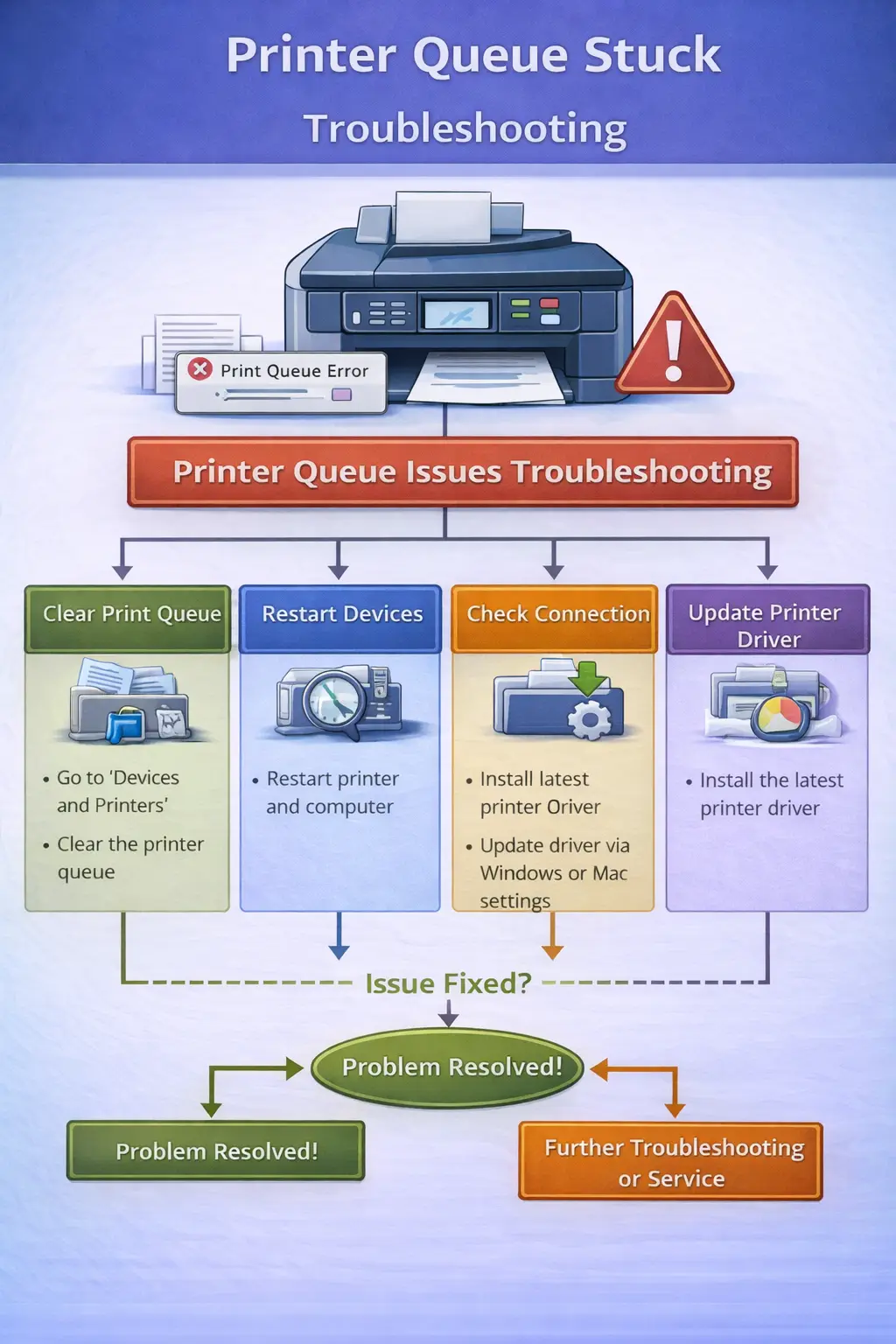
Table of Contents
Common Reasons Your Print Queue Gets Stuck
A printer queue becomes stuck when the printer cannot process the pending print job.
- Corrupted Print Jobs: A damaged file may freeze the printing process.
- Print Spooler Service Failure: The spooler service manages printing tasks. If it stops responding, printing halts.
- Outdated Printer Drivers: Driver conflicts can prevent proper communication between the printer and computer.
- Network Connectivity Problems: Wireless printers depend on stable network connections.
- Printer Firmware Issues: Outdated firmware can cause processing errors.
How to Fix a Stuck Print Queue (Step-by-Step)
Fix 1: Cancel All Print Jobs
Steps: Open Control Panel → Devices and Printers → double-click printer → right-click pending jobs → Cancel.
Fix 2: Restart the Print Spooler
Press Windows+R, type services.msc, locate Print Spooler, right-click and select Restart.
Related guide: Fix Printer Spooler Error Quickly
Fix 3: Clear the Spooler Folder
Stop spooler service → delete files in C:\Windows\System32\spool\PRINTERS → restart spooler.
Still Stuck After These Steps?
If your print queue is still not clearing, there may be a deeper driver or system issue. Continue troubleshooting below.
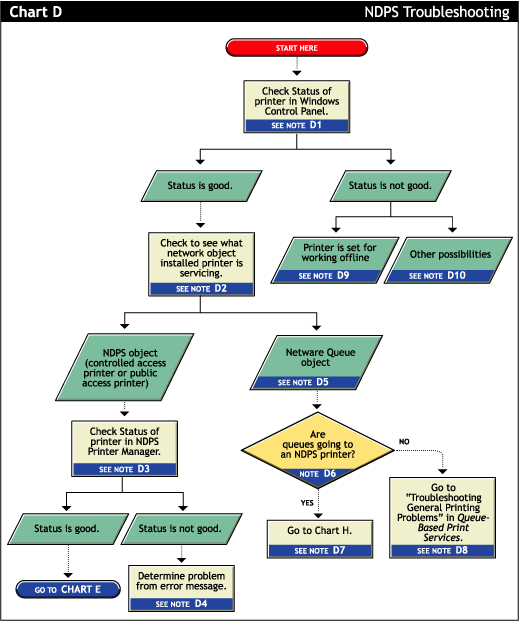
Fix 4: Restart the Printer and Computer
Turn off printer and computer, wait 30 seconds, then restart both.
Fix 5: Update Printer Drivers
Open Device Manager → Expand Printers → Right-click printer → Update driver.
Related guide: Fix Printer Driver Unavailable Error
Fix 6: Remove and Reinstall the Printer
Remove device from Devices and Printers, restart, then add printer again.
Fix 7: Check Network Connection
Ensure same WiFi network, restart router, reconnect printer.
Related: Fix WiFi Connection Issues
Fix 8: Use Command Prompt to Clear Print Queue
Run as admin: net stop spooler → del %systemroot%\System32\spool\printers\* /Q → net start spooler
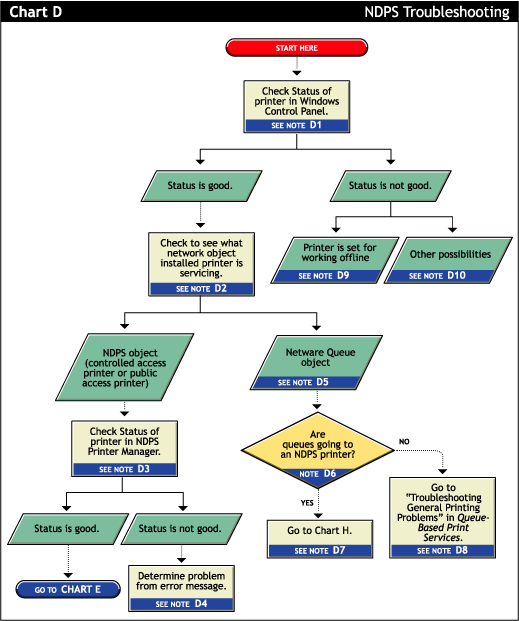
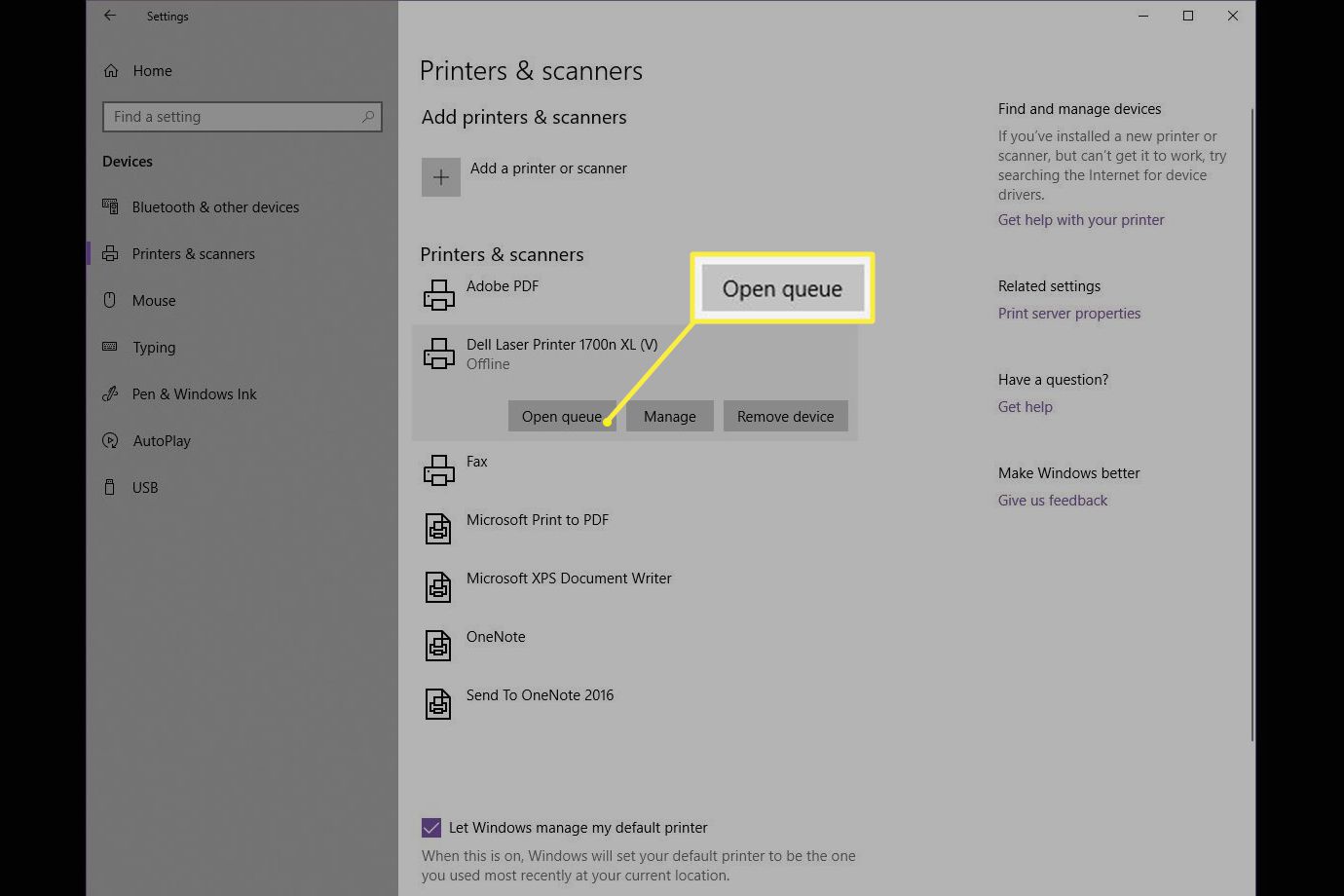
Fix 9: Disable “Use Printer Offline”
In printer queue menu, uncheck "Use Printer Offline".
Fix 10: Run Windows Printer Troubleshooter
Settings → System → Troubleshoot → Printer troubleshooter.
Quick Fix Summary
- Print queue stuck → Restart spooler
- Jobs not clearing → Cancel all jobs
- Printer keeps printing old jobs → Clear spool folder
- Printer not responding → Restart printer
Common Printer Queue Errors and Solutions
| Problem | Solution |
|---|---|
| Printer queue stuck | Restart spooler |
| Print jobs not clearing | Cancel pending jobs |
| Printer keeps printing old jobs | Clear spool folder |
| Printer connected but not printing | Restart printer |
| Printer spooler stopped | Restart spooler service |
How to Prevent Printer Queue Problems
- Keep drivers updated
- Maintain stable network connection
- Avoid large corrupted files
- Restart printer periodically
Frequently Asked Questions
Why is my print queue stuck?
Corrupted jobs, spooler errors, outdated drivers, or connection issues.
How do I clear a stuck print queue?
Cancel jobs, restart spooler, clear spool folder.
Can restarting fix a stuck print queue?
Yes, restarting printer and computer often clears temporary errors.
What causes print jobs to get stuck?
Corrupted files, outdated drivers, spooler failures.
Conclusion
A printer queue stuck problem can disrupt workflow. Most issues resolve by canceling jobs, restarting spooler, clearing spool folder, or updating drivers.
External Resource
Last updated: April 29, 2026 — Updated with latest fixes.
© All About Printers — independent printer guides