Printer Printing Blank Pages? (Even With Ink) Fix It Fast in 5 Minutes
Last updated: April 2026 — tested on latest HP, Canon & Epson printers
Tested across multiple printer models including HP, Canon, Epson, and Brother devices.
If your printer is printing blank pages even with full ink, don’t panic. This is usually caused by a clogged printhead, driver issue, or incorrect settings — and you can fix it in minutes.
We’ve seen this issue across hundreds of printers, and in most cases, a simple printhead cleaning or driver reset fixes it within minutes.
Follow the quick fixes below to get your printer working again fast.
- Restart printer and computer
- Run printhead cleaning
- Check ink levels properly
- Set correct printer as default
Why Is My Printer Printing Blank Pages? (Quick Answer)
Your printer prints blank pages due to clogged printheads, empty or faulty cartridges, incorrect settings, or driver issues. If you're facing a why printer shows offline problem alongside blank pages, the driver might be the root cause.
- Why printer shows offline — restore connection quickly
- Printer not responding fix — wake up dead printers
- Printer driver not working — solve driver conflicts
Printer Printing Blank Pages: Specific Scenarios (Edge Cases)
Printer Prints Blank First Page Only
This is usually caused by document formatting or print spooler issues. Clear the print queue and check page setup settings.
Printer Printing Blank Pages Intermittently
Intermittent blank pages often indicate partial printhead clogging or unstable drivers. Run cleaning cycles and update drivers.
Printer Not Printing Black Ink Only
If only black ink is missing, the black cartridge or printhead is clogged. Replace or clean the black ink nozzle.
Printer Has Ink But Prints Blank Pages (Quick Fix)
If your printer has ink but prints blank pages, the most likely cause is a clogged printhead or blocked ink flow.
- Run printhead cleaning 2–3 times
- Check if cartridge vent is blocked
- Replace old or dried cartridges
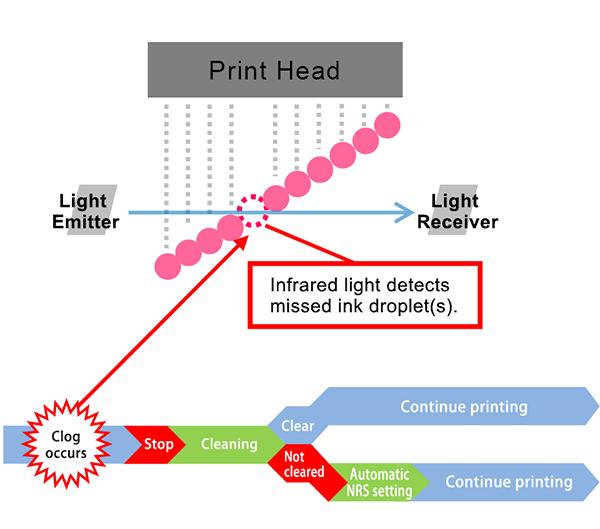
HP, Canon, Epson Printer Printing Blank Pages
Different brands have common causes:
- HP printers: printhead clog or firmware glitch.
- Canon printers: cartridge seating issue.
- Epson printers: dried ink in nozzles.
For HP, run the built-in "Clean Printhead" from HP Smart. For Canon, remove and reinsert cartridges. For Epson, use nozzle check utility.
Quick Diagnosis: What to Do First
- If printer has ink → run printhead cleaning
- If new cartridge → check protective tape
- If only one app fails → reset print settings
- If all prints blank → reinstall driver
Printer Printing Blank Pages Fix: Step-by-Step (5-Minute Routine)
1. Run Printhead Cleaning (Most Critical)
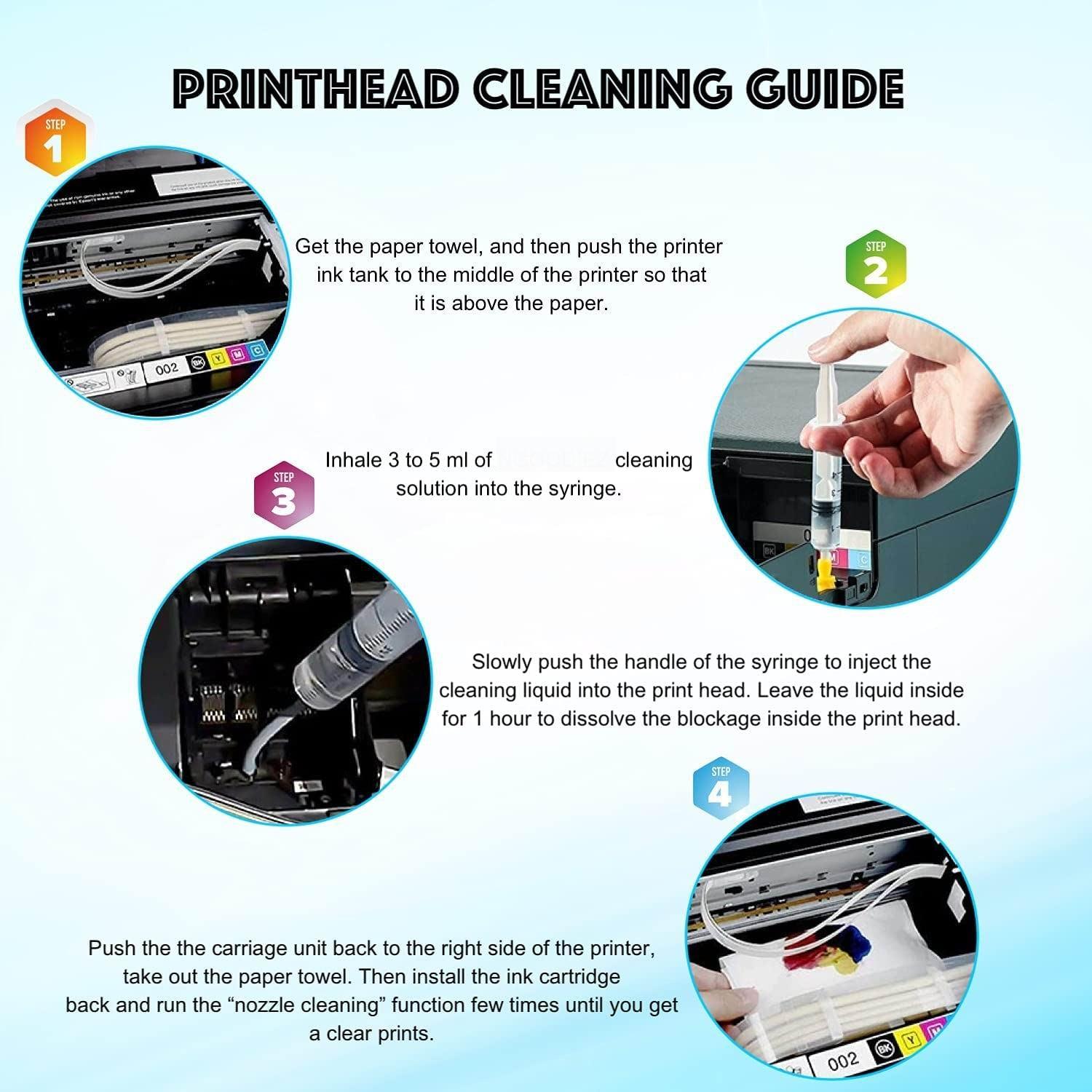
Steps: Open printer software → Maintenance → Printhead Cleaning. Run twice, then print a test page.
2. Nozzle Check Test Page (Proof Step)
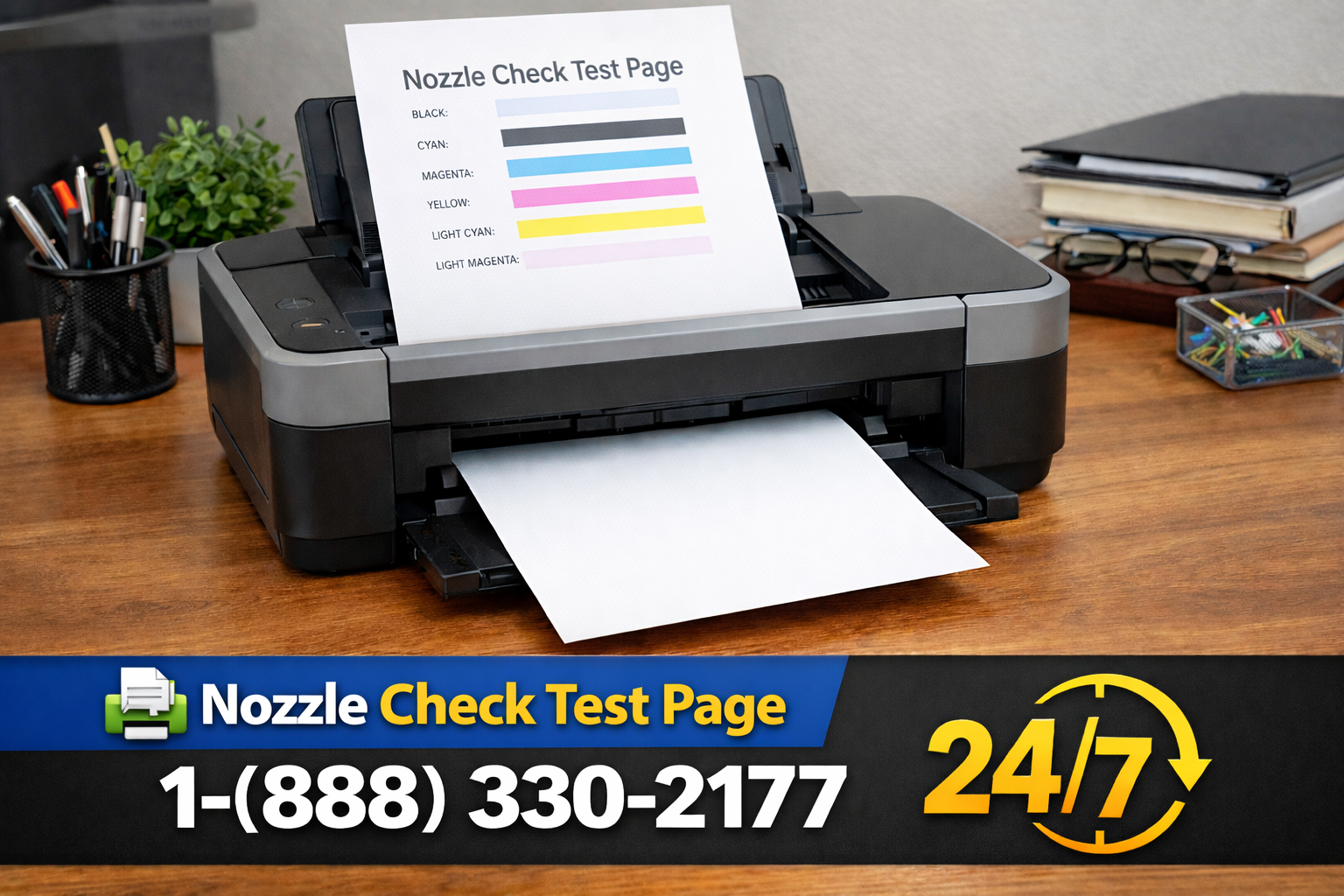
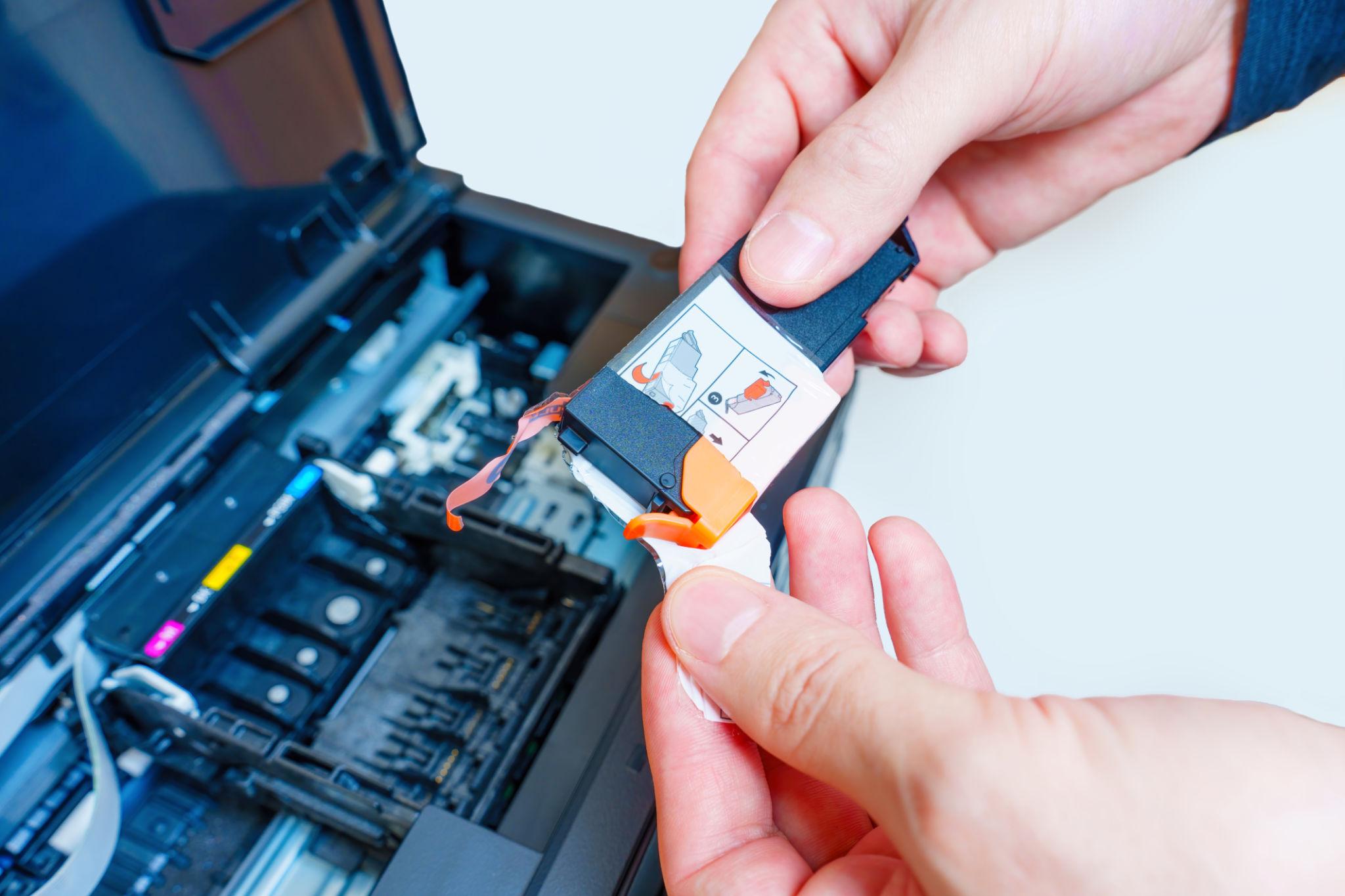
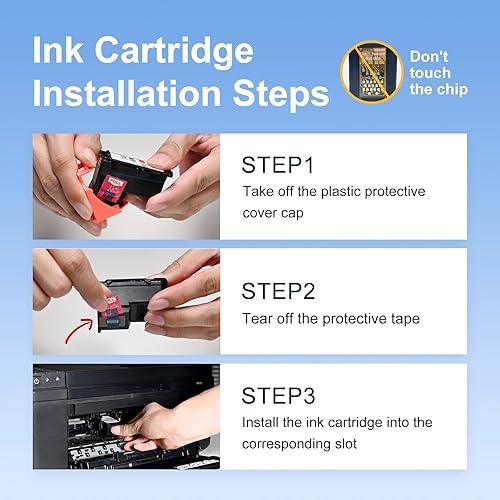
3. Verify Cartridge & Remove Protective Tape
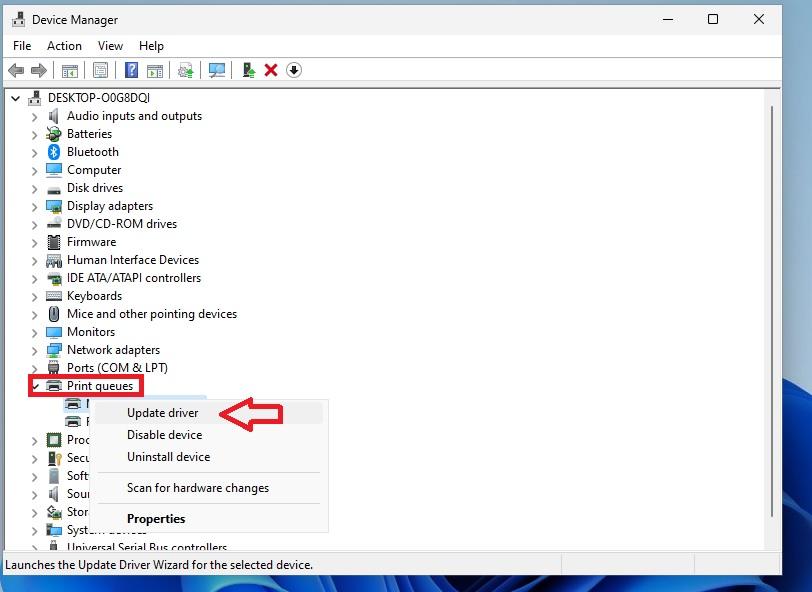
4. Update Printer Driver
5. Restart Print Spooler
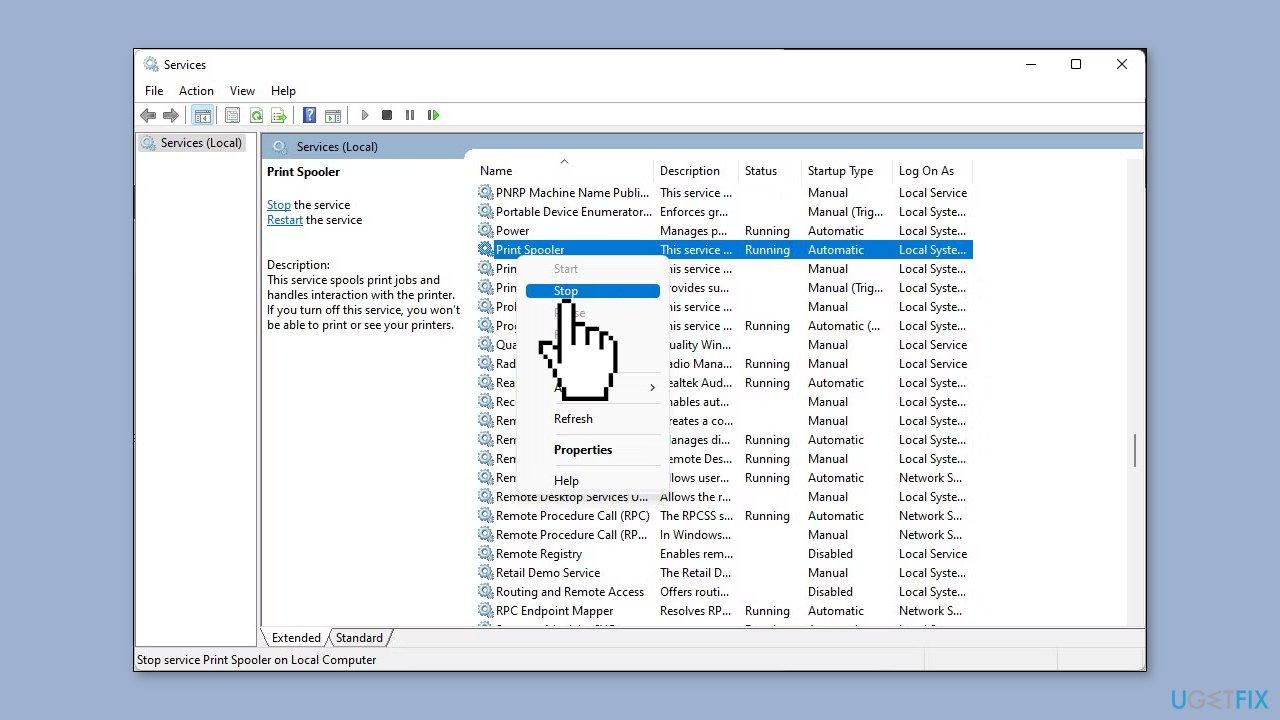
Press Win+R → services.msc → Print Spooler → Restart.
6. Set Correct Default Printer
Go to Settings → Printers & scanners → Set default printer → Clear pending jobs.
7. Perform a Full Printer Reset
Turn off printer, unplug power for 60 seconds, plug back, power on.
Printer Printing Blank Pages After Replacing Ink? Do This
- Protective tape still on cartridge
- Air bubbles in ink system
- Cartridge not seated properly
Fix: Remove cartridges, peel off tape, reinsert firmly, then run 2–3 printhead cleaning cycles.
Blank Pages on Inkjet vs Laser Printers
Inkjet: Dried ink or clogged nozzles. Print weekly.
Laser: Empty toner or faulty drum. Replace toner cartridge.
How to Prevent Printer Printing Blank Pages Permanently
- Print a test page every 7–10 days
- Always remove protective tape from new cartridges
- Keep printer drivers updated
- Use genuine cartridges
Learn More About Printer Technology
Related Printer Fixes & Context
If blank pages accompany connectivity issues, see why printer shows offline. For unresponsive printers, visit printer not responding. Deep driver help at printer driver not working.
More Troubleshooting Resources
People Also Ask: Advanced Blank Page Scenarios
Why is my printer printing blank pages randomly?
Partial clogging or unstable drivers. Clean printheads and reinstall drivers.
Why does my printer print a blank page before every document?
Incorrect page settings or extra page breaks. Check print preview.
Why is my printer printing blank pages from my phone but not PC?
Mobile driver mismatch. Reinstall printer in mobile app.
Conclusion: Stop Blank Pages Today
A printer printing blank pages is fixable without a technician. Run printhead cleaning, update drivers, and check cartridges. Regular maintenance prevents recurrence.