Connect HP Printer to WiFi
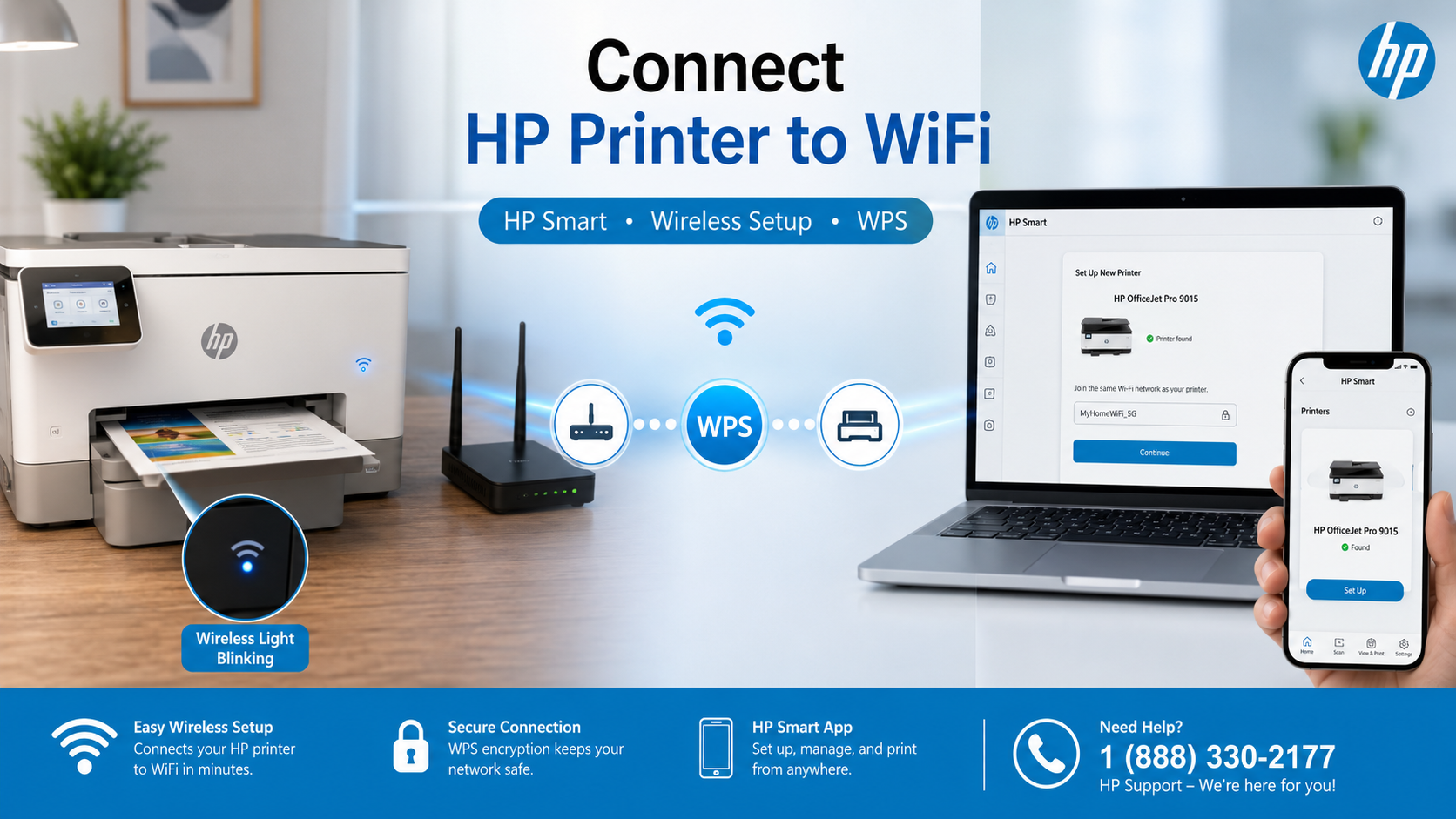
Quick Steps to Connect HP Printer to WiFi
- 1 Turn on the HP printer
- 2 Open Wireless Settings or Setup Wizard
- 3 Select your WiFi network
- 4 Enter WiFi password
- 5 Complete setup using HP Smart or printer screen
Need Help Connecting Your HP Printer?
Get step‑by‑step assistance for wireless setup, HP Smart installation, offline issues, or reconnecting to a new network.
Connect HP Printer to WiFi Using HP Smart App
The HP Smart app is the easiest method for wireless configuration. It automatically detects nearby printers and works across Windows, Mac, Android, and iOS. For a complete walkthrough, see our HP Smart installation guide.
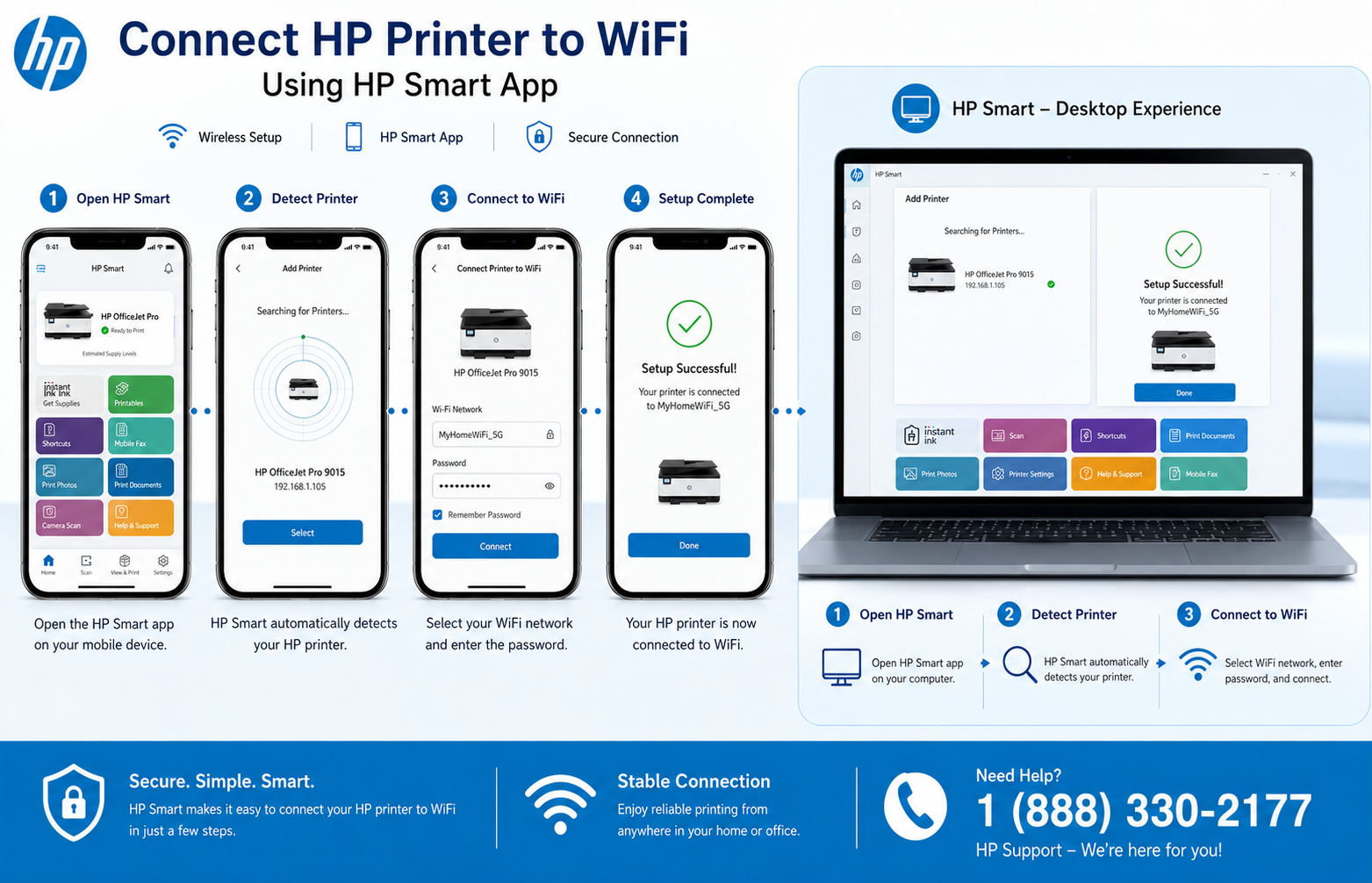
- Install HP Smart from official store
- Turn on Bluetooth and WiFi
- Open HP Smart and tap Add Printer
- Select the printer
- Follow on-screen setup instructions
- Complete wireless connection
Connect HP Printer to WiFi from the Printer Screen
Many HP printers include a built‑in Wireless Setup Wizard that lets you join a network directly from the control panel.

- Open Setup or Network menu
- Select Wireless Settings
- Tap Wireless Setup Wizard
- Choose WiFi network
- Enter password
- Confirm connection
Connect HP Printer to WiFi Using WPS
WPS allows connection without typing your WiFi password. Compatible with many HP printers and routers.
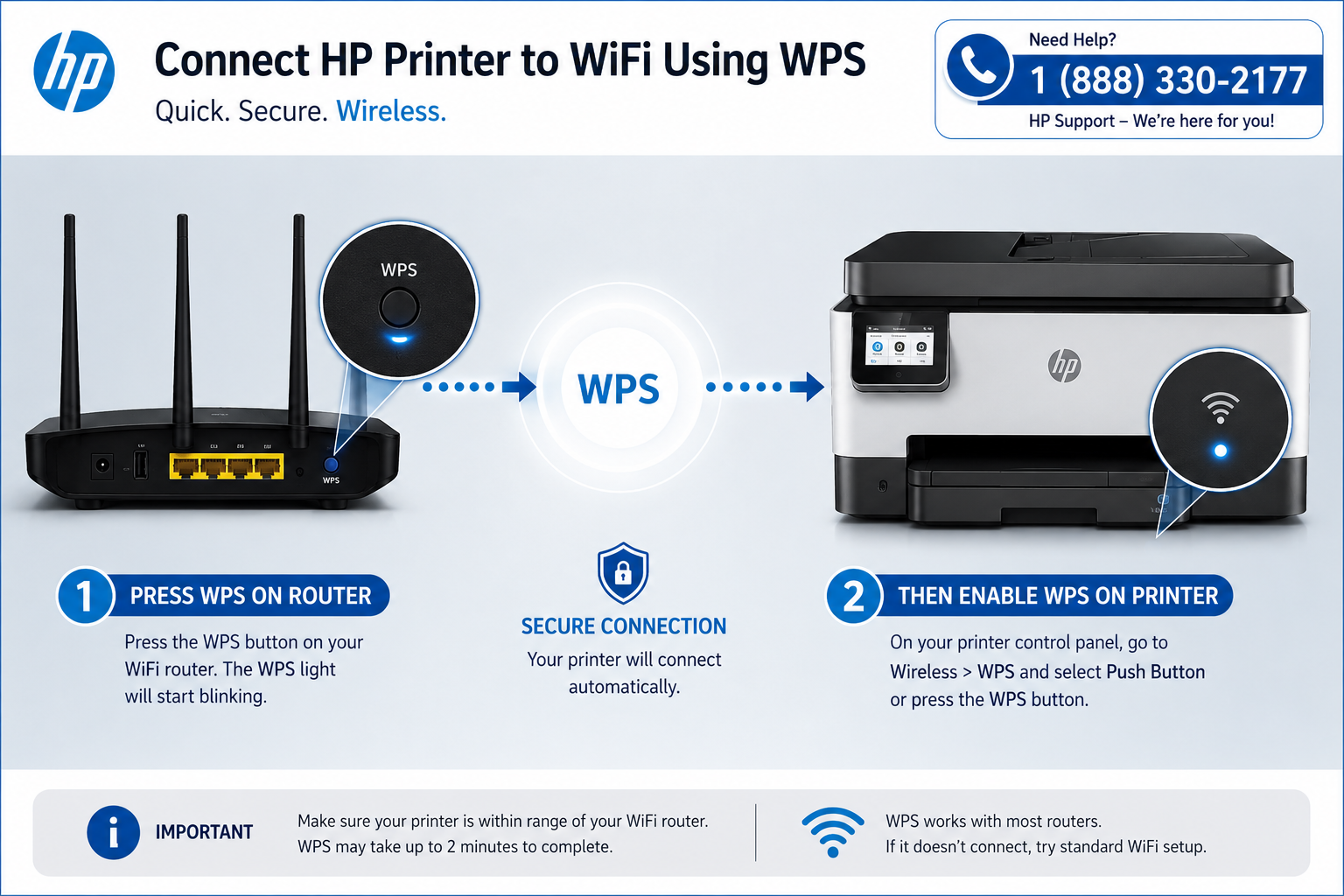
- Press WPS button on router
- Open Wireless Settings on printer
- Select WPS Push Button
- Wait for connection
Connect HP Printer to a New WiFi Network
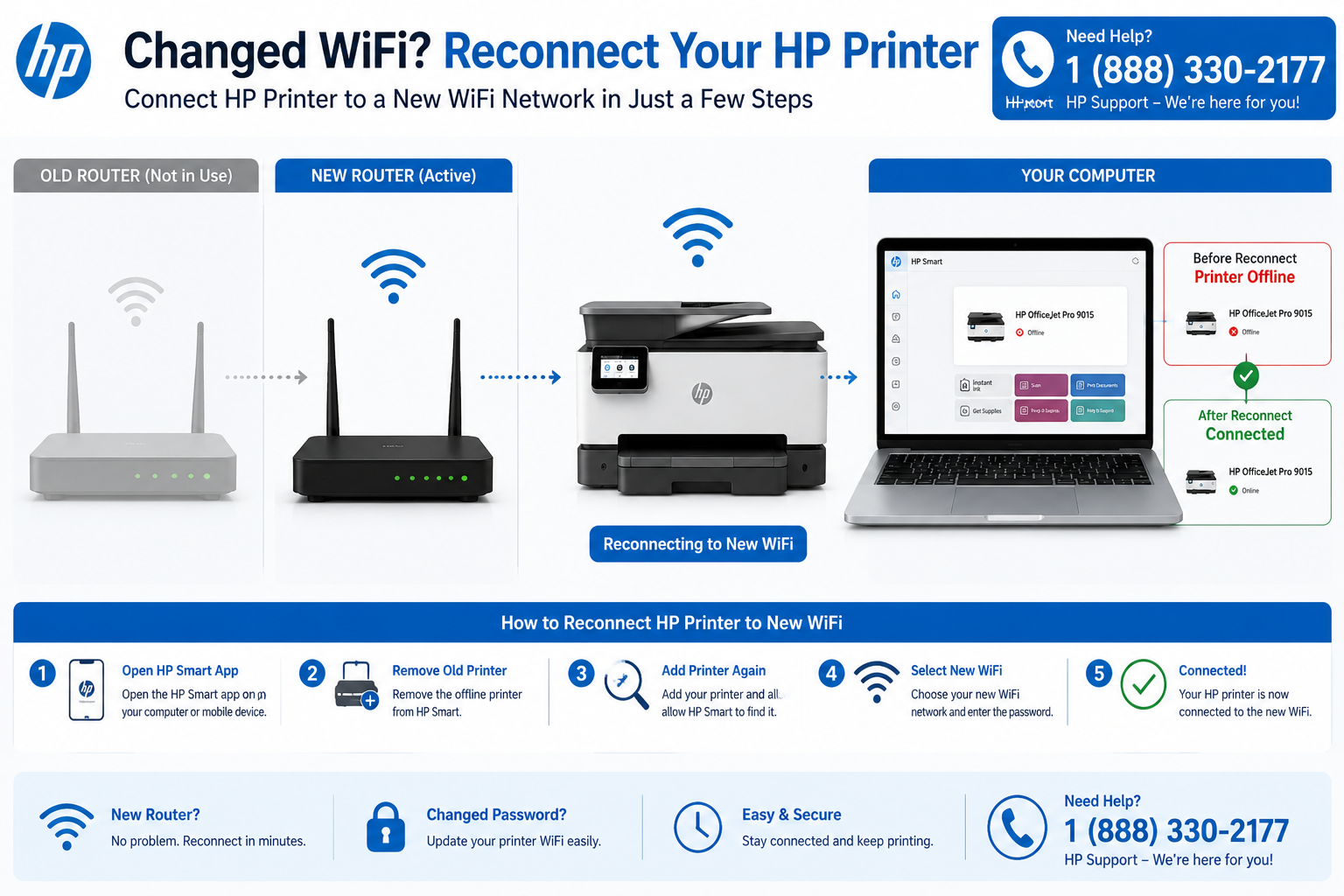
If you changed your router or WiFi password, the printer will keep trying to connect to the old network. This often results in an offline error. Follow these steps to restore wireless printing.
- Reset wireless settings (Network > Restore Network Defaults)
- Open Wireless Setup Wizard
- Select new WiFi network
- Enter updated password
- Reconnect devices using HP Smart
HP Printer Not Connecting to WiFi
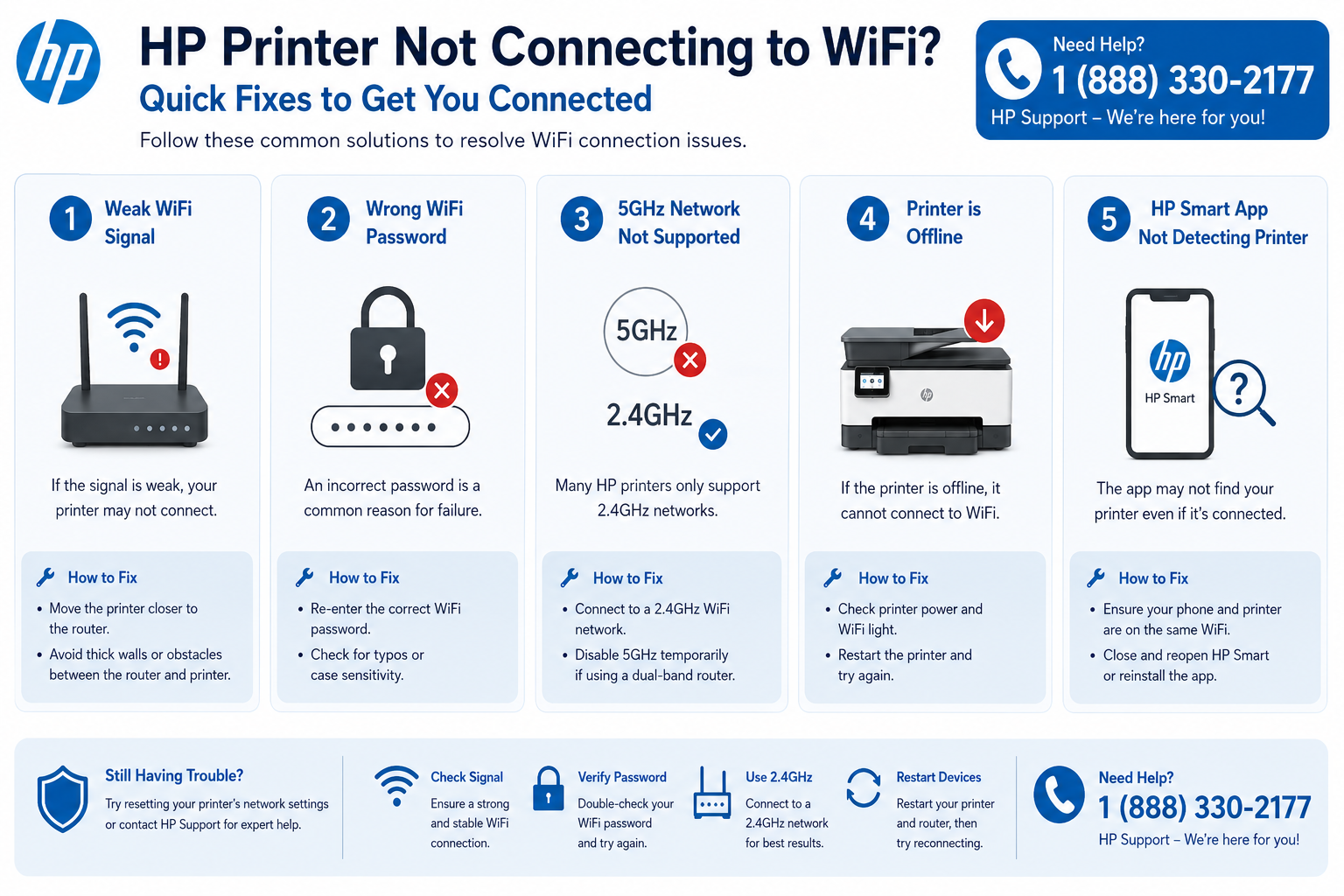
Weak WiFi Signal
Move printer closer to router. Reduce interference.
Wrong WiFi Password
Reconnect using updated credentials.
5GHz Network Issue
Use 2.4GHz band during printer setup.
Printer Offline
Restart spooler & reconnect. Full offline guide →
Router Blocking Printer
Disable AP isolation on router.
HP Smart Cannot Find Printer
Reset network settings & restart devices. HP Smart help →
Reconnect HP Printer After Changing Router
Resetting the printer’s network defaults is the most reliable way to forget the old router and connect to a new one.
- Restore network defaults from printer menu
- Restart router and printer
- Reconnect printer to new WiFi using Setup Wizard
- Re-add printer inside HP Smart (remove old instance)
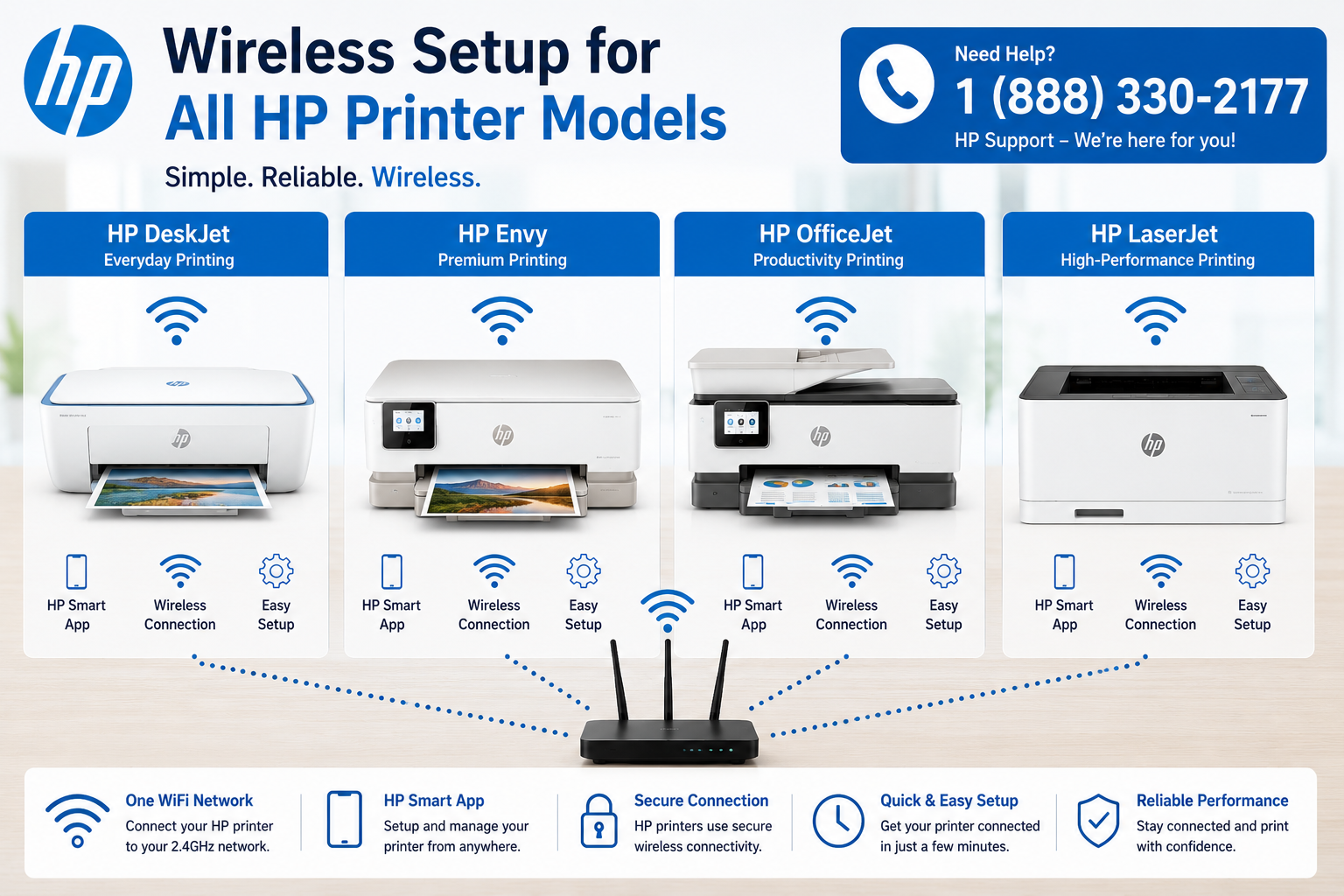
Connect Different HP Printer Models to WiFi
Users Also Troubleshoot
About This Guide
This independent support resource is maintained to help users connect HP printers to wireless networks, resolve HP Smart issues, and troubleshoot router changes. Regularly updated for latest HP firmware. For driver and software setup, visit 123.hp.com setup.
Still Unable to Connect Your HP Printer?
Immediate assistance for wireless setup, HP Smart errors, and persistent offline problems.