Printer Print Quality Problems: 11 Powerful Fixes for Blurry, Faded, or Streaky Prints
Printer print quality problems are among the most common issues people encounter when printing documents or photos. If your printer produces faded text, streaks, blurry images, or uneven colors, the problem usually relates to ink cartridges, printheads, printer settings, or maintenance issues.
Most printer print quality problems can be fixed quickly with simple troubleshooting steps. By understanding what causes poor printing quality, you can restore clear and sharp prints without replacing the printer.
This guide explains the common causes of printing issues and provides step-by-step solutions to resolve printer print quality problems effectively.
Why Printer Print Quality Problems Occur
Understanding the causes of printer print quality problems helps identify the correct solution.
Printers rely on precise mechanisms to transfer ink or toner onto paper. When any component of this process fails, print quality may decline.
Common causes include:
- low ink or toner levels
- clogged printheads
- incorrect print settings
- poor quality paper
- outdated printer drivers
Printer drivers act as communication software between the computer and the printer hardware. If drivers are outdated or corrupted, printing results may be affected.
Understanding these causes is the first step to solving printer print quality problems.
Common Printer Print Quality Problems
| Print Problem | Cause | Solution |
|---|---|---|
| Faded printing | Low ink or toner | Replace cartridge |
| Streaks on paper | Dirty printhead | Clean printhead |
| Blurry text | Incorrect settings | Adjust print quality |
| Missing colors | Clogged nozzles | Run cleaning cycle |
| Smudged ink | Wet paper or ink | Use proper paper |
Identifying the exact issue helps fix printer print quality problems quickly.
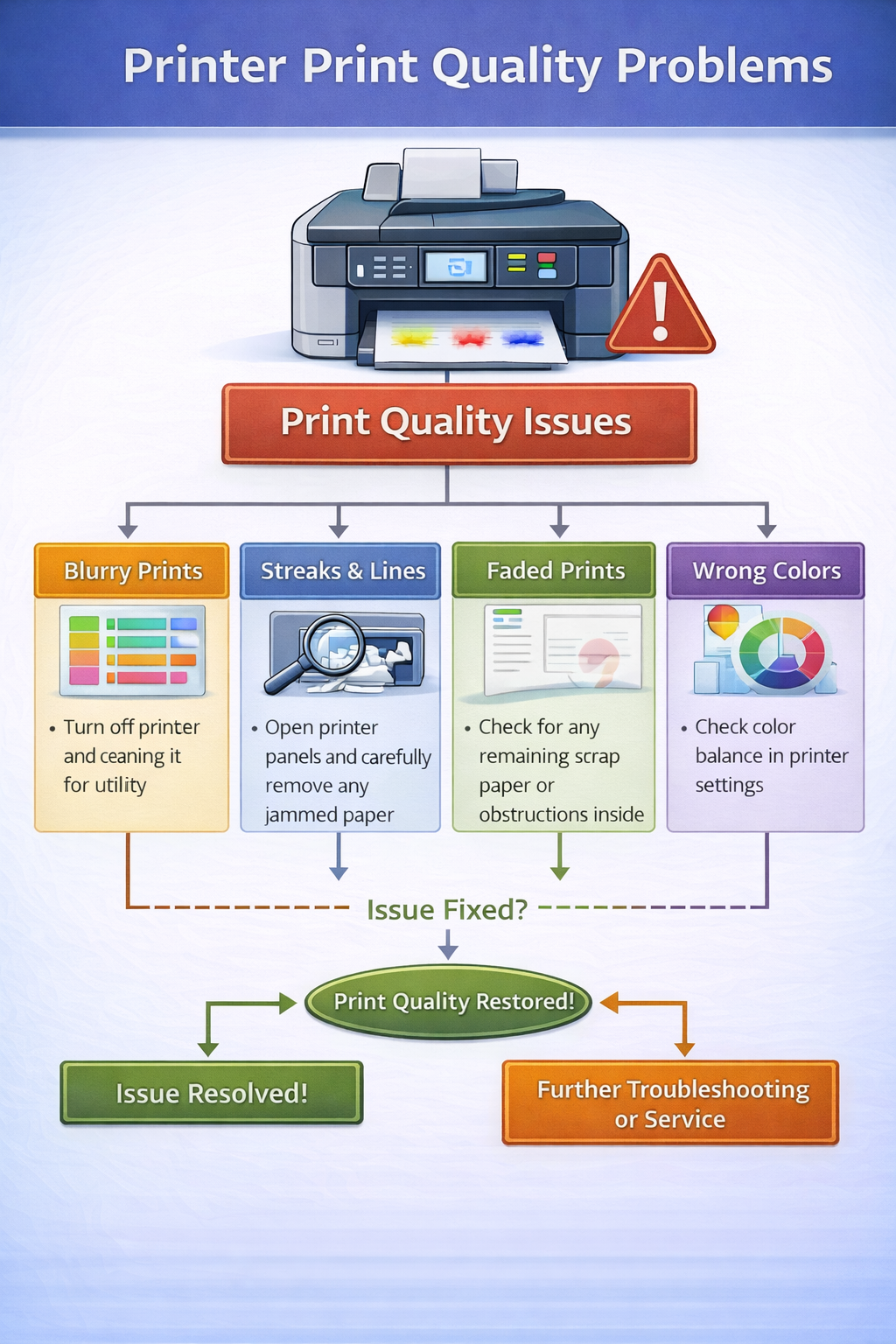
Types of Printer Print Quality Problems
📄 Faded Printing
One of the most common printer print quality problems is faded printing. Possible causes: low ink levels, toner depletion, draft printing mode. Replacing cartridges or adjusting settings often resolves this issue.
📏 Streaks or Lines on Paper
Another type of printer print quality problems is streaking or lines appearing across printed pages. This typically occurs when printheads are clogged, rollers are dirty, or ink nozzles are blocked. Running a printhead cleaning cycle often restores proper printing.
🔤 Blurry or Smudged Text
Blurry text may occur due to incorrect print settings or low-resolution printing modes. Adjusting printer resolution and using high-quality paper can fix these printer print quality problems.
🎨 Missing Colors
Sometimes printers fail to print certain colors. This issue occurs when color cartridges are empty, nozzles are clogged, or printer settings disable color printing. Cleaning the printhead usually resolves missing color issues.
How to Fix Printer Print Quality Problems
Below are practical troubleshooting methods to fix printer print quality problems.
1. Check Ink or Toner Levels
Low ink levels often cause faded printing. Steps: open printer settings, check ink levels, replace empty cartridges. Fresh cartridges can immediately improve print quality.
2. Run Printhead Cleaning
Inkjet printers may develop clogged nozzles when not used frequently. Running the printer’s cleaning utility can fix printer print quality problems caused by dried ink. Steps: open printer maintenance menu, select printhead cleaning, run the cleaning cycle.
3. Align the Printhead
Misaligned printheads can cause blurry printing. Most printers include an alignment tool that adjusts print positioning. Running alignment can improve text and image clarity.
4. Use High-Quality Paper
Low-quality paper may absorb ink unevenly. Using proper paper types helps avoid printer print quality problems such as smudging and streaks.
5. Adjust Printer Settings
Incorrect print settings may reduce quality. Check print resolution, paper type, and color mode. Switching from draft mode to high quality improves results.
6. Replace Ink Cartridges
Old cartridges may produce poor prints even if ink remains. Replacing cartridges can resolve persistent printer print quality problems.
7. Clean Printer Rollers
Dirty rollers may cause smudges or uneven printing. Cleaning rollers improves paper movement and prevents streaks.
8. Update Printer Drivers
Outdated drivers may cause printing errors. You can download updated drivers from manufacturer support sites. Printer technology and drivers are explained here: https://en.wikipedia.org/wiki/Printer_(computing). Updated drivers improve printer performance.
9. Check Printer Resolution
Low resolution may produce blurry output. Adjusting resolution settings can enhance print clarity.
10. Restart the Printer
Restarting the printer clears temporary system errors. This simple step often resolves minor printer print quality problems.
11. Update Printer Firmware
Firmware updates improve printer functionality and fix internal bugs. Manufacturers periodically release updates to improve performance.
Printer Print Quality Problems in Inkjet vs Laser Printers
Different printer types experience quality issues for different reasons.
Inkjet Printers
Inkjet printers may develop printer print quality problems when ink dries in the printhead. These printers require occasional maintenance to keep ink flowing.
Laser Printers
Laser printers use toner instead of liquid ink. Common issues include toner smudging, drum damage, and uneven toner distribution. Replacing toner cartridges usually resolves these problems.
How to Prevent Printer Print Quality Problems
Preventive maintenance can reduce printing issues.
- printing regularly to prevent ink drying
- using recommended paper types
- keeping printers clean
- replacing cartridges before they run out
Regular maintenance prevents many printer print quality problems.
Related Printer Problems
If you are troubleshooting printing issues, these guides may also help:
Internal linking improves troubleshooting navigation.
Frequently Asked Questions
Why is my printer printing faded?
Low ink levels or clogged printheads may cause faded prints.
Why does my printer print lines on paper?
Dirty printheads or damaged rollers may produce lines across pages.
How do I improve printer print quality?
Cleaning the printhead, replacing cartridges, and adjusting printer settings can restore print quality.
Final Thoughts
Printer print quality problems can affect both documents and images, but most issues are easy to fix. By checking ink levels, cleaning printheads, adjusting settings, and maintaining the printer regularly, users can restore high-quality printing quickly.
Following the troubleshooting steps outlined in this guide will help eliminate printer print quality problems and ensure consistent printing results.
© All About Printers — independent printer guides