Printer Offline Fix: 9 Powerful Ways to Get Your Printer Back Online
Printer offline fix is one of the most common troubleshooting tasks users encounter when their printer suddenly stops responding. When a printer shows an offline status, it means the computer cannot communicate with the printer even though the device may be powered on.
Many users panic when they see the offline message, but in most cases a printer offline fix can be completed within minutes. The issue is usually caused by connection problems, outdated printer drivers, incorrect settings, or network communication errors.
This guide explains the most common reasons printers go offline and provides step-by-step solutions to restore communication between your computer and printer.
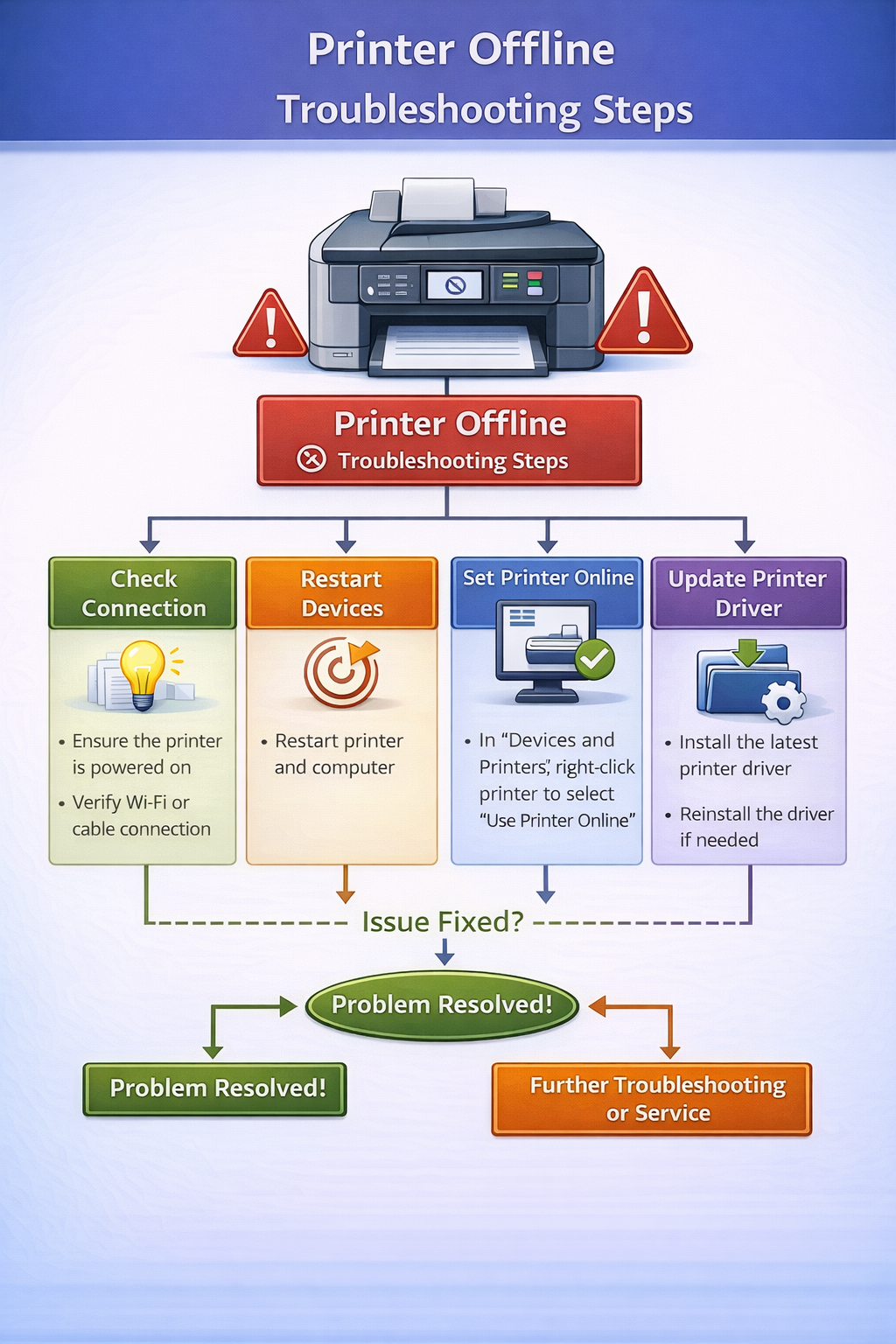
Why Printers Go Offline
Before applying a printer offline fix, it is important to understand why printers enter offline mode.
Printers rely on communication between the computer and printer hardware. If this communication breaks, the operating system assumes the printer is unavailable.
Common causes include:
- disconnected USB cable
- unstable WiFi connection
- stuck print queue
- outdated printer drivers
- incorrect printer settings
Printer drivers act as the communication bridge between the operating system and printer hardware. If the driver becomes corrupted or outdated, the printer may appear offline even though it is connected.
Understanding the underlying cause helps determine the correct printer offline fix.
Printer Offline Fix: Common Causes
| Problem | Description | Printer Offline Fix |
|---|---|---|
| Printer disconnected | USB or WiFi connection lost | reconnect printer |
| Stuck print job | blocked print queue | clear queue |
| Wrong default printer | incorrect printer selected | set correct printer |
| Driver issue | outdated or corrupted driver | update driver |
| Network problem | router communication failure | reconnect WiFi |
These issues affect most modern printers including HP, Canon, Epson, and Brother models.
Printer Offline Fix: 9 Solutions That Work
1. Restart the Printer
Restarting the printer is often the fastest printer offline fix.
Steps:
- Turn off the printer
- Wait 30 seconds
- Turn the printer back on
- Send a new print job
Restarting clears temporary errors that may block communication.
2. Check the Printer Connection
Another important printer offline fix is verifying the connection between the computer and printer.
For USB printers:
- check the USB cable
- try another USB port
- replace the cable if necessary
For wireless printers:
- confirm the printer is connected to the WiFi network
- ensure the computer uses the same network
Network issues are a common cause of printer communication failures.
3. Clear the Print Queue
A blocked print queue often requires a printer offline fix.
Steps:
- Open Devices and Printers
- Right-click the printer
- Select See what’s printing
- Cancel all pending print jobs
Once the queue is cleared, try printing again.
4. Set Printer as Default
If multiple printers are installed, the system may send print jobs to the wrong device.
Setting the correct printer as default is a simple printer offline fix.
Steps:
- Open Printer Settings
- Locate your printer
- Click Set as Default Printer
This ensures print commands go to the correct device.
5. Disable “Use Printer Offline”
Windows sometimes automatically enables offline mode.
Steps for this printer offline fix:
- Open Devices and Printers
- Right-click the printer
- Click Use Printer Online
Once this option is disabled, the printer should respond normally.
6. Restart the Print Spooler
The print spooler manages print jobs on Windows systems.
Restarting the spooler is an effective printer offline fix.
Steps:
- Press Windows + R
- Type services.msc
- Locate Print Spooler
- Restart the service
This resets the printing system.
7. Update Printer Drivers
Outdated drivers are one of the most frequent reasons users need a printer offline fix.
Drivers translate computer commands into instructions the printer can understand.
Updated drivers improve compatibility with operating systems.
You can download drivers from manufacturer support sites:
8. Reinstall the Printer
If previous solutions fail, reinstalling the printer may be the best printer offline fix.
Steps:
- Remove the printer from your computer
- Restart the computer
- reinstall the printer
- install the latest driver
Reinstallation resets configuration settings.
9. Update Printer Firmware
Firmware updates fix internal software bugs that may cause printers to stop responding.
Firmware updates are available from printer manufacturer websites.
Updating firmware improves device stability and prevents recurring errors.
Printer Offline Fix for Wireless Printers
Wireless printers require stable network communication. When the connection fails, the system may display an offline status.
Common WiFi problems include:
- weak signal strength
- router restart
- incorrect WiFi password
- printer connected to another network
Wireless troubleshooting steps:
- restart the router
- reconnect the printer to WiFi
- confirm the printer and computer share the same network
These steps often resolve wireless communication problems.
Printer Offline Fix on Windows
Windows users frequently encounter offline printer errors.
Windows troubleshooting steps include:
- restarting the print spooler
- reinstalling printer drivers
- clearing the print queue
- restarting the printer service
These solutions typically restore printing functionality.
How to Prevent Printer Offline Problems
Preventive maintenance reduces the chances of needing a printer offline fix.
Keep Printer Drivers Updated
Driver updates improve compatibility with operating system updates.
Restart Printers Occasionally
Restarting clears temporary system errors.
Maintain Stable Network Connections
Wireless printers perform best on reliable networks.
Install Firmware Updates
Firmware updates improve printer stability.
Regular maintenance prevents communication failures.
Frequently Asked Questions
Why does my printer keep going offline?
Printers usually go offline because of connection problems, outdated drivers, or blocked print queues.
What is the fastest printer offline fix?
Restarting the printer and clearing the print queue are usually the fastest solutions.
Can WiFi cause printers to go offline?
Yes. Wireless printers must remain connected to the same network as the computer.
Why is my printer offline but connected to WiFi?
The printer may be connected to the network but unable to communicate with the computer due to driver or configuration issues.
Final Thoughts
A printer offline fix is usually straightforward once the underlying cause is identified. Most offline printer issues occur because of network communication failures, driver problems, or blocked print queues.
By following the troubleshooting steps outlined in this guide, users can restore communication between their computer and printer and resume normal printing operations.
© All About Printers — independent printer guides