HP Printer Driver Unavailable – Complete Troubleshooting Guide
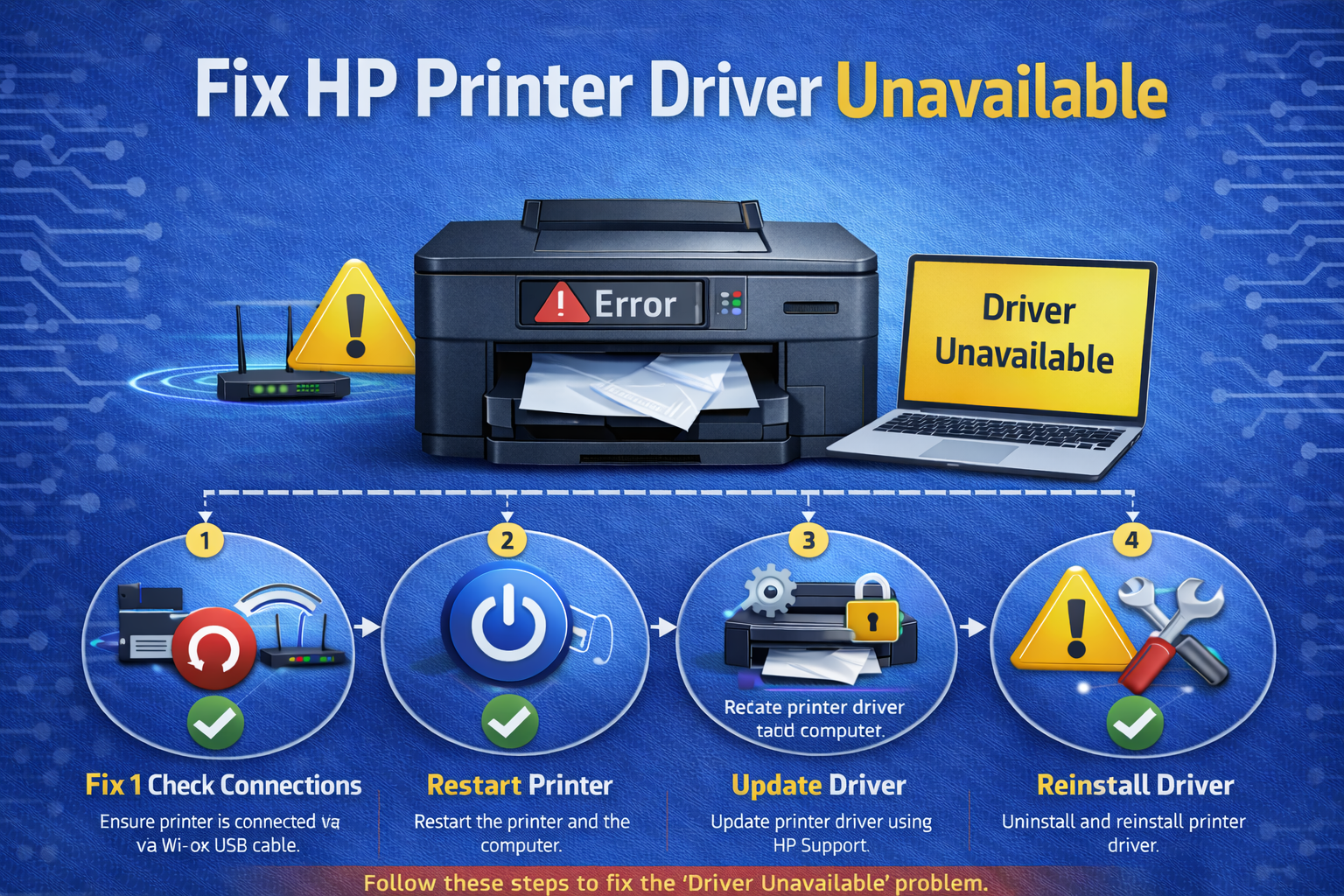
HP printer driver unavailable is a common error that prevents the computer from communicating with the printer. When this issue appears, documents may fail to print and the printer may display a "Driver Unavailable" message.
Many users encounter the hp printer driver unavailable windows 11 problem after installing system updates or reconnecting their printers. In other cases, the error appears when the printer driver becomes corrupted or outdated.
Sometimes the hp printer driver unavailable fix is as simple as reinstalling the printer driver or restarting the print spooler service. These steps often restore communication between the printer and the operating system.
If the printer driver is missing or incompatible, the system may display a printer driver unavailable message. Fortunately, most driver errors can be resolved using a few simple troubleshooting steps. For more solutions, visit our printer troubleshooting guide.
📋 Quick Navigation
- Why Does HP Printer Show Driver Unavailable?
- Troubleshooting Diagram
- Fix 1: Restart Printer & Computer
- Fix 2: Update Printer Driver
- Fix 3: Reinstall Printer Driver
- Fix 4: Restart Print Spooler
- Fix 5: Remove & Reinstall Printer
- Fix 6: Check Windows Update
- Fix 7: Verify Network Connection
- Advanced: Reset Printer
- FAQ
Why Does HP Printer Show Driver Unavailable?
The hp printer driver unavailable message usually indicates that the operating system cannot access the correct printer driver.
Common causes include:
- outdated printer drivers
- corrupted printer driver files
- Windows update conflicts
- incorrect printer installation
- network communication problems
The hp printer driver unavailable windows 10 or Windows 11 error usually appears when the printer driver is outdated or incorrectly installed. In some cases, the operating system cannot recognize the printer driver after a system update.
Users may also encounter an hp printer driver error when the printer is installed incorrectly or when driver files become corrupted. Updating the driver or reinstalling the printer usually resolves the issue.
If the printer appears connected but still fails to print, the issue may also relate to HP printer not printing errors.
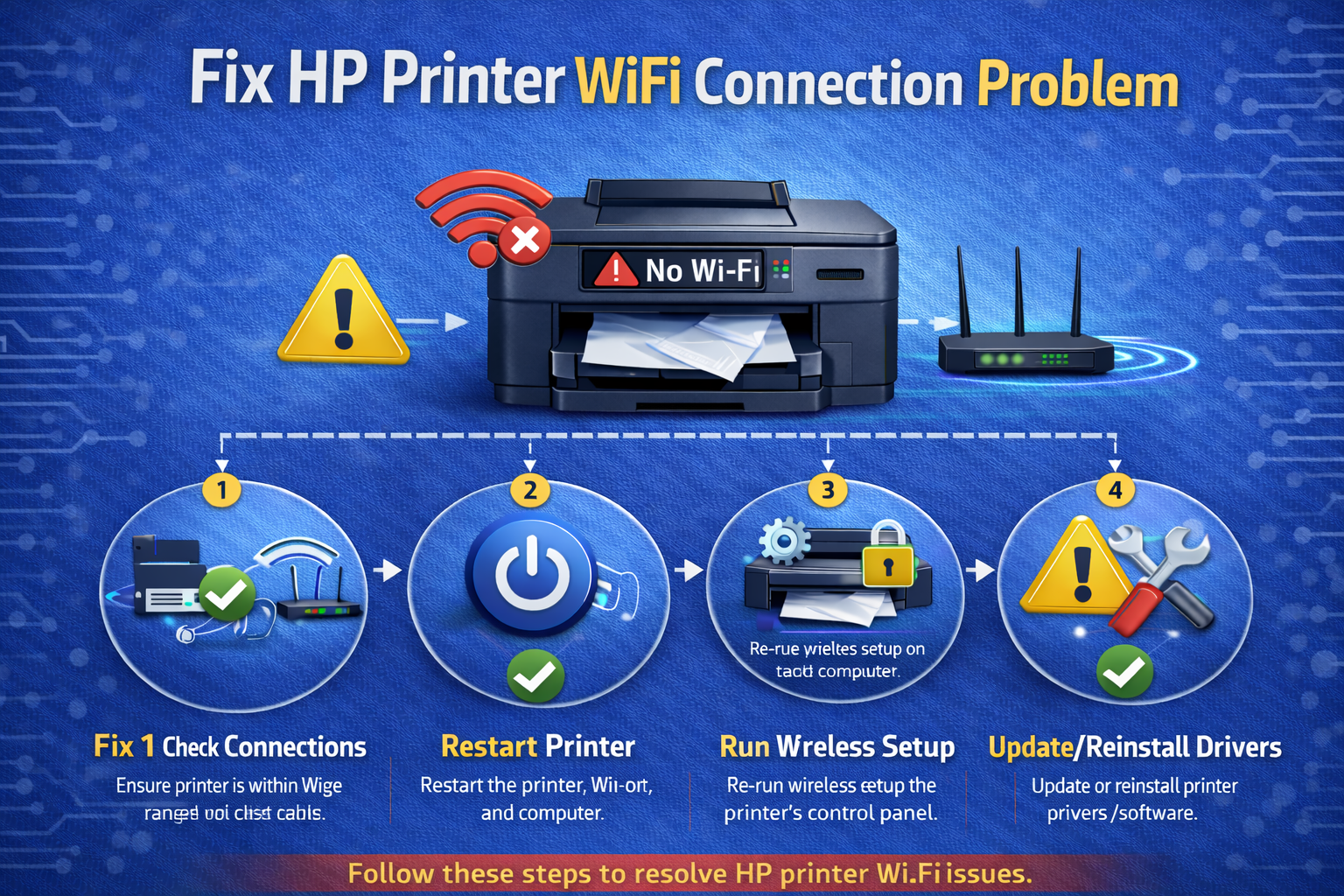
HP Printer Driver Unavailable Troubleshooting Diagram
Follow this quick diagnostic flow to identify the problem and fix hp printer driver unavailable errors.
Fix 1: Restart Printer and Computer
Sometimes the hp printer driver unavailable error occurs due to temporary system glitches.
To resolve this:
- Turn off the printer.
- Restart the computer.
- Turn the printer back on.
- Send a test print.
Restarting devices often restores printer communication and fixes driver availability issues.
Fix 2: Update Printer Driver
An outdated driver is one of the most common causes of the hp printer driver unavailable error.
Steps to update the driver:
- Open Device Manager
- Expand Printers
- Right-click the HP printer
- Select Update Driver
Updating the driver is one of the most effective solutions for an hp printer driver problem because it ensures the operating system can properly communicate with the printer hardware.
Driver updates allow the system to properly communicate with the printer hardware.
According to HP support documentation, installing the latest drivers often resolves printer driver errors.
Fix 3: Reinstall the Printer Driver
If updating the driver does not fix the issue, reinstalling the printer driver may help resolve hp printer driver unavailable errors.
Steps:
- Open Control Panel
- Select Devices and Printers
- Remove the HP printer
- Restart the computer
- Install the printer again
Reinstalling the driver restores the correct configuration.
If the printer appears offline after reinstalling, follow the guide for HP printer offline problems.
Fix 4: Restart the Print Spooler
The print spooler service manages print jobs in Windows. Restarting the spooler can fix many printer problems fix situations, including hp printer driver unavailable errors.
Steps:
- Press Windows + R
- Type services.msc
- Locate Print Spooler
- Click Restart
Microsoft explains that restarting the spooler often resolves driver communication errors in Windows printing systems.
Reference: Microsoft printing documentation
Fix 5: Remove and Reinstall the Printer
If the hp printer driver unavailable message persists, reinstalling the printer can reset its configuration.
Steps:
- Open Settings
- Click Devices
- Select Printers & Scanners
- Remove the printer
- Add the printer again
Reinstalling the device ensures the correct driver is installed and configured properly.
Fix 6: Check Windows Update
Sometimes Windows updates install incompatible drivers, causing hp printer driver unavailable errors.
To check updates:
- Open Settings
- Select Windows Update
- Install available updates
- Restart the computer
Updating Windows often resolves driver conflicts and restores printer functionality.
Fix 7: Verify Network Printer Connection
Network printers rely on correct network configuration. If the printer cannot communicate with the system, the driver may appear unavailable.
Check the network connection:
- verify the printer is connected to WiFi
- ensure the computer is on the same network
- restart the router
If your printer cannot connect to the network, read our guide on HP printer not connecting to wifi.
Advanced Fix: Reset Printer
If none of the solutions work, resetting the printer may resolve configuration errors causing hp printer driver unavailable messages.
Steps:
- Turn off the printer
- Disconnect the power cable
- Wait 60 seconds
- Reconnect the cable and turn the printer on
Resetting the printer clears temporary system errors and restores default settings.
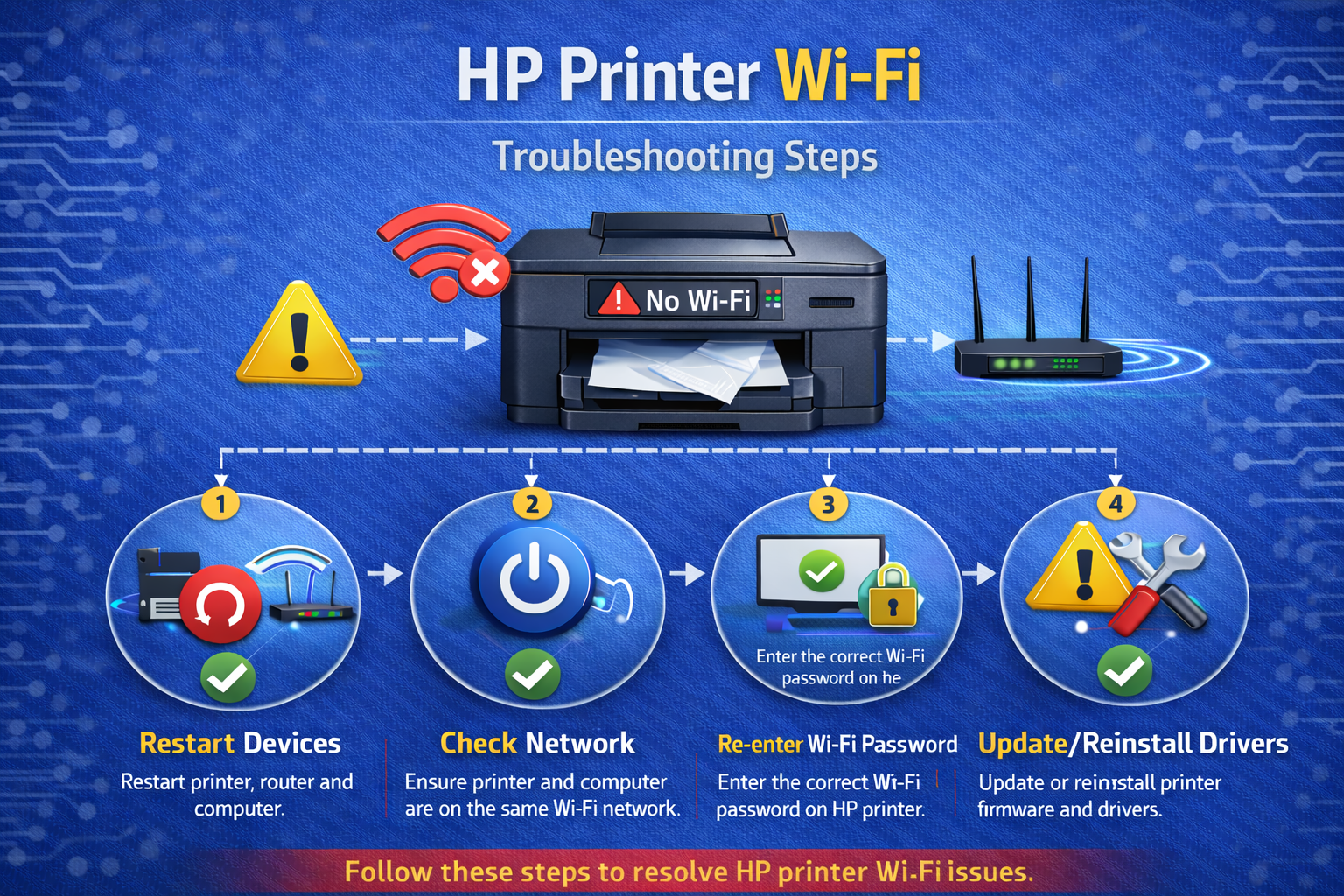
HP Printer Driver Unavailable Troubleshooting Steps
Follow these visual steps to resolve driver issues quickly.
Still having HP printer driver problems?
A printer expert can help diagnose driver conflicts and restore your printer connection.
Related Printer Troubleshooting Guides
These troubleshooting resources cover additional printer problems and repair solutions.
Frequently Asked Questions
The hp printer driver unavailable error usually occurs due to outdated drivers, configuration errors, or communication issues between the printer and the computer.
Following this printer repair guide should help restore normal printer functionality and resolve most driver-related problems.