HP Envy Printer Setup Without CD – Complete Wireless & Driver Installation Guide
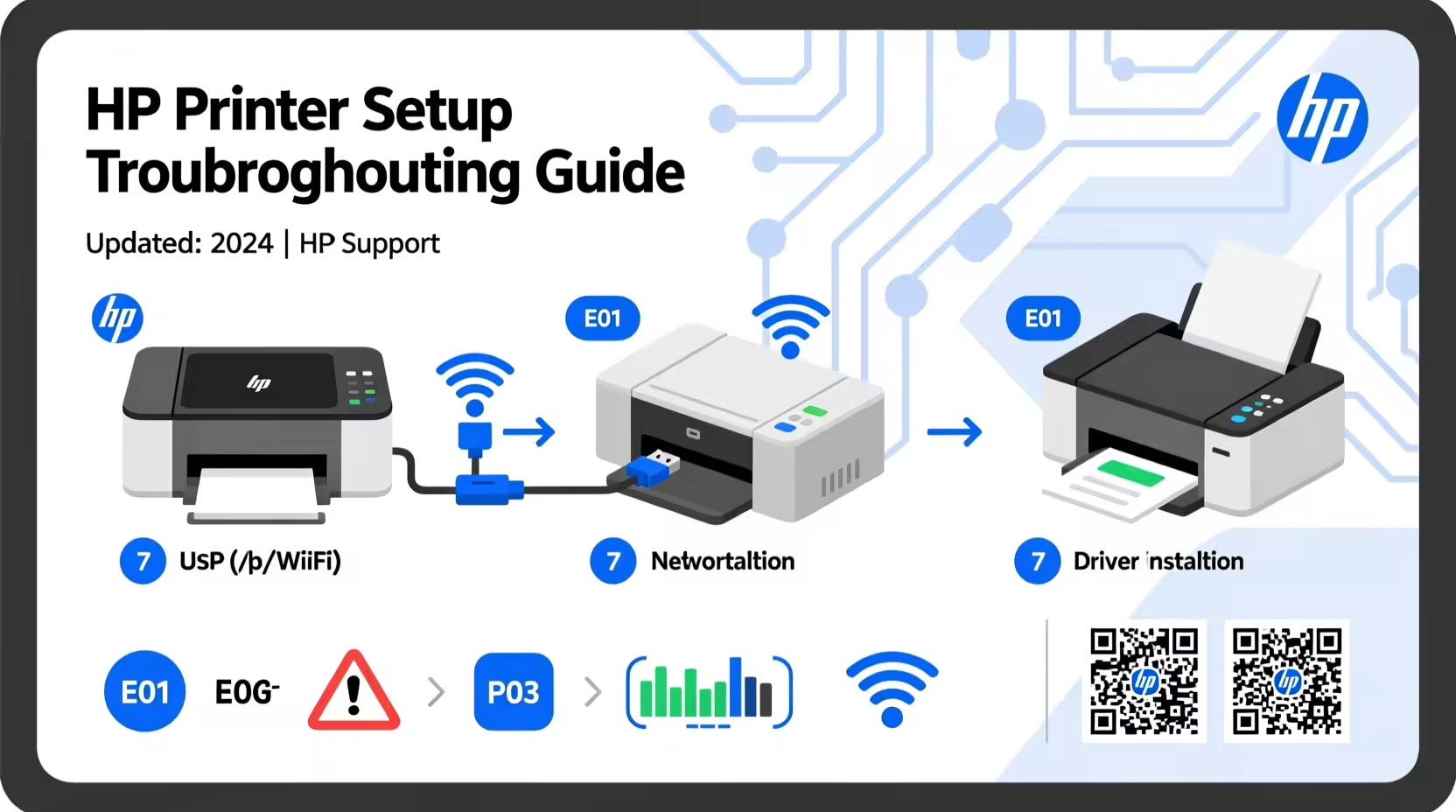
Why You Don’t Need a CD for HP Envy Setup
Modern HP Envy printers are designed for wireless, CD‑free installation. The included CD contains outdated drivers that may not work with Windows 11 or macOS. Using HP Smart or the official website guarantees the latest drivers, faster setup, and full compatibility. No optical drive? No problem.
⚡ Fastest Method – 5 Steps to Online
- Turn ON your HP Envy printer.
- Connect to WiFi via printer touchscreen (Settings → Network → Wireless Setup Wizard).
- On your computer/phone, download HP Smart (free).
- Open HP Smart → it automatically finds your printer.
- Follow guided steps → print test page. Done!
Method 1: WiFi Setup (Recommended)
Wireless
- Printer → Wireless Settings → select network → enter password.
- Download HP Smart on your device.
- Add printer → follow wizard.
USB Cable
- Connect USB cable to computer and printer.
- Download driver from HP support.
- Run installer → choose USB.
Mobile (Android/iPhone)
- Install HP Smart from app store.
- Connect phone to same WiFi as printer.
- Tap “Add Printer” → select your Envy.
Windows 10/11 Setup
Download HP Smart from Microsoft Store or HP website. Run the installer, choose Wireless or USB, and follow the steps. After installation, go to Settings → Bluetooth & devices → Printers & scanners to set as default.
macOS Setup
Download HP Smart from Mac App Store or use HP Easy Start. Open System Settings → Printers & Scanners, click “Add Printer”, select your HP Envy. AirPrint works without extra drivers.
Interactive HP Envy Setup Diagnostic Tool
Use this step-by-step tool to quickly identify and fix your printer setup issue.
HP Envy Printer Setup Problems & Fixes
Ensure both devices are on same WiFi. Restart router and printer. Disable VPN/firewall temporarily.
Download driver directly from HP support. Run installer as administrator (Windows) or allow in Security & Privacy (Mac).
Reset printer network settings (Setup → Network → Restore defaults). Use 2.4GHz band and re-enter password.
Set as default printer, clear print queue, restart print spooler (Windows) or remove/re-add printer (Mac).
📌 Related HP Printer Help
❓ Frequently Asked Questions
Can I install HP Envy printer without a CD?
Yes. Download HP Smart or drivers from HP’s official website. Setup is faster and drivers are always up‑to‑date.
How do I download HP Envy printer drivers?
Go to hp.com/support, enter your model, select OS, download full driver. Or use HP Smart which auto‑installs drivers.
Why is my HP Envy printer not connecting to WiFi?
Check password, distance from router, and band (2.4GHz preferred). Reset network settings on printer and restart router.
Can I use HP Envy printer without internet?
Yes. Once drivers are installed, you can print over USB or local WiFi without an active internet connection.
What is the easiest way to set up HP Envy on Windows 11?
Use HP Smart from Microsoft Store. It guides you through WiFi setup and driver installation automatically.
Does HP Envy work with Mac without CD?
Absolutely. Use HP Smart from Mac App Store or AirPrint for basic printing. For full features, download HP Easy Start.