Printer Printing Slowly? 9 Powerful Ways to Speed Up Your Printer
Printer printing slowly is a common issue that many home and office users experience. Instead of producing documents quickly, the printer takes several seconds or even minutes to print each page. Slow printing can interrupt productivity and make simple printing tasks frustrating.
If your printer printing slowly, the problem may be related to printer settings, outdated drivers, large document files, or network connectivity issues. Fortunately, most slow printing problems can be resolved with a few simple troubleshooting steps.
This guide explains why a printer printing slowly occurs and how to fix the issue using practical solutions that restore normal printing speed.
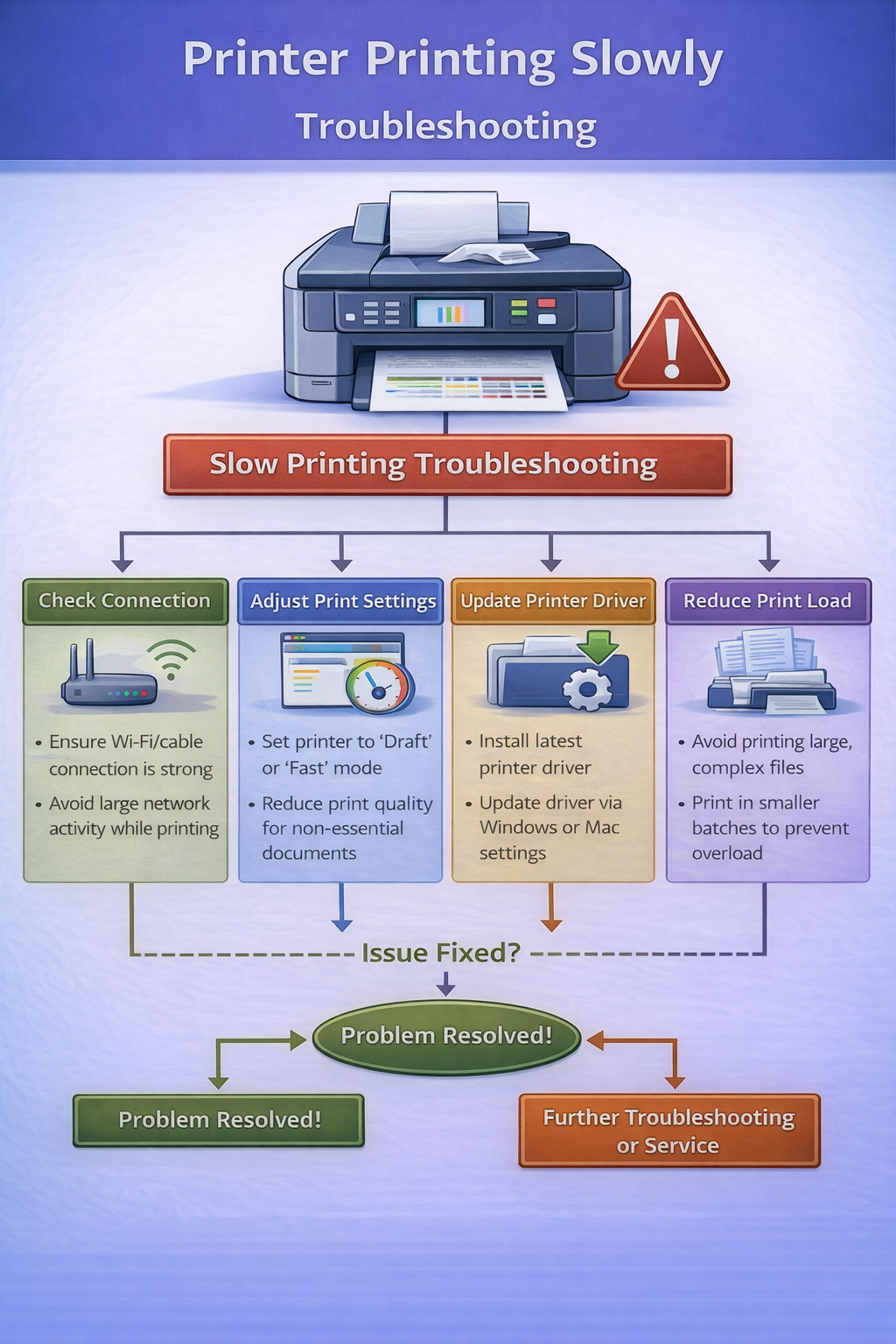
Why Printer Printing Slowly Happens
When a printer printing slowly, it usually means the printer or computer is processing print jobs inefficiently. Several factors may affect printing speed.
Common causes include:
- high print quality settings
- outdated printer drivers
- large document files
- wireless network delays
- printer memory limitations
Understanding these causes helps identify the best solution for slow printing problems.
Printer drivers are software that allow the computer and printer to communicate correctly. https://en.wikipedia.org/wiki/Printer_driver
Common Causes of Slow Printing
| Problem | Cause | Solution |
|---|---|---|
| Slow printing | high-quality settings | reduce print quality |
| Delay before printing | large file size | compress file |
| Slow wireless printing | weak WiFi signal | move printer closer |
| Slow processing | outdated drivers | update drivers |
Identifying the specific cause can help resolve slow printing issues faster.
Printer Printing Slowly Fix: Step-by-Step Guide
Below are practical solutions to resolve slow printing.
1. Reduce Print Quality Settings
Printers set to high-quality or photo mode require more processing time. Changing the settings to standard quality often improves printing speed significantly.
Steps:
- open printer settings
- select print quality options
- choose standard or draft mode
Lower print quality reduces processing time and helps fix slow printing.
2. Update Printer Drivers
Outdated drivers may cause communication delays between the computer and printer.
Steps:
- visit the printer manufacturer website
- download the latest driver
- install the update
Updating drivers can resolve slow printing caused by software conflicts. Printer technology overview: https://en.wikipedia.org/wiki/Printer_(computing)
3. Reduce Document Size
Large documents with high-resolution images may slow down printing.
Tips to reduce file size:
- compress images
- remove unnecessary graphics
- split large documents into smaller sections
Reducing document complexity can help prevent slow printing.
4. Check Network Connection
Wireless printers may print slowly if the network signal is weak. Improving WiFi connection can significantly improve printing speed.
Suggestions:
- move printer closer to router
- reduce network interference
- restart the router
Network stability is important for preventing slow printing.
5. Clear the Print Queue
Multiple pending print jobs may delay printing.
Steps:
- open printer queue
- cancel old jobs
- restart the printer
Clearing the queue helps remove delays when printing is slow.
6. Restart the Printer
Restarting the printer resets internal processes and clears temporary errors.
Steps:
- turn off the printer
- unplug power cable
- wait 30 seconds
- turn printer back on
Restarting often resolves slow printing caused by temporary system issues.
7. Use USB Instead of WiFi
Direct USB connections often provide faster communication between devices. Switching to USB may resolve slow printing caused by network delays.
8. Upgrade Printer Memory
Some printers allow memory upgrades to improve performance. Additional memory helps printers process large print jobs faster.
9. Update Printer Firmware
Firmware updates improve printer performance and fix internal bugs. Manufacturers regularly release updates to optimize printing speed. Updating firmware may resolve slow printing issues caused by outdated system software.
Slow Printing on Wireless Networks
Wireless printers are convenient but sometimes slower than wired printers.
Reasons wireless printing may slow down include:
- weak signal strength
- network congestion
- outdated router firmware
Improving network stability helps prevent slow printing problems.
Slow Printing in Inkjet vs Laser Printers
Different printers may experience slow printing for different reasons.
Inkjet Printers
Inkjet printers often print slowly when:
- photo printing mode is enabled
- printheads require cleaning
- cartridges are low on ink
Switching to draft mode can increase speed.
Laser Printers
Laser printers are generally faster but may slow down when:
- processing complex graphics
- warming up before printing
- toner cartridges need replacement
Replacing toner cartridges may restore normal speed.
How to Prevent Slow Printing
Preventive maintenance can reduce slow printing problems.
Helpful tips include:
- updating printer drivers regularly
- using standard print quality for documents
- maintaining stable WiFi connections
- cleaning printers periodically
Regular maintenance helps avoid slow printing issues.
Related Printer Troubleshooting Guides
If you are troubleshooting printer problems, these guides may help.
Internal links help users find related solutions quickly.
Frequently Asked Questions
Why is my printer printing slowly?
Slow printing may occur due to high-quality settings, outdated drivers, large files, or network delays.
How do I make my printer print faster?
Lower print quality settings, update drivers, clear the print queue, and improve network connection.
Why does my wireless printer print slowly?
Weak WiFi signals or network congestion may cause slow printing.
Can outdated drivers cause slow printing?
Yes, outdated drivers can delay communication and reduce printing speed.
Conclusion
A printer printing slowly issue can affect productivity, but the problem is usually easy to fix. By adjusting printer settings, updating drivers, clearing print queues, and improving network connections, users can restore normal printing speed.
Following the troubleshooting steps in this guide will help resolve printer printing slowly problems and ensure fast, reliable printing performance.
© All About Printers — independent printer guides