7 Easy Fixes for HP Printer Printing Blank Pages (Fast Troubleshooting Guide)
HP printer printing blank pages is a common problem caused by clogged printheads, cartridge issues, or incorrect printer settings. If you're experiencing other problems, read our guide on HP printer not printing for additional help.
If your printer prints blank pages even when ink levels appear full, this complete guide provides 7 easy fixes. The most common HP printer printing blank pages fix is cleaning the printhead.
Many users experience this issue with full ink cartridges. This HP printer blank page problem usually points directly to printhead clogs. For network-related issues, check our HP printer not connecting to WiFi guide.
Follow these step-by-step solutions to get your printer working again quickly. If your printer goes offline, see our HP printer offline problem guide for additional troubleshooting. You may also need to resolve a printer paper jam if paper is stuck.
Quick Diagnostic Flow for HP Printer Printing Blank Pages

📋 Table of Contents
1. Common Causes of HP Printer Printing Blank Pages
Understanding why your printer produces blank output helps narrow down troubleshooting steps. If your HP printer prints blank pages, these are the most common reasons.
- Clogged printhead – Dried ink blocks nozzles, preventing ink from reaching paper.
- Empty or faulty cartridges – Even if the printer shows ink levels, cartridges may be dry.
- Protective tape still attached – New cartridges have plastic seals that must be removed.
- Incorrect printer settings – Wrong paper type or quality settings can cause blank pages.
- Outdated printer drivers – Corrupted software sends incorrect printing commands. If you encounter driver errors, see our HP printer driver unavailable guide.
- Printhead alignment issues – Misaligned cartridges fail to deposit ink properly.
2. How to Fix HP Printer Printing Blank Pages
Fix 1 — Check Ink Cartridges
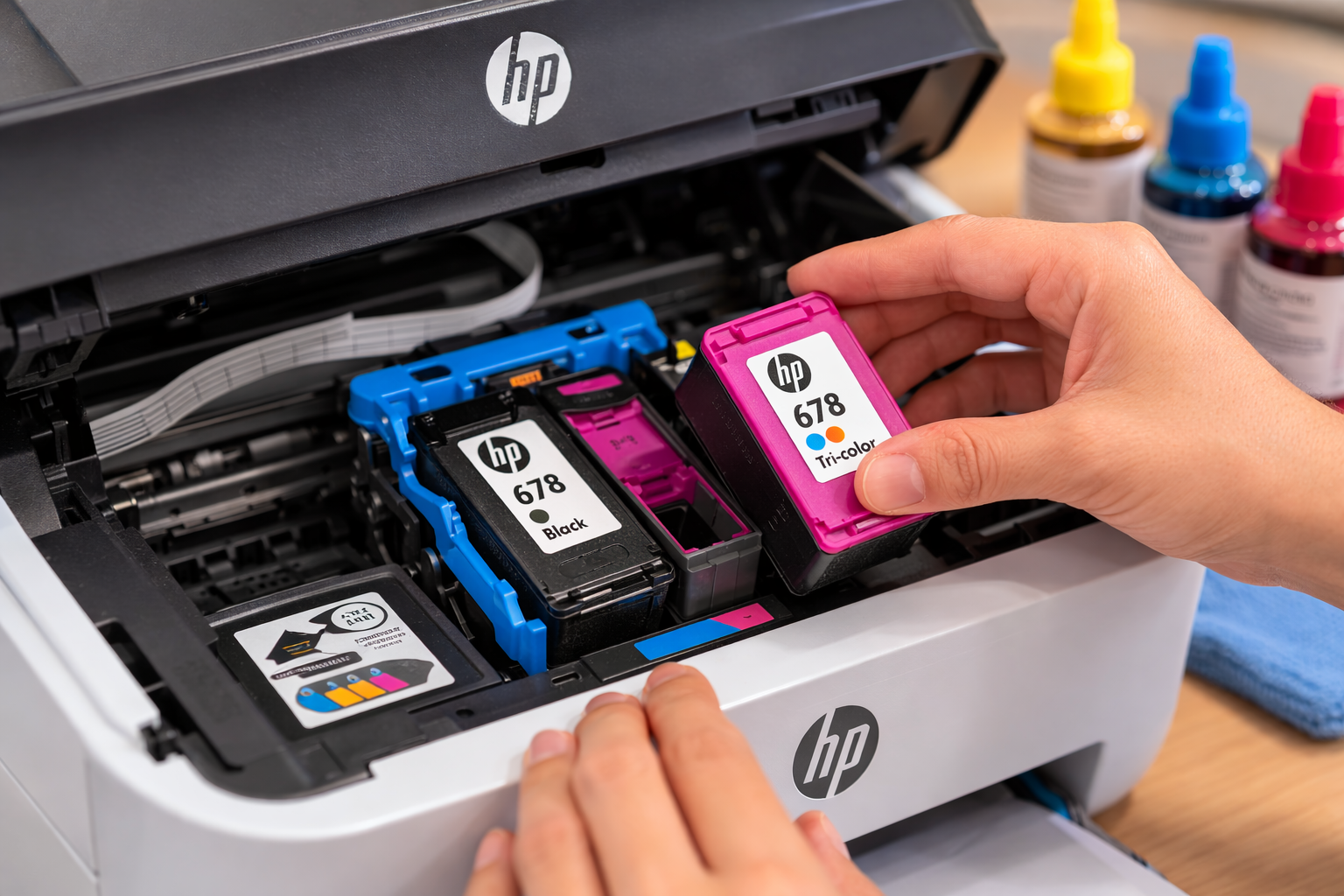
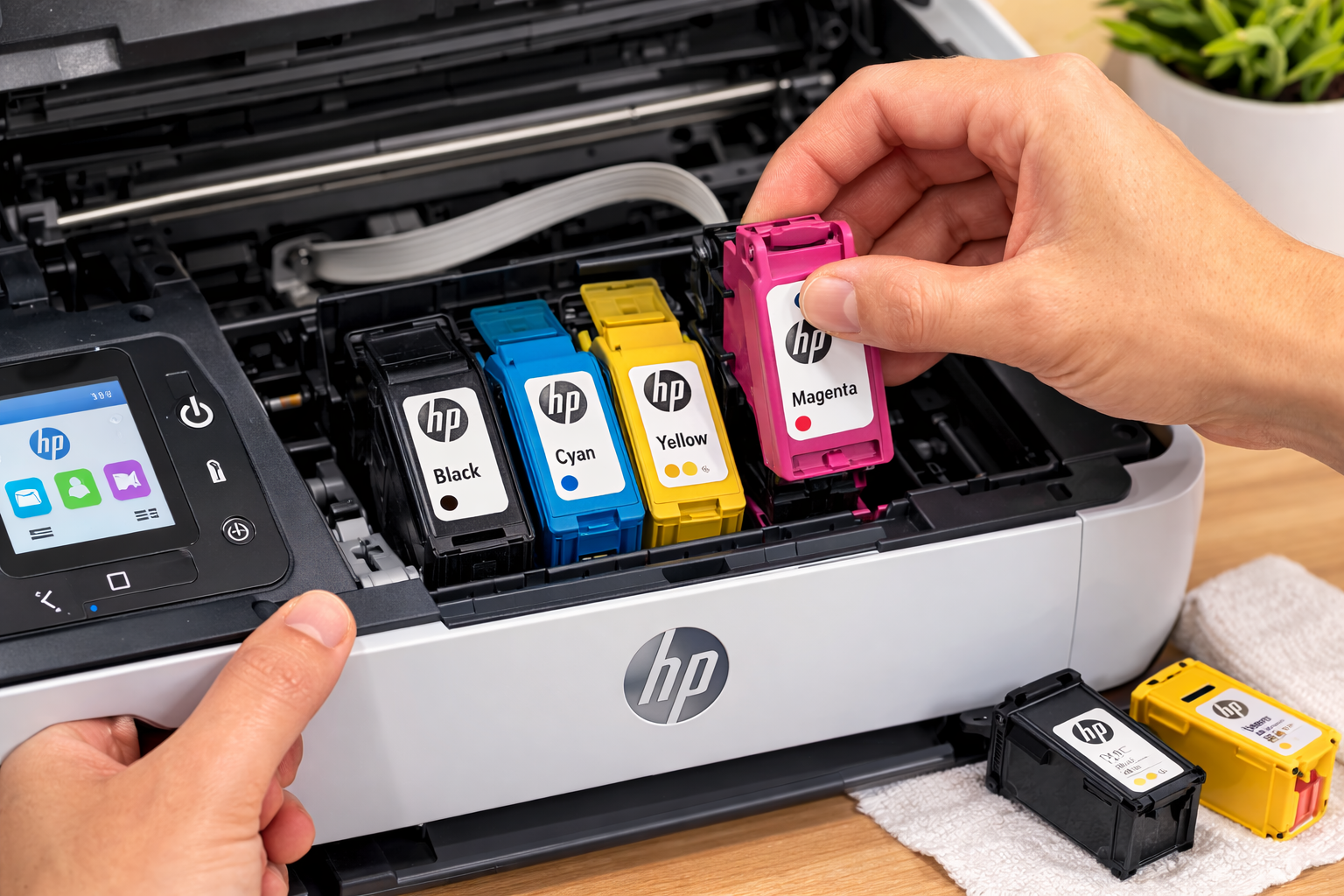
Open the printer cover and inspect the cartridges. If your printer produces blank pages, remove each cartridge.
Verify the protective tape is completely removed. Reinstall firmly until they click into place.
Check ink levels via the HP software or printer control panel. Empty cartridges need replacement. If you're also dealing with paper jams, see our HP printer paper jam fix guide.

Fix 2 — Clean Printhead
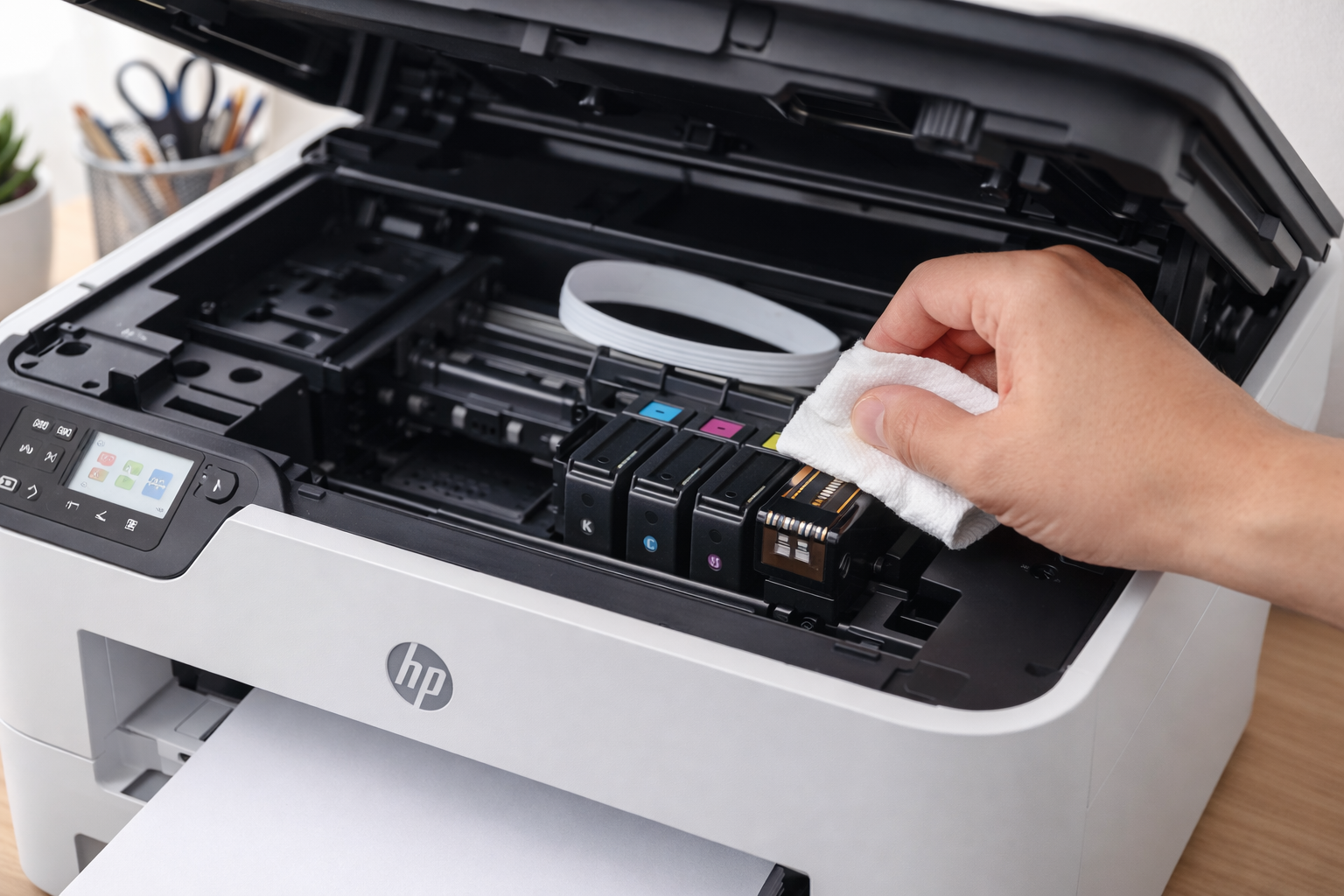
For blank pages with full ink cartridges, run the printhead cleaning utility. Access this through HP printer software or the printer control panel.
Repeat 2-3 times if needed. Print a test page after each cycle to check progress.
- Open HP Printer Software (Windows) or HP Utility (Mac).
- Go to Printer Maintenance / Tools.
- Select Clean Printhead and follow prompts.
- Print a test page after each cycle.

Fix 3 — Align Printer Cartridges
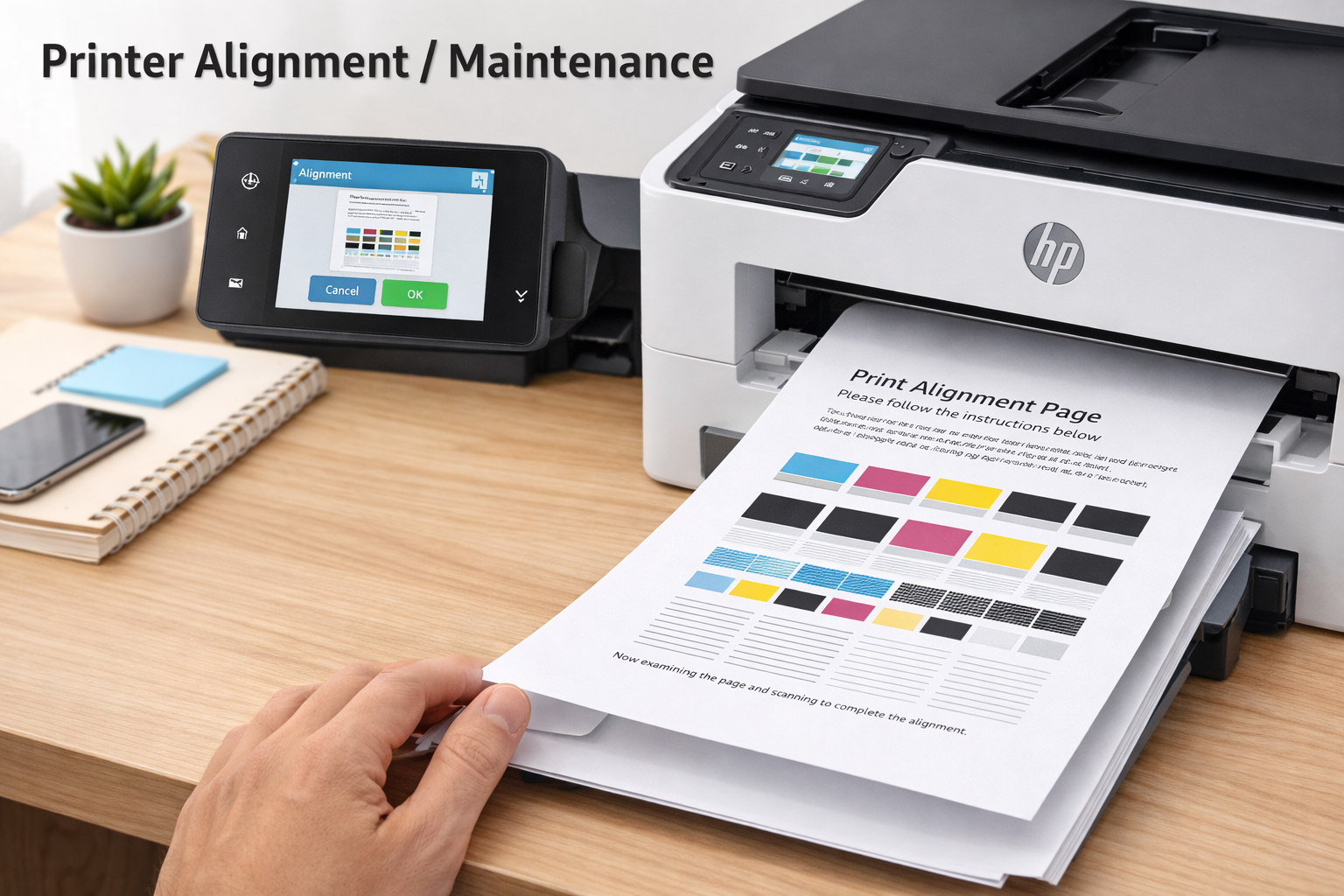
Misalignment contributes to blank page issues. Run the alignment utility from printer maintenance settings.
This ensures proper ink distribution across the page. Print the alignment test when prompted.

Fix 4 — Restart Printer
Power cycle resolves temporary glitches causing blank page errors. Turn off the printer and unplug from power.
Wait 60 seconds, then plug back in and turn on. Also restart your computer to clear communication errors.
Fix 5 — Update Printer Driver
Outdated drivers often trigger blank page printing. Visit HP support or use Device Manager to install the latest driver.
For official guidance, refer to HP support documentation. Driver updates fix many printing problems, including offline errors.
Fix 6 — Clear Print Queue
A stuck job can cause printing problems. Open print queue and cancel all documents.
Restart the spooler service on Windows. On Mac, reset the printing system to clear stuck jobs.
Fix 7 — Reset Printer
Factory reset clears persistent errors. Refer to your manual for reset instructions specific to your model.
This should only be done after trying other fixes. Resetting returns the printer to default settings.
3. HP Printer Printing Blank Pages But Ink Full
Many users report their HP printer printing blank pages but ink full, which indicates dried ink in the printhead.
When blank pages appear despite full cartridges, the printhead is almost always clogged.
Run the cleaning cycle 2-3 times. If the issue continues, manually clean the printhead.
Use a lint-free cloth and distilled water for manual cleaning. Let it dry completely before reinstalling.
4. HP Printer Printing Blank Pages After Cartridge Change
If you notice blank pages after changing cartridges, check these four things immediately:
- Remove the cartridge and verify the orange protective tape is completely removed.
- Ensure the cartridge model is compatible with your printer.
- Reinstall firmly until you hear a click.
- Run the alignment and cleaning utilities.

5. Fix HP Printer Printing Blank Pages on Windows 10/11
Windows Troubleshooting Steps
- Run Windows Printer Troubleshooter – Go to Settings > Update & Security > Troubleshoot > Printer. Let Windows detect and fix issues automatically.
- Reinstall printer driver – Open Device Manager, right-click your printer, select Uninstall device. Restart your computer and let Windows reinstall the driver.
- Clear print spooler – Open Services (services.msc), stop Print Spooler, delete files in C:\Windows\System32\spool\PRINTERS, then restart the spooler.
- Update driver manually – Visit HP support website to download and install the latest driver for your specific model.
If you continue to experience issues, our HP printer not printing guide provides additional Windows-specific solutions.
6. Fix HP Printer Printing Blank Pages on Mac
Mac Troubleshooting Steps
- Remove and re-add printer – Go to System Settings > Printers & Scanners, select your HP printer, click Remove Printer. Then click Add Printer to reinstall.
- Reset printing system – In Printers & Scanners, right-click (or Ctrl-click) in the printer list and select Reset printing system. This clears all printers and resets settings.
- Run HP Utility – Open HP Utility from Applications, select your printer, and run the Clean function to clear clogged printheads.
- Update macOS – Ensure your Mac is running the latest macOS version, as updates often include printer driver improvements.
For persistent Mac printer problems, see our HP printer offline problem guide for macOS-specific fixes.
7. When Blank Pages Mean Hardware Failure
Recognizing Hardware Issues
If you've tried all software fixes and your printer still produces blank pages, the problem may be hardware-related:
- Printhead failure – The printhead may be permanently clogged or electrically damaged. Replacement is often required.
- Mainboard issues – A faulty mainboard can prevent communication with cartridges. Professional repair is needed.
- Cartridge chip errors – Third-party cartridges may have defective chips. Try genuine HP cartridges.
- Ink system failure – In some models, the ink delivery system may be blocked or broken, requiring printer replacement.
Before replacing your printer, consider a professional diagnosis.
8. Additional Troubleshooting Scenarios
HP Printer Prints Blank Pages
If your HP printer prints blank pages, the issue is usually related to clogged printheads, cartridge installation problems, or incorrect printer settings.
Running a printhead cleaning cycle or reinstalling the cartridge often fixes the issue quickly.
HP Printer Blank Page Problem
The HP printer blank page problem can occur when ink cartridges are empty, improperly installed, or blocked by dried ink.
Restarting the printer and checking cartridge alignment can help restore normal printing.
HP Printer Printing Blank Pages But Ink Full
Many users report their HP printer printing blank pages but ink full situation. This usually indicates a clogged printhead or driver communication error.
Running the printer maintenance tool can restore ink flow.
HP Printer Printing Blank Pages Fix
The best HP printer printing blank pages fix is to check the cartridges, clean the printhead, and update the printer driver.
These steps resolve most blank printing problems.
9. Advanced Troubleshooting
If standard fixes don't resolve the blank page problem, try these advanced steps.
- Manual printhead cleaning – Remove the printhead and soak in warm distilled water for 10 minutes. Dry completely before reinstalling.
- Check firmware – Visit HP support to ensure your printer firmware is current. Outdated firmware can cause printing errors.
- Inspect mainboard – In rare cases, a faulty mainboard prevents printing. This requires professional service.
Need Professional Help?
Still having blank page problems?
If you've tried all troubleshooting steps and your printer still produces blank pages, the issue may be more complex.
Common persistent problems include:
- • Firmware errors affecting printhead communication
- • Cartridge recognition problems after replacement
- • Internal hardware faults requiring professional diagnosis
Our certified technicians can diagnose the root cause and restore normal printing quickly.
CONTACT SUPPORTFor official guidance, visit HP support documentation.
Quick Access Guides
11. Frequently Asked Questions
An HP printer printing blank pages error can be frustrating, but most causes have straightforward solutions.
Start with basic cartridge checks, then work through cleaning cycles and driver updates.
In most cases, your printer will be printing normally within minutes.
Bookmark our printer troubleshooting guide for future reference.