7 Easy Fixes for HP Printer Showing Offline (Quick Troubleshooting Guide)
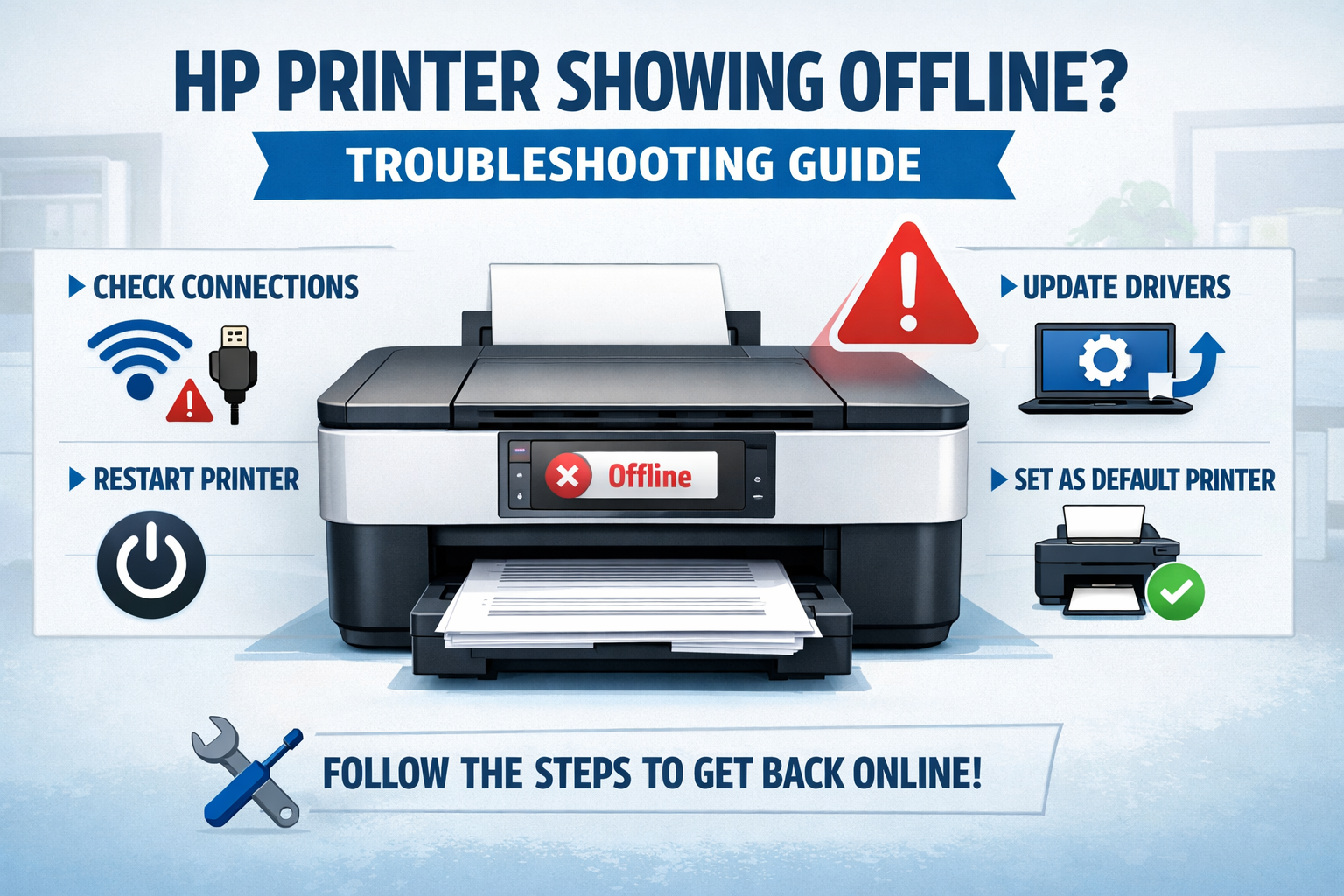
When your printer suddenly stops responding, the system may display an offline status even though the device is powered on. This usually means the computer cannot communicate with the printer through the network or driver.
Users often notice this when:
- WiFi connection becomes unstable
- Printer drivers are outdated
- The print spooler stops working
- The printer is accidentally set to offline mode
These situations can also trigger messages such as hp printer says offline even while the device appears connected.
Fortunately, most connection issues can be resolved quickly using the troubleshooting steps below.
Quick Fix for HP Printer Showing Offline
Before trying advanced troubleshooting, try these quick actions:
- Restart the printer and WiFi router
- Disable Use Printer Offline mode
- Restart the Print Spooler service
- Reconnect the printer to the wireless network
These simple fixes resolve many printing communication issues.
Troubleshooting Flow for Offline Printer Errors
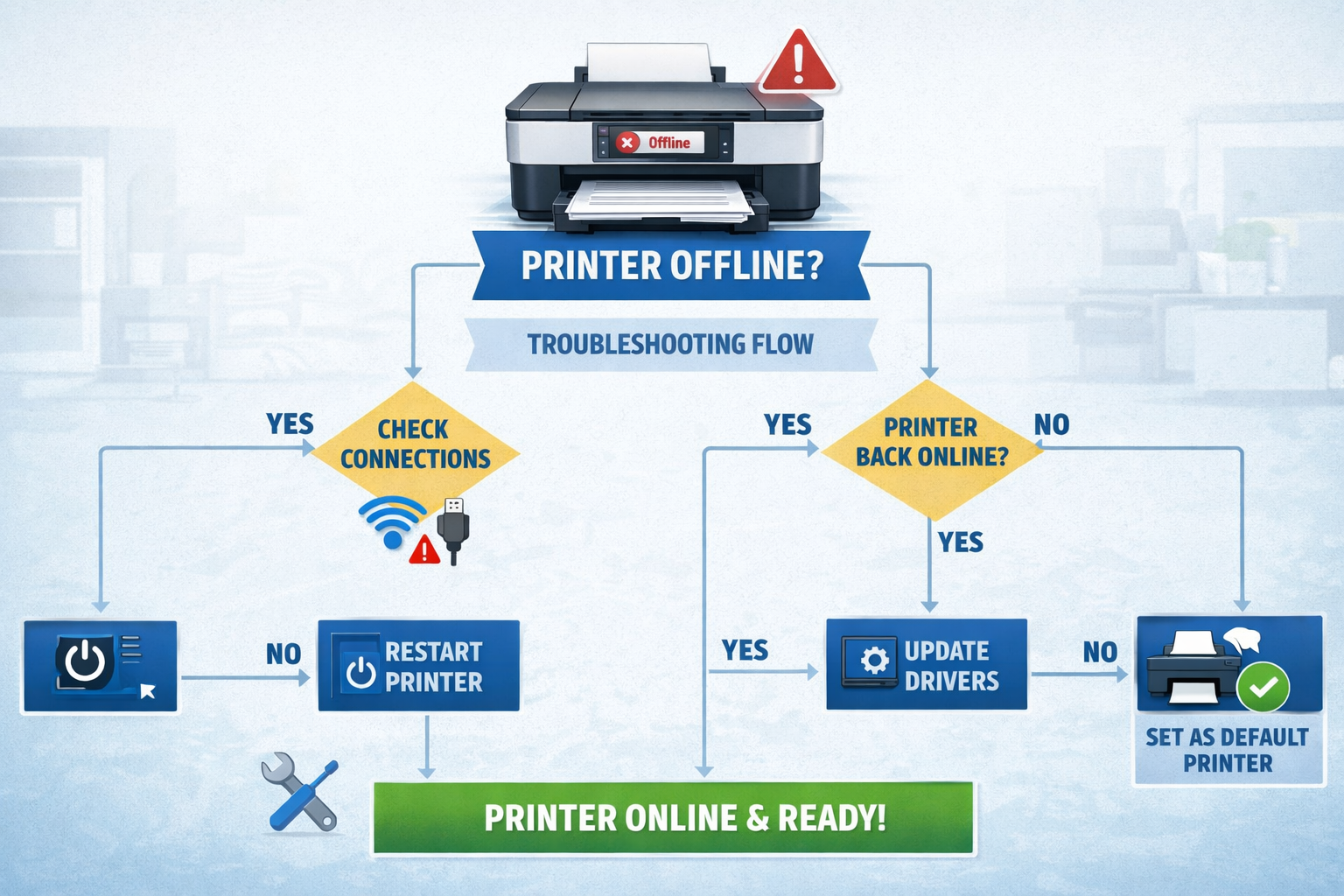
The diagram above shows the most common causes of printers appearing unavailable.
Typical causes include:
- Printer disconnected from the network
- Incorrect printer settings
- Spooler service failures
- Driver conflicts
Work through the following steps to restore the printer connection.
Check Wireless Network Connection
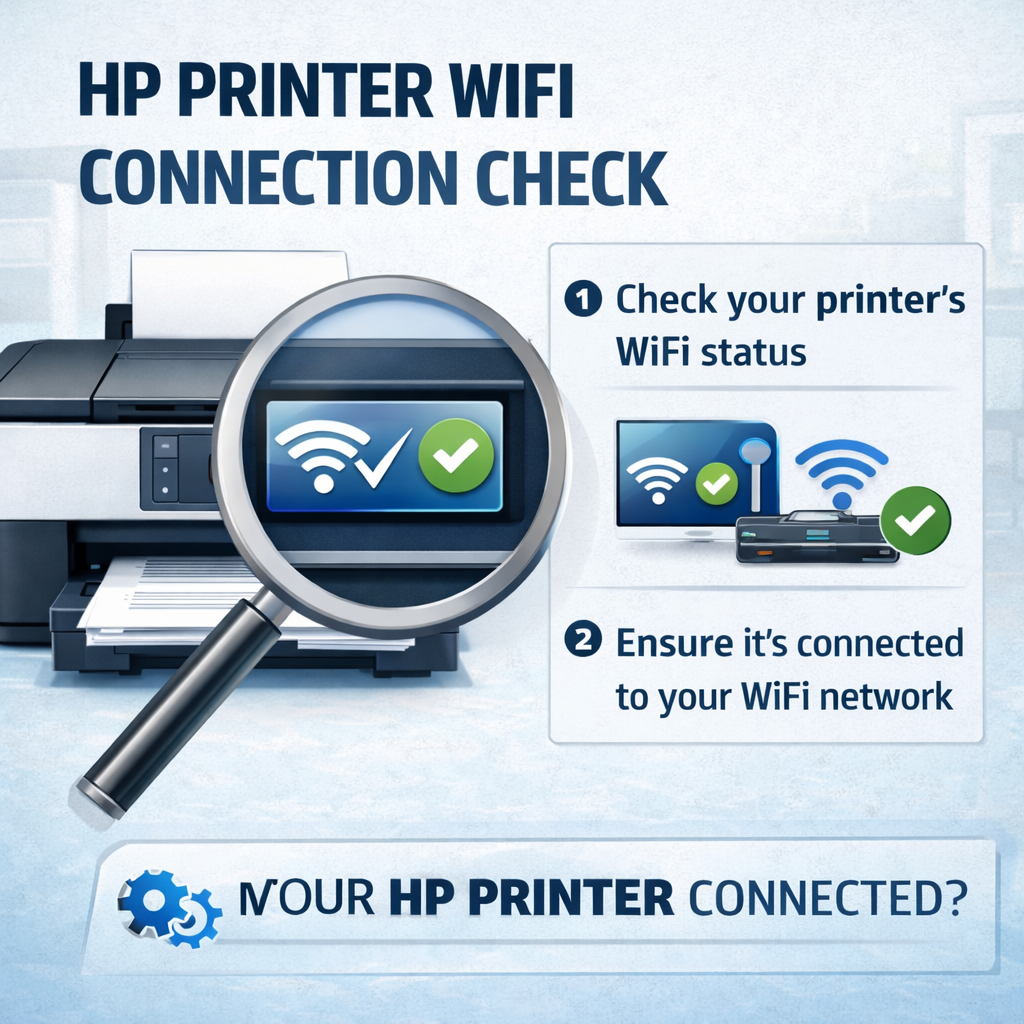
A frequent reason for the hp printer offline but connected message is network communication failure.
Check the following:
- Printer connected to the same WiFi network as the computer
- Wireless indicator light active
- Router functioning normally
If needed, reconnect the printer using the wireless setup wizard.
Official troubleshooting resources:
HP Printer Support
Internal guide:
HP Printer Not Connecting to WiFi
Restart the Print Spooler Service
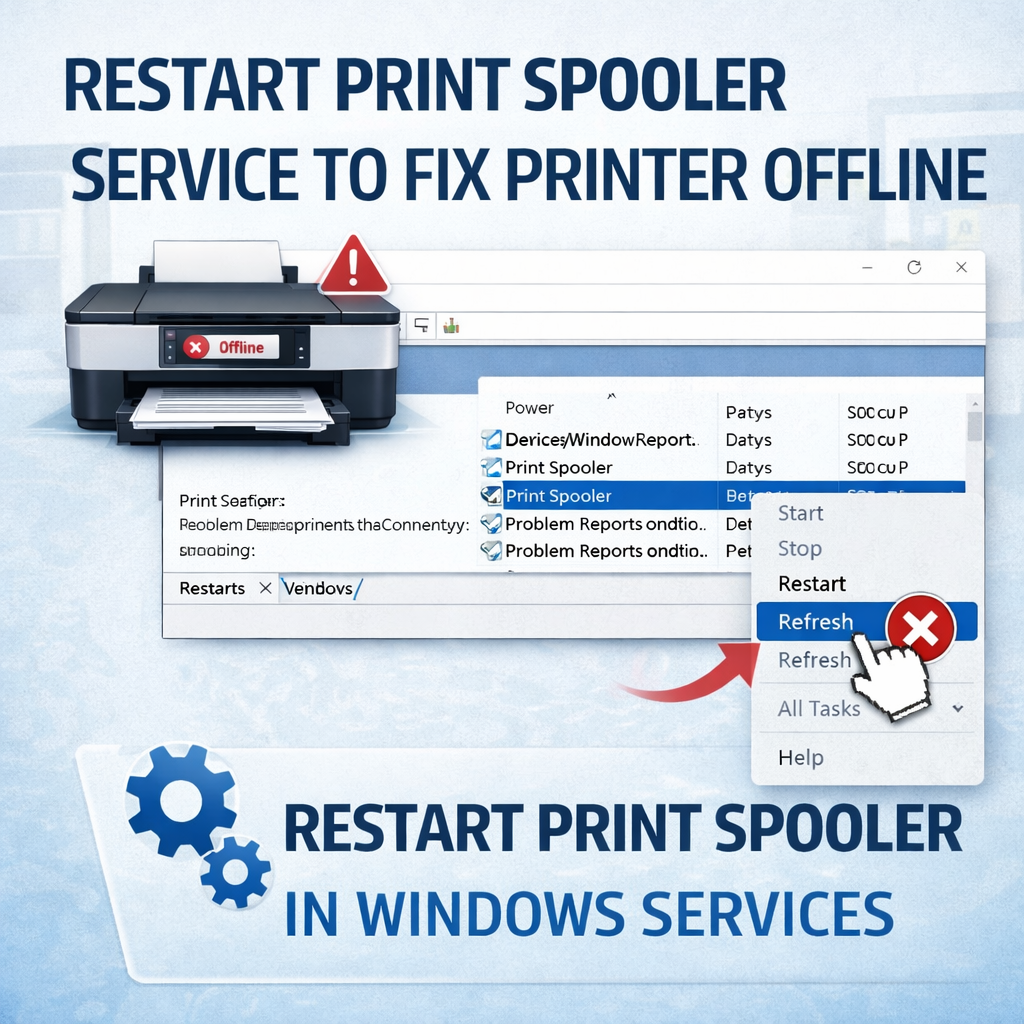
The print spooler manages all print jobs in Windows. If the service stops responding, the computer may not communicate with the printer.
Steps:
- Press Windows + R
- Type services.msc
- Locate Print Spooler
- Right-click the service
- Select Restart
More help:
Microsoft Printer Troubleshooting
Disable Offline Mode in Printer Settings
Sometimes the device is simply set to offline mode.
Steps to change it:
- Open Control Panel
- Go to Devices and Printers
- Right-click the printer
- Select See What's Printing
- Uncheck Use Printer Offline
This usually restores normal printing.
hp printer keeps going offline
If your hp printer keeps going offline, the cause is often unstable WiFi or outdated drivers. Weak signals can cause the printer to disconnect from the network repeatedly.
Updating the drivers and reconnecting the printer to the router usually prevents the device from disconnecting again.
hp printer offline but connected
The hp printer offline but connected problem occurs when the device appears connected to WiFi but cannot communicate with the computer.
Restarting the spooler service or reinstalling the printer often resolves the communication issue.
hp printer offline mac
Mac users may encounter the hp printer offline mac problem when the printer queue stops responding or when the wireless connection drops.
Removing the printer from Printers & Scanners and adding it again usually restores printing. Apple provides guidance here:
Apple Printer Troubleshooting
hp printer says offline
When the system displays hp printer says offline, the computer cannot send print jobs to the device. This usually happens because of connection interruptions, spooler issues, or incorrect printer settings.
Reconnecting the printer and restarting the spooler service typically fixes this error.
Update Printer Drivers
Outdated drivers can cause communication failures between the computer and printer.
Download updated drivers from:
HP Printer Driver Downloads
Driver updates often resolve persistent printing issues.
Related Printer Troubleshooting Guides
You may also find these guides helpful:
- HP Printer Not Printing – Troubleshooting Guide
- HP Printer Driver Unavailable – Fix Guide
- HP Printer Not Connecting to WiFi
- Complete Printer Troubleshooting Hub
Final Thoughts
Printer connection errors are common and usually caused by network interruptions, spooler problems, or driver conflicts. Most issues can be resolved quickly by restarting services, reconnecting the printer, or updating drivers.
Following the troubleshooting steps above should restore normal printing and prevent recurring connection problems.
Focus Keyword: HP Printer Showing Offline
SEO Title: 7 Easy Fixes for HP Printer Showing Offline (Quick Troubleshooting Guide)
Meta Description: Learn 7 easy fixes for HP printer showing offline errors. Troubleshoot WiFi issues, spooler problems, and driver conflicts to restore printing quickly.