HP Printer Driver Unavailable? Try This First to Fix It Fast
Reviewed by Printer Support Specialists
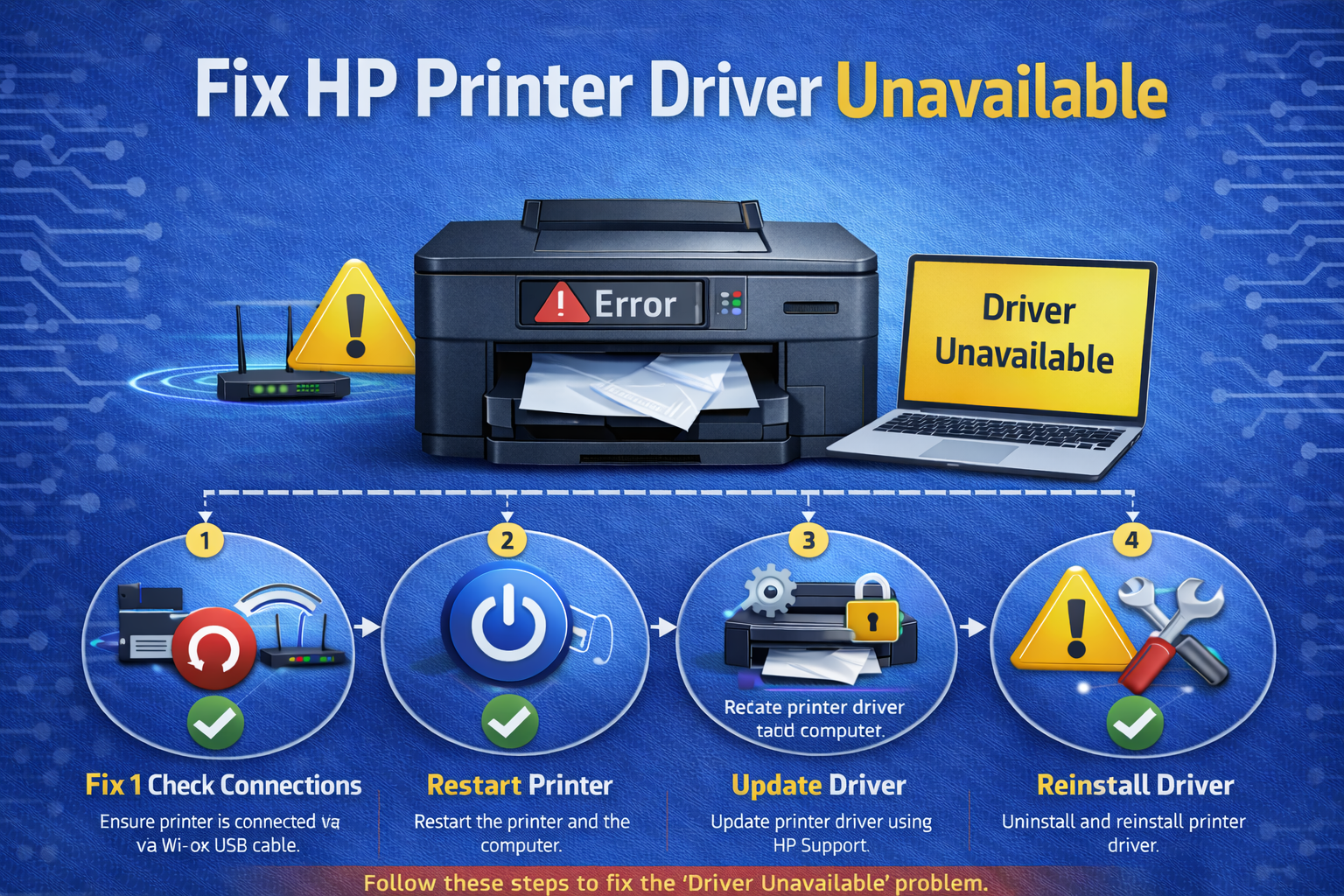
HP printer driver unavailable is a frustrating error that stops your computer from talking to the printer. Documents won't print, and you may see "Driver Unavailable" on screen. The good news: this is usually easy to fix.
Many folks run into this after a Windows update or when reconnecting their printer. Often the driver is simply outdated or corrupted. In most cases, you can resolve the issue in under 5 minutes without calling tech support.
Below you'll find the fastest way to get your HP printer back online. For other printer headaches, check our printer troubleshooting guide.
Try This First (Fixes Most Driver Issues)
- Restart printer and computer
- Update printer driver via Device Manager
- Remove and re-add printer in Settings
- Check for pending Windows updates
This resolves most "driver unavailable" errors in under 5 minutes.
⏱ Most users fix this issue in under 5 minutes.
📋 Quick Navigation
Why Does This Driver Error Appear?
The "driver unavailable" message means your operating system can't find or use the correct printer software. Common triggers include:
- Outdated or incompatible printer software
- Corrupted driver files after a system crash
- Windows update conflicts
- Printer incorrectly installed
- Network communication glitches (for wireless printers)
If your printer also shows offline symptoms, see our dedicated offline printer guide.
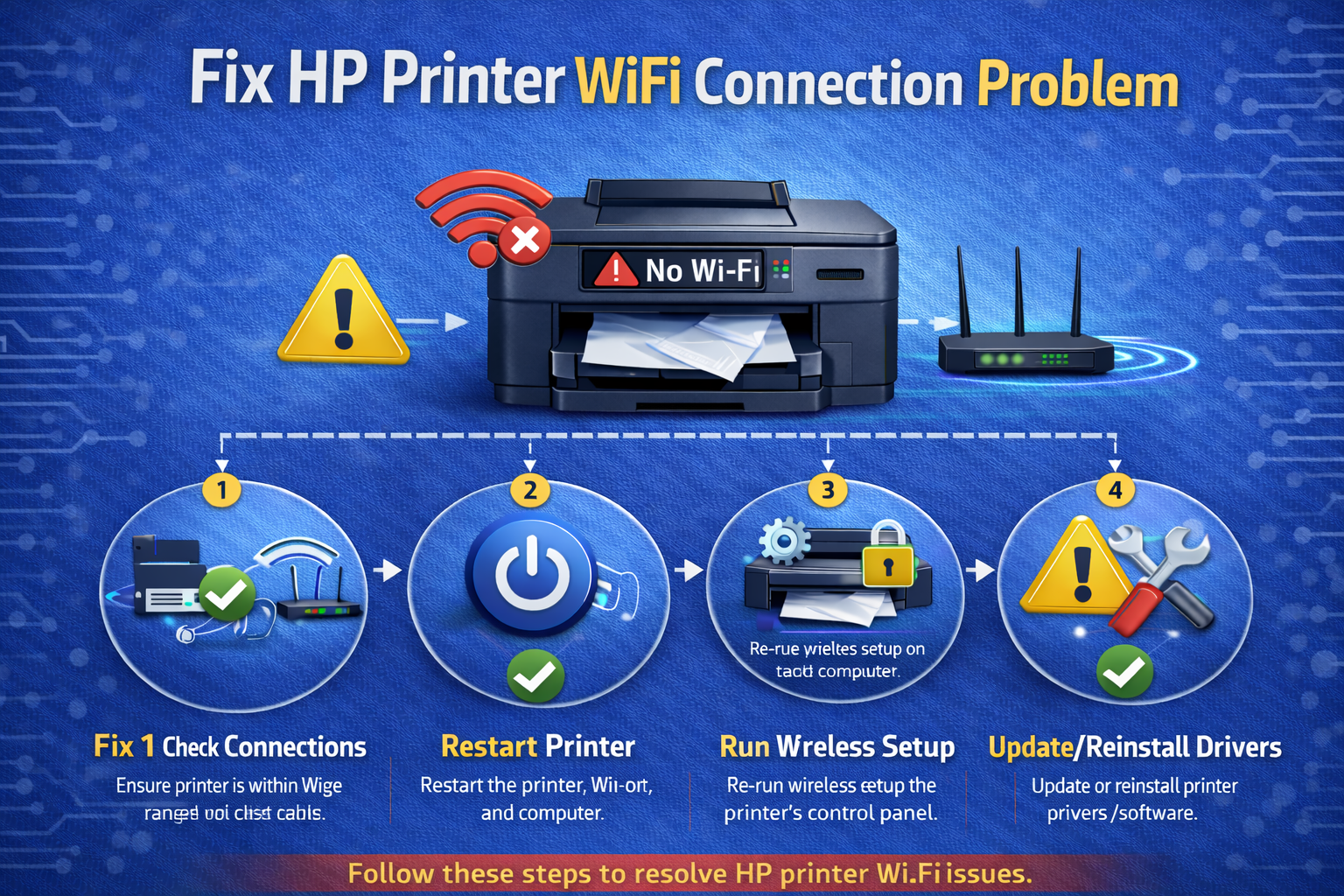
Quick Diagnostic Flow
Fix 1: Restart Printer and Computer
Temporary system glitches often cause driver errors. A full restart clears them.
- Turn off the printer.
- Restart your computer.
- After the computer fully boots, turn the printer back on.
- Try printing a test page.
Fix 2: Update Printer Driver (Most Effective)
An outdated driver is the #1 reason for this error. Updating it takes less than a minute.
- Open Device Manager (right-click Start button).
- Expand Printers or Print queues.
- Right-click your HP printer → Update driver.
- Select Search automatically for drivers.
If Windows finds a newer version, install it. Then restart your PC and test.
Fix 3: Reinstall the Printer Driver
If updating doesn't help, a clean reinstall often fixes corruption.
- Go to Control Panel → Devices and Printers.
- Right-click your HP printer → Remove device.
- Restart your computer.
- Add the printer again via Settings → Bluetooth & devices → Printers & scanners.
Windows will automatically download the correct driver. This also resolves many HP printer not printing issues.
Fix 4: Restart the Print Spooler Service
The print spooler manages all print jobs. Restarting it can instantly fix driver availability.
- Press Windows + R, type
services.msc→ OK. - Find Print Spooler in the list.
- Right-click → Restart.
After the spooler restarts, try printing again. (Reference: Microsoft print documentation)
Fix 5: Remove and Reinstall the Printer
This resets the printer's entire configuration and often fixes stubborn driver errors.
- Open Settings → Bluetooth & devices → Printers & scanners.
- Click your HP printer → Remove.
- Restart your PC.
- Click Add device and re-add your printer.
Fix 6: Check for Windows Updates
Sometimes Windows updates introduce driver conflicts. Installing the latest updates often resolves them.
- Open Settings → Windows Update.
- Click Check for updates.
- Install any pending updates and restart.
Fix 7: Verify Network Connection (Wireless Printers)
For WiFi printers, a poor connection can make the driver appear unavailable.
- Make sure printer is connected to the same WiFi network as your computer.
- Restart your router.
- Reconnect the printer using the HP Smart app or printer's wireless setup.
If you need more detailed help, see WiFi connection fixes.
Advanced: Reset Your Printer
If none of the above works, a full power reset can clear deep-seated errors.
- Turn off the printer and unplug the power cord.
- Wait 60 seconds.
- Plug back in and turn on.
- After the printer restarts, check if the driver error is gone.
Detailed Troubleshooting Steps
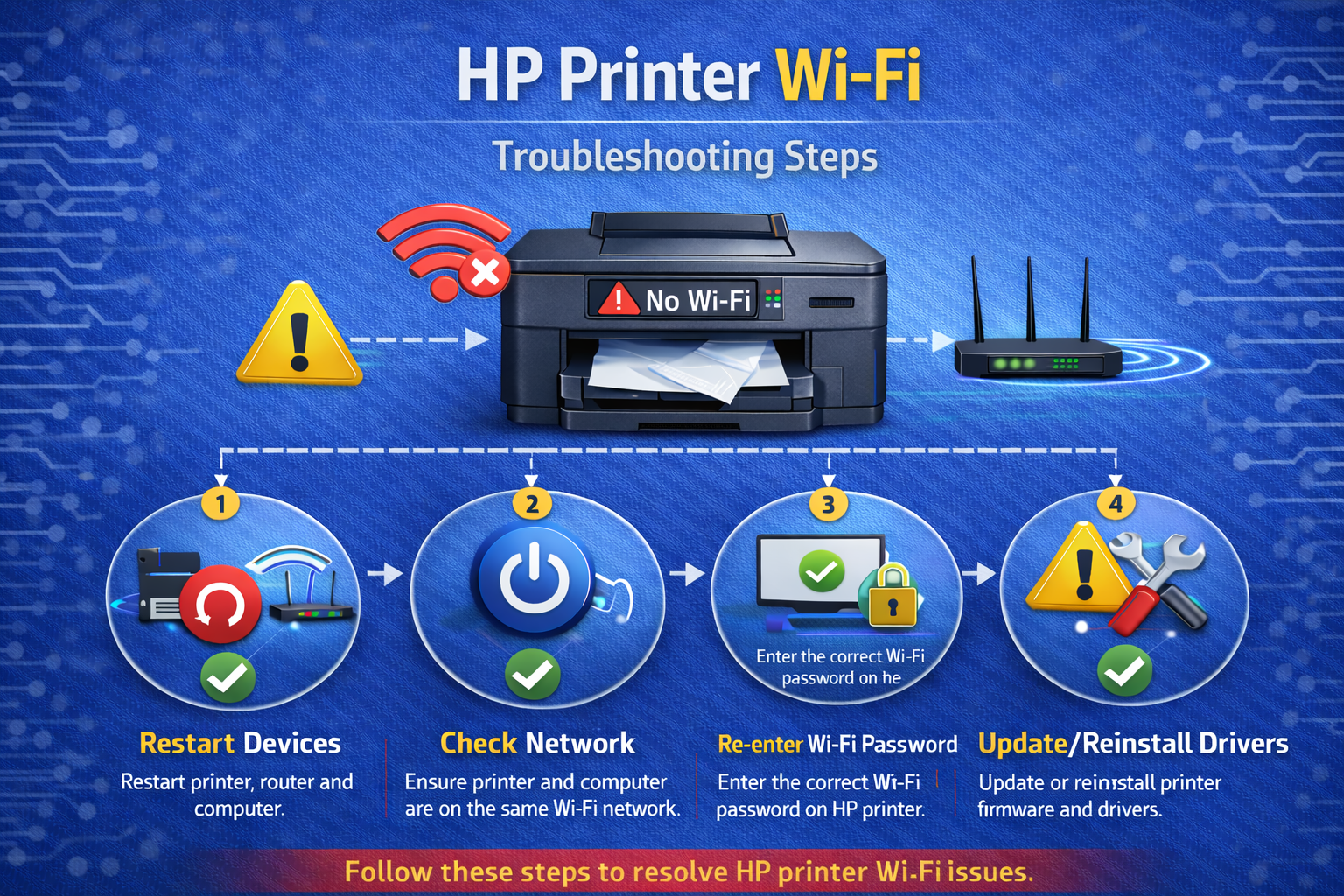
Quick Fix Summary
- Driver unavailable → Update driver via Device Manager
- Driver missing → Reinstall printer (remove + add)
- Driver error after update → Roll back driver or run Windows Update
- Still not working → Reset printer and restart spooler
Still Seeing “Driver Unavailable”?
If the error continues after these steps, the issue may be related to driver conflicts or system compatibility. You can continue troubleshooting above or explore related fixes for offline, connection, and printing issues.
Official HP resources: HP support center
Related Printer Troubleshooting Guides
Frequently Asked Questions
The HP printer driver unavailable error is frustrating, but the solutions above resolve it for the vast majority of users. Start with the quick fix block, then work through the steps. In almost every case, your printer will be working again in minutes.